


Buy BIAS Pedal Distortion, get a free gift with purchase:
The Tone that Re-Invented Rock ‘n’ Roll
All about Fuzz, Overdrive, and Distortion.
For over half a century, distortion has defined the sound of Rock and roll. From the first fuzz stompboxes to the latest high performance distortion racks – that unmistakable sound of an overdriven electric guitar has conquered millions generation after generation. With this heritage in mind, BIAS Pedal reinvents distortion in a whole new way, changing the way musicians perform, record, and create on the guitar.
Complete BIAS Suite
BIAS Pedal uses the same logic of our revolutionary BIAS Amp designer, allowing you to virtually create your own distortion pedal from circuit guts to the transistors, tone match any distortion pedal. And you can create, share and download custom distortion pedals on ToneCloud.
BIAS Pedal is seamlessly integrated with BIAS FX, now you can add your custom distortion to your BIAS FX pedalboard.
Tone Match Any Distortion Pedal
Dive into your dream tone instantly by matching your favorite distortion, overdrive, fuzz, and boost pedals.
BIAS Pedal Tone Match technology analyzes and compares your currently selected pedal and the sound of a target tube pedal. It then executes the tonal compensation and enhancements needed to make your pedal’s sound accurately match that of the target pedal.
Design Your Dream P
For the first time ever, you can easily design and modify your custom distortion pedal at the most detailed level – from the input volume, to the distortion stages and gain control, to pre and post EQ and much, much more. You can even change the pedal’s virtual guts as you would do with a real distortion pedal: modify your boost pedal’s germanium transistor or tweak your fuzz pedal’s silicon transistor.
BIAS Pedal’s extremely intuitive operation uses the world’s most famous distortion pedal circuit layouts, so you can create your custom distortion pedal in a breeze.
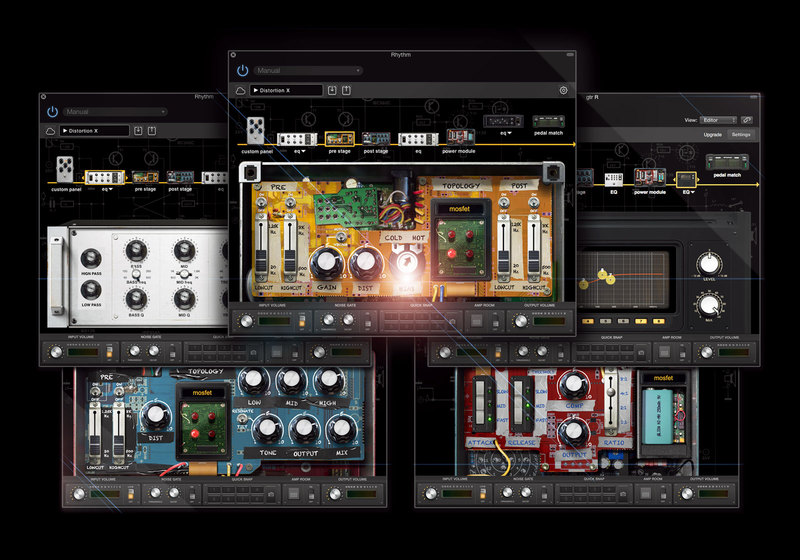
BIAS FX Integration
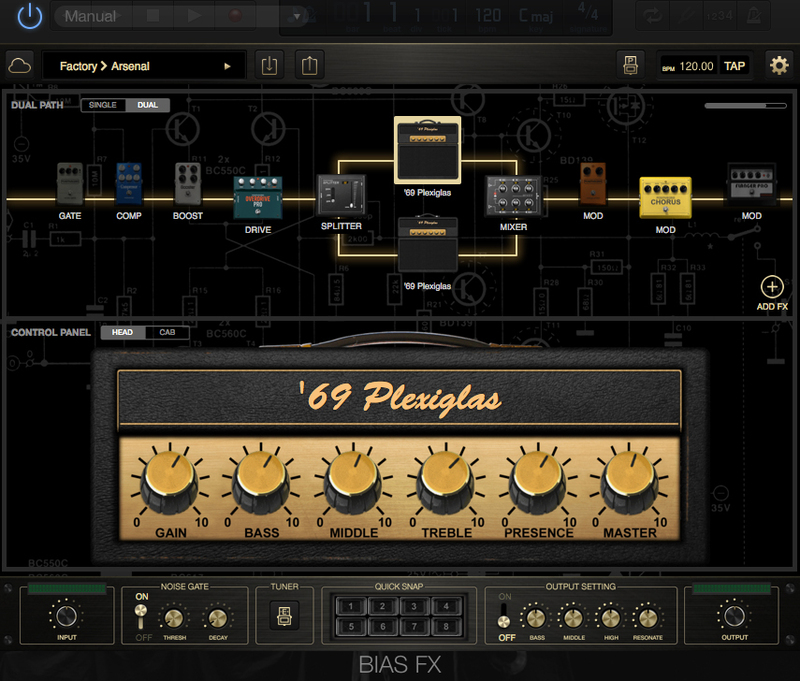
BIAS Pedal seamlessly integrates with your BIAS FX mobile and desktop effects arsenals.
It automatically imports your custom design and Tone Match distortion pedals into BIAS FX dual signal chains and dual-amp tone – a dream rig that will make your music creation reach new heights.
Features:
- The most accurate, thorough and versatile pedal modeling software available in the world.
- 17 component-level emulation of distortion, overdrive, fuzz and booster pedals included with the introductory release.
- Tone Match Technology captures any distortion pedals or recorded track and creates a matched model.
- Coming soon: Share and download Tone Matched pedals created by signature artists and your fellow guitarists on ToneCloud.
- Fully customizable clipping stage, output stage, power stage, parametric EQ, graphic EQ and studio EQ.
- Seamless integration with BIAS FX,create and add custom distortion to dual signal path.
- Customize the look and feel of your own pedal; change the name, box, panel and knobs.
- Works the way guitarists think: tweak gain and overdrive, swap out tubes and germanium parts, and shape the tone with different equalizers
- Included noise gate and amp room simulator
- Create a virtually unlimited number of custom pedals
- Quick preset facility recalls each of your 8 favorite settings in turn with just one mouse click
System Requirements
Mac OS X:
- OS X 10.9 or later
- Format: Audio Units, VST, RTAS, AAX Native
- 4GB of RAM minimal, 8GB or more recommended
- 700MB free disk space
- BIAS Pedal requires A DAW software (Digital Audio Workstation) to host, however it now has a Standalone version too.
- Internet connection is required to activate license and access Tone Cloud, BIAS Pedal doesn’t support offline activation at this moment. It can run under offline mode after activation and disable Tone Cloud
Windows:
- Windows 7 (SP1) or Windows 8
- Format: VST, RTAS, AAX Native
- 4GB of RAM minimal, 8GB or more recommended
- 1.5GHz Dual core processor minimal, 2.0GHz Dual core or more recommended
- 250MB free disk space for per version (32 or 64 bits)
- BIAS Pedal requires A DAW software (Digital Audio Workstation) to host, however it now has a Standalone version too.
- Internet connection is required to activate license and access Tone Cloud, BIAS Pedal doesn’t support offline activation at this moment. It can run under offline mode after activation and disable Tone Cloud
Please Note: Internet connection is required to activate license and access Tone Cloud, BIAS Pedal doesn’t support offline activation at this moment. It can run under offline mode after activation and disable Tone Cloud
Ask.Audio
"BIAS Pedal is a tweaker’s dream."
Mac
Installation
1. Log into/create your Positive Grid User Account.
Installation Instructions
Mac:
1. Log into/create your Positive Grid User Account.
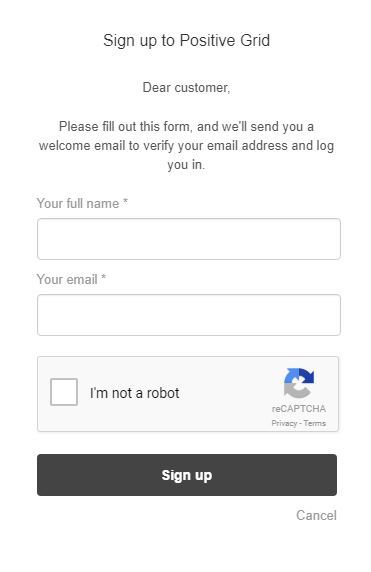
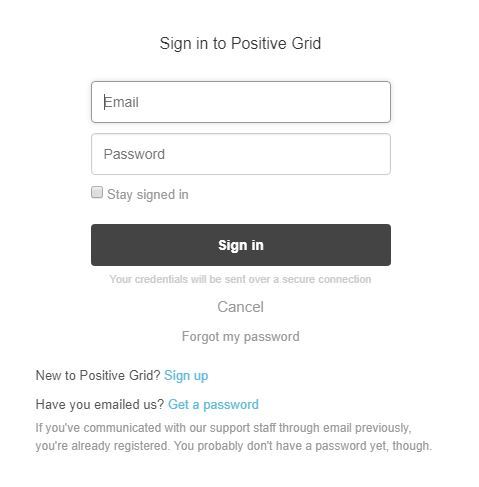
2. Copy and paste/manually enter the serial number from your User Account via Positive Grid's Redemption Area > click 'Redeem.'
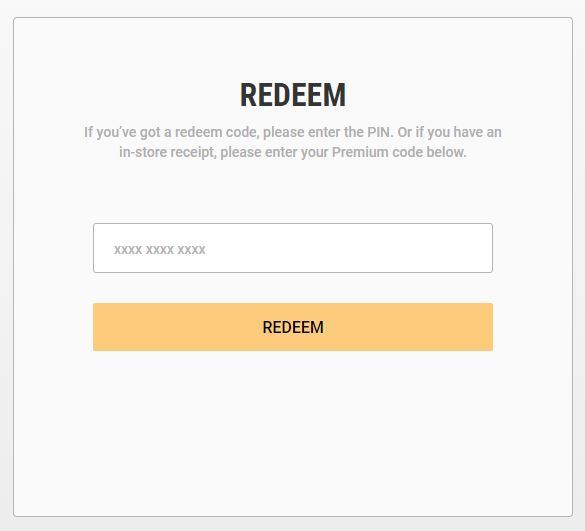
3. The download option will become available for your purchased product via the Positive Grid's download page. Scroll down the page to find your purchased product (Mac OS) installer, and click 'Download.'
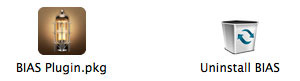
4. Once the download has concluded, double-click and open the .pkg file to run the installer.
Note: BIAS FX Desktop is used as the example.
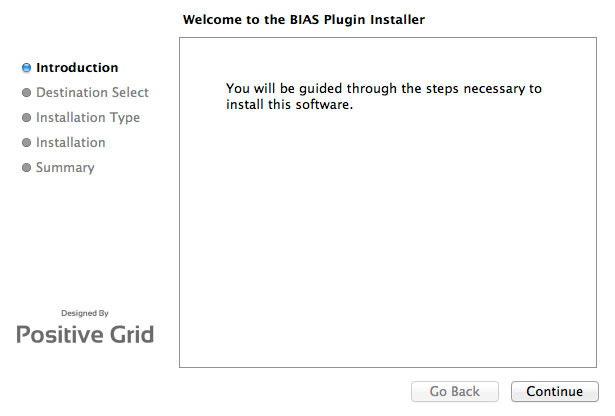
5. Click 'Continue.'
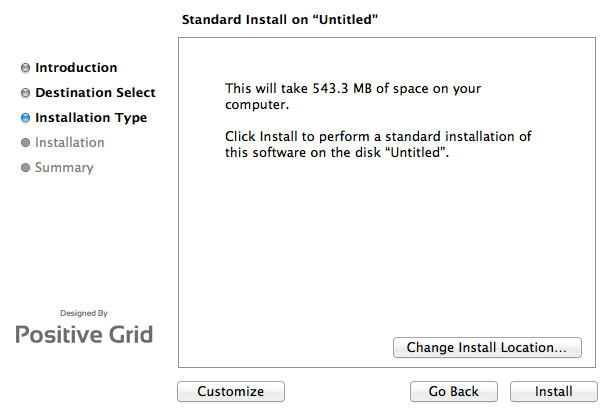
6. Confirm the computer folder/location in which to save the software to > click 'Install.'
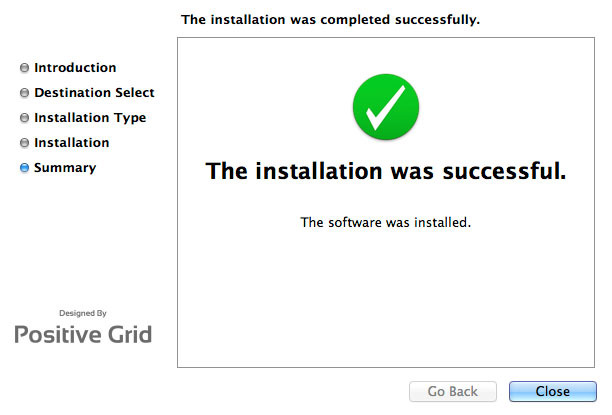
7. Once the installation has successfully completed, click 'Close.'
8. Restart your DAW and open the software.
Note: You may need to refresh/rescan your DAW's plug-in selection, in order to show the new installation.
Activation
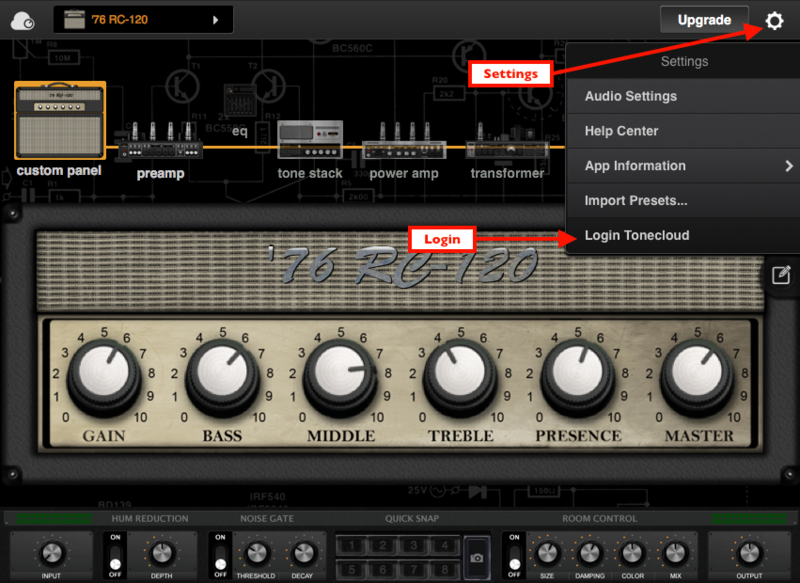
1. Open the software and click the settings icon on the upper right corner of the window. Then click "Login ToneCloud" in the drop-down menu to log in and activate the software.
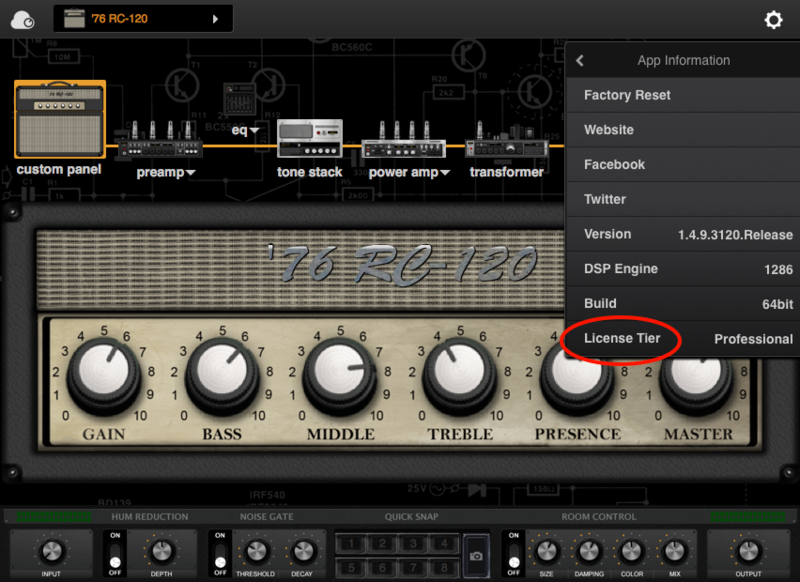
2. To check if the software has been activated, go to settings, App Information and make sure that it shows "Desktop" (for Standard license) or "Professional" (for Professional license) under License Tier.
Your software is now activated into full version mode, ready for use within your DAW
Experiencing Trouble Activating Your Software?
1. If you still can't log in after following the steps, something must went wrong. Please refer to this article for troubleshooting.
2. The licence will be tied with the account which you key in after the purchase process. If you log in with a different account, BIAS will turn into a demo version. Please make sure you are using the same account you signed up with for the purchase.
3. BIAS Desktop allows you to activate the full licence on 2 devices. Please make sure the quota is still enough. You can release the quota by uninstall the software completely from your devices.
4. Another common root cause is the firewall setting of your anti-virus software. If the version you are using is a Demo (disabled "save/save as", system message showing for upgrade) and is unable to activate to standard version. Please disable your anti-virus software temporarily then try again.
PC/Windows:
1. Log into/create your Positive Grid User Account.
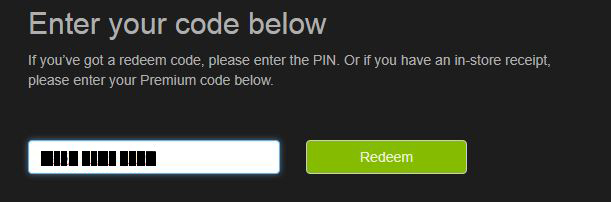
2. Copy and paste/manually enter the serial number from your User Account via Positive Grid's Redemption Area > click 'Redeem.'
3. The download option will become available for your purchased product via the Positive Grid's download page. Scroll down the page to find your purchased product (Windows 32-bit/64-bit)) installer, and click 'Download.'
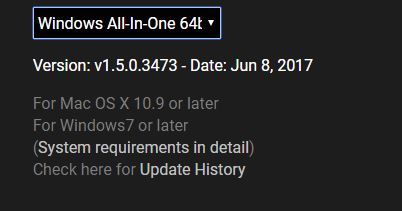
4. Once the download has concluded, double-click and open the .msi installer file to run the installer.
Note: BIAS FX Desktop is used as the example.
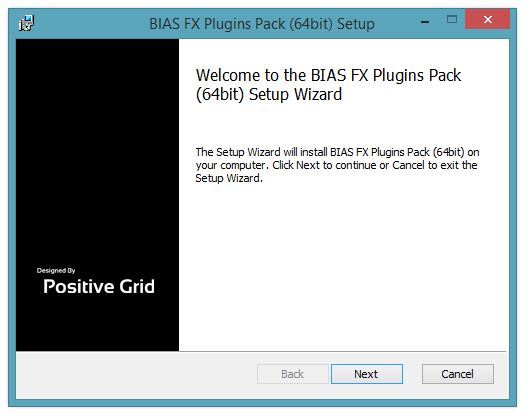
5. Choose and select a software folder in which to install the 64-bit format common files to > click 'Next.'
Note: 32-bit software formats need to be saved to - C:\Program Files (x86)\Common Files\PositiveGrid\
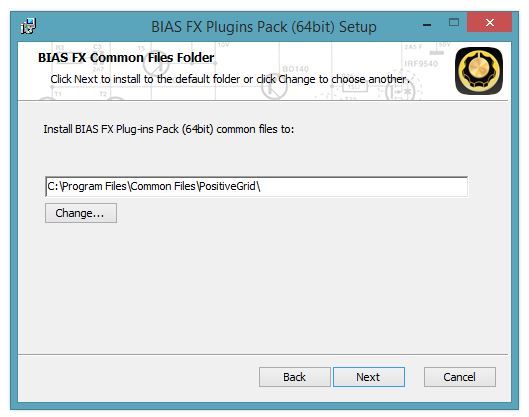
6. Choose and select a software folder in which to install the 64-bit format VST files to > click 'Next.'
Note: 32-bit software formats need to be saved to - C:\Program Files (x86)\VSTPlugins\
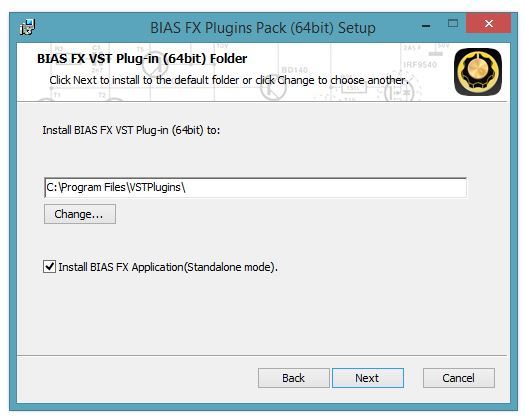
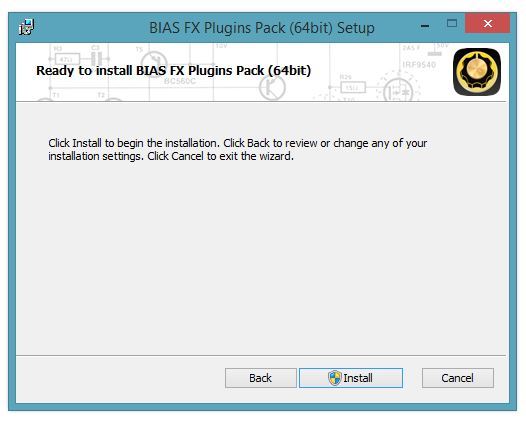
7. Review the installation and click 'Install.'
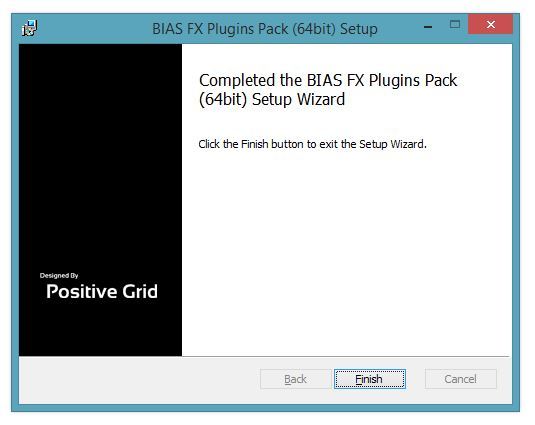
8. The installation of your software has successfully completed > click 'Finish.'
8. Restart your DAW and open the software.
Note: You may need to refresh/rescan your DAW's plug-in selection, in order to show the new installation.
Activation
1. Open the software and click the settings icon on the upper right corner of the window. Then click "Login ToneCloud" in the drop-down menu to log in and activate the software.
2. To check if the software has been activated, go to settings, App Information and make sure that it shows "Desktop" (for Standard license) or "Professional" (for Professional license) under License Tier.
Your software is now activated into full version mode, ready for use within your DAW
Experiencing Trouble Activating Your Software?
1. If you still can't log in after following the steps, something must went wrong. Please refer to this article for troubleshooting.
2. The licence will be tied with the account which you key in after the purchase process. If you log in with a different account, BIAS will turn into a demo version. Please make sure you are using the same account you signed up with for the purchase.
3. BIAS Desktop allows you to activate the full licence on 2 devices. Please make sure the quota is still enough. You can release the quota by uninstall the software completely from your devices.
4. Another common root cause is the firewall setting of your anti-virus software. If the version you are using is a Demo (disabled "save/save as", system message showing for upgrade) and is unable to activate to standard version. Please disable your anti-virus software temporarily then try again.
2. Copy and paste/manually enter the serial number from your User Account via Positive Grid's Redemption Area > click 'Redeem.'
3. The download option will become available for your purchased product via the Positive Grid's download page. Scroll down the page to find your purchased product (Mac OS) installer, and click 'Download.'
4. Once the download has concluded, double-click and open the .pkg file to run the installer.
Note: BIAS FX Desktop is used as the example.
5. Click 'Continue.'
6. Confirm the computer folder/location in which to save the software to > click 'Install.'
7. Once the installation has successfully completed, click 'Close.'
8. Restart your DAW and open the software.
Note: You may need to refresh/rescan your DAW's plug-in selection, in order to show the new installation.
Activation
1. Open the software and click the settings icon on the upper right corner of the window. Then click "Login ToneCloud" in the drop-down menu to log in and activate the software.
2. To check if the software has been activated, go to settings, App Information and make sure that it shows "Desktop" (for Standard license) or "Professional" (for Professional license) under License Tier.
Your software is now activated into full version mode, ready for use within your DAW
Experiencing Trouble Activating Your Software?
1. If you still can't log in after following the steps, something must went wrong. Please refer to this article for troubleshooting.
2. The licence will be tied with the account which you key in after the purchase process. If you log in with a different account, BIAS will turn into a demo version. Please make sure you are using the same account you signed up with for the purchase.
3. BIAS Desktop allows you to activate the full licence on 2 devices. Please make sure the quota is still enough. You can release the quota by uninstall the software completely from your devices.
4. Another common root cause is the firewall setting of your anti-virus software. If the version you are using is a Demo (disabled "save/save as", system message showing for upgrade) and is unable to activate to standard version. Please disable your anti-virus software temporarily then try again.
PC
Installation
1. Log into/create your Positive Grid User Account.
2. Copy and paste/manually enter the serial number from your User Account via Positive Grid's Redemption Area > click 'Redeem.'
3. The download option will become available for your purchased product via the Positive Grid's download page. Scroll down the page to find your purchased product (Windows 32-bit/64-bit)) installer, and click 'Download.'
4. Once the download has concluded, double-click and open the .msi installer file to run the installer.
Note: BIAS FX Desktop is used as the example.
5. Choose and select a software folder in which to install the 64-bit format common files to > click 'Next.'
Note: 32-bit software formats need to be saved to - C:\Program Files (x86)\Common Files\PositiveGrid\
6. Choose and select a software folder in which to install the 64-bit format VST files to > click 'Next.'
Note: 32-bit software formats need to be saved to - C:\Program Files (x86)\VSTPlugins\
7. Review the installation and click 'Install.'
8. The installation of your software has successfully completed > click 'Finish.'
8. Restart your DAW and open the software.
Note: You may need to refresh/rescan your DAW's plug-in selection, in order to show the new installation.
Activation
1. Open the software and click the settings icon on the upper right corner of the window. Then click "Login ToneCloud" in the drop-down menu to log in and activate the software.
2. To check if the software has been activated, go to settings, App Information and make sure that it shows "Desktop" (for Standard license) or "Professional" (for Professional license) under License Tier.
Your software is now activated into full version mode, ready for use within your DAW
Experiencing Trouble Activating Your Software?
1. If you still can't log in after following the steps, something must went wrong. Please refer to this article for troubleshooting.
2. The licence will be tied with the account which you key in after the purchase process. If you log in with a different account, BIAS will turn into a demo version. Please make sure you are using the same account you signed up with for the purchase.
3. BIAS Desktop allows you to activate the full licence on 2 devices. Please make sure the quota is still enough. You can release the quota by uninstall the software completely from your devices.
4. Another common root cause is the firewall setting of your anti-virus software. If the version you are using is a Demo (disabled "save/save as", system message showing for upgrade) and is unable to activate to standard version. Please disable your anti-virus software temporarily then try again.


