


 Log In
Free gifts available with your purchase
Product information
UM225 / UM226
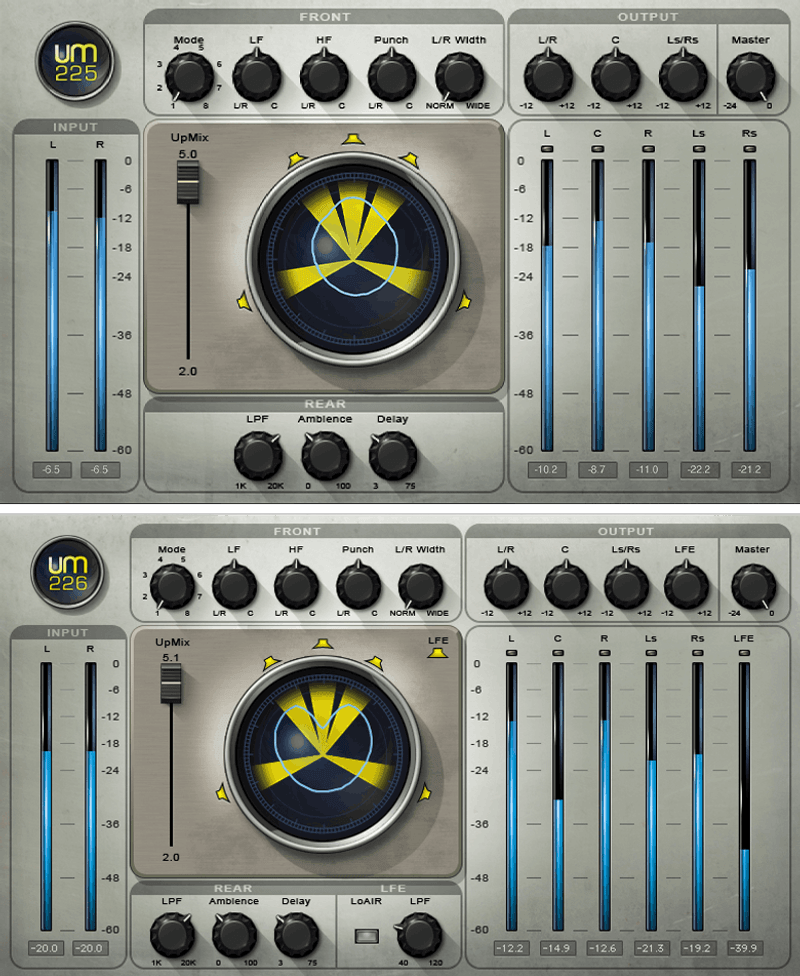
Convert Stereo Music, Videos and Films to Surround
With surround and immersive becoming increasingly important, upmixing from legacy stereo audio to these formats is essential. The UM225/UM226 plugins convert stereo audio to 5.0 or 5.1 surround simply and effectively—whether upmixing an entire film or TV show, or just the music.
The UM upmixers cover your conversion needs with 8 modes to spread various types of program material intelligently to L/R and L/R surround speakers, and surround-stage fine-tuning controls.
Features
- Two upmixing components: UM225 for 5.0, and UM226 for 5.1
- 8 modes spread sound intelligently to L/R and L/R surround speakers
- Ambience controls create smaller or larger surround stages
- Punch controls spread transients optimally between L/R and center
- UM226 LoAir adds octave-lower harmonic for “rumble” and FX
- UM226 includes 4th-order, low frequency filter for LFE speaker
- Intuitively displays the spread of energy in the surround field
- Output trims for L/R, Center, L/R surround, and (UM-226) LFE stages
- For stereo-only remixing, widen the image, control lows and punch
- Upmix global control for balancing the stereo/surround mixes
System Requirements
Mac
- macOS Monterey 12, Ventura 13, Sonoma 14, Sequoia 15
- VST / AU / AAX
PC
- Windows 10+
- VST / AAX
Installation Instructions














