Log In
.jpg)
Free gifts available with your purchase
Stereo Enhancement & Low Frequency Control
Exceptional enhancement
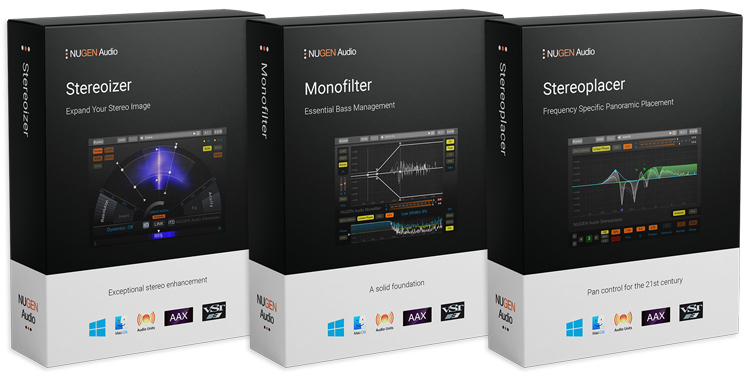
Rapid, intuitive access to the big sound professionals strive for. Take complete control of your stereo panorama with three powerful tools offering incredible flexibility in a highly accessible and configurable combination.
With these award-winning plug-ins you can naturally widen or reduce the stereo image, focus and define low frequencies, and move specific captured spectra within the stereo soundfield. All three plug-ins are highly mono-compatible, using unique algorithms that maintain the original character of the source audio without introducing strange phase, reverb or delay related artefacts.
Solid performance
Reliable, full-frequency stereo enhancement, correction and bass management.
- Artifact-free expansion
- Highly mono compatible
- Retain original character
- Fix low frequency power
- Sharper bass
- Stereo image reconstruction
- Dynamic visual feedback
- Frequency banded effect
Included in the bundle:
Stereoizer
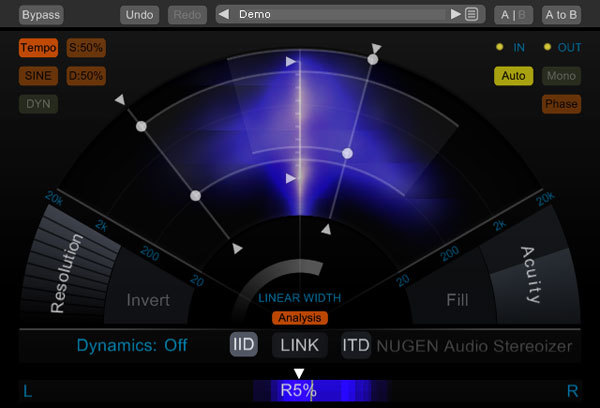
Powerful stereo enhancement
Stereoizer is a stereo widening and enhancement plug-in with a clear difference - your mix will still sound great in mono. Add natural sounding width and depth to any recording, mono or stereo, leaving the character of the source intact – or go super wide – the choice is yours.
Get a more coherent sound with polish and spatial balance without adding artificial reverb, chorusing or delay. Total mono compatibility with no unwanted artifacts.
Learn more about Stereoizer.
Monofilter
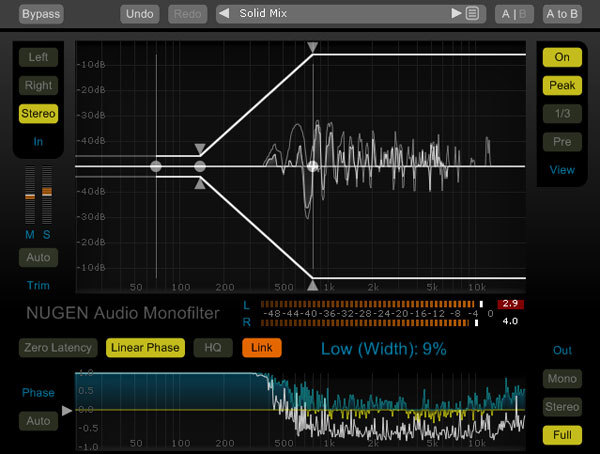
Essential bass management
Use Monofilter to grab hold of the bass and root it solidly within your mix to create a solid foundation. Sending low frequencies wide can muddy the bass, resulting in a weak, unfocused low end. Adding stereo FX or using multiple mic set-ups in the studio can introduce phase inconsistencies leading to ‘weak’, ‘hollow’ or ‘flat’ sounds. Now you can sharpen, define, align and anchor your bass for the tightest mix.
Quickly anchor the power, and retain the essential character and perceived spatial characteristics of the original sound. Align and balance low frequencies with minimum effort, for a louder and better defined mix. Improve performance on systems with separate low-frequency handling, such as club PAs, live rigs, HiFi, and 2.1 gaming systems. Monofilter anchors your bass with ease.
Learn more about Monofilter.
Stereoplacer
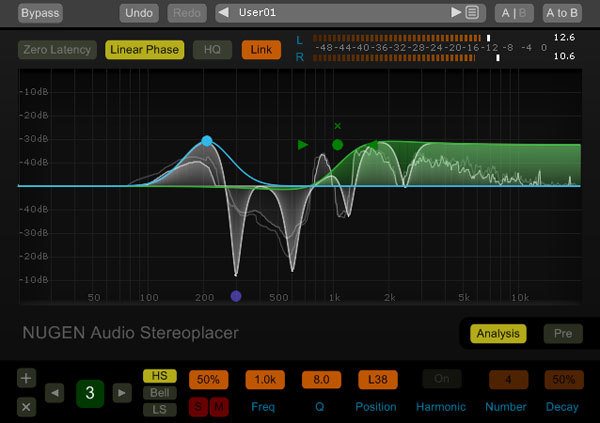
21st century pan control
Stereoplacer is a plug-in with precise stereo-positioning control that takes you beyond the traditional mix setup. Focus in on the frequencies you want to move using the solo controls and then tweak, fix or align them in the stereo panorama without affecting any other regions - all with total mono compatibility. Reposition complex audio, reconstruct a mono image, or correct poor recording - mix with confidence.
Fine-tune and get dynamic visual feedback with advanced parametric balancing controls. Just choose the position you want and let Stereoplacer take care of the rest.
Learn more about Stereoplacer.
System Requirements
Available formats
We support AAX, VST, AU and AudioSuite in both 64-bit and 32-bit versions. RTAS is also available as 32-bit only.
Minimum System Requirements
- Mac OSX 10.7.x, 512 MB RAM
- Windows XP or above, 512 MB RAM
Peter McCabe
Mixer, Producer (Kiss, Puff Daddy, Focus@Will).
"What stands out about Monofilter is the design of its graphical user interface - which makes bass work much more intuitive and interactive."
Ian Schreier
Grammy-nominated, 20-year industry veteran Ian Schreier is the chief engineer and in-house producer/mixer at Manifold Recording.
"This superb collection of stereo field manipulation tools is a dream come true in any stage of the production process."