


 Log In

Free gifts available with your purchase
Product information
Cobalt Saphira
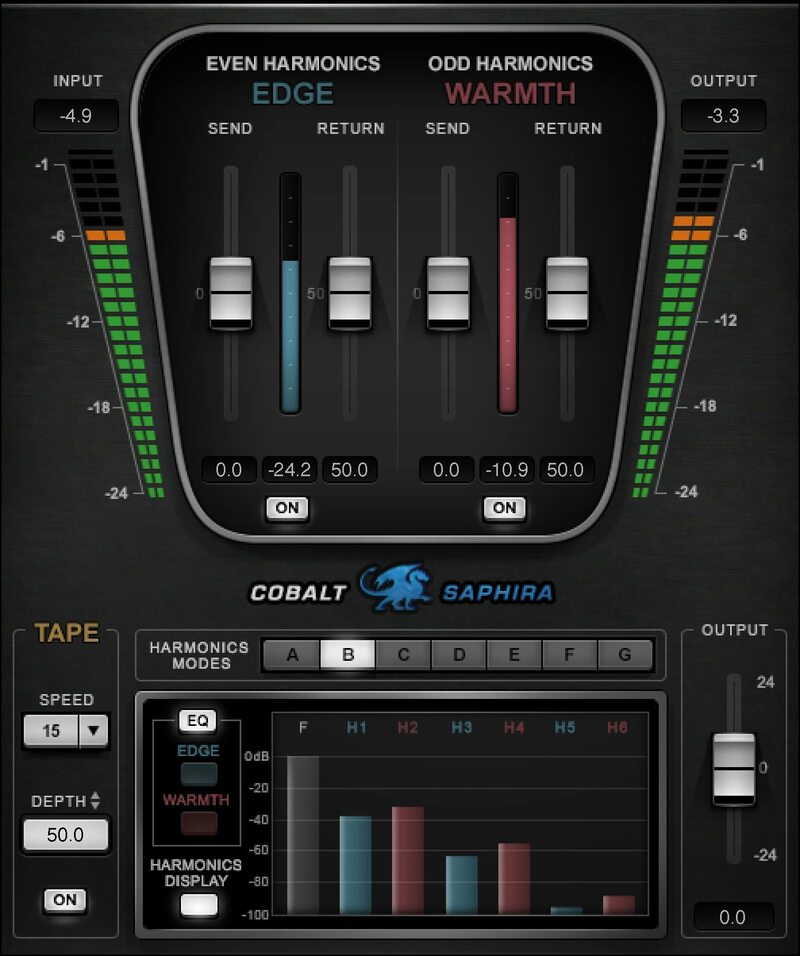
Surgically enhance odd and even harmonics
Analog sound’s most compelling component is subtle harmonic distortion. Cobalt Saphira’s harmonic synthesis engine allows you to add harmonics to your tracks with unprecedented control, by letting you separately introduce odd and even harmonics at specific frequencies, with optional tape sound processing.
Dial in even harmonics to add clarity and warmth, odd harmonics to add a rough edge, or both. Saphira’s harmonic enhancement gives a welcome analog touch to tracks, buses, and full mixes.
Features
- Enjoy complete control when adding analog harmonics
- Revitalize buses, mixes, and masters with specific harmonics
- Add sparkle, definition, and warmth with even harmonics
- Add edge, with saturation-like effects, by boosting odd harmonics
- Choose the frequencies where you want to synthesize harmonics
- Give drums edge and clarity, with odd and even harmonics
- Augment depth and liveliness with modeled tape processing
- Vastly more versatile than traditional “exciter” effects
- Over 50 presets for master bus, groups, and various instruments
- 7 modes alter the odd/even harmonic balance
System Requirements
Mac
- macOS Monterey 12, Ventura 13, Sonoma 14, Sequoia 15
- VST / AU / AAX
PC
- Windows 10+
- VST / AAX
Installation Instructions














