Buy Warm, get a free gift with purchase:
WARM - Analog Tube Saturation Emulator
Model the sound of vintage analog tube saturation
Nothing warms up a vocal track (or pretty much any track) like being recorded through a high-quality analog tube preamp. And thanks to Warm, you can add this tube warmth to every track in your mix.
Warm offers the choice of two different tube models. Velvet tube gives you the subtle effects of classic tube saturation. While most often used for adding warmth to vocals, it sounds just as good on acoustic guitar, horns, strings, synth pads, or pretty much anything. Crunch tube gives you the deep, warm distortion of an overdriven tube amplifier. You can crank it up for an “industrial” vocal sound, or as an effect on guitar, bass, or synths.
Warm’s unique Omni Tube feature lets you apply tube saturation to the entire signal, instead of just the transients, as is typically the case with a tube preamp.
And since Warm is extremely DSP efficient, you can use it on an almost unlimited number of tracks simultaneously. Once you start using Warm, you’re going to want it on almost everything.
System Requirements
Mac
AAX Native (64-bit only):
- Pro Tools 2018.1 or later.
- macOS 11 or later as required by your version of Pro Tools.
VST3 (64-bit only):
- A compatible VST host program that supports the VST3 format.
- macOS 11 or later as required by your host.
Audio Units (64-bit only):
- A compatible DAW that supports the AU format.
- macOS 11 or later as required by your host.
Windows
AAX Native (64-bit only):
- Pro Tools 2018.1 or later.
- Windows 10
VST3 (64-bit only):
- A compatible DAW that supports the VST3 format.
- Windows 10
Important Note
- No iLok dongle is required to run this software - only a FREE iLok account/Manager is required for authorisation.
Note: Before starting the installation, you are required to create a FREE iLok user ID and install the iLok License Manager.
Please take a look at this Help Centre Guide for more information.
Note: Auto-Tune Slice is used as an example.
Mac
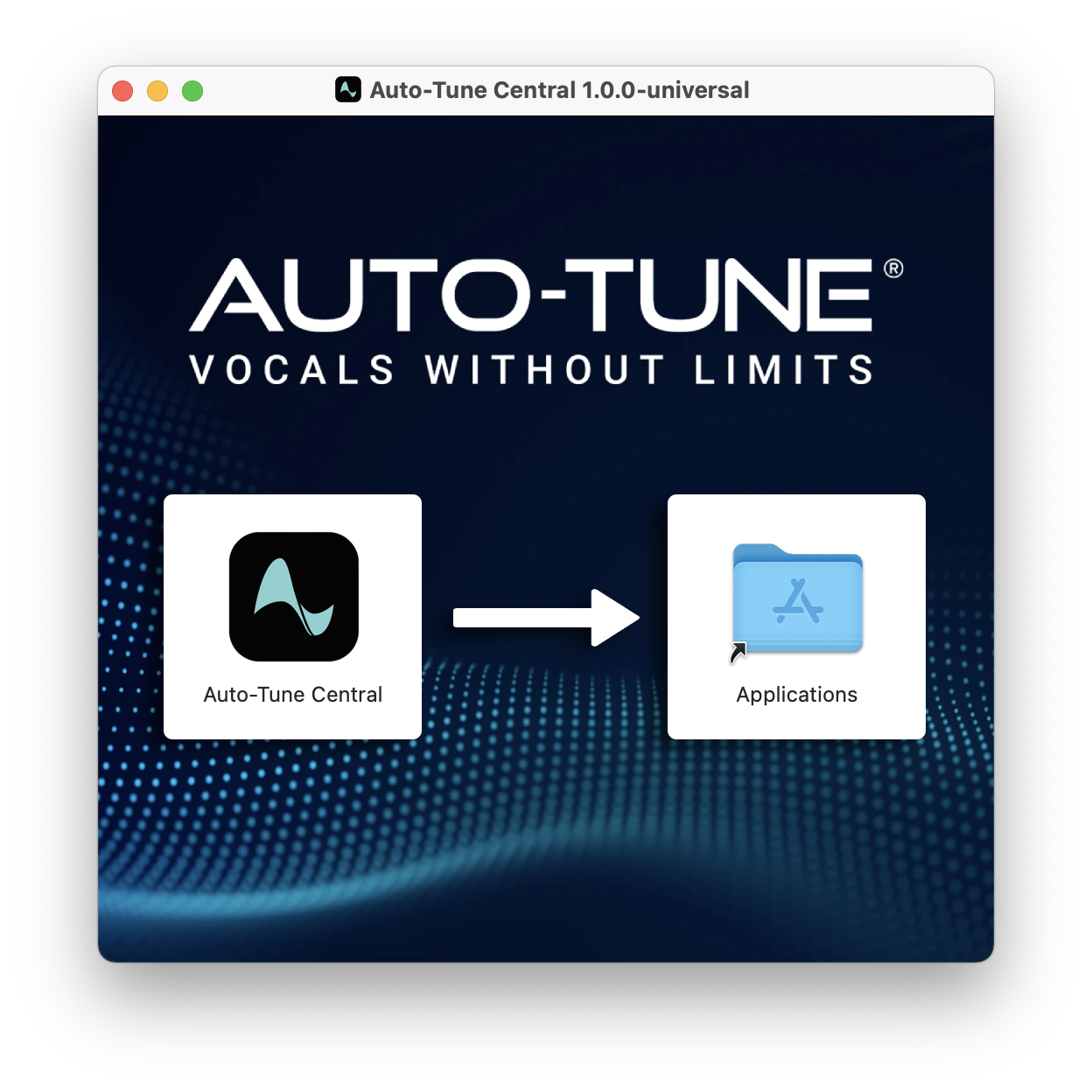
1. Download the .zip file from within your Plugin Boutique account and double-click it to extract the contents > Double-click the .dmg file to launch the installer > Drag Auto-Tune Central into your Applications folder > Auto-Tune Central will now automatically install.

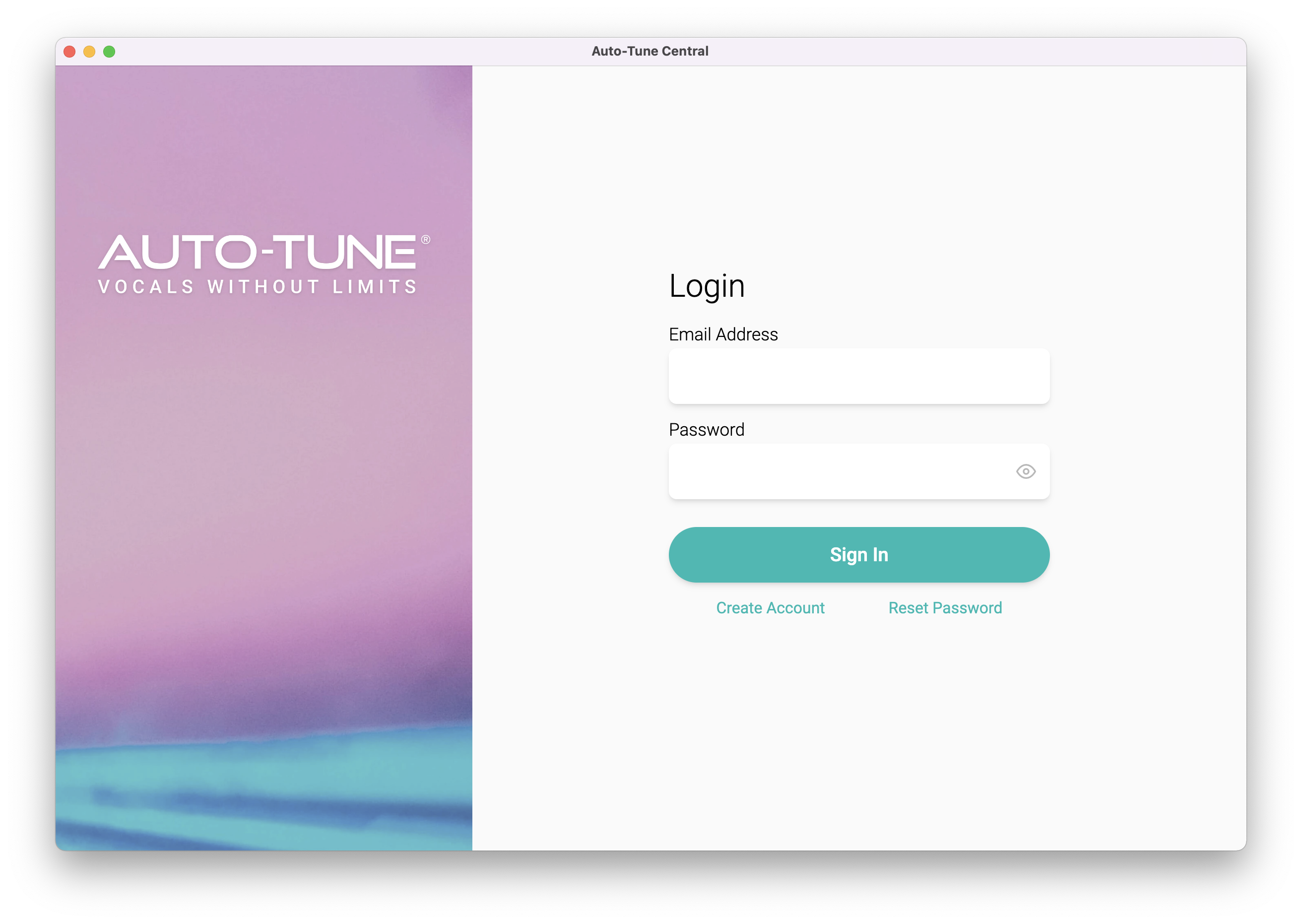
2. Launch Auto-Tune Central > Either create a new account by clicking 'Create Account' or if you already have an account, enter your Antares registered Email Address and Password > Click 'Sign In'.

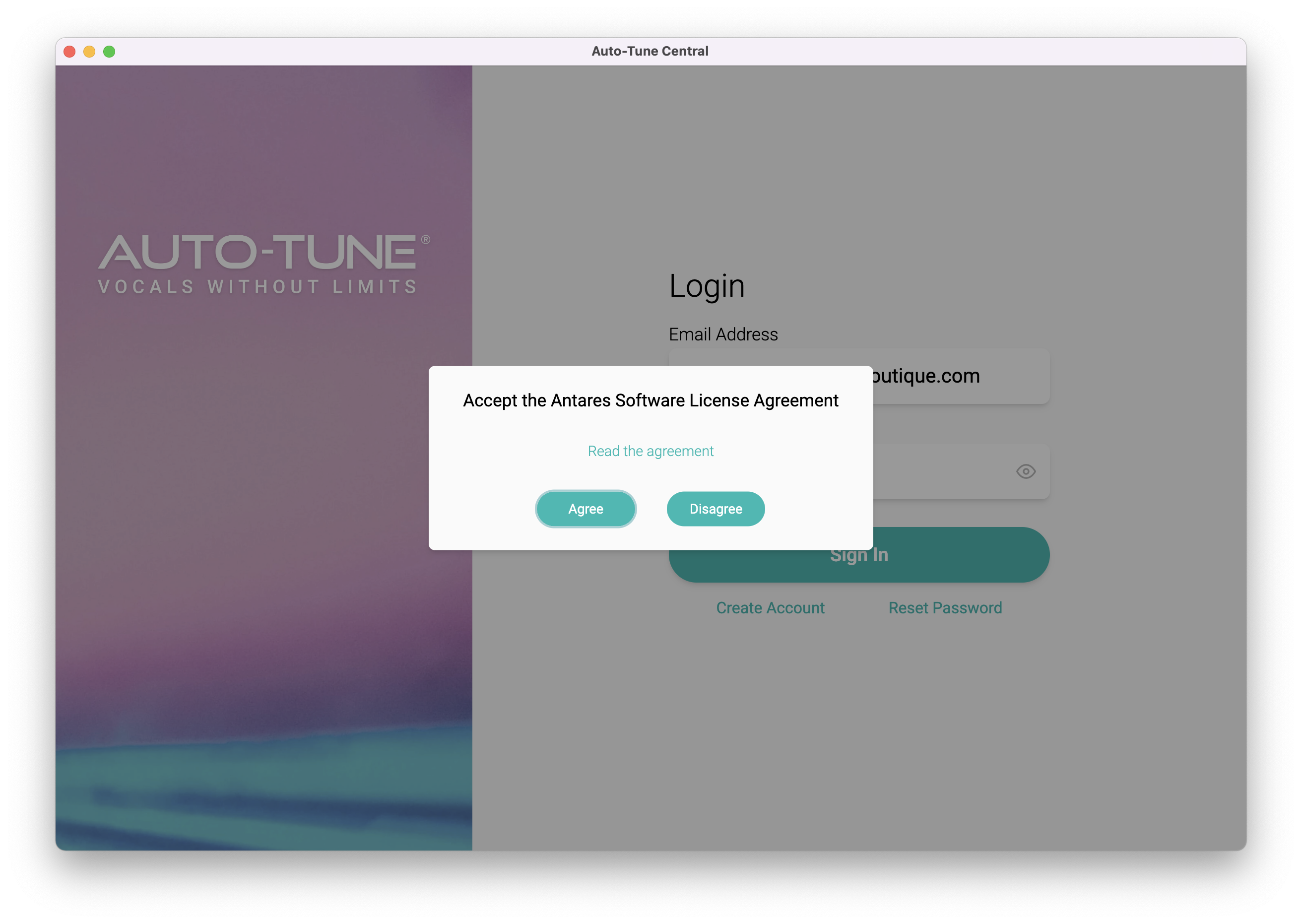
3. Click 'Agree'.

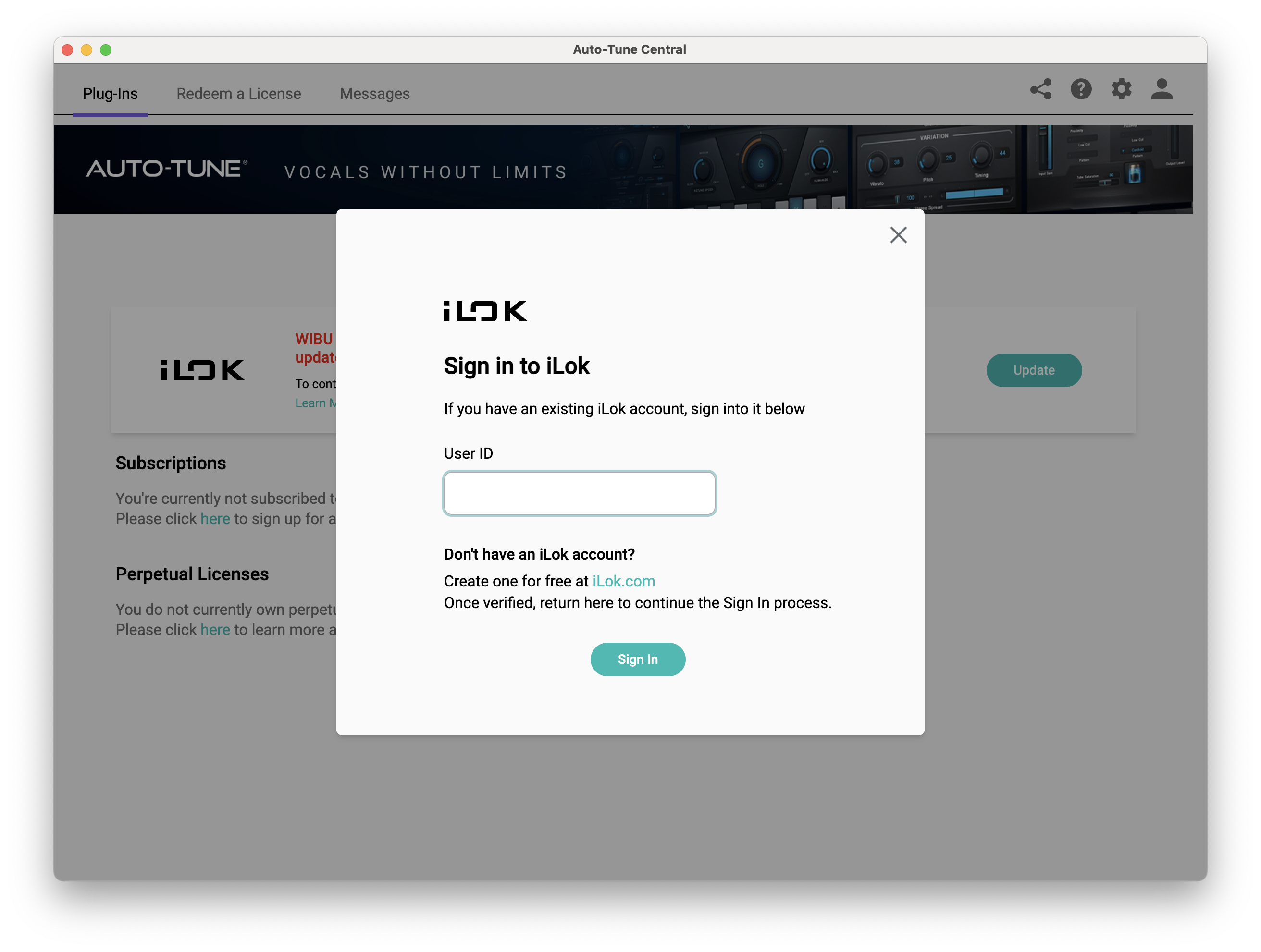
4. Enter your iLok User ID and click 'Sign In'.

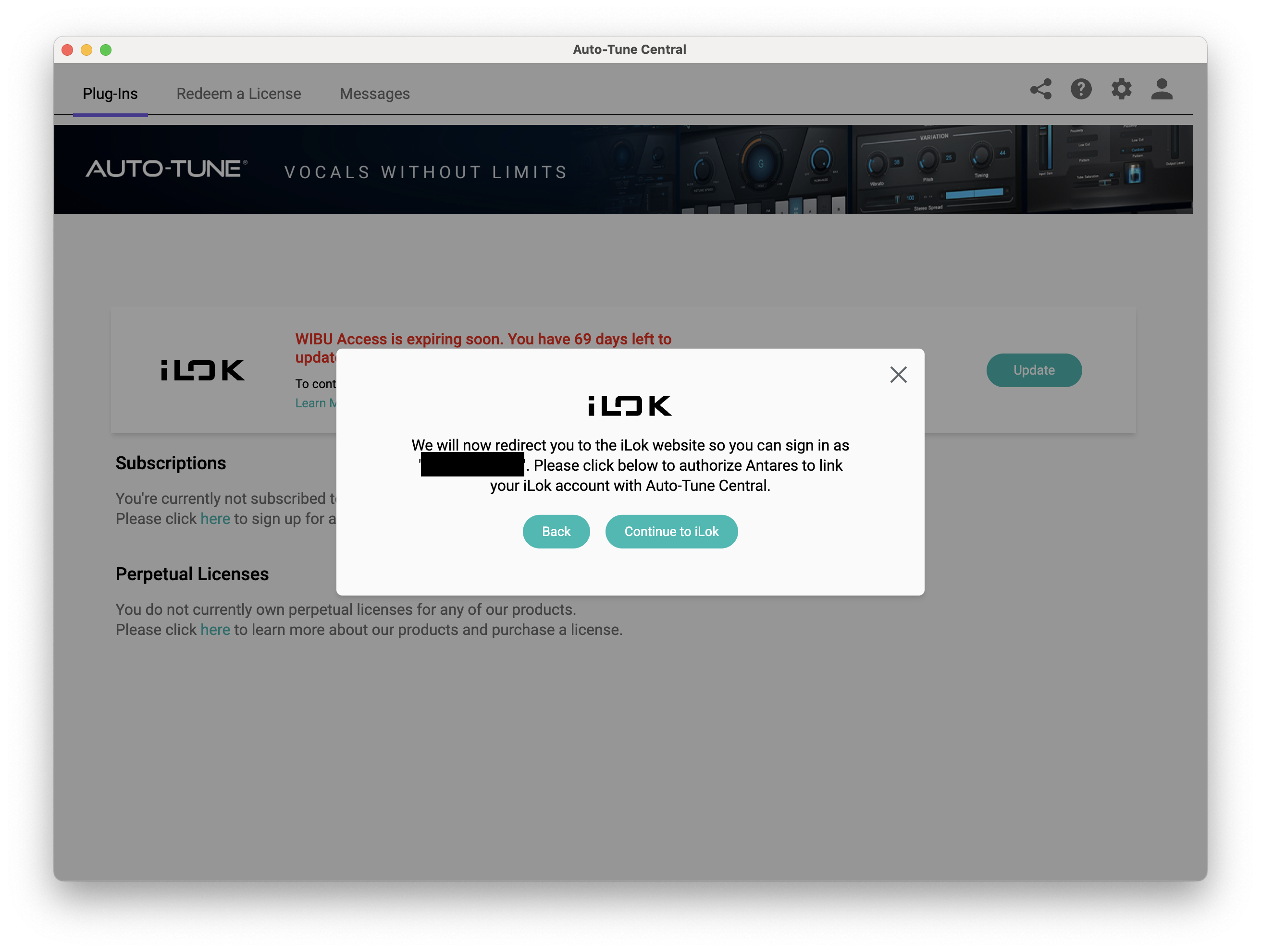
5. Click 'Continue to iLok'.

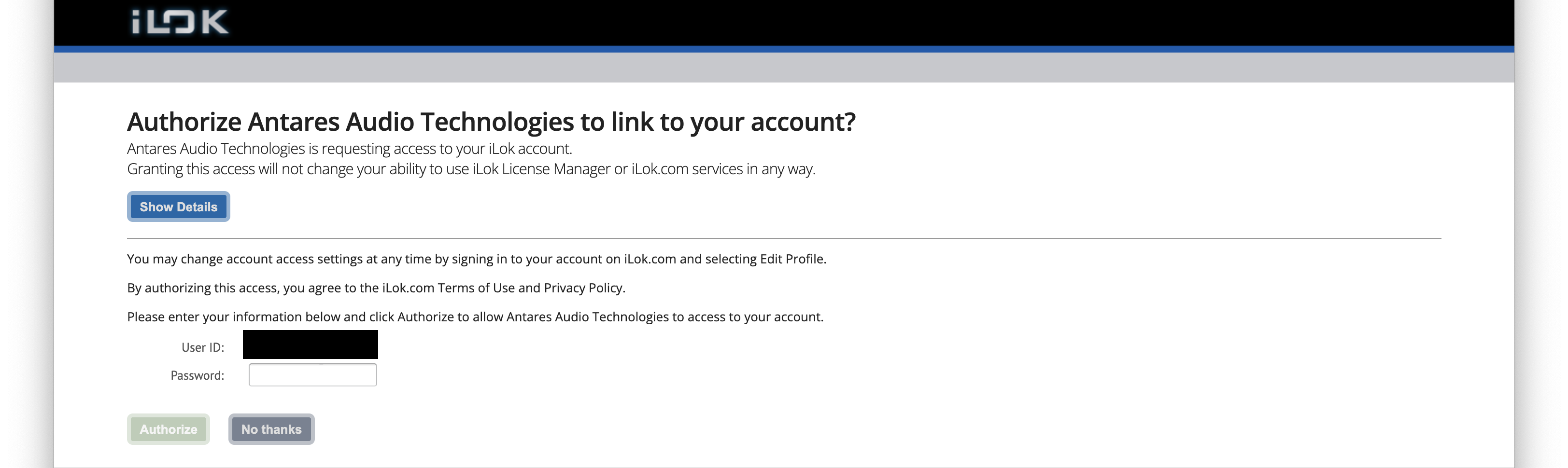
6. Enter your iLok User ID and Password then click 'Authorize'.

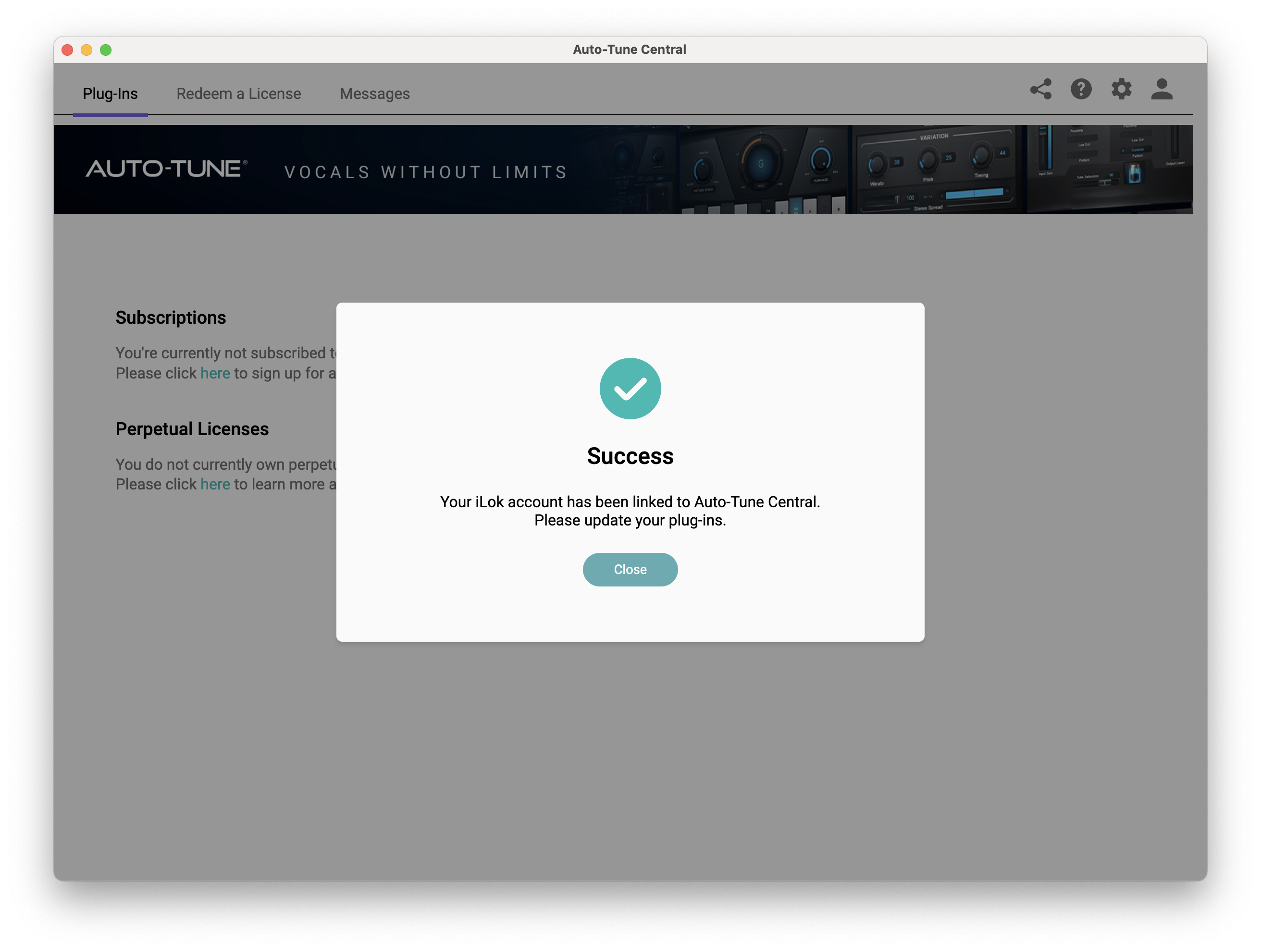
7. Your iLok account is now linked > Click 'Close'.

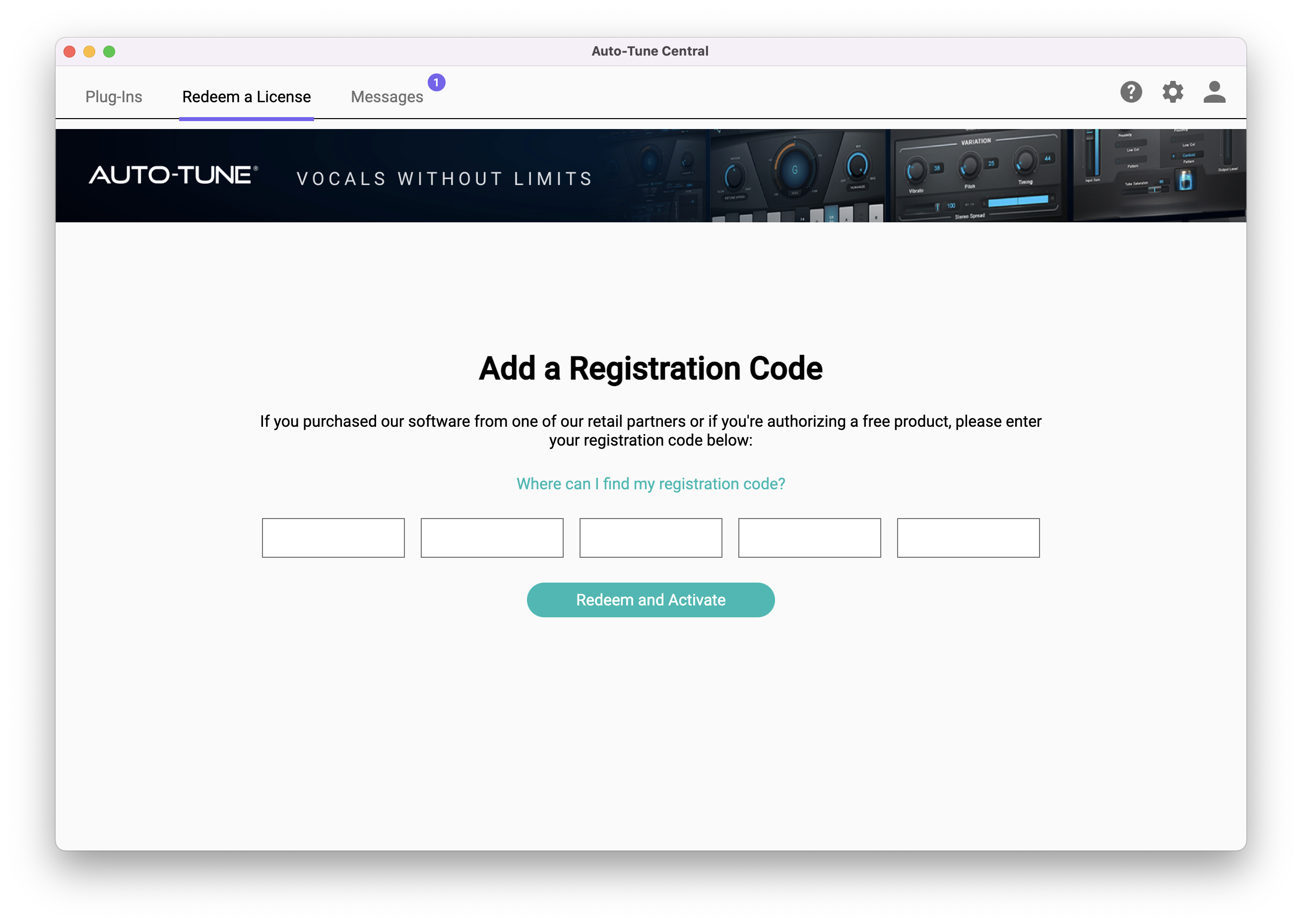
8. Click on the 'Redeem a License' tab > Enter the 25-digit Registration Code, found in the serial number section of your Plugin Boutique account > Click 'Redeem and Activate'.

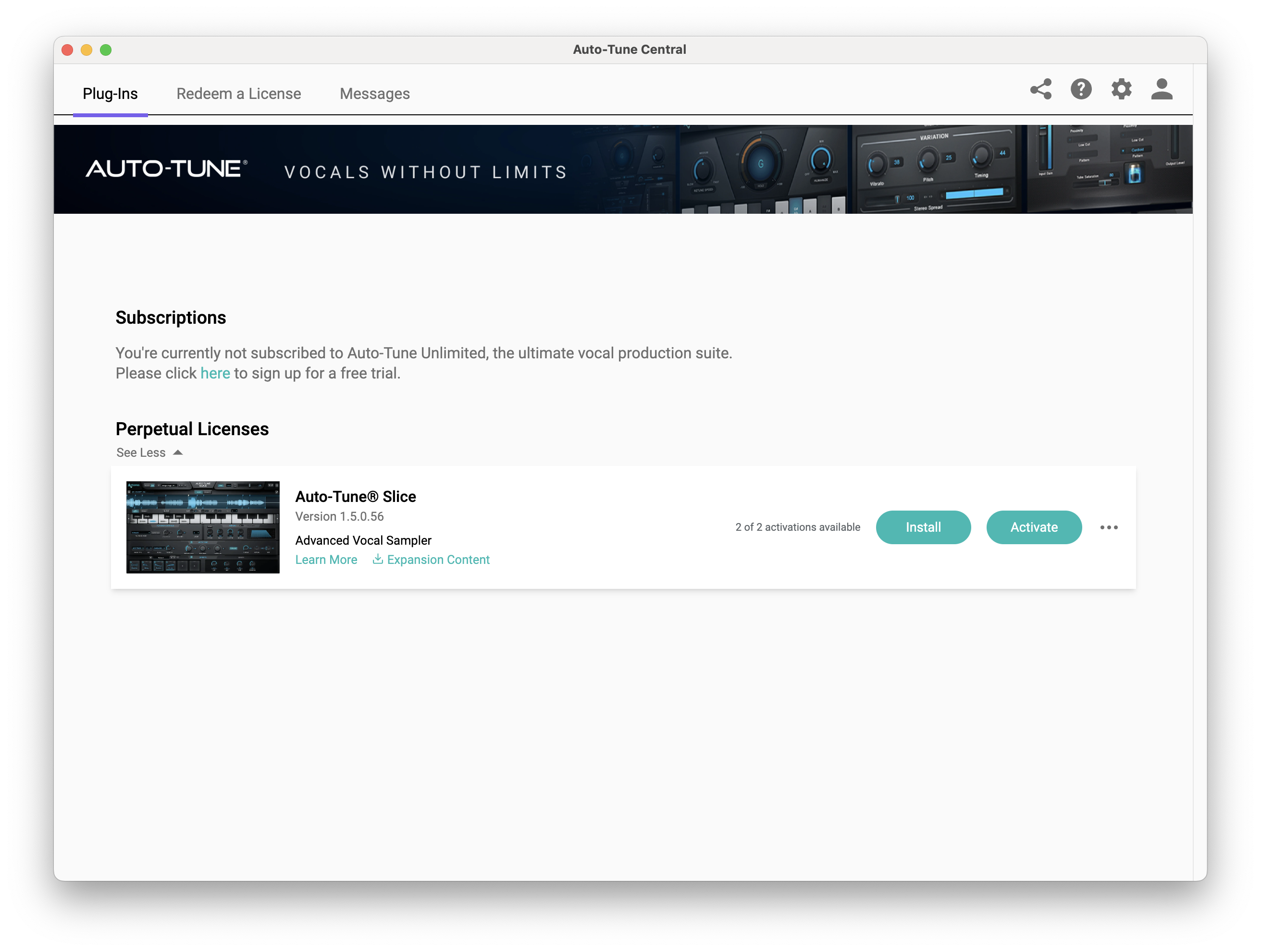
9. Navigate back to the 'Plug-Ins' tab > Click 'Install' to install your plugin.

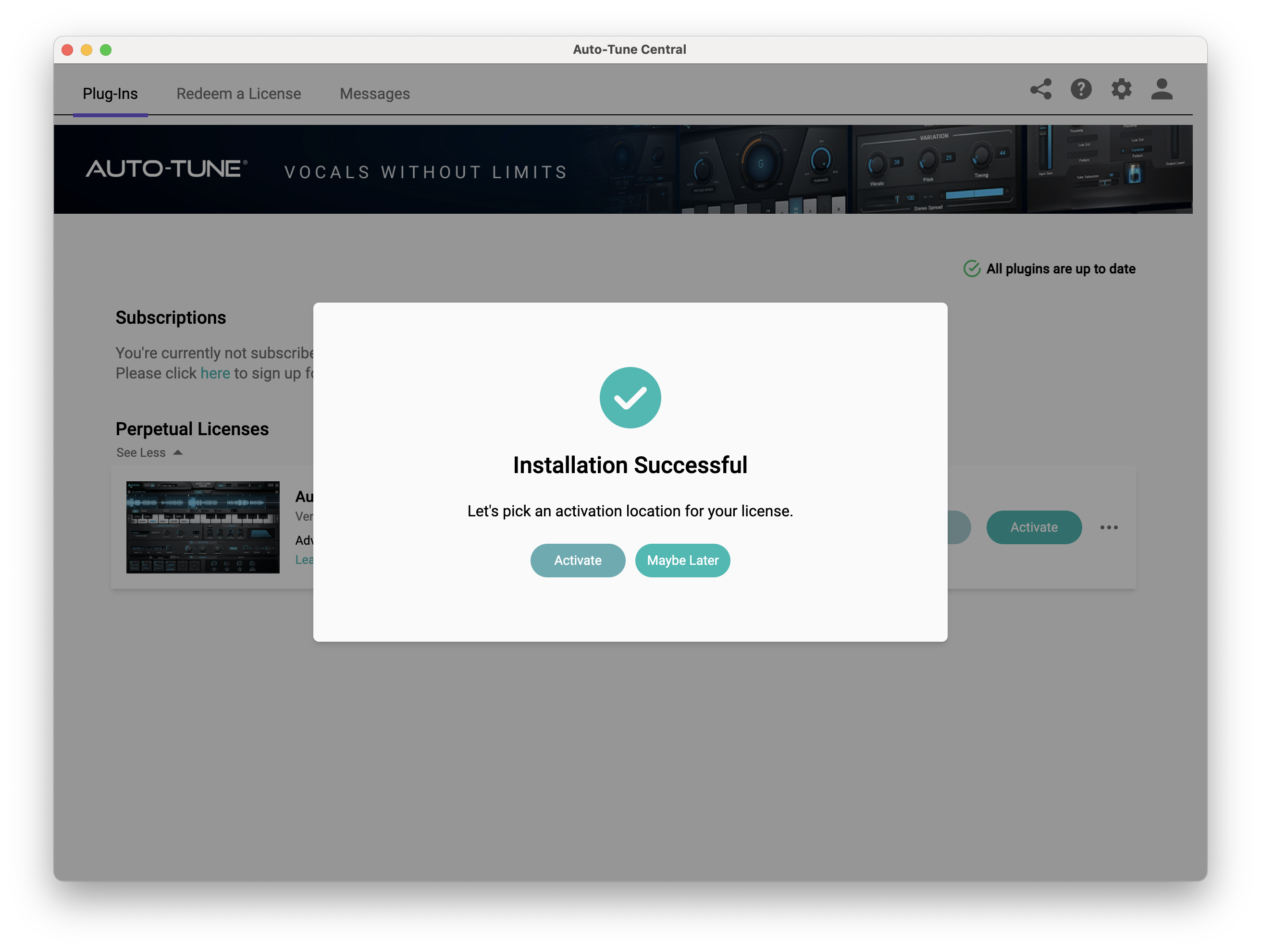
10. Click 'Activate'.

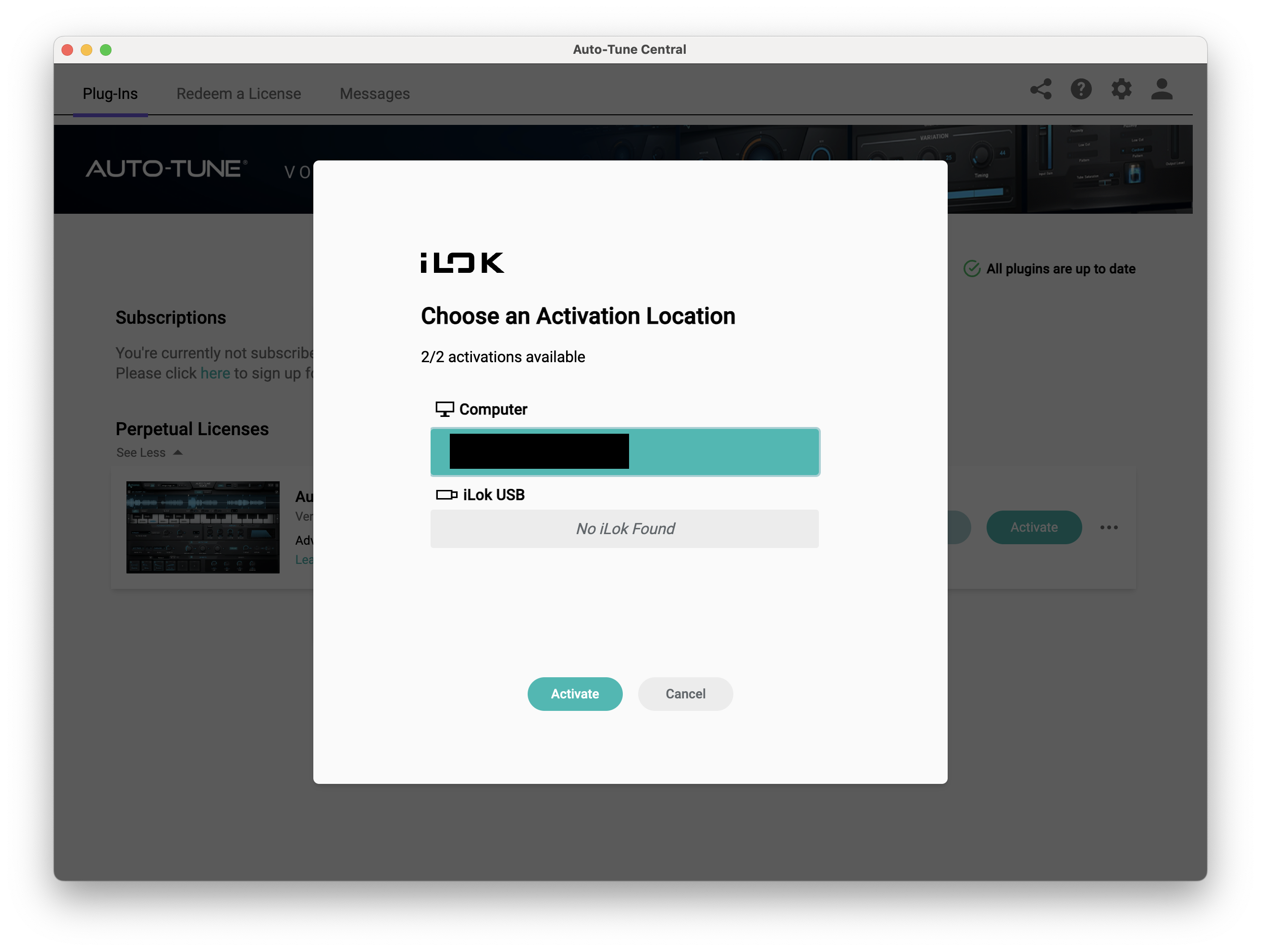
11. Select whether you want to activate the license to your Computer or iLok USB > Click 'Activate'.

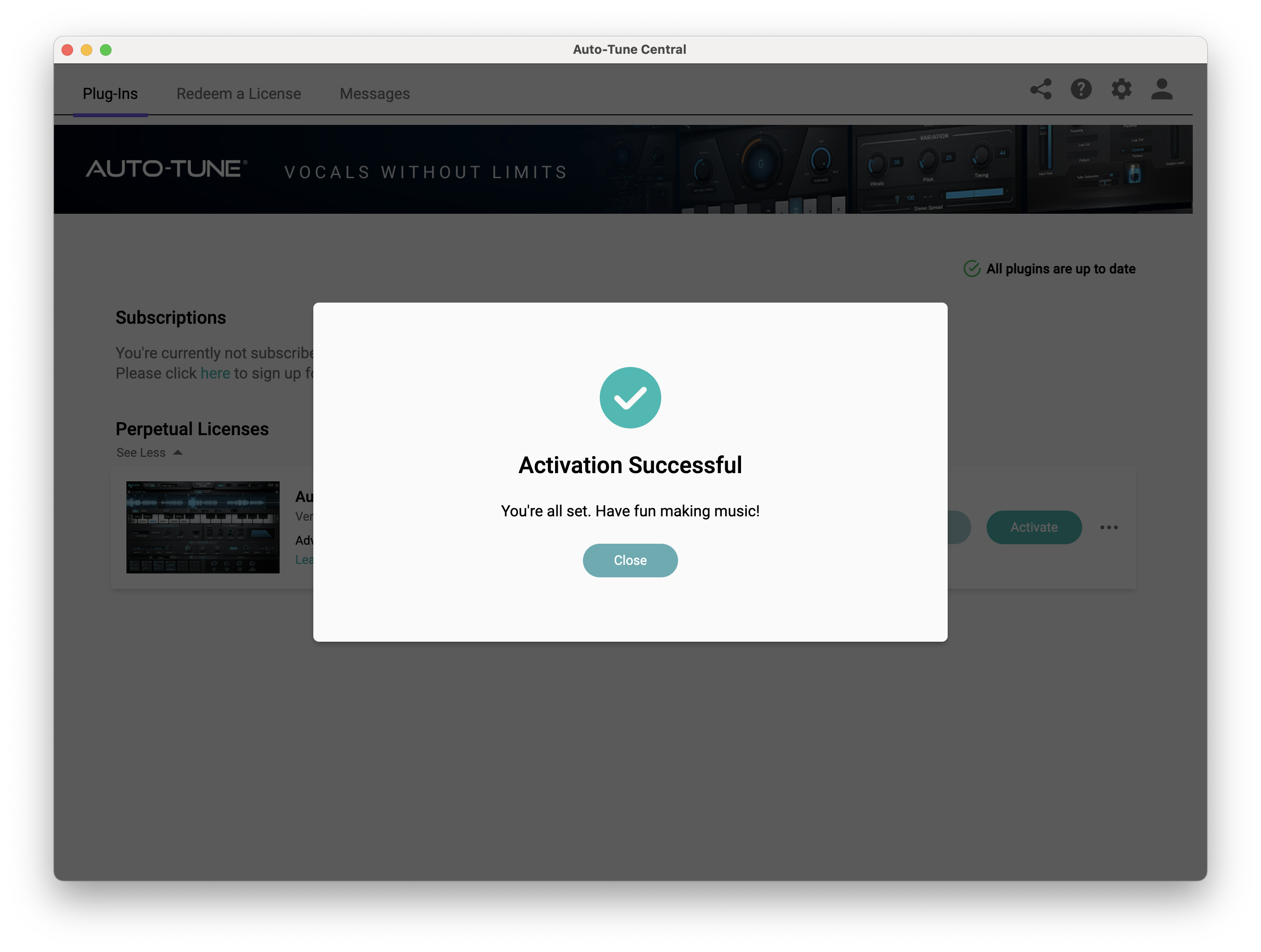
12. Click 'Close'.

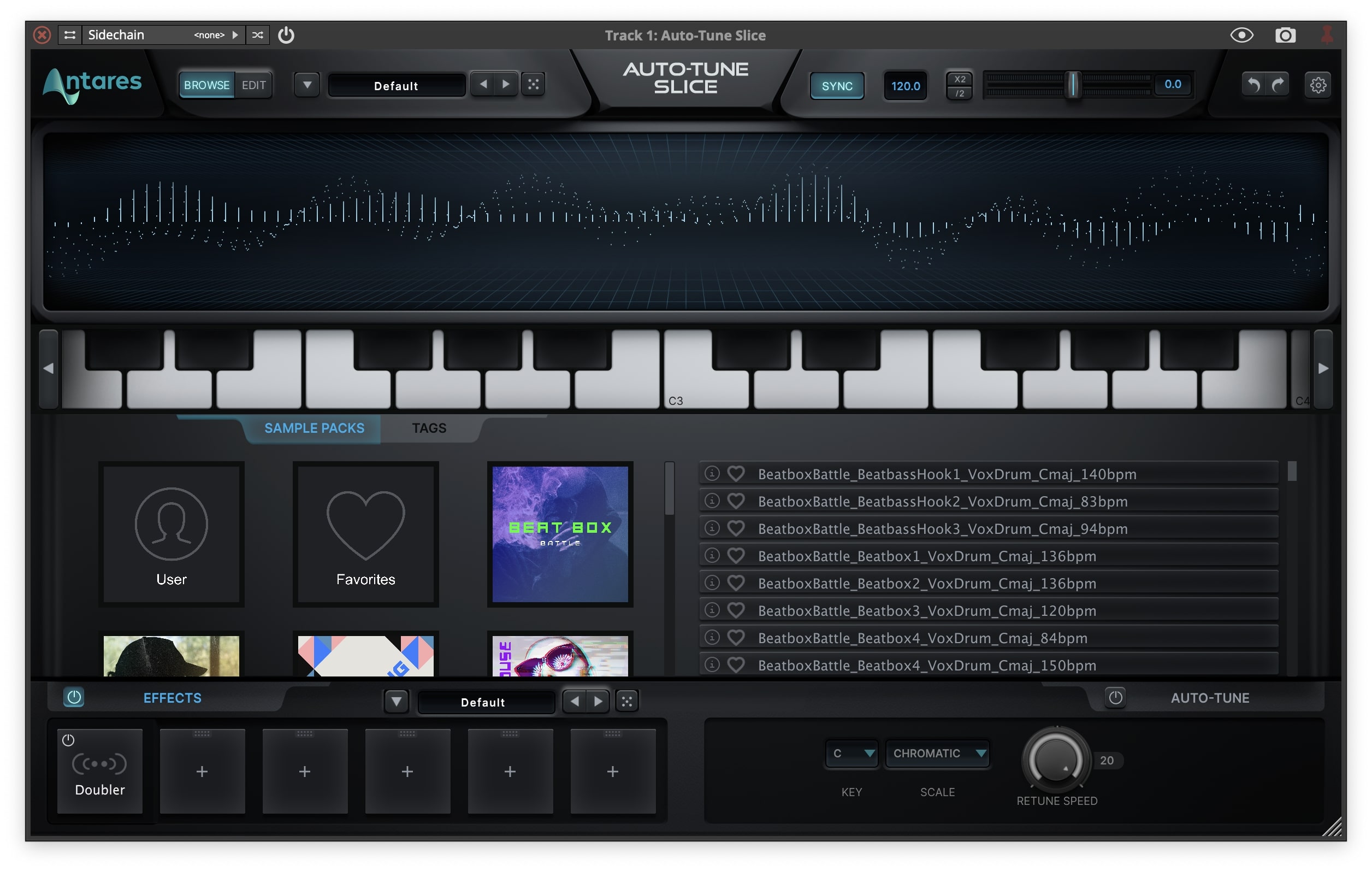
Your software is now activated and ready to use within your DAW.

PC
Windows
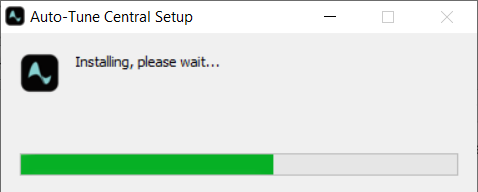
1. Download the .zip file from within your Plugin Boutique account and double-click it to extract the contents > Open the .exe file > Auto-Tune Central will now automatically install.

2. Launch Auto-Tune Central > Either create a new account by clicking 'Create Account' or if you already have an account, enter your Antares registered Email Address and Password > Click 'Sign In'.

3. Click 'Agree'.

4. Enter your iLok User ID and click 'Sign In'.

5. Click 'Continue to iLok'.

6. Enter your iLok User ID and Password then click 'Authorize'.

7. Your iLok account is now linked > Click 'Close'.

8. Click on the 'Redeem a License' tab > Enter the 25-digit Registration Code, found in the serial number section of your Plugin Boutique account > Click 'Redeem and Activate'.

9. Navigate back to the 'Plug-Ins' tab > Click 'Install' to install your plugin.

10. Click 'Activate'.

11. Select whether you want to activate the license to your Computer or iLok USB > Click 'Activate'.

12. Click 'Close'.

Your software is now activated and ready to use within your DAW.