Buy DAW Cassette, get a free gift with purchase:
Tape Deck Emulation
Bring your sound back to the golden age of cassette tapes (minus the tangle)
DAW Cassette brings back the magic era of the 1980s by emulating the sound of a tape deck. Saturation, distortion, noise, wobble, it's all there. While there's no real rational logic to it, the sound color gives us chills down the spines, (or it might be the mullet haircut that tickles). Fresh.
Choose your preferred level of cassetteness with the different controls for input/output gain, tape/motor/head quality, and tape/noise type. Now, look in the mirror and get stunned by your new mullet haircut.
Anatomy
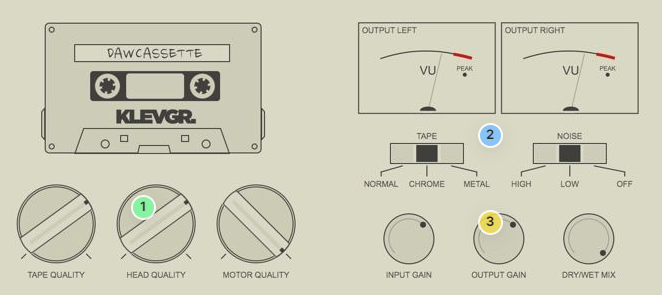
1. Quality - Use these controls to set the desired quality of the Tape (magnetic band saturation), Head (frequency response), and Motor (speed consistency).
2. Emul80ies - Different types of cassette tape, as well as Noise reduction emulation.
3. Trim the sound, not the mullet - Input, Output, Mix. Serve chilled.
Flip It
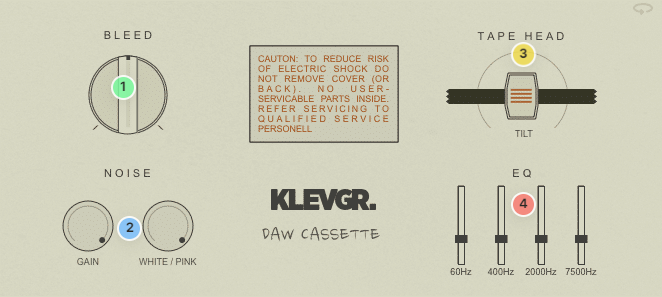
1. Let it bleed - Adjust the amount of channel crosstalk.
2. Bring on the noise - Fine level noise adjustment for every noise taste.
3. Built to tilt - Skew the tape head angle for some nice phase issues.
4. Graphic Equalizer - Four excellent bands for your excellent band.
Features
- Choose between three different tape types (Normal, Chrome, Metal)
- Control the noise level with Dolby emulation (including a noise-free option, Dolby K)
- Tape-, head- and motor quality knobs for dialing in the perfect sound
- Additional input gain, output gain, and dry/wet mix parameters
System Requirements
- macOS 10.10 or later (optimized for the M1-processor)
- Windows 7 SP1 or later
- AU, VST-2, VST-3, AAX
Please Note: Pana is used as the example:
Mac
License Redemption
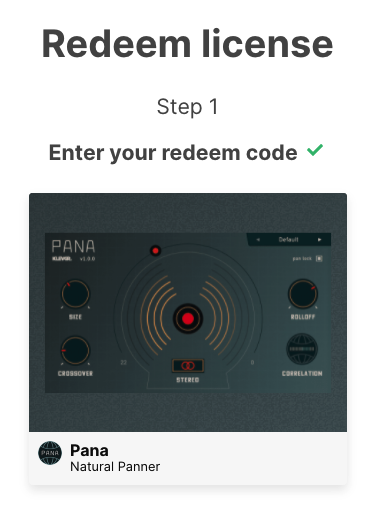
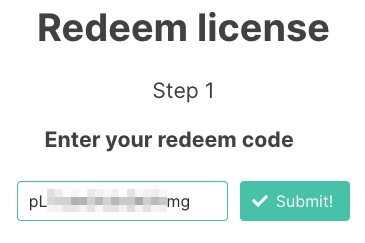
1. Navigate to https://klevgrand.com/redeem > Paste your 16 digit redemption code found in your Plugin Boutique User Account > Click 'Submit!'.
2. Your redemption code has been accepted > Scroll down to Step 2.
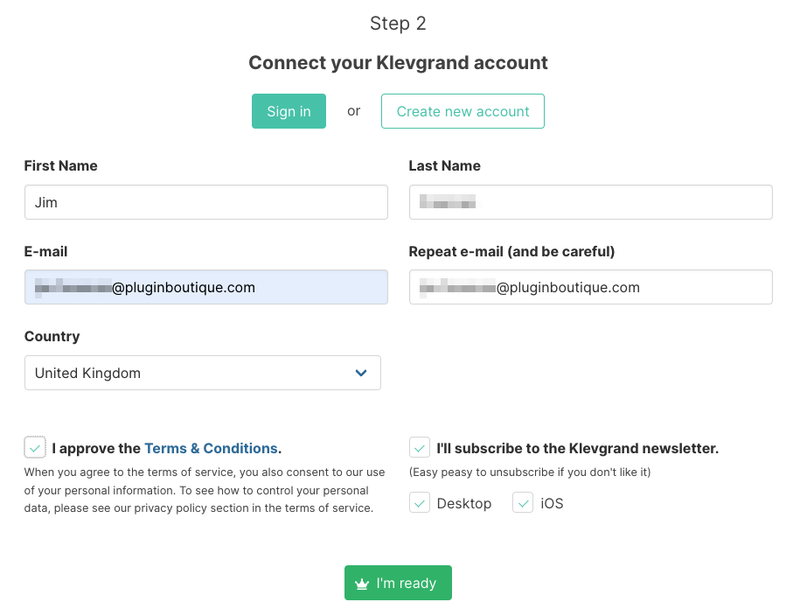
3. Click either 'Sign in' if you already have a Klevgrand account, or 'Create new account' if you do not > Fill in your personal details > Click 'I'm ready'.
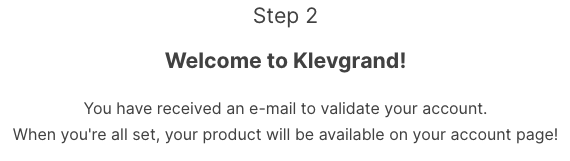
4. Your account has now been created.
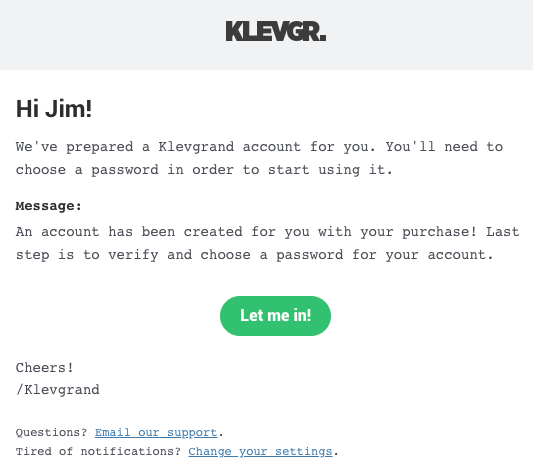
5. Navigate to your email inbox and locate the activation email that you should have received from Klevgrand > Click 'Let me in!' to activate your account.
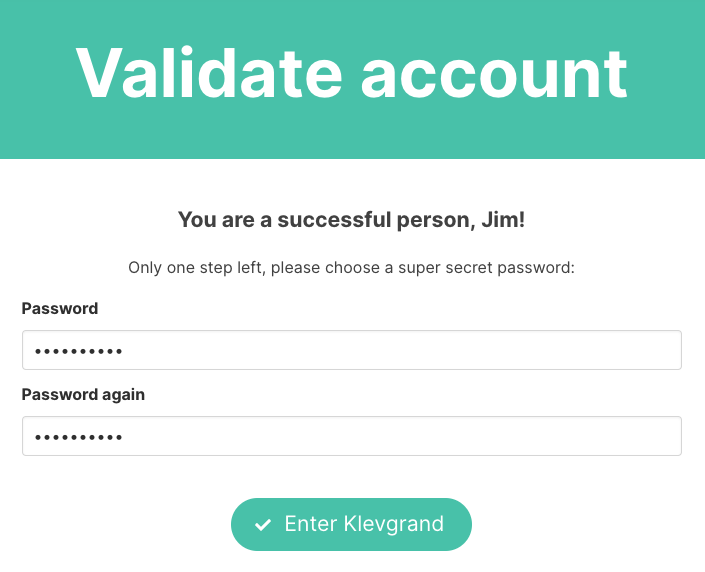
6. Create a password for your account > Click 'Enter Klevgrand'.
7. Your software and serial number is now available within your Klevgrand account > Click the Apple logo to download the installer file.
Installation
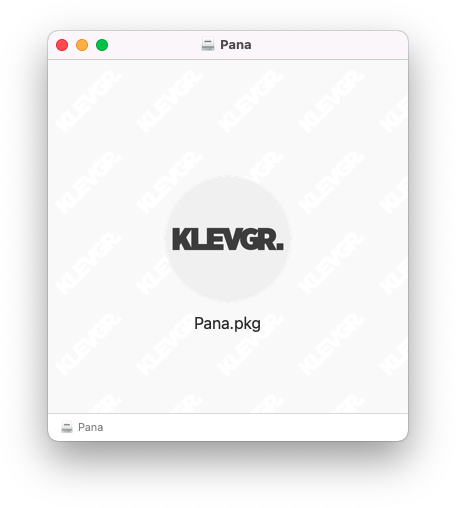
1. Launch the pana_x_x_x_macOS.dmg installer file.
2. Double click the KLEVGR. logo to launch the installer.
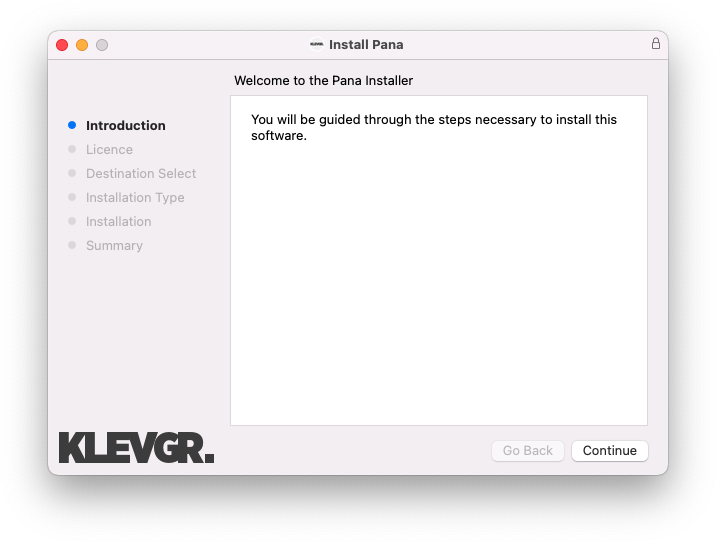
3. Click 'Continue'.
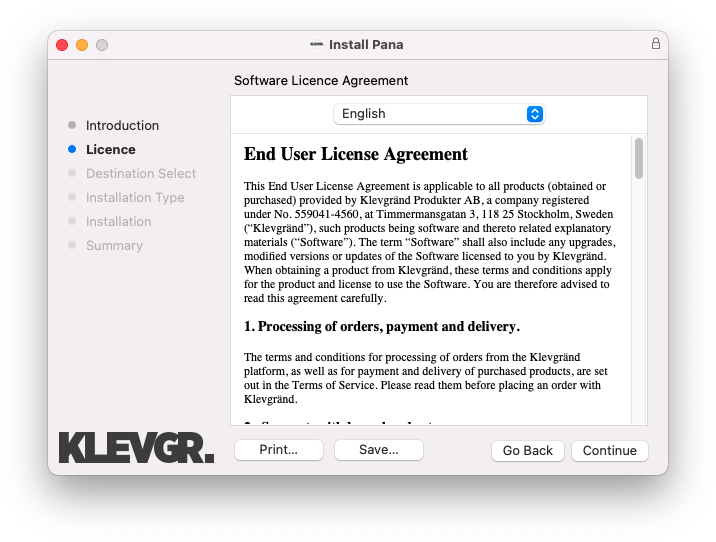
4. Click 'Continue'.
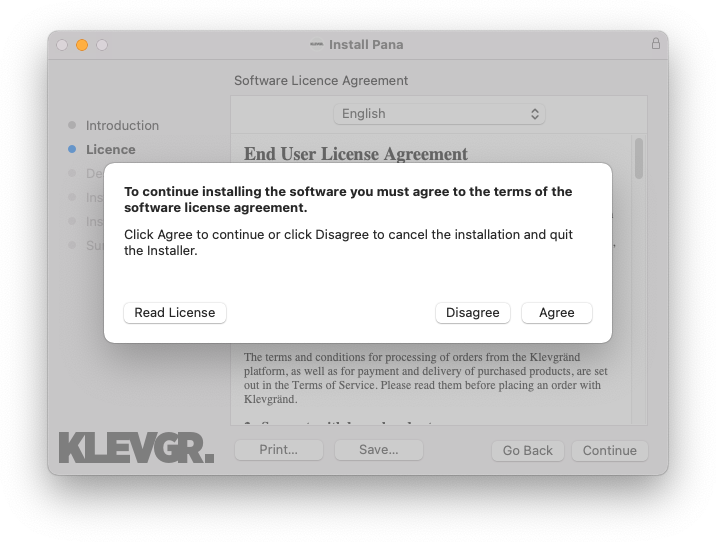
5. Click 'Agree'.
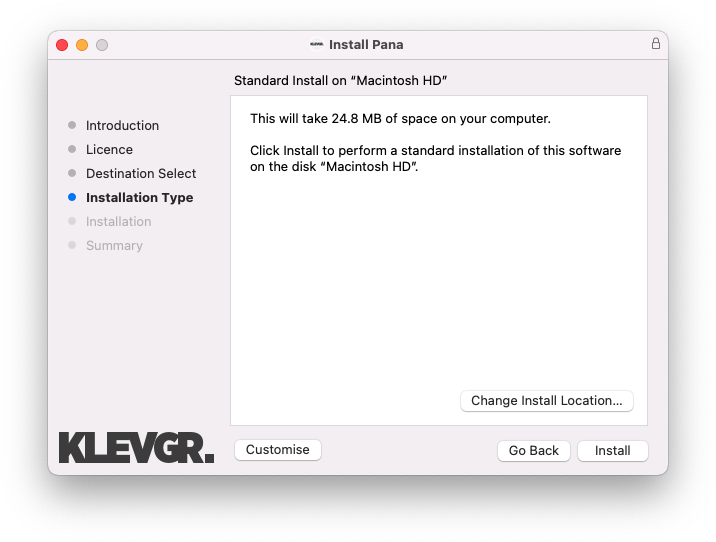
6. Click 'Install'.
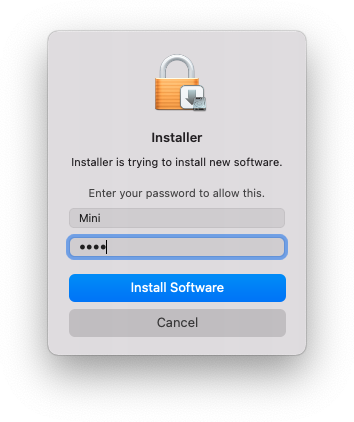
7. Enter your system password > Click 'Install Software'.
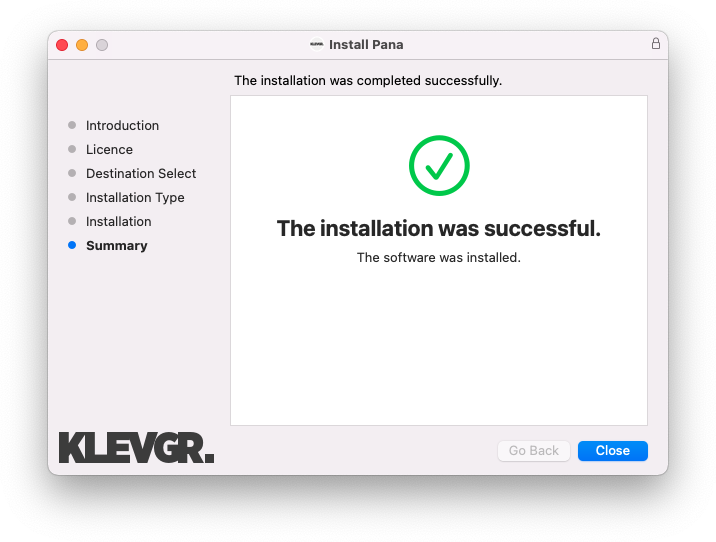
8. Click 'Close'.
9. Navigate back to your Klevgrand My Account page > Click on the serial number to copy it to your clipboard.
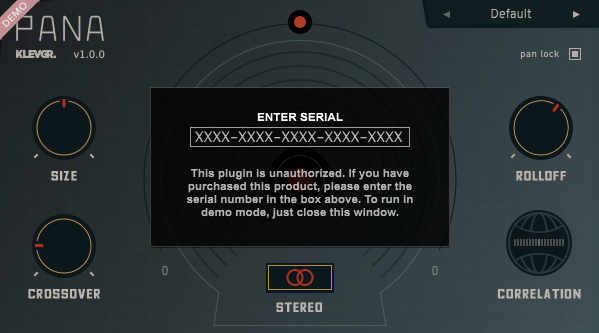
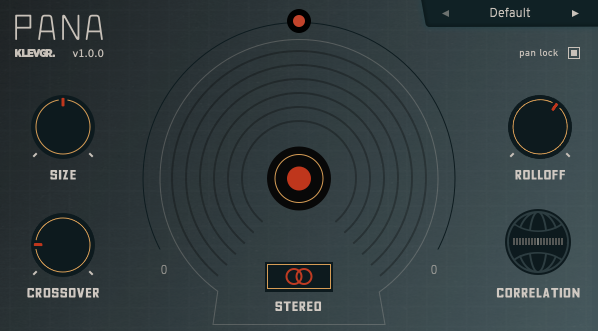
10. Launch your DAW > Create a new audio track > Insert Pana onto the channel > Paste your serial number into the box.
Your software is now activated and ready to use within your DAW
Windows
License Redemption
1. Navigate to https://klevgrand.com/redeem > Paste your 16 digit redemption code found in your Plugin Boutique User Account > Click 'Submit!'.
2. Your redemption code has been accepted > Scroll down to Step 2.
3. Click either 'Sign in' if you already have a Klevgrand account, or 'Create new account' if you do not > Fill in your personal details > Click 'I'm ready'.
4. Your account has now been created.
5. Navigate to your email inbox and locate the activation email that you should have received from Klevgrand > Click 'Let me in!' to activate your account.
6. Create a password for your account > Click 'Enter Klevgrand'.
7. Your software and serial number is now available within your Klevgrand account > Click the Windows logo to download the installer file.
Installation
1. Unpack the pana_x_x_x_win.zip installer file > Launch the pana_x_x_x_win.exe file.
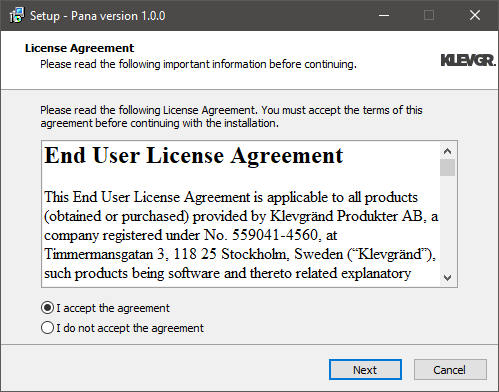
2. Click 'I accept the agreement' > Click 'Next'.
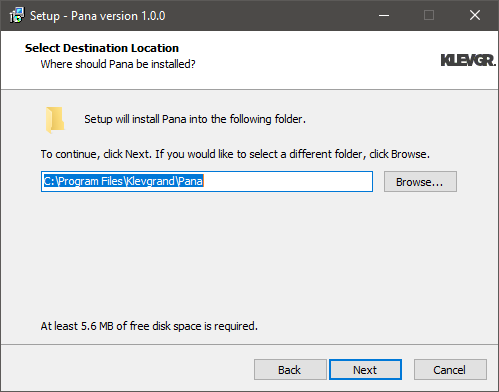
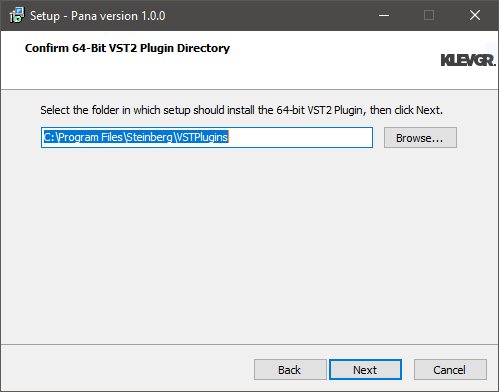
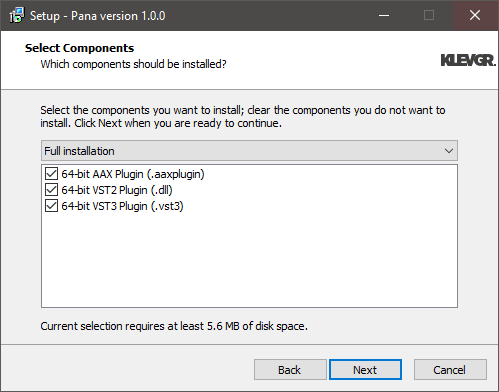
3. Click 'Next'.
4. Click 'Next'.
5. Click 'Next'.
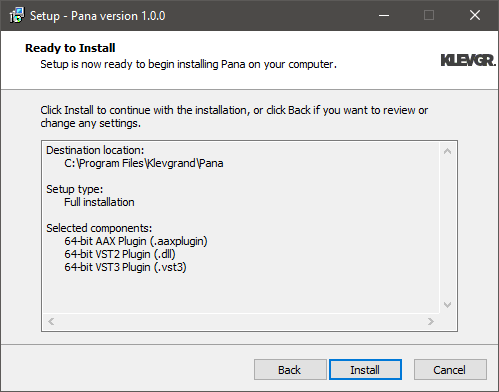
6. Click 'Install'.
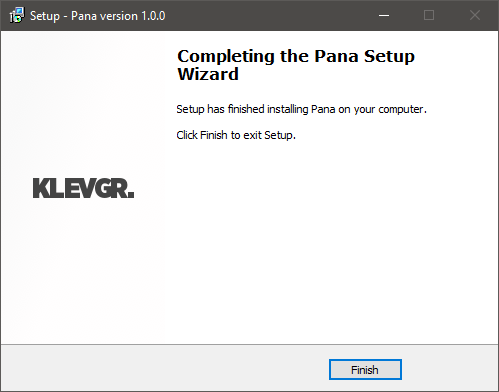
7. Click 'Finish'.
8. Navigate back to your Klevgrand My Account page > Click on the serial number to copy it to your clipboard.
9. Launch your DAW > Create a new audio track > Insert Pana onto the channel > Paste your serial number into the box.
Your software is now activated and ready to use within your DAW