


 Log In

Free gifts available with your purchase
Soviet Wire Recorder Echo
Turn the echoes of the past into the music of now.
German composer and YouTuber Hainbach opened his treasure chest for us: AudioThing are happy to present to you Wires, an accurately modelled and enhanced 1970s Soviet wire recorder. Made originally for military and secret service use across the Iron Curtain, in the hands of a few avant-garde musicians it became a magical lofi-tool and ghostly echo machine. Now this rare and rather finicky-to-operate piece of hardware is available for the first time as a faithful yet modern plugin. Transform your audio to the world of numbers stations and secret operations, dub out to very unusual echoes or make the most lofi beats to study too.
AudioThing took great care to get all the idiosyncratic behaviour exactly right – it reacts dynamically to the input and does stuff to audio that is a completely different texture to magnetic tape. There is a special tone to the hair-thin wire and the vacuum tube output stage of this machine, unheard of anywhere else. The standard way to make a unit such as this music is to put it on an aux channel of a mixer, to turn it into a fixed tempo echo. AudioThing offer all the variable time features you want, as well as the option to switch off the rather high noise floor of this machine without sacrificing the rather alive sound.
Wire Recorders
Magnetic wire recorders went out of fashion after the advent of magnetic tape, surviving only in special operations such as flight recorders, space flight, or clandestine operations (wearing a wire denotes not the cable but the recorder). The particular model of recorder AudioThing modelled comes from East German Army stock – on the reels you could still hear traces of military operations.
Lo-Fi
Who needs tape for lo-fi? This machine is taking the term “lo-fi” to an entirely new and haunting level.
There is a special tone to the hair-thin wire and the vacuum tube output stage of this wire recorder, unheard of anywhere else.
Wires turns the most boring signals into sepia coloured magic.
Hainbach
Based out of Berlin, Germany, electronic music composer and performer Hainbach creates shifting audio landscapes THE WIRE called “One hell of a trip”. He has been fascinated with electronic sounds since he discovered the dial on the radio. Never losing his childhood wonder, he still searches for the sounds in between on modular synths, tape, and test equipment, making even the unmusical “music”. Through his YouTube channel, Hainbach brings experimental music techniques to a wider audience.

Features
- Magnetic Wire Emulation
- Echo Section
- Original Speaker and Mic Emulation
- Start and Stop effects
- Hiss and Motor noise with Envelope
- Resizable Window
- Preset system with randomizer
- Output Trim
- Mono Switch
- Routing Switch
- Noise Envelope Controls
- Big Sur / Universal Binary
System Requirements
Windows
- Windows 7 – 11
- 2GHz CPU, 4 GB RAM
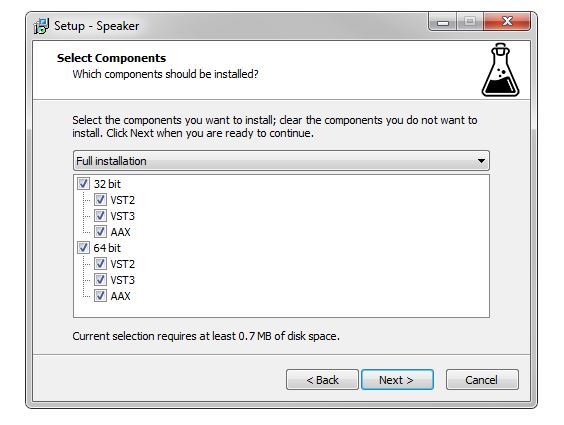
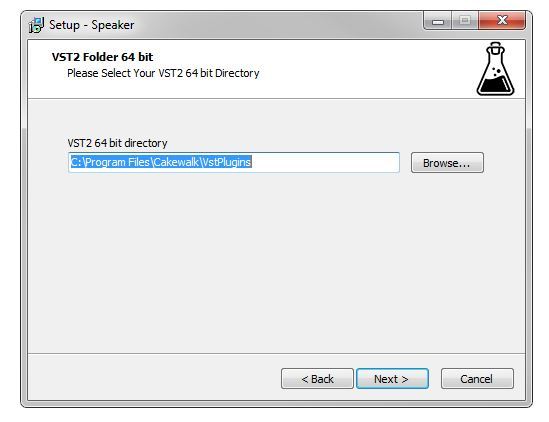
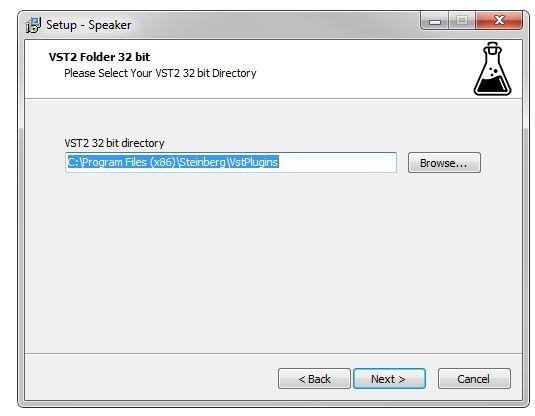
- VST2, VST3, AAX, CLAP (64-bit)
Mac
- OS X 10.9 – macOS 14
- Apple Silicon (M chips) Native (Universal 2 Binary)
- 2GHz CPU, 4 GB RAM
- VST2, VST3, AU, AAX, CLAP (64-bit)
- Universal 2 Binary
Andrew Lagowski
Electronic music producer.
"It’s like finding that ancient reel of tape in the flea market and being transported back in time."
Peter Kirn
Producer/DJ & technologist.
"AudioThing have done a bang-up job of the very challenging work of modelling non-linear magnetic recording mechanisms."
Danielle O'Hallisey
Danielle O'Hallisey is a guitarist and composer of inspired works for modern and traditional instrumentation.
"I’ve been struggling to release an EP of some ambient/electronic music but have consistently felt that something was missing. FOUND IT!"



Reviews Summary
While it aims to provide a helpful overview, it may not capture every perspective or detail. We encourage you to read individual reviews to make an informed decision.
Users praise this Audio Thing plugin as an exceptionally unique and creative tool for experimental sound design, highlighting its distinctive wire recorder lo-fi emulation, static textures, and twisted effects. While some note it functions somewhat as a niche one-trick pony that aggressively cuts high frequencies, it is overwhelmingly loved for its rare sonic character and deep sound-shaping capabilities.


