Buy Manley Tube Preamp, get a free gift with purchase:
Experience the same clarity and tube detail as the boutique hardware.
Now compatible with any soundcard on Mac and PC
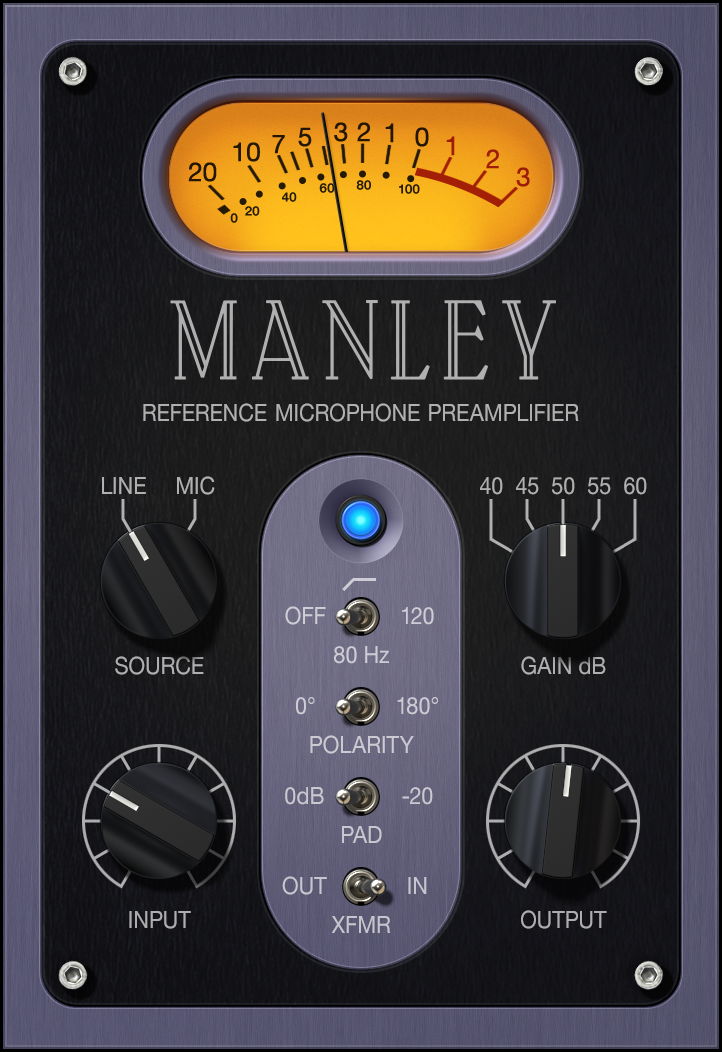
Manley tube mic preamps are a modern classic, adding unmistakable clarity and detail to any signal that passes through them. Now, you can easily get the harmonically "alive" Class‑A sound in a simple plug-in.
Add Clarity and Weight to Any Source
The UAD Manley Tube Preamp plug-in gives you all the open sheen of a Manley hardware preamp, faithfully modeling every stage of its overbuilt circuit, so you can inject instant life to vocals and bass, punch up acoustic guitars and drums, or push synths forward.
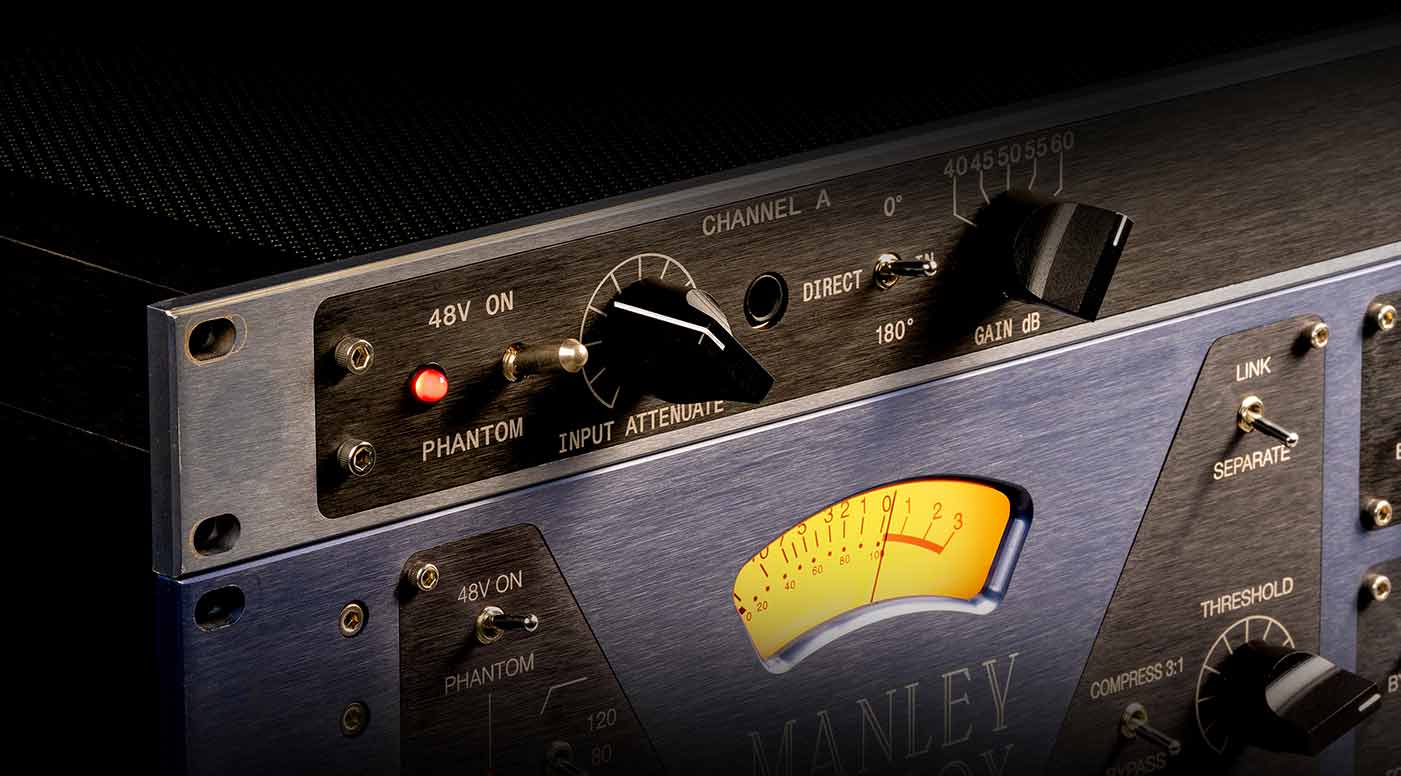
Record "Through" a Boutique Tube Preamp
UA’s groundbreaking Unison technology lets you track in realtime "through" the Manley Tube Preamp plug-in using your Apollo, giving you the original vintage hardware’s line/mic preamp impedance, gain stage “sweet spots,” and exact circuit behaviors.
Features
- Give vocals and other instruments the smooth, clear sound of Manley's Class-A tube mic preamp
- Add tube detail and rich complex circuit behaviors to make your tracks come alive
- Punch up your percussion tracks with authentic big studio sound
- Record in realtime "through" a high-end Manley preamp with Apollo and Unison™ technology
- Use with any audio interface, no UA hardware required
Versions Included with your Purchase
- UAD Native: Runs on your Mac or PC without any UA hardware
- Apollo Realtime & UAD-2: Runs accelerated on Apollo interfaces and UAD-2 hardware
System Requirements
- macOS 10.15 Catalina, 11 Big Sur, 12 Monterey, 13 Ventura
- Windows 10 or Windows 11 (64-bit only Editions)
- Intel, AMD, or Apple silicon processor
- Internet connection to download software and authorize UADx plug-ins
- Free iLok account with iLok Cloud or iLok USB (2nd generation or higher)
- A physical iLok dongle is NOT required to activate this product
DAW Compatibility
- Pro Tools 2022 (AAX)
- Logic Pro (Audio Units)
- Ableton Live 11 (VST 3, Audio Units)
- Cubase 12 (VST 3)
- Studio One 5 (VST 3)
- LUNA Recording System
You can activate this software on an online system (using iLok Cloud) or an offline system (using an iLok USB):
-
Online: an active internet connection and a FREE iLok account are required to authorise UAD Plug-ins using iLok Cloud
-
Offline: you will need a physical iLok USB (2nd generation or higher) to authorise this software
Important Notes:
- This product is a plugin and not a physical product. It is available after purchase as a digital download.
- UAD plugins do not work in Apple's Garageband DAW
Registration
1. Click the Download button in your Plugin Boutique account or go to https://www.uaudio.com/my/account/redeem/.
2. Enter your email and the serial code found in your Plugin Boutique User Account > Click 'Get my Plug-in'.

3. Enter the details required to create your Universal Audio account > Click 'Create Account'.

4. Download UA Connect by clicking either 'macOS' or 'Windows' depending on the system you are using.

Windows Installation
1. Once the download is complete, extract and open the ZIP folder you just downloaded > Open the PC folder > Double-click the UA Connect.exe installer file.
2. Read the terms of agreement > Click 'I Agree'.

3. The installation of PACE License Support will now begin > Click 'Next >'.

4. Read the license agreement > Click 'Yes'.

5. Click 'Install'.

6. Click 'Finish'.

7. Locate and open UA Connect > Enter the email address and password of your Universal Audio account.

8. Click 'GET STARTED'.

9. Select the option that is relevant to you - either 'I Already Have an iLok Account' or 'Create an iLok Account For Me'.

10. Enter your iLok account User ID then click 'LINK ACCOUNT'
.
11. Enter the password for you iLok account and click 'Authorize'.

12. Locate the plugin you wish to install > Click 'DOWNLOAD'.

13. Once the plugin has been installed, open your DAW and then the newly installed plugin.
Your software is now activated and ready to use in your DAW!

Mac Installation
1. Once the download is complete, double-click the UA Connect.dmg installer file.
2. Drag UA Connect into your Applications folder.

3. Locate and open UA Connect > Enter the email address and password of your Universal Audio account.

4. Click 'GET STARTED'.

5. Select the option that is relevant to you - either 'I Already Have an iLok Account' or 'Create an iLok Account For Me'.

6. Enter your iLok account User ID then click 'LINK ACCOUNT'
.
7. Enter the password for you iLok account and click 'Authorize'.

8. Locate the plugin you wish to install > Click 'DOWNLOAD'.

9. Once the plugin has been installed, open your DAW and then the newly installed plugin.
Your software is now activated and ready to use in your DAW!
