/ Vocal Processing / Vocal Reverb
Antares

Vocal Reverb

4.5 (11 Reviews)
$50.00 $100.00

50% off until Jan 02

Antares Vocal Reverb - GUI
Antares Vocal Reverb - GUI 2
Main Image
Buy Now
Product information

Powered by AI Assist, Auto-EQ and Dynamic Effects

Vocal Reverb is the first vocal reverb plug-in to use powerful AI assist technology. It features Auto EQ to automatically remove mud from the reverb tail, three reverb algorithms, ten pre/post-effects, and two delay types.

Designed for professional vocal production, Vocal Reverb adds ambiance, depth, and emotion to vocals. The next-gen tech and intuitive controls let you easily sculpt professional-sounding reverbs. Vocal Reverb instantly enhances vocals with studio-quality effects.

Vocal Reverb is the first dedicated Vocal Reverb plug-in to feature AI assist technology for fast workflow and great sound quality.

Antares' Auto-EQ technology uses their patented Auto-Tune Pitch Tracking Tech that automatically cleans up the reverb tail and saves a massive amount of editing time.

Vocal Reverb offers three reverb styles and two Delay types. When the advanced panel is expanded, five Pre-Verb Effects and five Post-Verb Effects are displayed to use for more creative results.

Features

  • AI Assist for quick optimal reverb settings
  • Auto-EQ powered by patented Auto-Tune Pitch Tracking Technology
  • Three Reverb Algorithms (Hall, Plate, Room)
  • Two Delay Types (Mono, Stereo Ping Pong)
  • Five Pre-Verb Effects (Pitch, Throat, Tube, De-Esser, Reverse)
  • Five Post-Verb Effects (Auto-EQ, Tone Shaper, Compressor, Gate, Width)
  • Apple Silicon Native M1/Pro/Max/Ultra Compatibility

System Requirements

Mac

AAX Native (64-bit only):

  • Pro Tools 2018.1 or later.
  • macOS 11 or later as required by your version of Pro Tools.

VST3 (64-bit only):

  • A compatible VST host program that supports the VST3 format.
  • macOS 11 or later as required by your host.

Audio Units (64-bit only):

  • A compatible DAW that supports the AU format.
  • macOS 11 or later as required by your host.

Windows

AAX Native (64-bit only):

  • Pro Tools 2018.1 or later.
  • Windows 10

VST3 (64-bit only):

  • A compatible DAW that supports the VST3 format.
  • Windows 10

Important Note

  • No iLok dongle is required to run this software - only a FREE iLok account/Manager is required for authorisation.
Installation Instructions

Note: Before starting the installation, you are required to create a FREE iLok user ID and install the iLok License Manager.

Please take a look at this Help Centre Guide for more information.

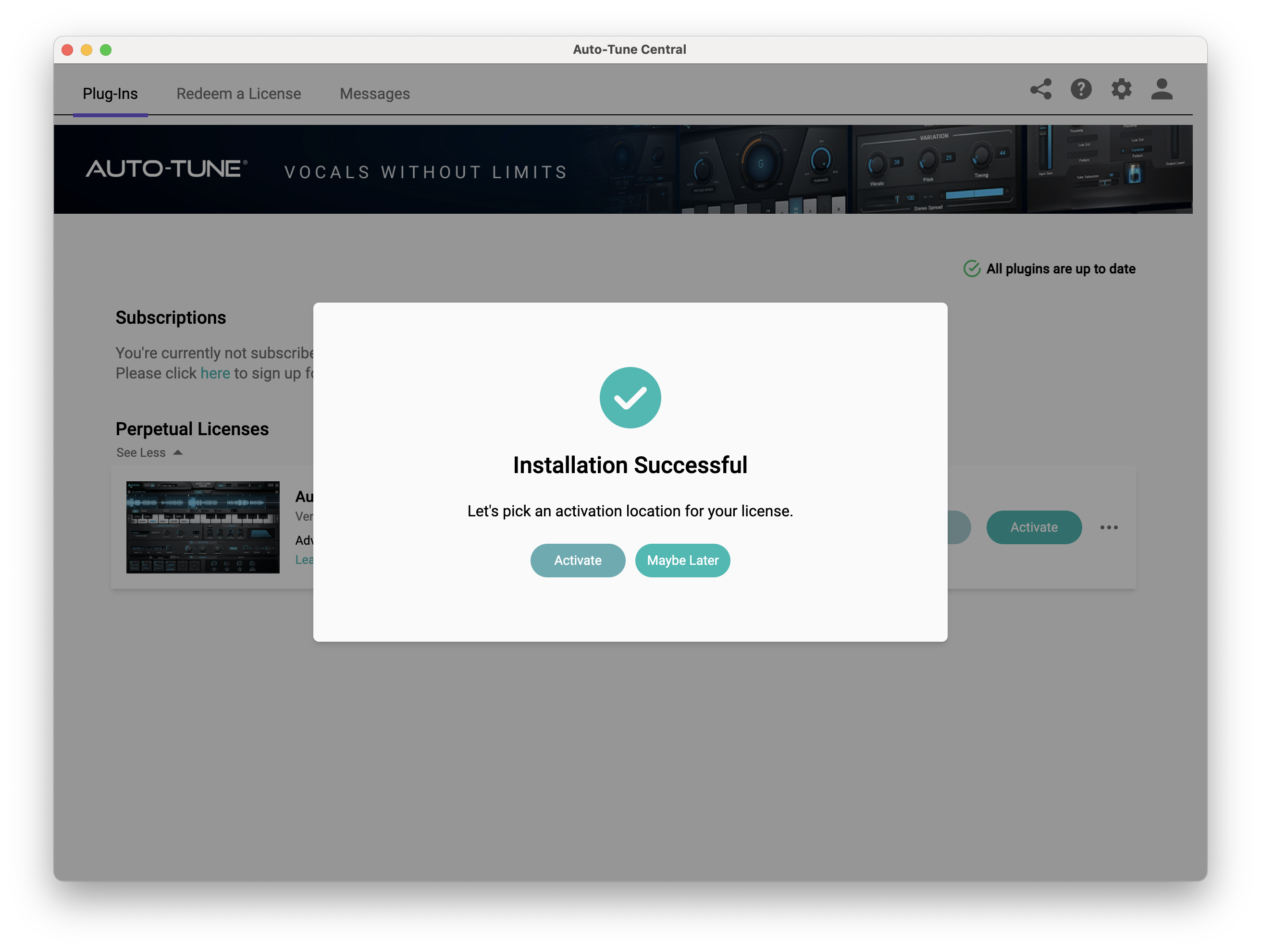
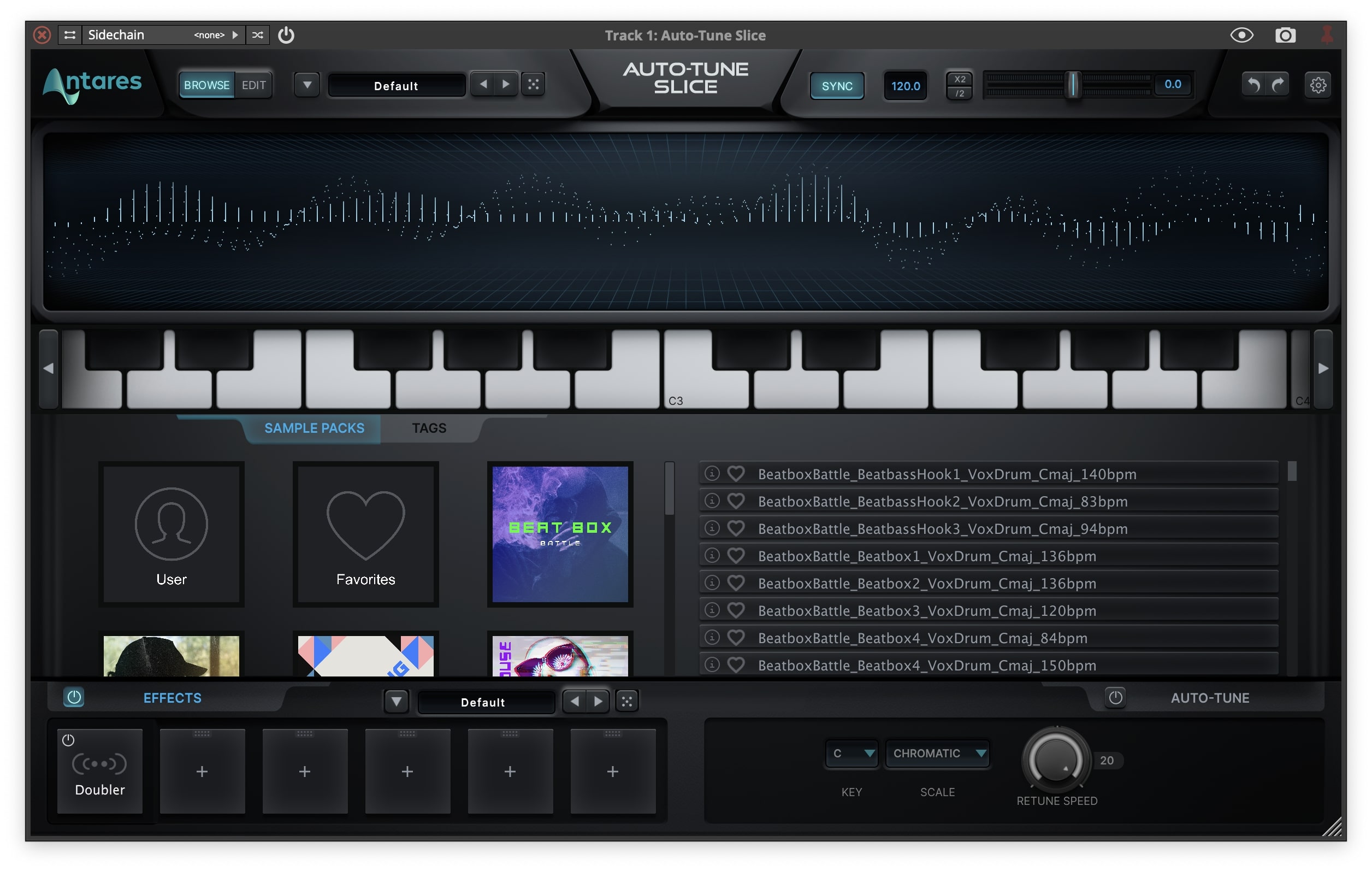
Note: Auto-Tune Slice is used as an example.

Mac

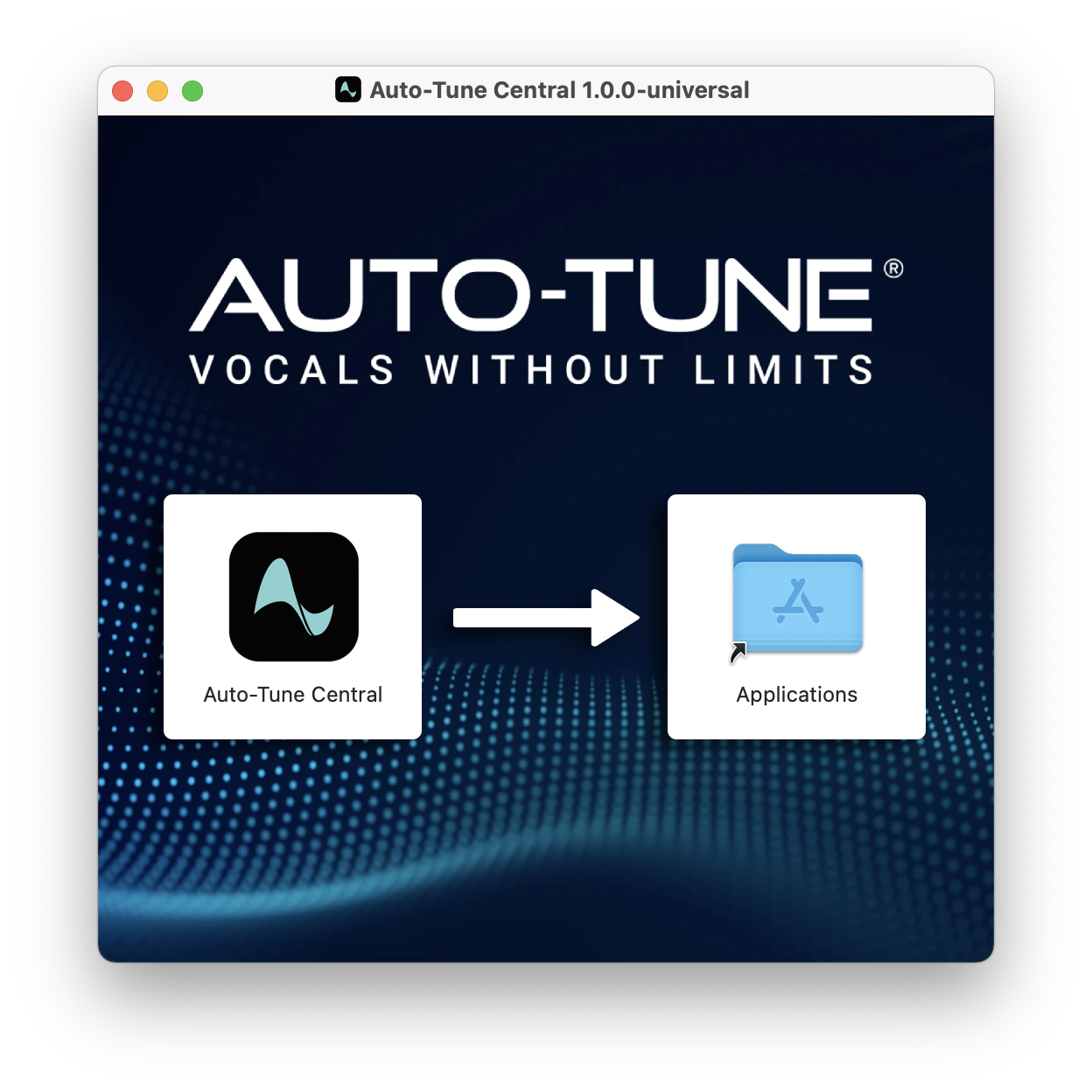
1. Download the .zip file from within your Plugin Boutique account and double-click it to extract the contents > Double-click the .dmg file to launch the installer > Drag Auto-Tune Central into your Applications folder > Auto-Tune Central will now automatically install.

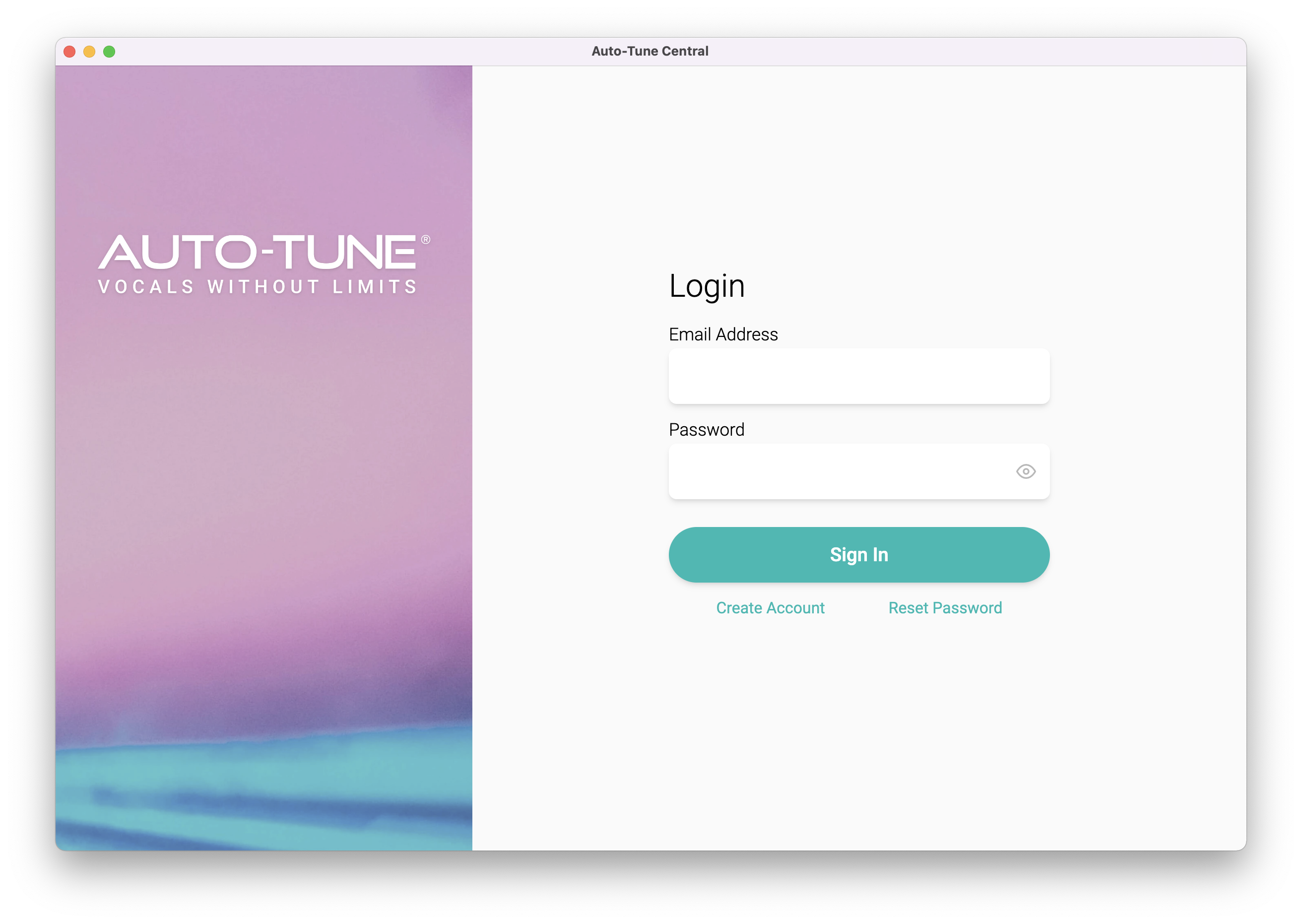
2. Launch Auto-Tune Central > Either create a new account by clicking 'Create Account' or if you already have an account, enter your Antares registered Email Address and Password > Click 'Sign In'.

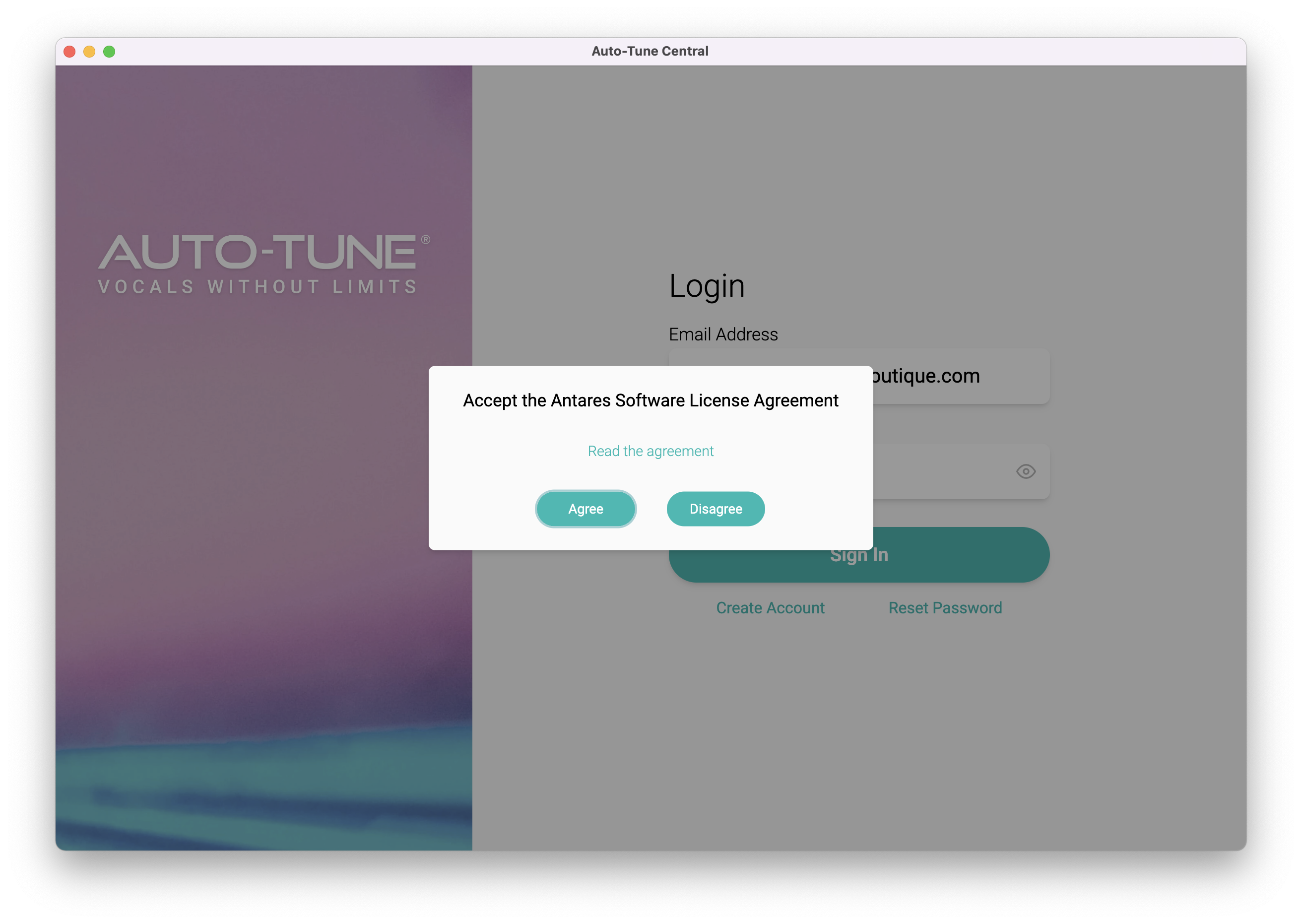
3. Click 'Agree'.

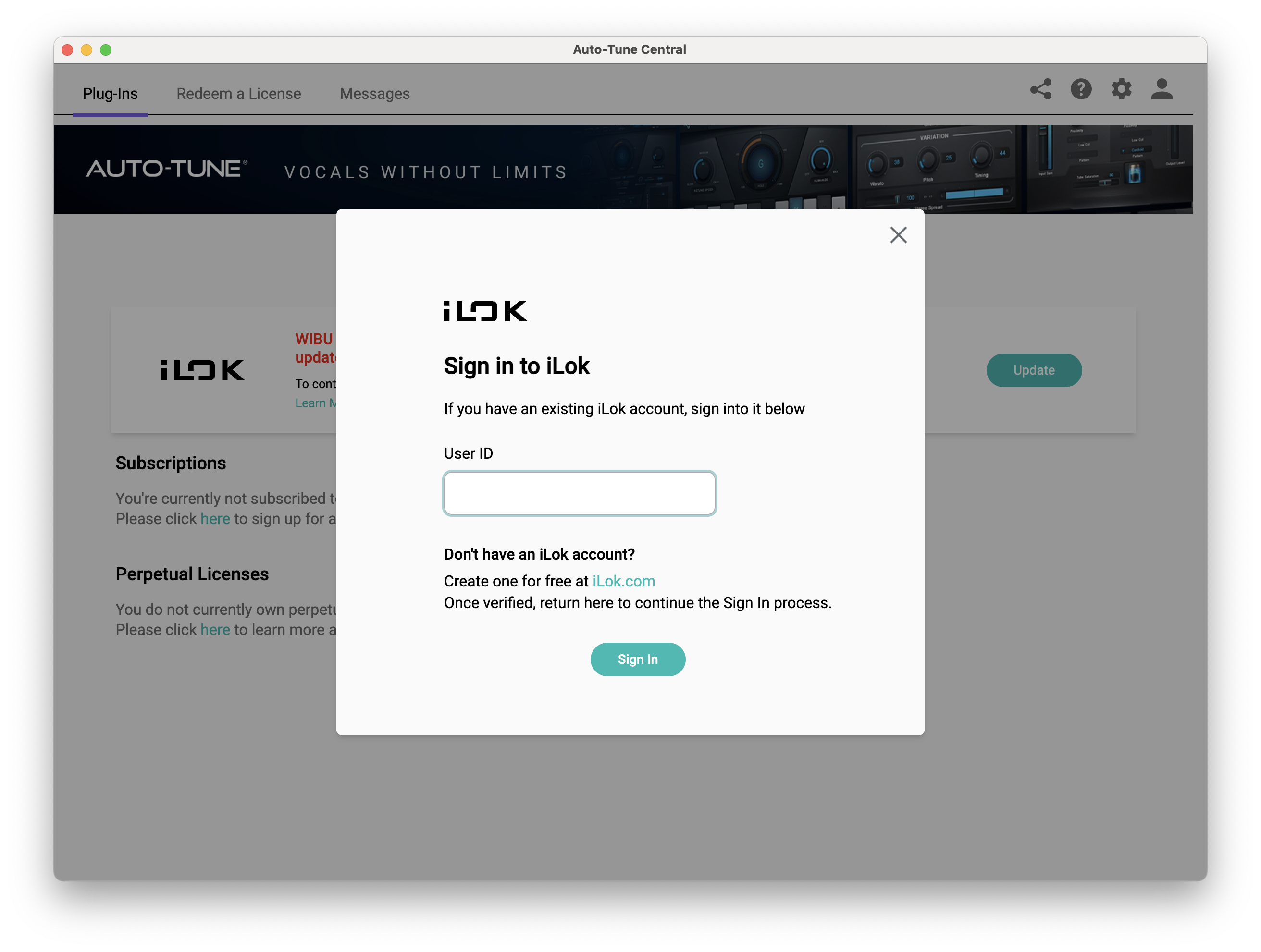
4. Enter your iLok User ID and click 'Sign In'.

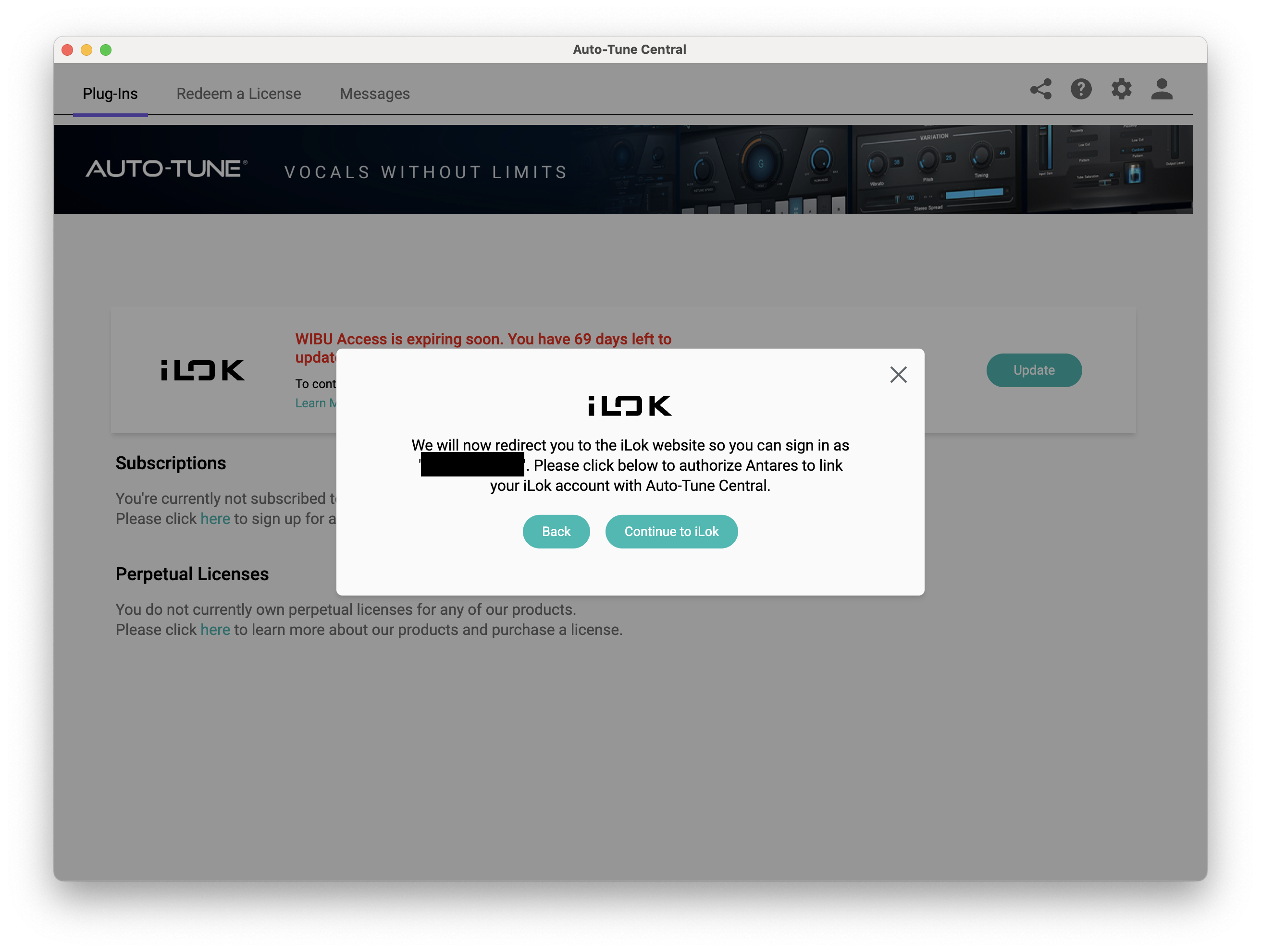
5. Click 'Continue to iLok'.

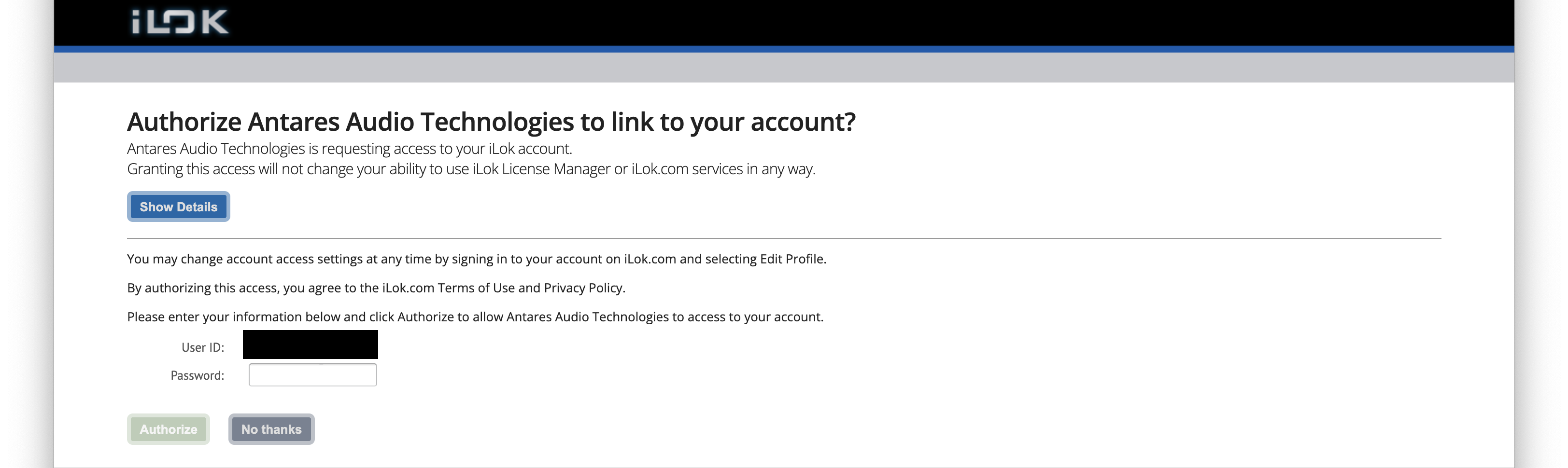
6. Enter your iLok User ID and Password then click 'Authorize'.

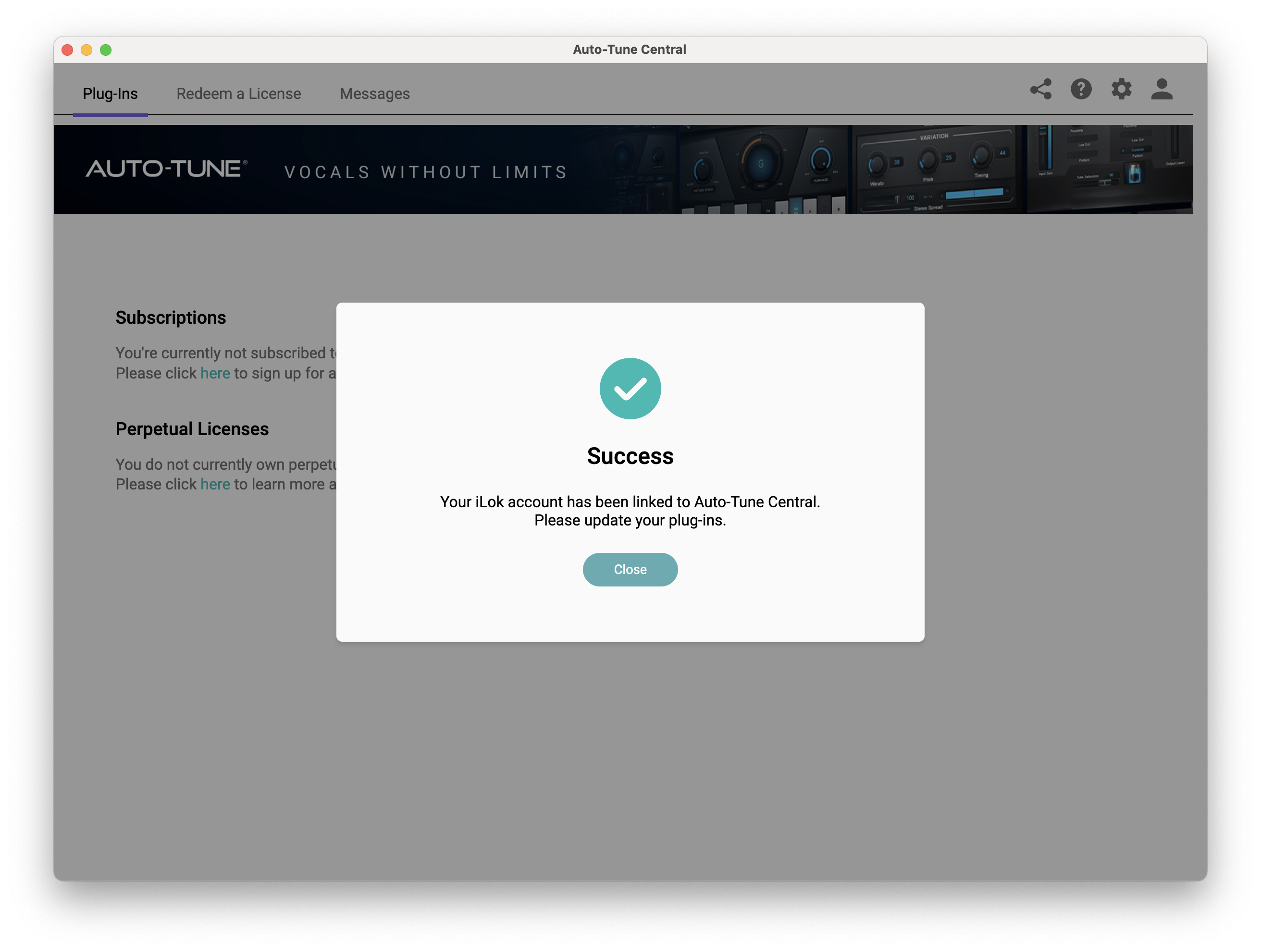
7. Your iLok account is now linked > Click 'Close'.

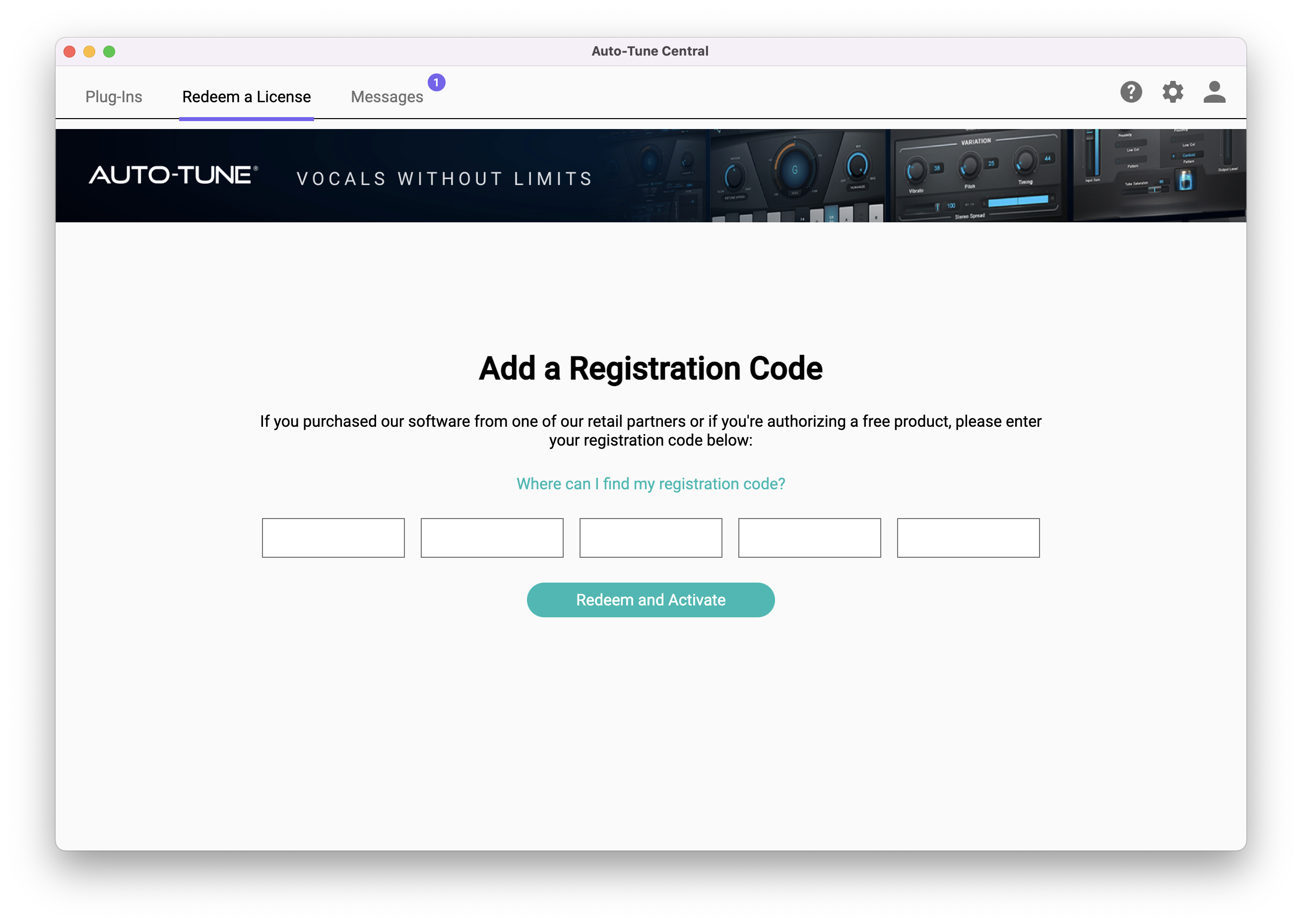
8. Click on the 'Redeem a License' tab > Enter the 25-digit Registration Code, found in the serial number section of your Plugin Boutique account > Click 'Redeem and Activate'.

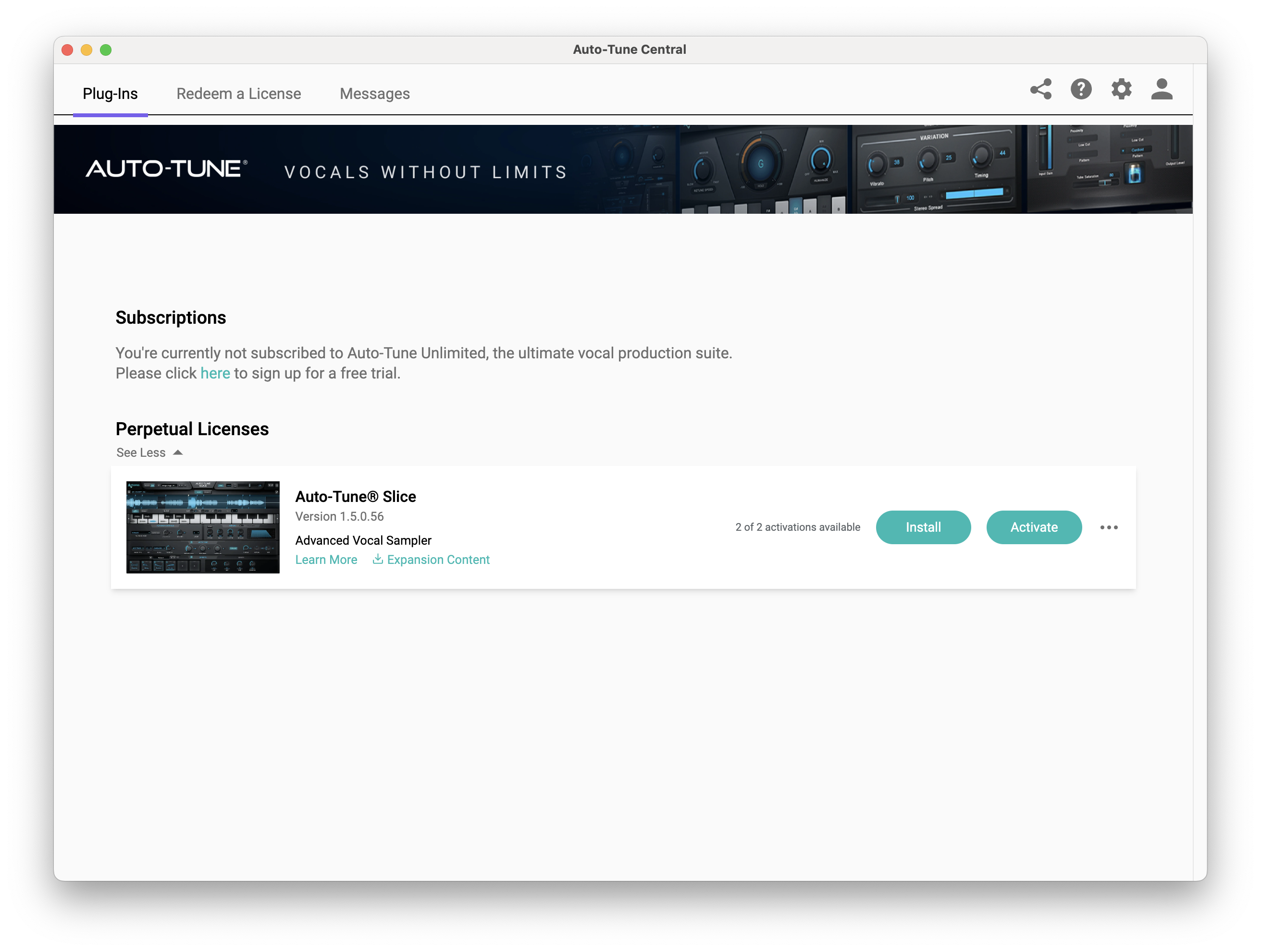
9. Navigate back to the 'Plug-Ins' tab > Click 'Install' to install your plugin.

10. Click 'Activate'.

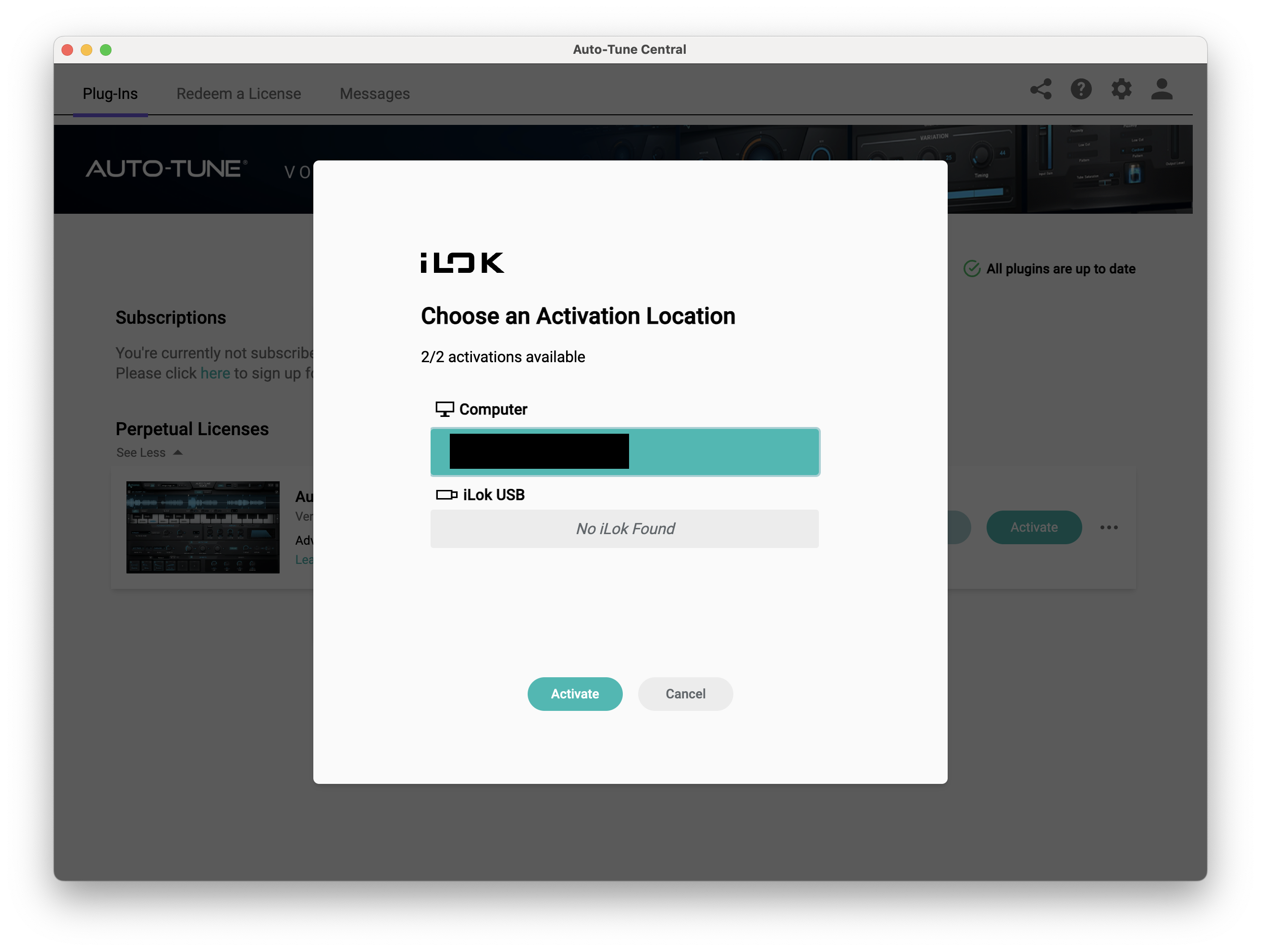
11. Select whether you want to activate the license to your Computer or iLok USB > Click 'Activate'.

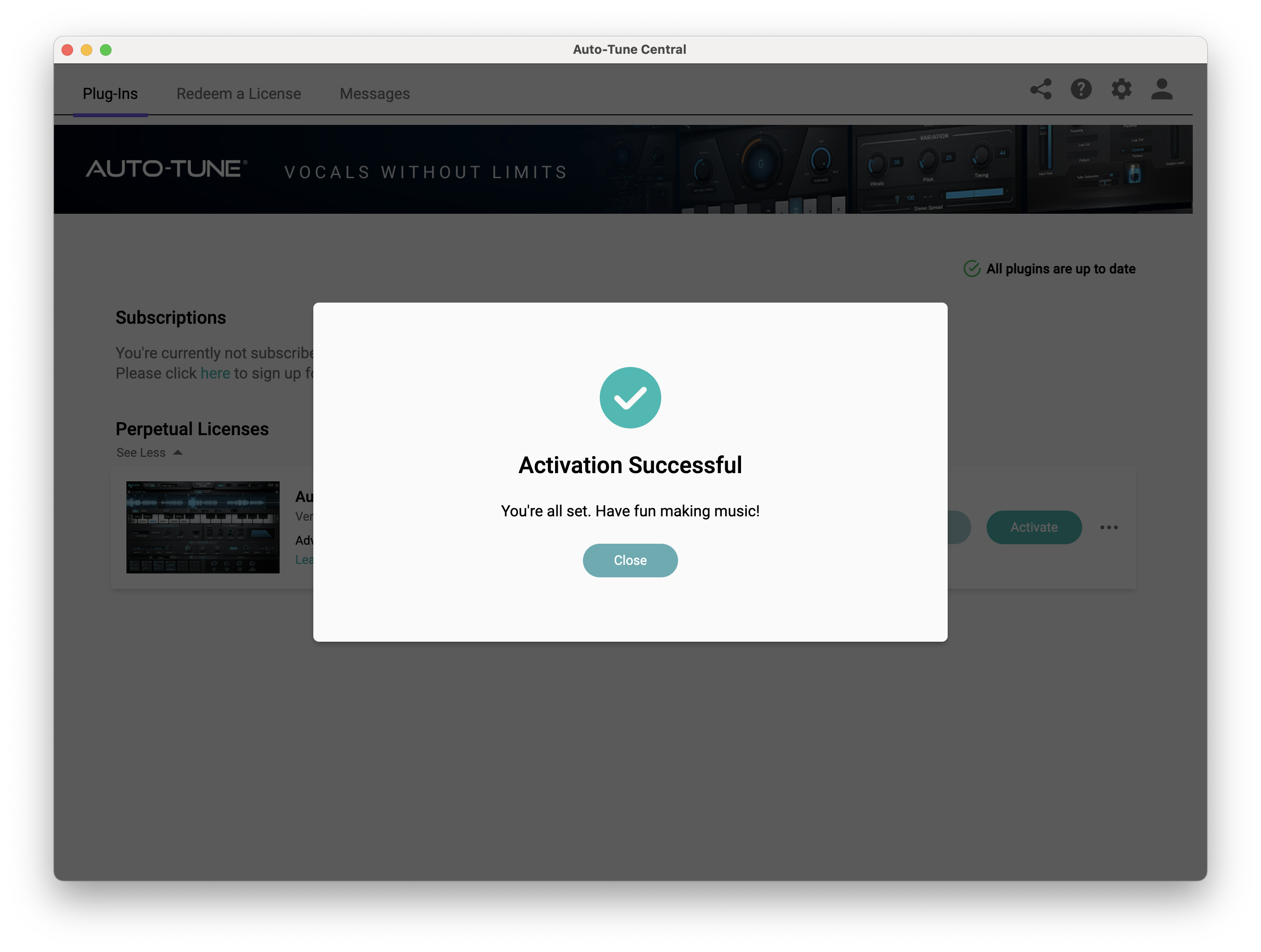
12. Click 'Close'.

Your software is now activated and ready to use within your DAW.

PC

Windows

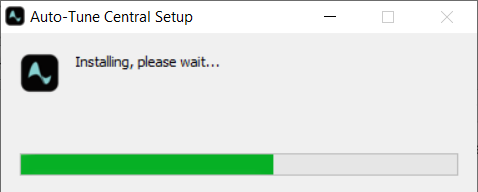
1. Download the .zip file from within your Plugin Boutique account and double-click it to extract the contents > Open the .exe file > Auto-Tune Central will now automatically install.

2. Launch Auto-Tune Central > Either create a new account by clicking 'Create Account' or if you already have an account, enter your Antares registered Email Address and Password > Click 'Sign In'.

3. Click 'Agree'.

4. Enter your iLok User ID and click 'Sign In'.

5. Click 'Continue to iLok'.

6. Enter your iLok User ID and Password then click 'Authorize'.

7. Your iLok account is now linked > Click 'Close'.

8. Click on the 'Redeem a License' tab > Enter the 25-digit Registration Code, found in the serial number section of your Plugin Boutique account > Click 'Redeem and Activate'.

9. Navigate back to the 'Plug-Ins' tab > Click 'Install' to install your plugin.

10. Click 'Activate'.

11. Select whether you want to activate the license to your Computer or iLok USB > Click 'Activate'.

12. Click 'Close'.

Your software is now activated and ready to use within your DAW.

Plugin Boutique Rewards

Discover the most rewarding loyalty programme among all plugin retailers.

  • Free Loopmasters Samplepacks
  • Discounts on products and courses
  • Extra Virtual Cash claimed immediately at checkout
Find out more

Follow us:

X (Twitter) Facebook YouTube Instagram
Logo Logo

Plugin Boutique Limited, Part of the Beatport Group LLC.

Copyright © 2011-2025 Plugin Boutique. All rights reserved