/ De-Esser / Renaissance DeEsser
Waves

Renaissance DeEsser

5.0 (2 Reviews)
$29.99 $99.00

69% off until Dec 07

Waves Renaissance DeEsser
Waves Renaissance DeEsser gallery thumbnail
Buy Now
Product information

Renaissance DeEsser
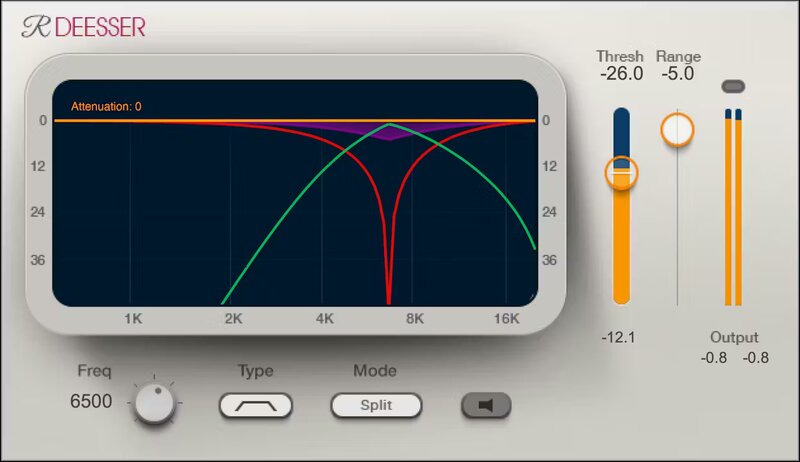
A New Solution to a Persistent Problem

De-essing is an essential process when recording vocals, voiceover, audiobooks, and podcasts. Excessive high frequencies caused by “ess” and “shh” sounds can cause distortion, splattering, and make equalization more difficult. Renaissance DeEsser solves these problems—and more.

Renaissance DeEsser delivers transparent, artifact-free de-essing that focuses on reducing ess sounds with laser-like precision.

Features

  • Phase-compensated crossover minimizes coloration
  • Precision filtering reduces impact on frequencies adjacent to esses
  • Display shows filter type, range, frequency, and real-time de-essing
  • Monitor the sidechain for precise tuning to the ess frequency
  • Choose strong or gentle de-essing, using wideband or split modes
  • Select light or dark skins, or space-saving legacy skin

System Requirements

Mac

  • macOS Monterey 12, Ventura 13, Sonoma 14, Sequoia 15
  • VST / AU / AAX

PC

  • Windows 10+
  • VST / AAX
Installation Instructions

1. Head to https://www.waves.com/create-account

2. Enter your email and choose a password to create an account (if you already have a Waves account, choose Log in, enter your details and head to Step 5) > click 'Submit'

3. Open your email inbox > click the activation link in the email from Waves

4. Click 'Log in here' > Log in to your Waves account

5. Click 'Register New Products'

6. Enter the Serial Number found in your Plugin Boutique user account > click 'Submit'

7. Click download in your Plugin Boutique user account or head to https://www.waves.com/downloads/central > download the Waves Central app for your operating system

8. Install Waves Central > Open Waves Central

9. Click 'Log in' > enter your log in details

10. Click the 'Install Products' tab

11. Tick the blue dot on all products you wish to install or click the top dot to install all products > click 'Install & Activate'

12. Click 'OK'

13. Open your DAW > open the Waves plugin

Your Waves plugins are installed and ready to use, enjoy!

Plugin Boutique Rewards

Discover the most rewarding loyalty programme among all plugin retailers.

  • Free Loopmasters Samplepacks
  • Discounts on products and courses
  • Extra Virtual Cash claimed immediately at checkout
Find out more

Follow us:

X (Twitter) Facebook YouTube Instagram
Logo Logo

Plugin Boutique Limited, Part of the Beatport Group LLC.

Copyright © 2011-2025 Plugin Boutique. All rights reserved










