/ De-Esser / Deesser
Softube

Deesser

4.7 (25 Reviews)
$79.00
Deesser - GUI
Deesser - GUI
Deesser
Buy Now
Product information

Smooth vocals with speed & simplicity

  • An intuitive way to improve vocal intelligibility and tame sibilance in the mix
  • Low latency, low CPU, and an easy-to-use interface
  • Featuring frequency detection, relative threshold, and a transparent sound

Straightforward and full of power, Softube's Deesser gives you a smoother, more natural sound while keeping the overall tonal quality of your audio intact.

With Deesser, you can intuitively improve vocal intelligibility and tame sibilances with the simple interface and be on your way. Deesser's low latency and low CPU are excellent for tracking. The easy-to-use frequency detection, relative threshold, and transparent sound make it indispensable – from vocal tracks to harsh frequencies in a full mix.

De-essing and The Art of Rock & Roll Science

Over several decades of partnering with brands like Tube-Tech, Solid State Logic, Chandler Limited, Weiss Engineering, and Trident, Softube have built a rock-solid reputation for creating equipment that improves your workflow and gives you superior sound quality.

Deesser was built on this foundation of creativity, passion, and attention to detail. It’s a de-esser tool the team at Softube want to use – with the power needed to do the job, combined with an economy of features and an efficient workflow, and full of the heart, soul, and Rock & Roll Science infused in every Softube tool.

Easy de-ess it

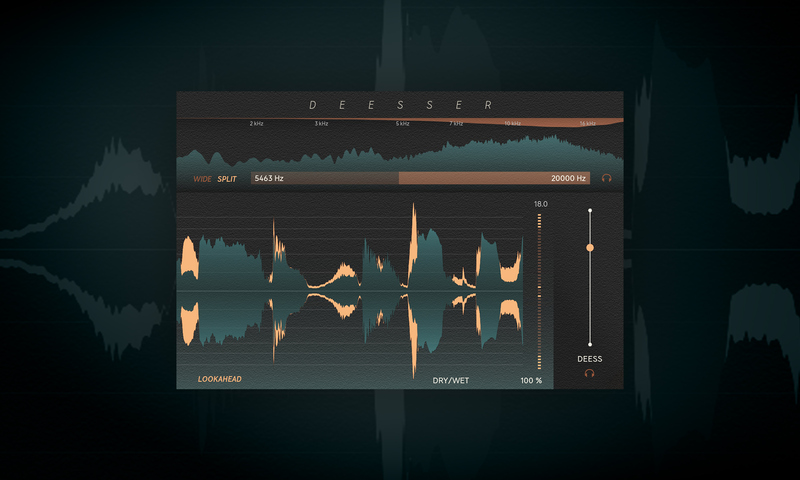
Softube made sure that the layout of Deesser felt as intuitive as possible so you can handle harsh sibliances with speed and simplicity. All you have to do to start de-essing is just drag the Deess slider. The frequency range of the detector determines where Deesser should listen for problematic frequencies. To set this range, drag the filter widget or type in your desired values. It's as simple as that.

Must see

Deesser has everything you need and nothing you don't, which makes for a fast and easy workflow. On the interface, you'll find your key visualizations ready to guide you toward the right choices for your sound. The frequency analyzer on top shows the energy in the frequency spectrum, aiding you in setting the detector range. The frequency analyzer also shows the gain reduction, where the de-essing is applied.

The Waveform View offers a bigger picture of the incoming audio and the amount of de-essing. Showing the GR measured in dBs, the gain reduction meter can be found beside the Waveform View.

Tips! Relative Threshold

Deesser uses a relative threshold which means it’s an automatic level-independent algorithm that makes setting the de-essing amount super easy. Any changes, in terms of input level, made to your chain before Deesser won’t affect the response of the de-essing happening. 

Features

  • Easy to use sibilance taming with a transparent sound
  • Fast & intuitive improvement of vocal clarity and intelligibility
  • Helpful for taming harsh frequencies in a full mix
  • Frequency detection and relative threshold
  • Low latency, low CPU, and simple interface

System Requirements

  • macOS Big Sur 11, Monterey 12, Ventura 13
  • Windows 10 (64-bit), Windows 11
  • Softube account
  • iLok account
  • Computer with AU, VST, VST3 and/or AAX compatible DAW host software
  • Internet access (for downloading installers and managing licenses)
Installation Instructions

Important Note: Spring Reverb is used as the example

Installation Video

Note: Before starting the installation, you are required to create a FREE iLok user ID and install the iLok License Manager.

Please take a look at this Help Centre Guide for more information.

Registration

1. Click 'DOWNLOAD' in your Plugin Boutique Account. This will direct you to the Softube login page.

2. Enter your details > tick the Privacy Policy box > click 'Sign up' to create an account. (If you already have a Softube account, please log in and skip to step 5).

3. Go to your email account > find the Softube registration email > click 'ACTIVATE MY ACCOUNT'. (Your account has now been successfully created)

4. Go back to www.softube.com (you should now be logged in) > click 'MY ACCOUNT'.

5. Click 'REGISTER LICENSE'.

6. Enter the License Code (referred to as serial number on our site) found in your Plugin Boutique User Account > click 'REGISTER LICENSE'.

7. Click 'GO FOR IT!'.

Your product is now registered.

Mac

1. On the My Products page, click 'MAC' > you will be directed to the Mac Installation page. 

2. Click 'HERE (highlighted in orange) to start downloading Softube Central.

3. Once it has downloaded, open the Softube Central PKG file > click 'Continue'.

4. Read through the Software License Agreement > click 'Continue'.

5. Click 'Agree'.

6. Click 'Install'.

7. Enter your password > click 'Install Software'.

8. Click 'Close'.

9. Open Softube Central > click 'INSTALL' to install all the necessary iLok licensing components. (This may take a few minutes)

10. Sign in to your Softube account.

11. Your product will now be displayed in Softube Central.

Please note: if it says 'DISCONNECTED' at the top of the window, please go to the settings and click 'RESTART', close Softube Central and then open it again.

Your software is now activated and ready for use within your DAW.

Windows

1. On the My Products page, click 'WINDOWS' > you will be directed to the Windows Installation page. 

2. Click 'here' (highlighted in orange) to start downloading Softube Central.

3. Once it has downloaded, open the Softube Central download > click 'Yes'.

4. Read through the Software License Agreement > click 'I Agree'.

5. Softube Central will now open > click 'Install' to download the necessary iLok licensing components.

6. Please wait for the iLok licensing components to download. (This may take up to 5 minutes).

7. Click 'Yes' > the Softube Installer Helper Setup will now run.

8. Click 'Next >'.

9. Read through the License Agreement > click 'I Agree'.

10. Click 'Next >'.

11. Choose the VST file path (we recommend the default location) > click 'Install'.

12. Click 'Finish'.

13. Softube Central has now been successfully installed > click 'START'.

14. Sign in to your Softube account.

15. Click 'INSTALL'.

Your software is now activated and ready for use within your DAW.

Bundle & Save

Vocal Tuner + Deesser FREE
$89.00
$278.00 (67% off)

Plugin Boutique Rewards

Discover the most rewarding loyalty programme among all plugin retailers.

  • Free Loopmasters Samplepacks
  • Discounts on products and courses
  • Extra Virtual Cash claimed immediately at checkout
Find out more

Follow us:

X (Twitter) Facebook YouTube Instagram
Logo Logo

Plugin Boutique Limited, Part of the Beatport Group LLC.

Copyright © 2011-2025 Plugin Boutique. All rights reserved