


 Log In

Free gifts available with your purchase
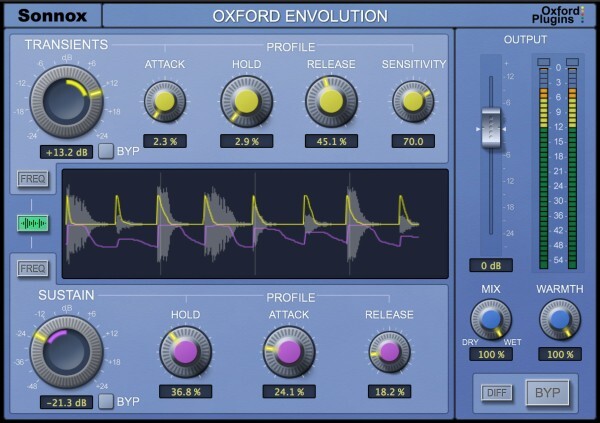
Envolution is a frequency-dependent envelope shaper with separate transient and sustain sections, to radically re-shape the envelope of your instruments or audio.
Use a broader tilt mode or the more parametric-style focus mode to choose which frequencies are processed.
Insert on a track, bus or even master output to add presence/distance to drums, piano, guitar and any other percussive content. Boost sustain to make the ambience around a recording bloom, or cut it for quick and precise gating.
We love the more creative and extreme side of the plug-in too; like using the DIFF button to generate negative ratio compression effects.
Features
- Frequency-dependent control of Transients & Sustain
- Tilt/parametric targeting of frequencies to process
- DIFF button to solo the effect
- Use in parallel without phase cancellation
- Warmth control for - Harmonic saturation/tone shaping and prevention of excessive output levels
- Many great presets to get you started
Formats
- AAX Native, AU, VST2
System Requirements
macOS
- macOS 10.12 or later (Intel / M1 Apple Silicon supported) (64-bit only)
- Plugin Formats - AAX Native, AU, VST3
- Supported Hosts - Pro Tools 11 or above or any desktop application that supports Audio Unit (AU) or VST3 plugins.
Windows
- Windows 10 or later
- Plugin Formats - AAX Native, VST3
- Supported Hosts - Pro Tools 11 or above or any desktop application that supports VST3 plugins.
Activation
The Toolbox range offers 2 activations for each product licence you buy.
Providing you have an iLok account, each activation will allow you to authorise your plugin on one of these devices:
- Machine
- iLok device, iLok2 / iLok3 required with latest drivers OR
- iLok Cloud (Active internet connection required)
Rich Tozzoli
Grammy nominated Producer/mixer/engineer/composer Rich Tozzoli has worked with such artists as Al DiMeola, Ace Frehley, Hall & Oates, Emerson Lake & Palmer, and Billy Squier.
"Envolution is badass! EDM guys will chew this one up!"
Pete Moshay
Grammy Award winning Sound Engineer who has worked with Mariah Carey to Curtis Mayfield, and even music’s greatest legends like B.B. King.
"Holy cow is this a amazingly innovative plug-in! I'm hooked already. It's insane what it does to drums and just about anything you throw at it."
Jonathan Campbell
Director of Jazz studies and professor of Saxophone at University of Minnesota.
"I can change envelopes as I might do in the sampler if I had full access to the source material!"
Reviews Summary
While it aims to provide a helpful overview, it may not capture every perspective or detail. We encourage you to read individual reviews to make an informed decision.
Oxford Envolution is highly praised as a top-tier, transparent transient shaper that excels on drums, percussion, acoustic instruments, and vocals. Users appreciate its precise control over attack, hold, release, and sustain, allowing for natural-sounding results even with heavy boosting. While one reviewer noted that it can feel slightly over-complicated compared to simple two-knob alternatives, most users consider its deep parameter controls, useful visualizer, and Sonnox audio quality to make it an exceptionally versatile, best-in-class plugin.


