


 Log In

Buy AutoTune Vocal Compressor, get a free gift with purchase:

Dual-Stage Digital Compression Powered by Machine Learning
Introducing Auto-Tune Vocal Compressor
Auto-Tune Vocal Compressor is an advanced dual-stage compressor for modern vocal production. Key compression styles driven by next-generation machine learning make finding the best compression settings fast and easy.
Achieve pro-level vocal balance with the industry-standard Dual-Stage mode and the most popular compressor styles for vocals (FET, Opto A, Opto B, and Modern). Apply classic compression styles including unique harmonic saturation that can be engaged when using the WARM function. Quickly find the best starting point for your tracks using Assist Mode; custom automation powered by proprietary machine learning algorithms. Use the Auto-Tune Pitch Filter to focus the Modern style’s Side-Chain signal around a vocalist’s fundamental pitch for clean and focused gain reduction.
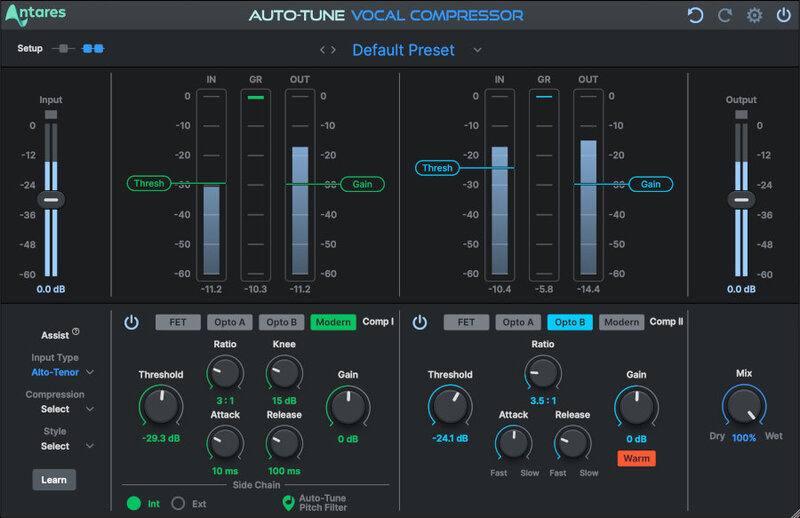
Dual-Stage Stack Attack!
Auto-Tune Vocal Compressor is the only vocal compressor plug-in with machine learning in the world supporting dual-stage configurations. Stack two fully featured and tweakable compressors together from four of the most popular styles (FET, Opto A, Opto B, and Modern), in any order to create the ultimate vocal compressor.
Intelligent Compression
Using advanced machine learning technology, Auto-Tune Vocal Compressor analyzes your track and recommends the optimum starting point and compression levels to get the sound you want.
Artist Presets From Industry Leaders
Compelling artist presets covering a wide range of vocal styles and moods to help jumpstart your creativity and make it easy to experiment with new ideas.
Warm Up Your Audio
Apply the cozy vibe of tube saturation and harmonics to vocals across one or both compressors with the built-in Warm feature.
Features
- Single and Dual-Stage Modes
- Four Popular Compression Styles (FET, Opto A, Opto B, and Modern)
- Assist Mode, Powered By Machine Learning
- Modern Side-Chain with Auto-Tune Pitch Filter
- Unique WARM function per Compressor Style
- Step-By-Step Tutorials
- Compatible With All Major DAWs
- Apple Silicon Native
Auto-Tune Vocal Compressor works seamlessly with the entire Auto-Tune product line for fast, convenient, and powerful production.
System Requirements
Mac
- Formats: VST3, AU, AAX Native (Pro Tools 2018.1 or later)
- macOS 11 and higher as required by your host
Windows
- Formats: VST3, AAX (Pro Tools 2018.1 or later)
- Windows 10 and 11
Important Note
- No iLok dongle is required to run this software - only a FREE iLok account/Manager is required for authorisation.
Roman Molino Dunn (Electropoint)
"I treat every element in my scores and productions with the same care I would the lead vocal, so when it comes to compression I reach for Auto-Tune Vocal Compressor. Having all the different flavors of compressors in a dual-stage workhorse, I don't think I've opened another compressor plugin since I got this."
Jacquire King
"These new Antares compressors are wonderful. Very forward-thinking design with the option to combine two compression styles in series. True to form characteristics while staying tonally transparent."
Jesse Ray Ernster
"The Auto-Tune Compressor is amazing. It's like they took four of my favorite go-to pieces of gear and put them together into one single plugin. I love to create my own unique signal chains for crisp vocals, bangin’ drums, and grownlin’ 808’s."
Note: Before starting the installation, you are required to create a FREE iLok user ID and install the iLok License Manager.
Please take a look at this Help Centre Guide for more information.
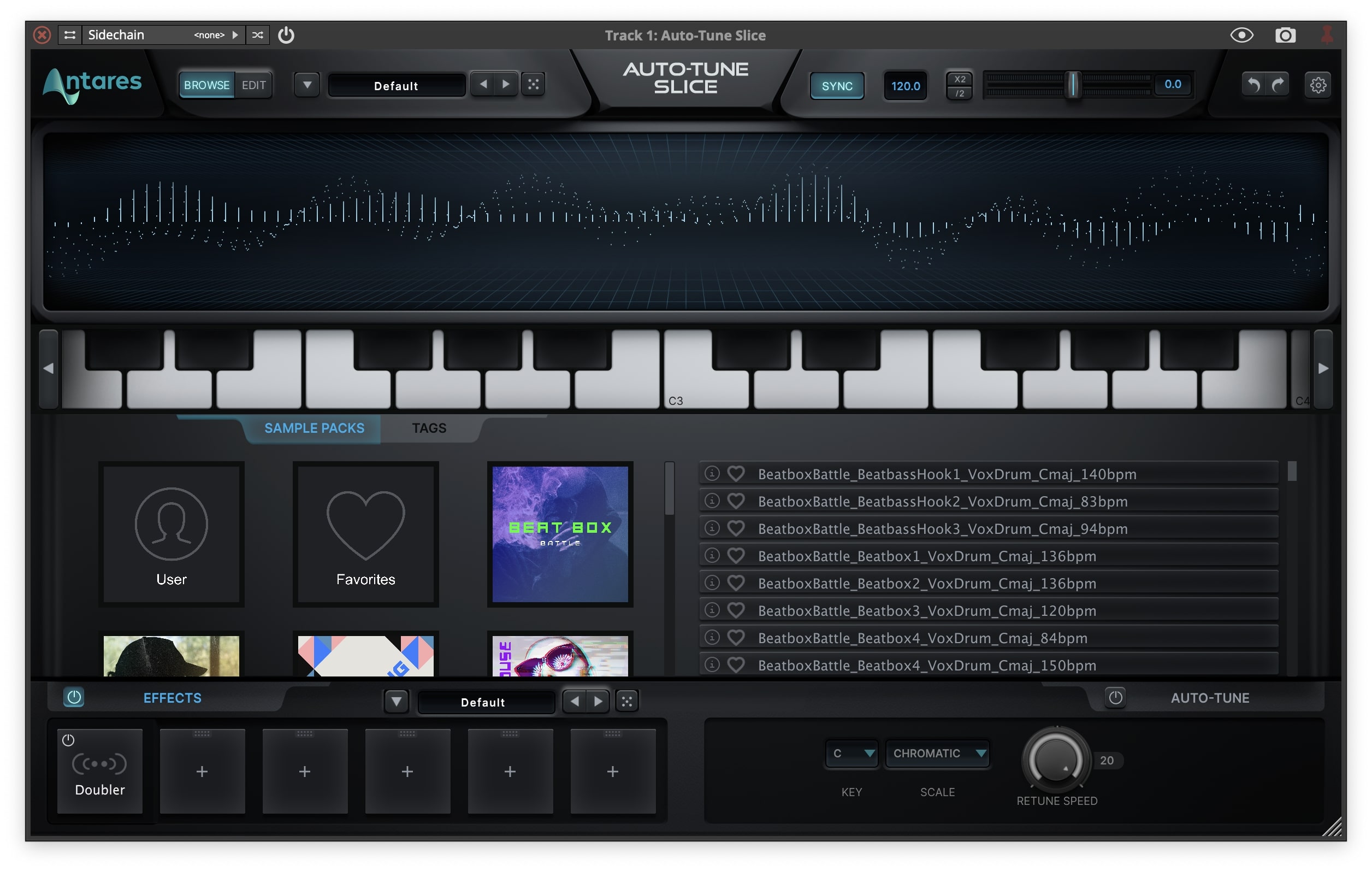
Note: Auto-Tune Slice is used as an example.
Mac
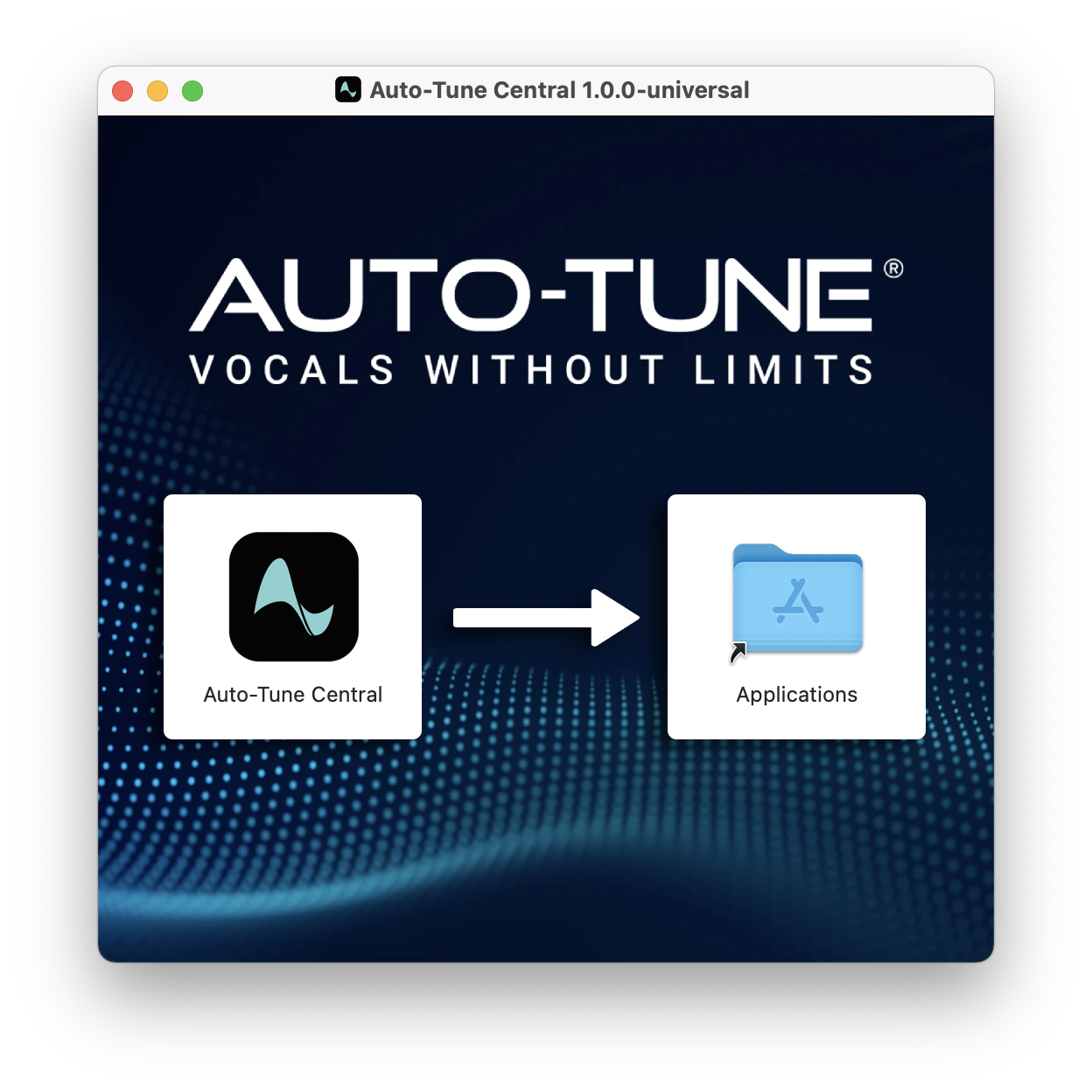
1. Download the .zip file from within your Plugin Boutique account and double-click it to extract the contents > Double-click the .dmg file to launch the installer > Drag Auto-Tune Central into your Applications folder > Auto-Tune Central will now automatically install.
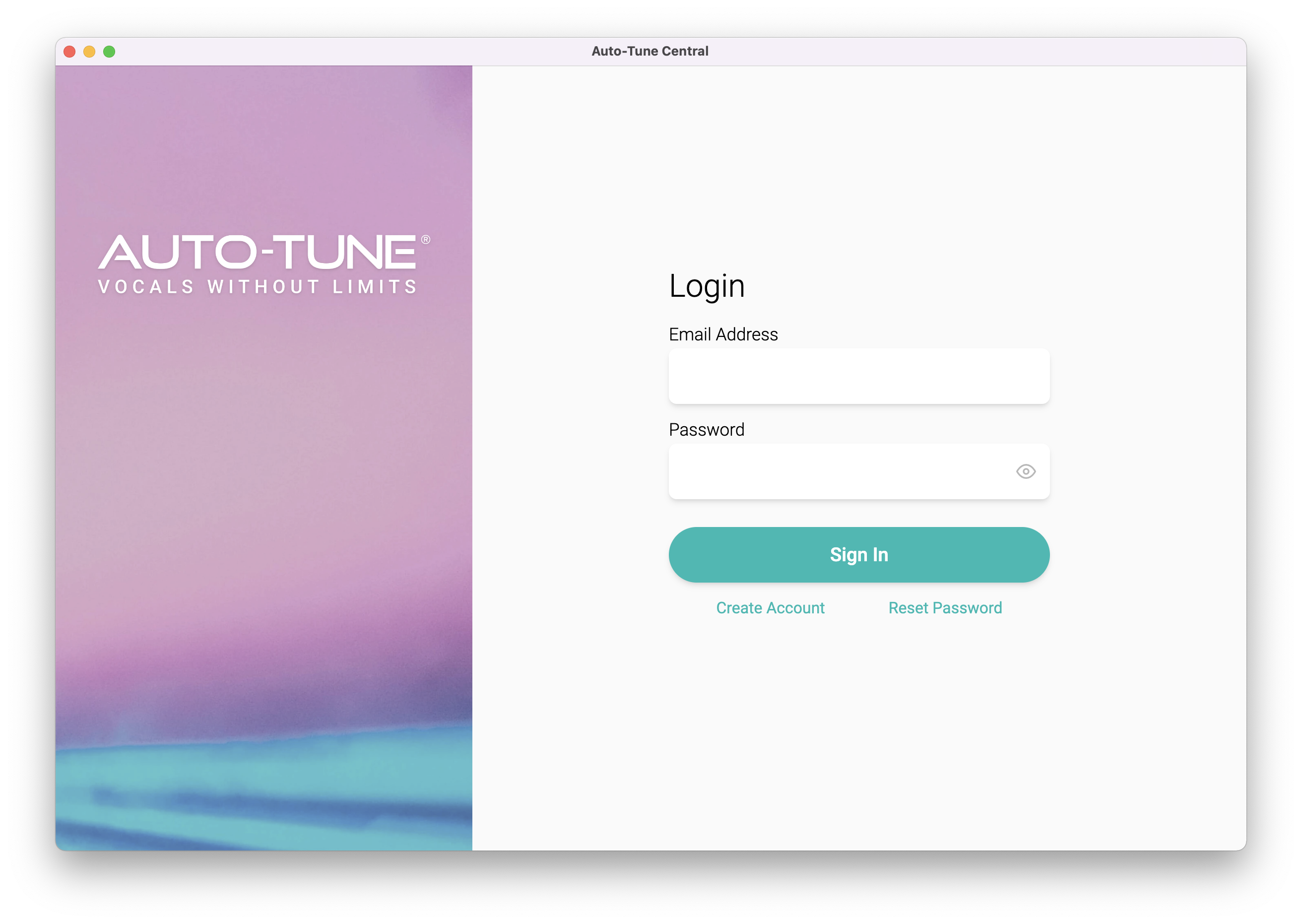
2. Launch Auto-Tune Central > Either create a new account by clicking 'Create Account' or if you already have an account, enter your Antares registered Email Address and Password > Click 'Sign In'.
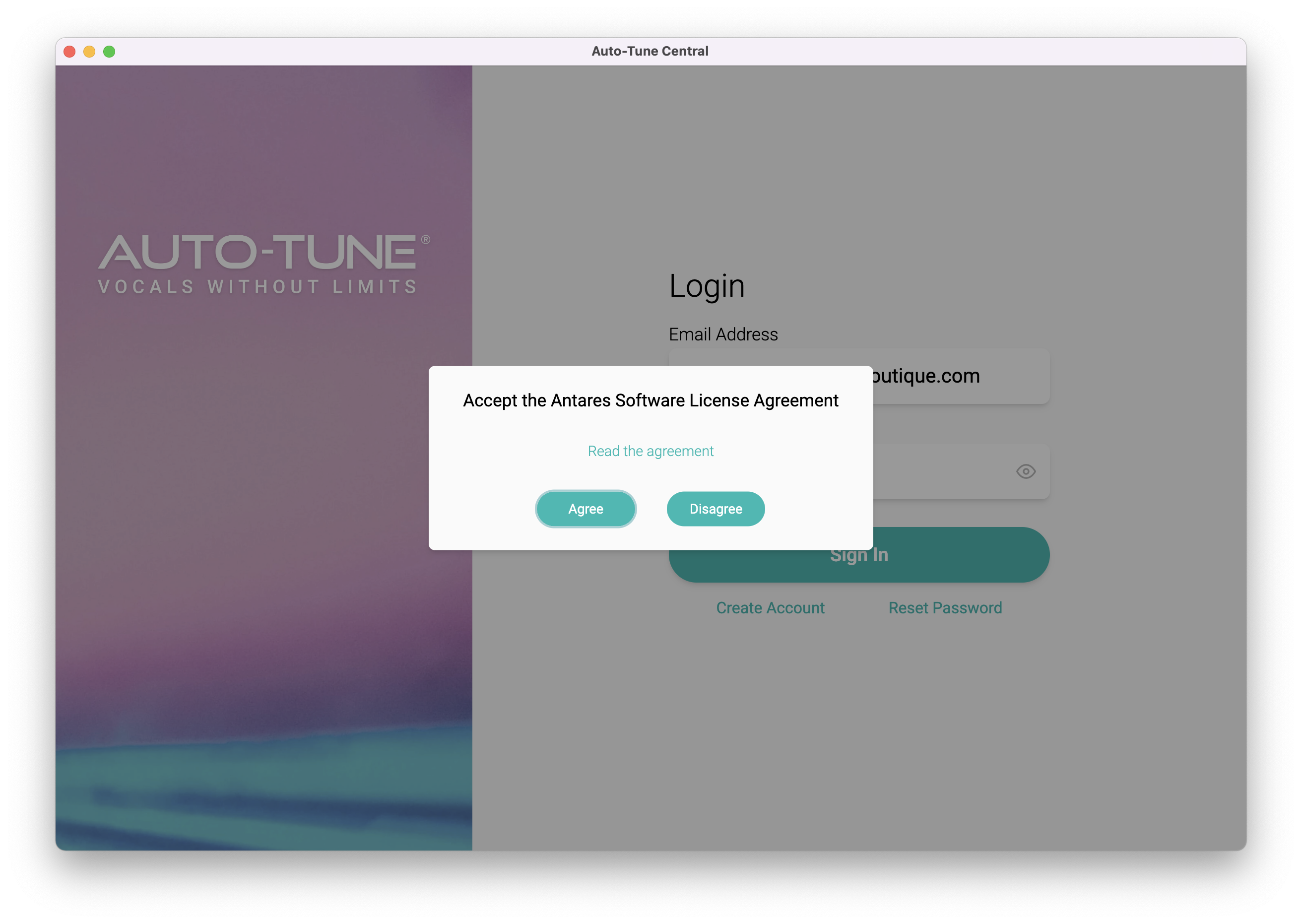
3. Click 'Agree'.
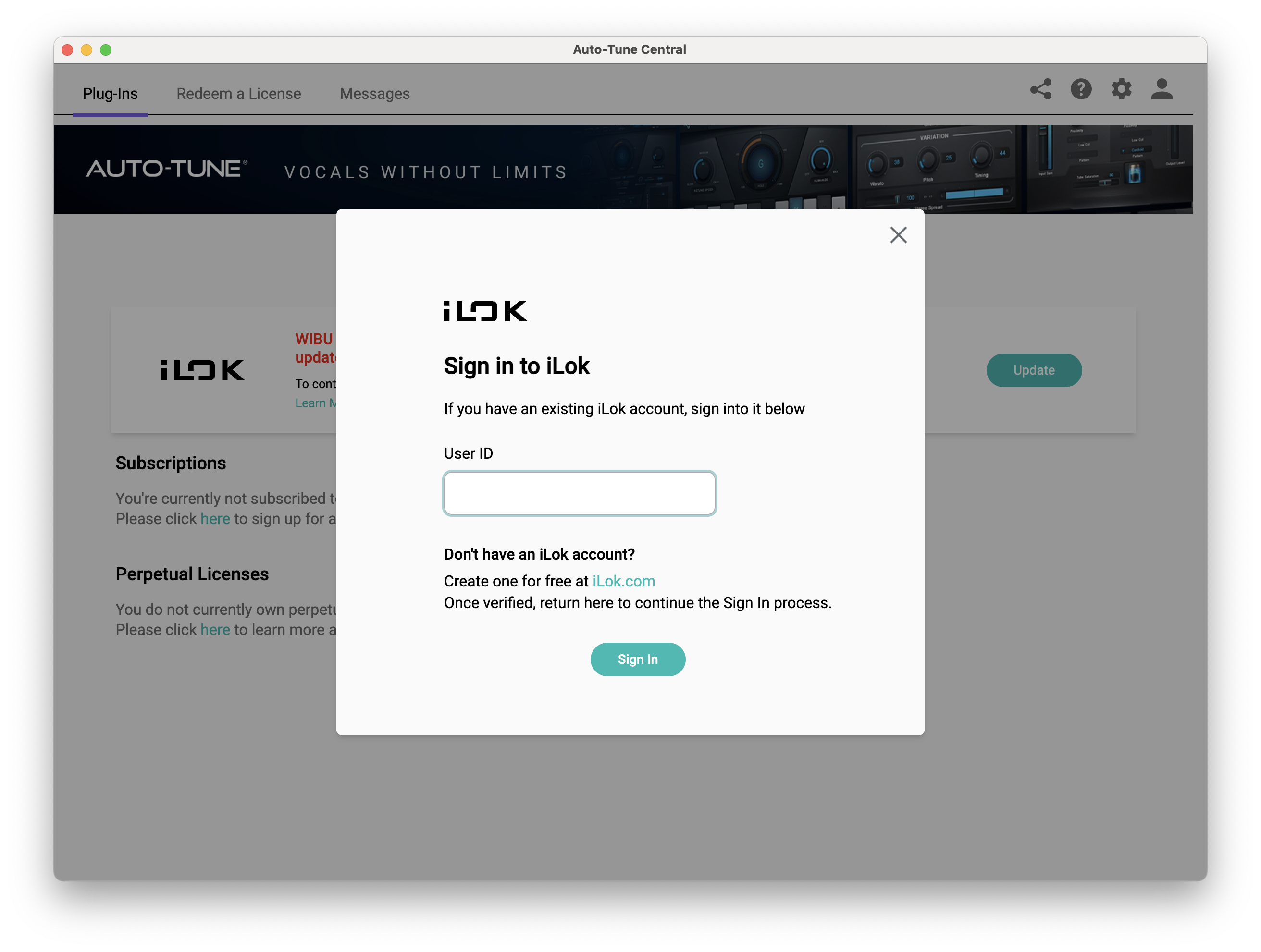
4. Enter your iLok User ID and click 'Sign In'.
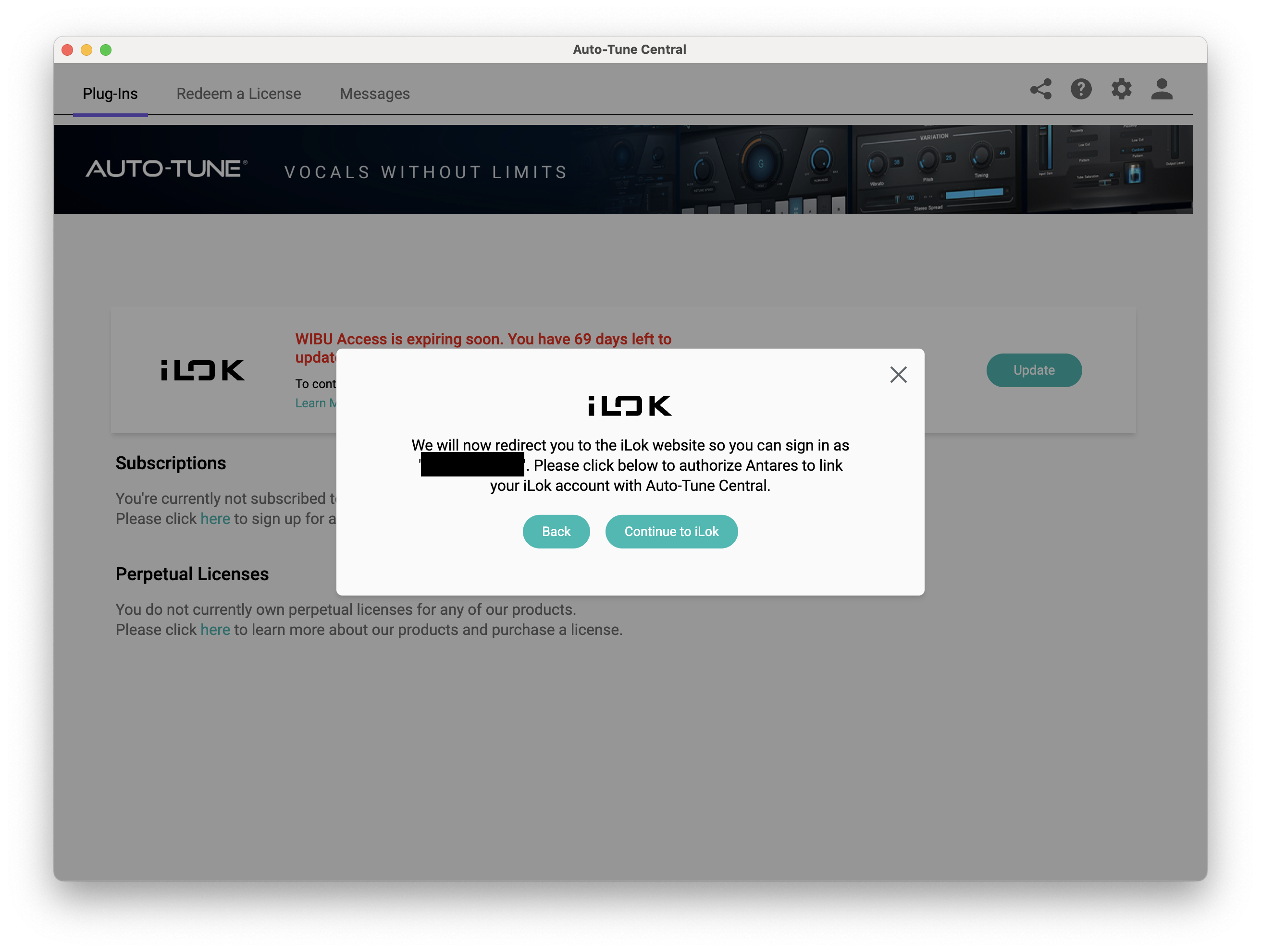
5. Click 'Continue to iLok'.
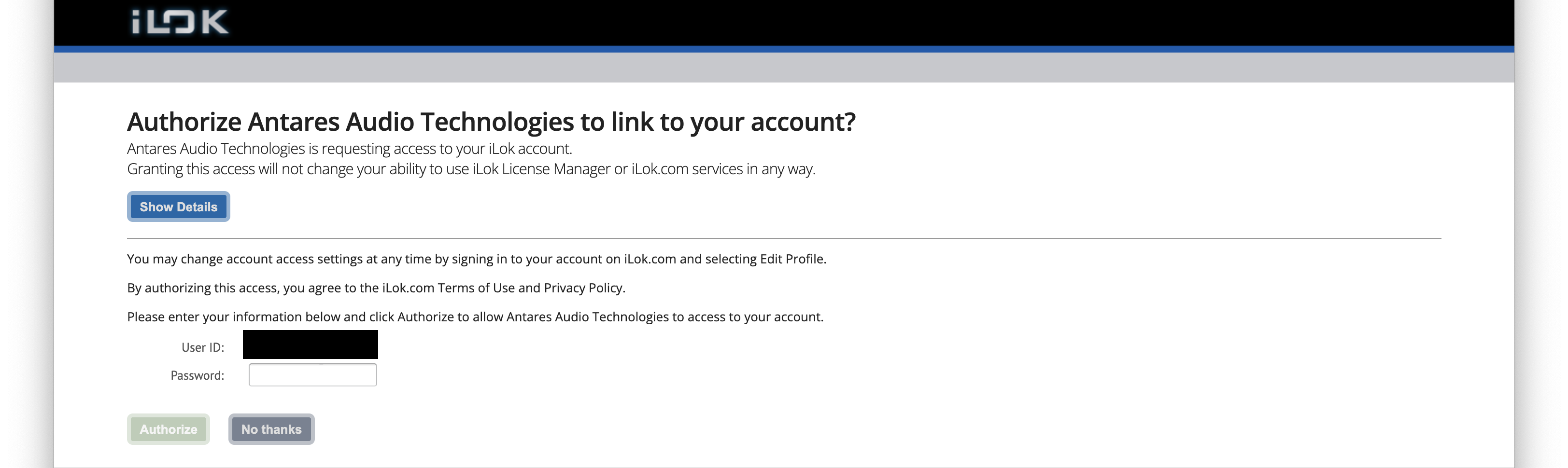
6. Enter your iLok User ID and Password then click 'Authorize'.
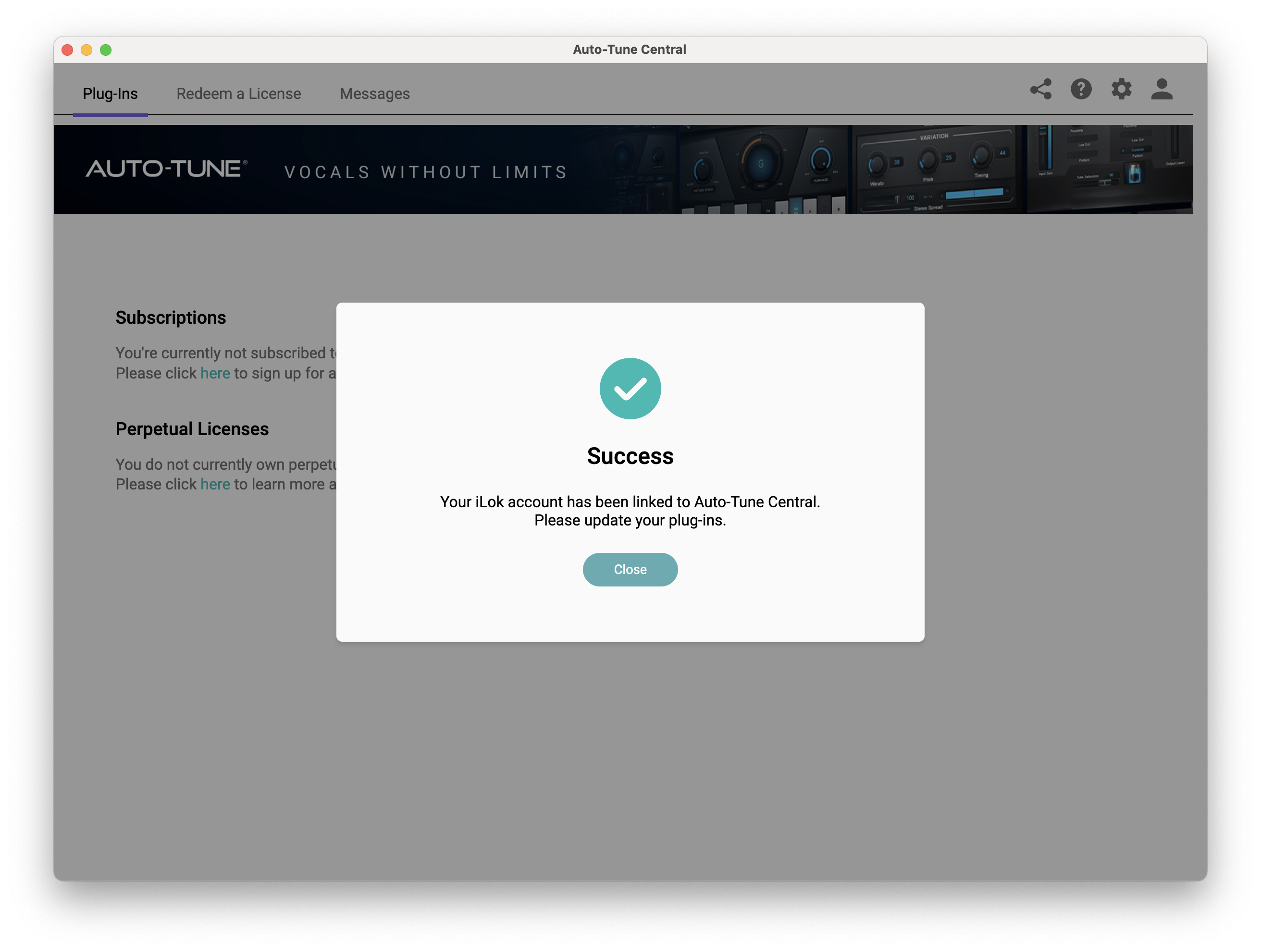
7. Your iLok account is now linked > Click 'Close'.
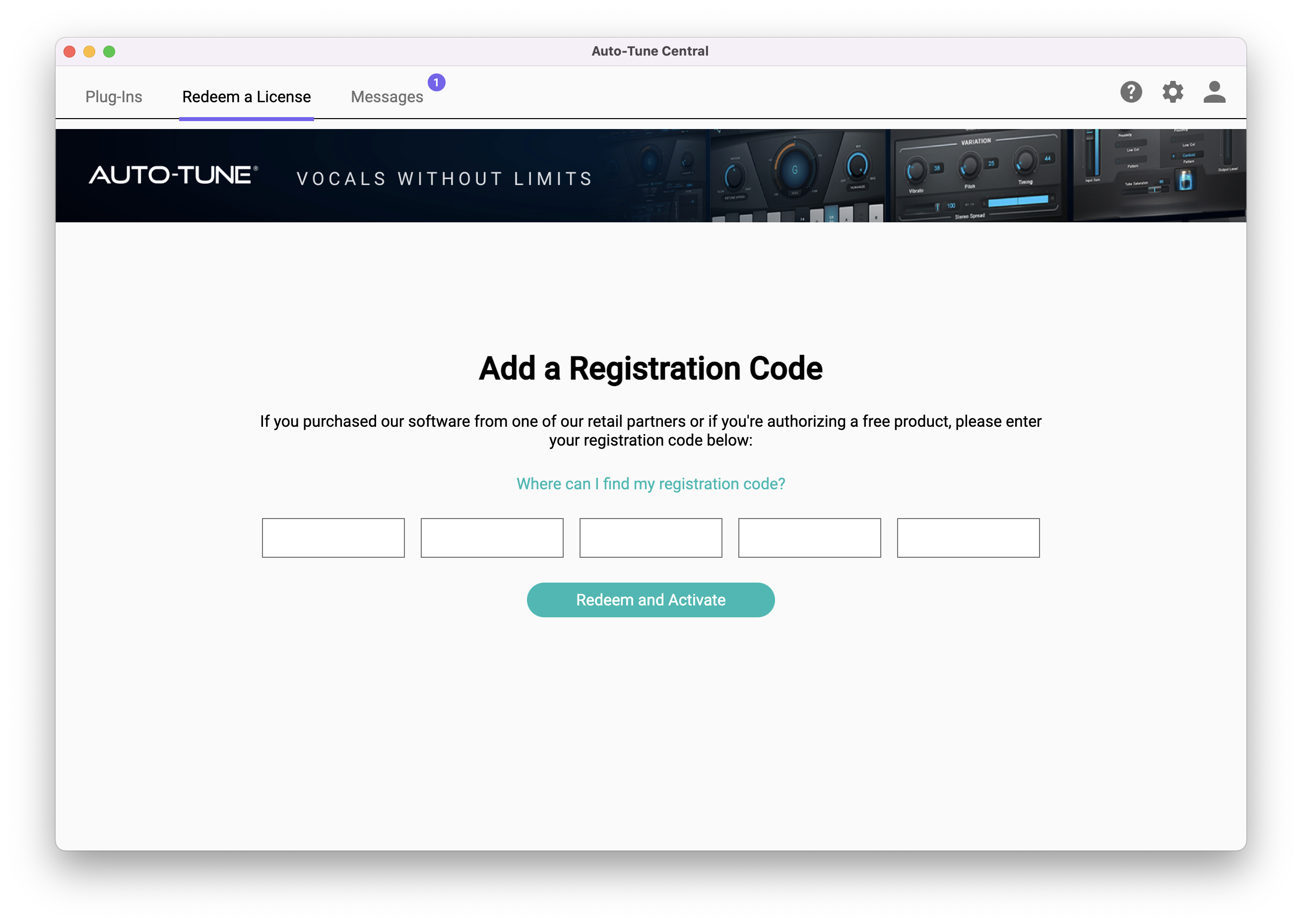
8. Click on the 'Redeem a License' tab > Enter the 25-digit Registration Code, found in the serial number section of your Plugin Boutique account > Click 'Redeem and Activate'.
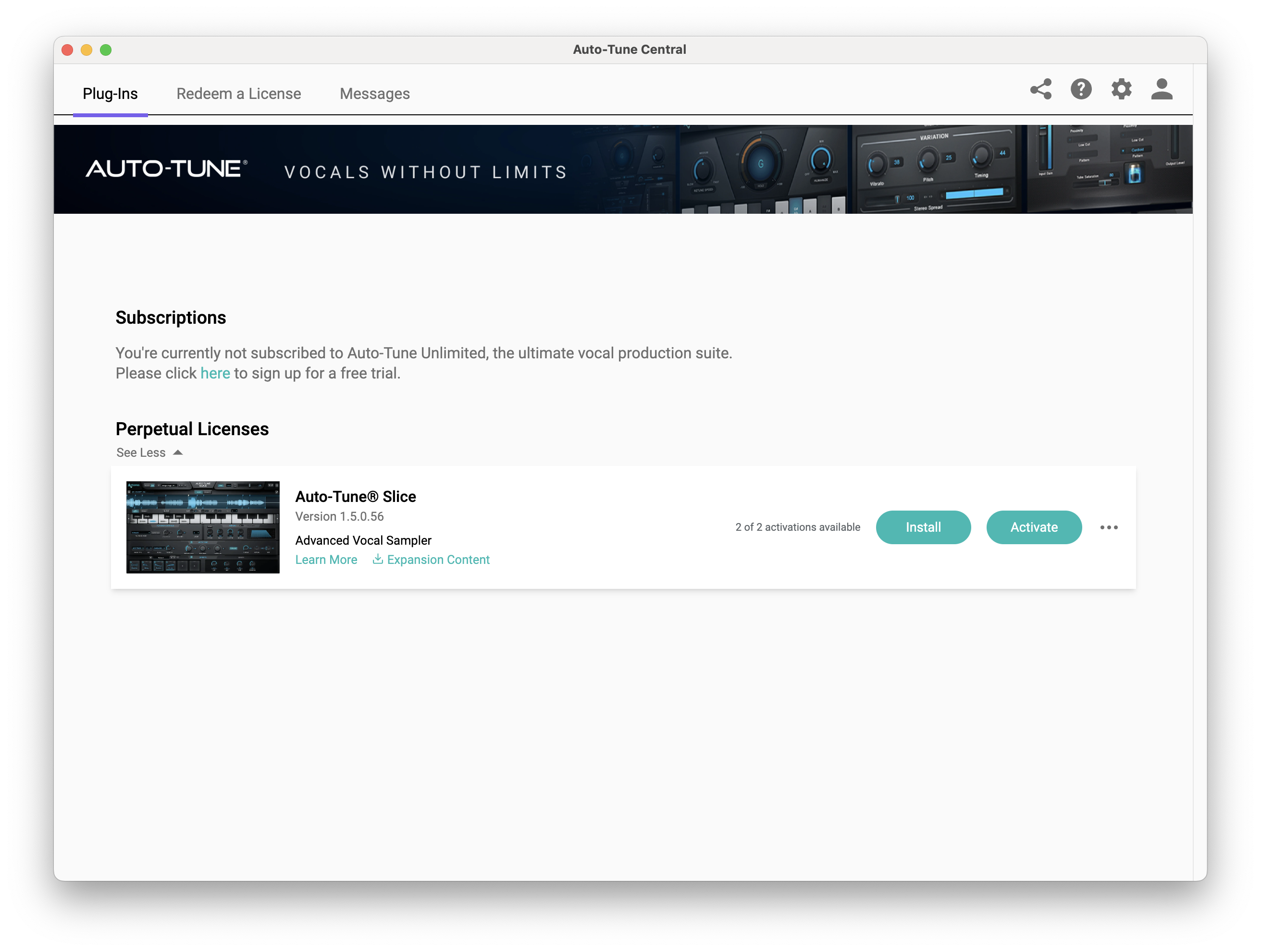
9. Navigate back to the 'Plug-Ins' tab > Click 'Install' to install your plugin.
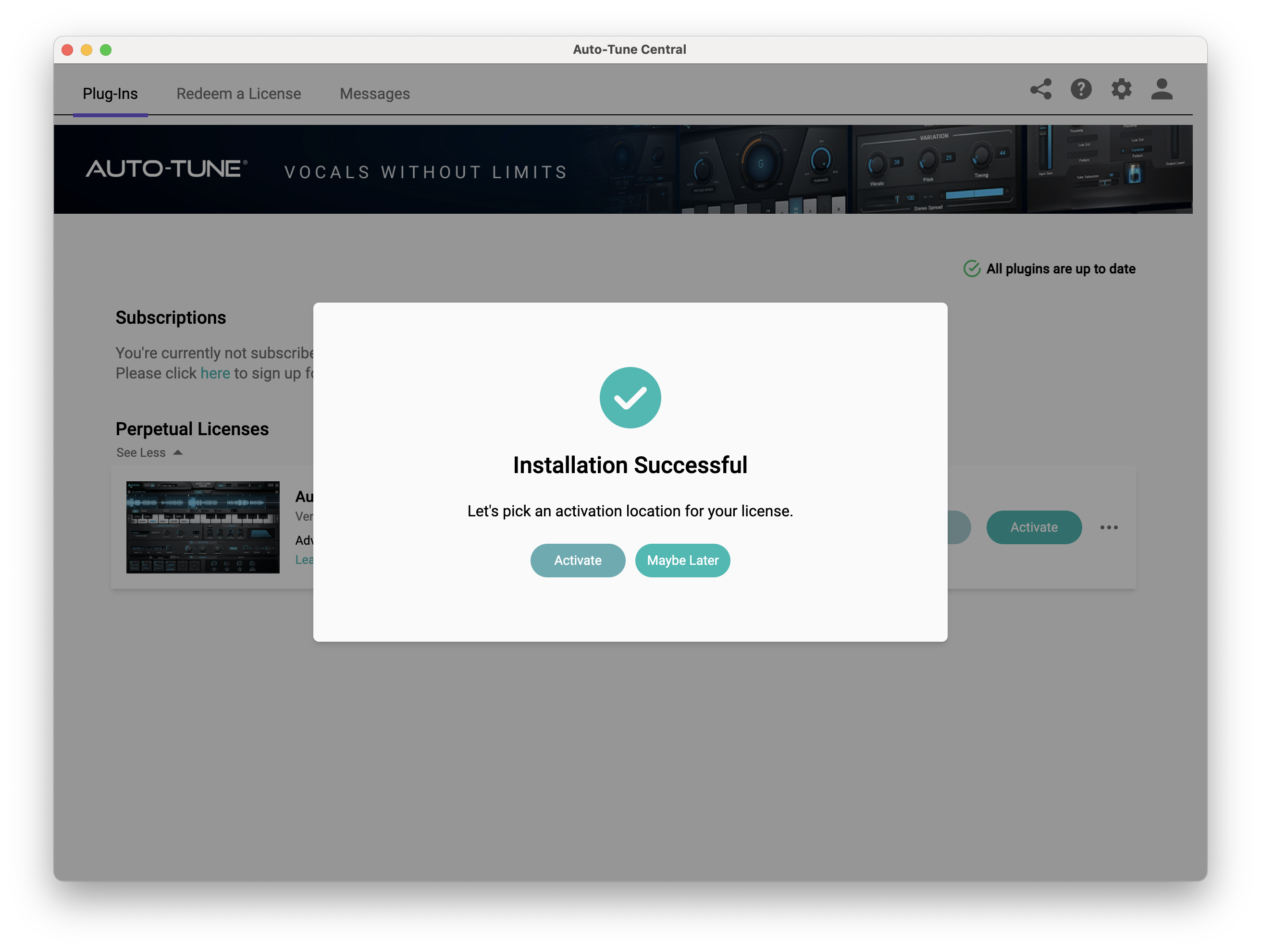
10. Click 'Activate'.
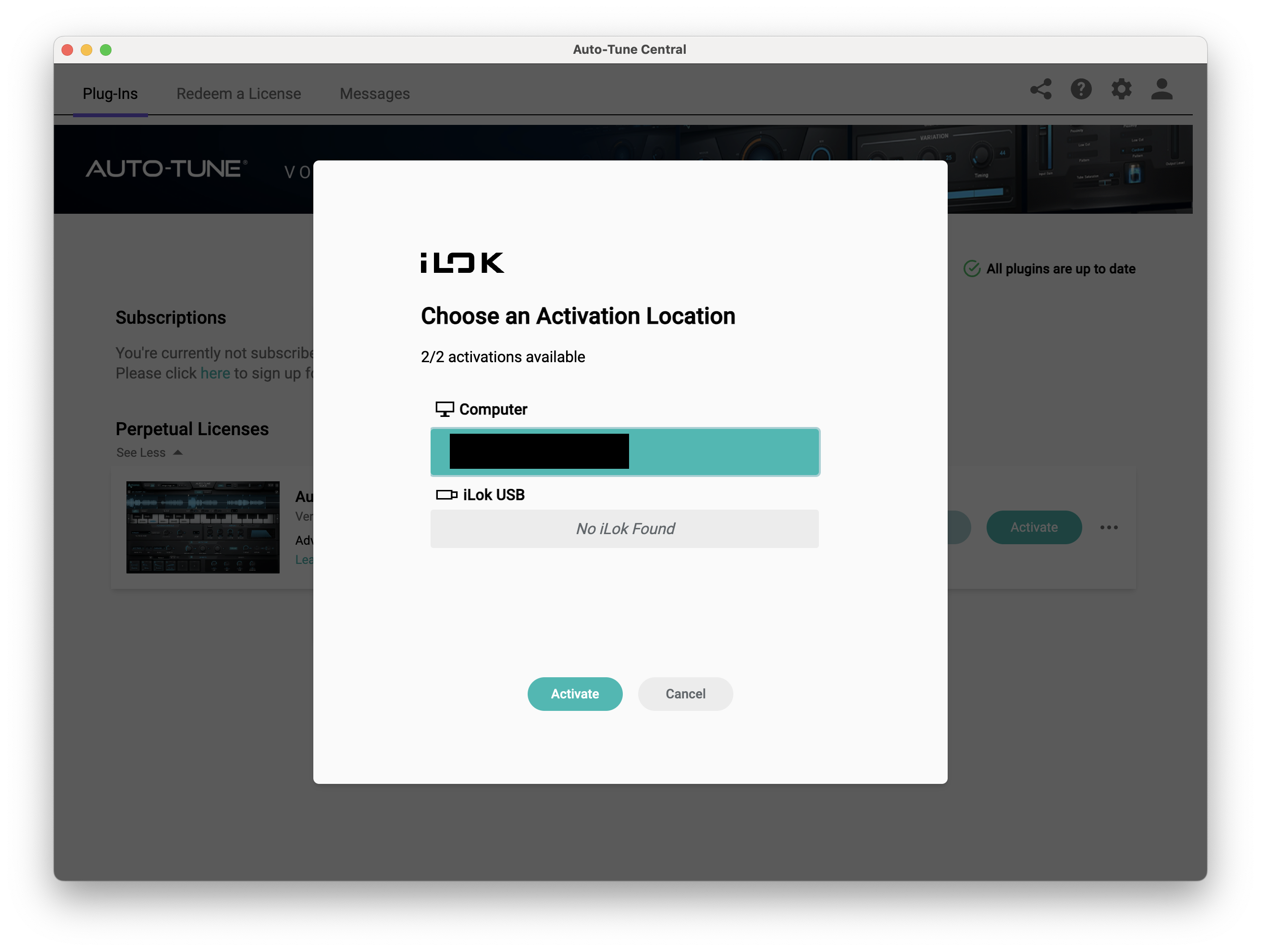
11. Select whether you want to activate the license to your Computer or iLok USB > Click 'Activate'.
12. Click 'Close'.
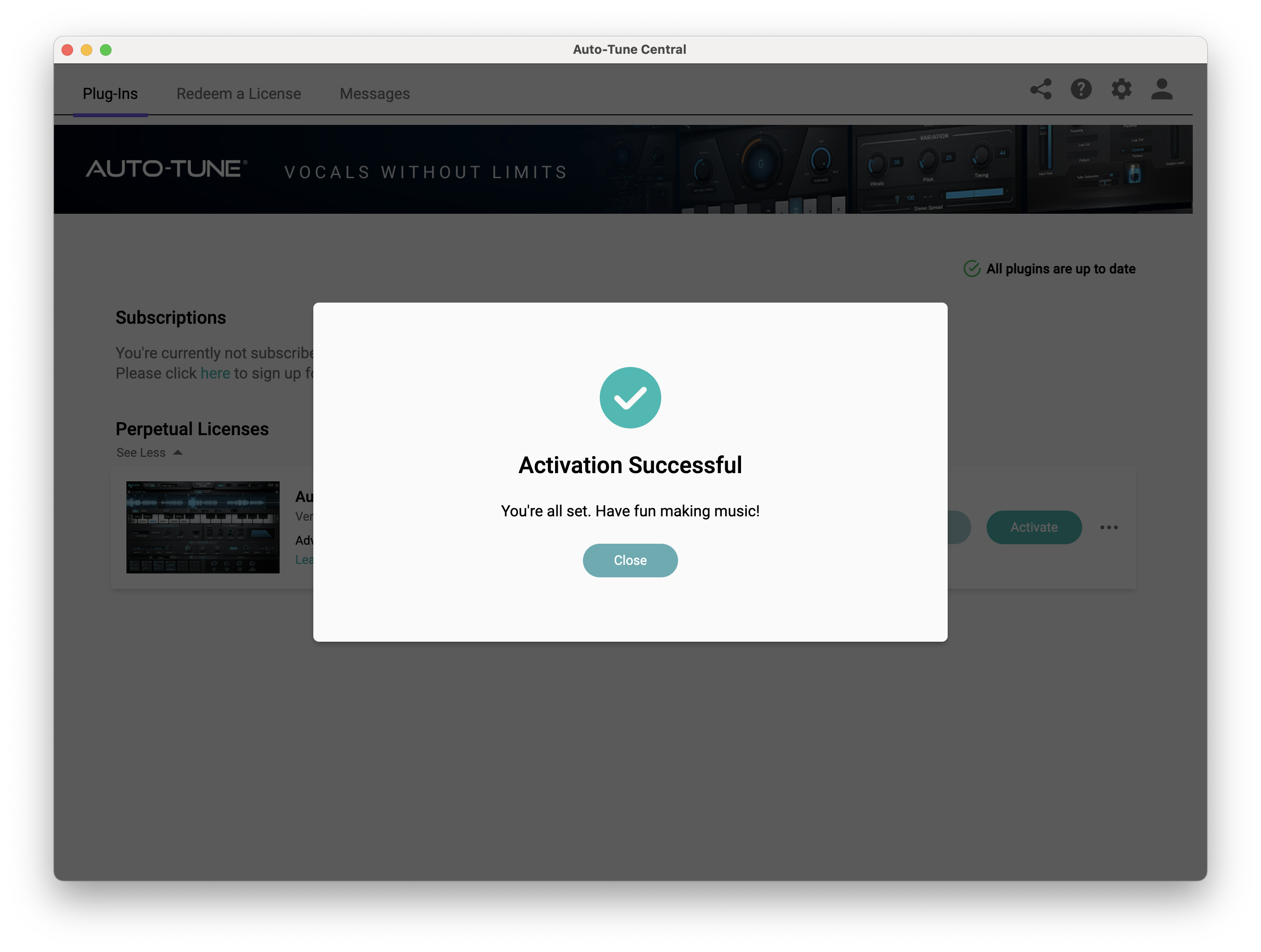
Your software is now activated and ready to use within your DAW.
PC
Windows
1. Download the .zip file from within your Plugin Boutique account and double-click it to extract the contents > Open the .exe file > Auto-Tune Central will now automatically install.
2. Launch Auto-Tune Central > Either create a new account by clicking 'Create Account' or if you already have an account, enter your Antares registered Email Address and Password > Click 'Sign In'.
3. Click 'Agree'.
4. Enter your iLok User ID and click 'Sign In'.
5. Click 'Continue to iLok'.
6. Enter your iLok User ID and Password then click 'Authorize'.
7. Your iLok account is now linked > Click 'Close'.
8. Click on the 'Redeem a License' tab > Enter the 25-digit Registration Code, found in the serial number section of your Plugin Boutique account > Click 'Redeem and Activate'.
9. Navigate back to the 'Plug-Ins' tab > Click 'Install' to install your plugin.
10. Click 'Activate'.
11. Select whether you want to activate the license to your Computer or iLok USB > Click 'Activate'.
12. Click 'Close'.
Your software is now activated and ready to use within your DAW.


