Log In

Free gifts available with your purchase

Multi-Stage Dynamics Processor Plugin
Note: This product is the Surround version. The Stereo Sound version of SKYE Clipper is also available.
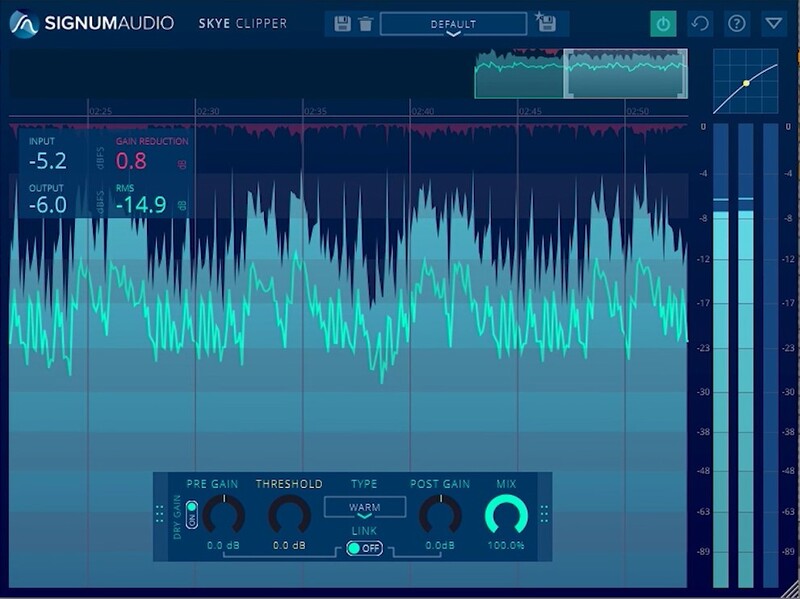
SKYE Clipper is a clipper and saturator that can be used for mixing, mastering and creative sound design. It includes 7 different clipping types, utilising Signum Audio's sophisticated proprietary real-time anti-aliasing algorithms, with a sleek, feature rich and yet simple user interface. Clippers are a great way to add perceived volume to your tracks by shaving off the peaks and adding more body by introducing harmonic saturation that can create a rich, punchy and fuller sound. They also work great as saturators to add some grit and crunch on your instruments.
SKYE Clipper lets you choose between different clipping styles to help control peaks, add loudness to your mix, or to add saturation to your audio. This means it can be used in a variety of scenarios like taming a snare, bus processing, or to add texture to a synthesiser. You can look back over your audio to check your processing with its scalable history view for precision work. Drop it on the master and push the signal into clipping to emulate A-D Convertor clipping.
Remove Unwanted Aliasing Artefacts
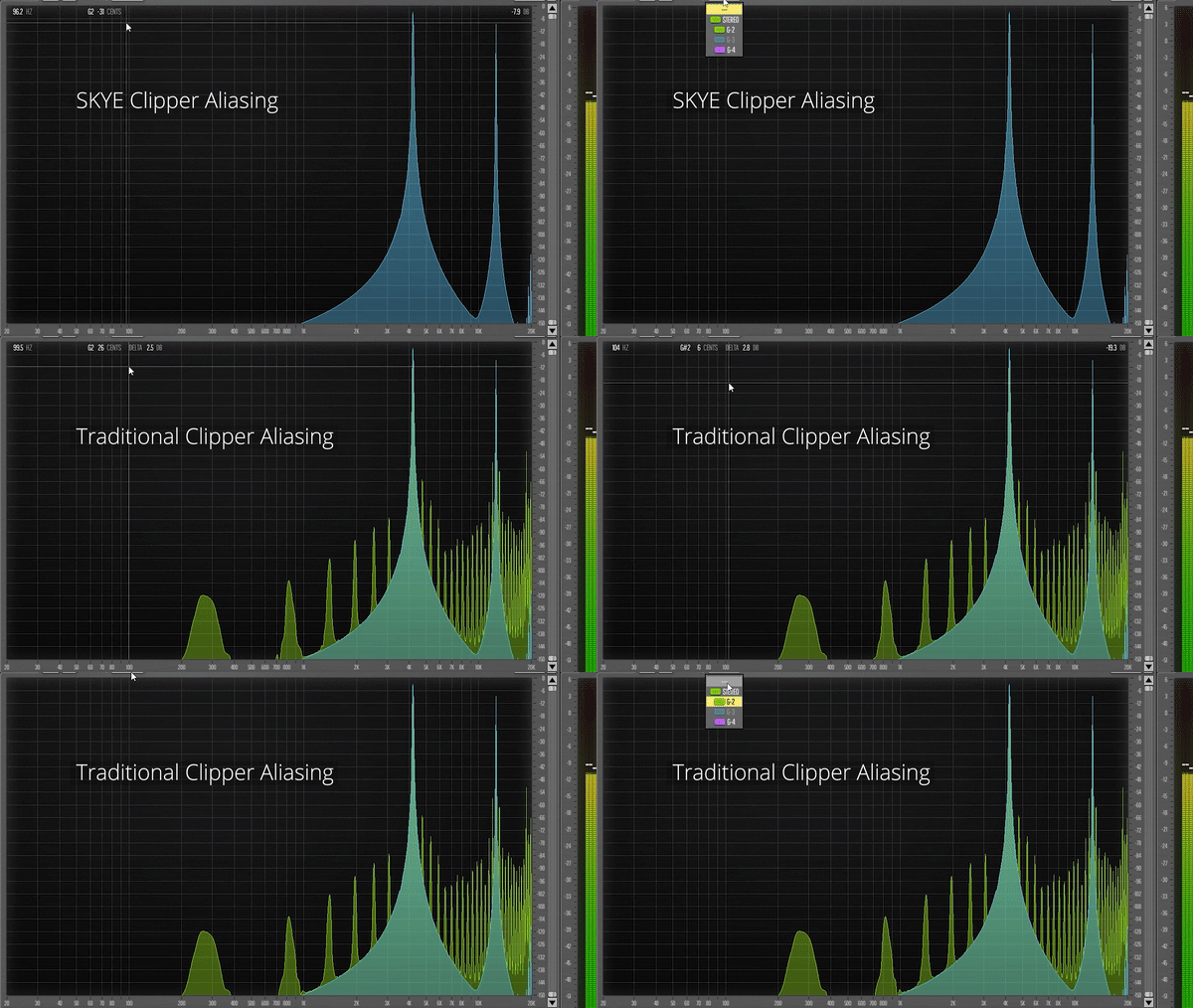
SKYE Clipper uses Signum Audio's proprietary real time anti-aliasing algorithms to drastically reduce the amount of aliasing artefacts produced by clipping. This removes the need to use high upsampling ratios that are known to cause an increase in CPU usage that slows down performance.
Automated Parameters
SKYE Clipper has a control panel where you can control its Pre-gain, Threshold, Clipping Type, Gain Link, Post-Gain and Dry-Wet Mix. All parameters are fully automatable in your DAW and all controls can also be fine tuned by holding the shift modifier while dragging.
Get the Surround Version for Spatial Mixing
With ambisonic mixing becoming more prevalent, Signum Audio have ensured that their plugins are prepared. SKYE Clipper Surround is compatible with up to 7.1.4 surround sound including Dolby Atmos, as well as Stereo and Mono configurations.
Features
- A plugin for hard & soft clipping
- Seven clipping types
- Real time proprietary anti aliasing technology
- Resizable History view for timeline of processing
- Pre & Post gain linking
- Preset Manager
- Controls for Pre-gain, Threshold, Clipping Type, Gain Link, Post-Gain and Dry-Wet Mix
- Dynamic range for metering can be freely scaled
- Mix control for easy parallel processing
- Full and compact view for optimising screen space
- Stereo and Surround versions for multichannel configurations
- Compatible with Mac OS or Windows
- Compatible with VST / VST3 / AU / AAX formats
System Requirements
PC
- Windows 7 or higher
- VST / VST3 / AAX
- 64-bit only
- Available in 2 versions - Stereo or Surround (additional support up to Atmos 7.1.2 support)
Mac
- Mac OSx 10.9 Lion or higher
- VST / VST3 / AU / AAX
- 64-bit only
- Available in 2 versions - Stereo or Surround (additional support up to Atmos 7.1.2 support)