Waves

X-FDBK

$29.99 $149.00

79% off until Dec 07

Waves X-FDBK
Waves X-FDBK
Waves X-FDBK
Waves X-FDBK gallery thumbnail
Buy Now
Product information

X-FDBK

Eliminate Feedback Automatically in Live Shows

Feedback is despised by everyone—audience, performers, and live sound engineers. Fortunately, X-FDBK doesn’t like feedback either, and will do everything possible to eliminate it, efficiently and automatically—in a way that dramatically reduces your setup time.

X-FDBK helps you ring out the PA quickly and accurately, in a set-it-and-forget-it way. The plugin identifies the main frequencies that cause feedback, and notches them out automatically—so you can get on with the show, and start mixing.

Features

  • Get clearer, louder, feedback-free sound from your monitors and PA
  • X-FDBK automatically cuts the frequencies that cause feedback
  • Regain several dB’s of extra headroom before feedback occurs
  • Automated setup requires only one person to ring out the PA
  • Up to 20 filters are available to notch feedback frequencies
  • Automatically optimizes filter bandwidth and amount of cut
  • Compensate for unexpected changes, with global filter controls
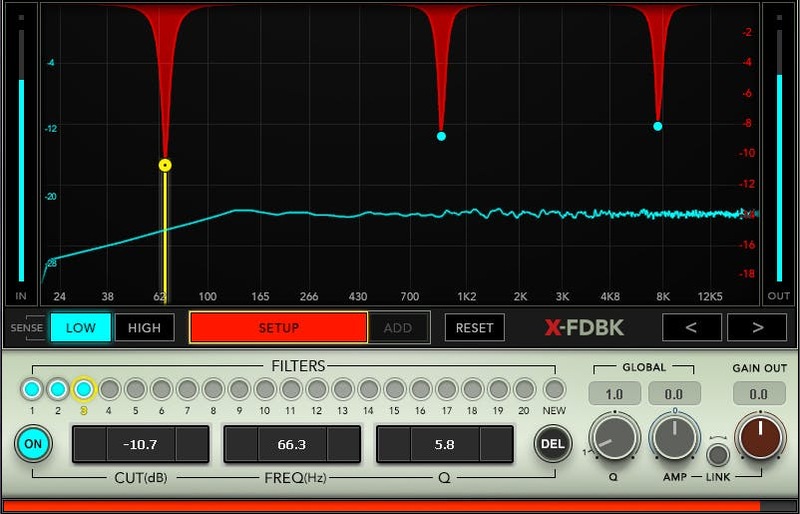
  • Display analyzes incoming audio, and overlays notch filter responses

System Requirements

Mac

  • macOS Monterey 12, Ventura 13, Sonoma 14, Sequoia 15
  • VST / AU / AAX

PC

  • Windows 10+
  • VST / AAX
Installation Instructions

1. Head to https://www.waves.com/create-account

2. Enter your email and choose a password to create an account (if you already have a Waves account, choose Log in, enter your details and head to Step 5) > click 'Submit'

3. Open your email inbox > click the activation link in the email from Waves

4. Click 'Log in here' > Log in to your Waves account

5. Click 'Register New Products'

6. Enter the Serial Number found in your Plugin Boutique user account > click 'Submit'

7. Click download in your Plugin Boutique user account or head to https://www.waves.com/downloads/central > download the Waves Central app for your operating system

8. Install Waves Central > Open Waves Central

9. Click 'Log in' > enter your log in details

10. Click the 'Install Products' tab

11. Tick the blue dot on all products you wish to install or click the top dot to install all products > click 'Install & Activate'

12. Click 'OK'

13. Open your DAW > open the Waves plugin

Your Waves plugins are installed and ready to use, enjoy!

Plugin Boutique Rewards

Discover the most rewarding loyalty programme among all plugin retailers.

  • Free Loopmasters Samplepacks
  • Discounts on products and courses
  • Extra Virtual Cash claimed immediately at checkout
Find out more

Follow us:

X (Twitter) Facebook YouTube Instagram
Logo Logo

Plugin Boutique Limited, Part of the Beatport Group LLC.

Copyright © 2011-2025 Plugin Boutique. All rights reserved