/ Hip Hop / Raw Skillz Everything Bundle
RawCutz

Raw Skillz Everything Bundle

5.0 (23 Reviews)
$99.00
Raw Skillz - Main Image
Raw Skillz - Main Square Image
Buy Now
Product information

Raw Cutz are ready with another massive beat instalment - Raw Skillz - adopting the insight and inspiration from the previously awarded Smokers Unite, Prospect Haze and The Raw Cutz Super Pack.

Raw Skillz fuses both Jazzed Up-Funk and 90’s Classic Hip Hop beats, all with the deep and raw soul-stained style that we are so well known for. Raw Skillz is a truly seminal force in using and abusing professional beat maker skills

Mixing Crackling Vinyl Cutz, Chopped-Up Chords, MPC Kicks, Poppin’ Snares, Crunchy Hats and Percussion, Dubby Funkster Basses and Chops, Deep and Atmospheric FX and loads of Boomin’ Breaks and Hip Hop Loops - Raw Skillz will definitely be used and rediscovered for many years to come - designed for all the hungry Hip Hop producers and avid Downtempo Beat makers.

Raw Cutz once again deliver the real raw sounds and samples from the past into the future with full retro treatments, sonic pairing and tempo and key matching. Raw Skillz is a massive creative  toolbox for any demanding producers looking for an inspirational authentic experience – made by the original Raw Cutz producer - Turf Smoke.

The Raw Skillz Everything Bundle feature both Native Instruments Maschine Kits, and Ableton Live Drum Racks – all programmed and edited in a consistent and user friendly structure so you can change kits and samples quick and easy to try out all new different combinations of sounds for your next project.

For anyone wanting the Loops and One Shots - we included these too so you can start experimenting fast with all the 1100 loops and samples - no matter what studio setup you have. 

Also included are ready to play Sampler Patches for Halion, Kontakt, NNXT, SFZ and EXS24 compatible soft samplers.

In Detail:

  • The Raw Skillz Everything Bundle includes over 1100 samples in 24Bit, 44.1Khz, featuring 300 Loops in Wav and Apple Loops format, 800 One Shot samples, plus 300 Rex2 Loops.
  • The Maschine Pack includes 282 Kit Groups of 16 samples per Group, and 100 Projects – all readily mixed and organised including hundreds of demo patterns and projects.
  • The Ableton Live Pack includes 50 Drum Racks and 50 Projects.
  • The 50 Soft Sampler Patches include the 50 kits in a ready to play format.

Features

  • 24 Bit Audio
  • 3.46 GB
  • 1100 samples
  • 300 Loops in Wav and apple loops format
  • 800 One Shot Samples
  • 300 Rex2 files
  • 282 Kit Groups of 16 samples per Group, and 100 Projects for Maschine 2.5.0+
  • 50 Drum Racks, and 50 projects for Ableton Live 9+
  • 50 soft sampler Patches for EXS24, Halion, Kontakt, NNXT & SFZ

Important note: NI's Maschine V2.2.3+/Kontakt, Ableton Live 9+, Halion, Reason's NN-XT/Dr.OctoRex, SFZ and EXS24 (Logic) compatible soft samplers are all required to run the full contents of this software package (excluding the contents of the Wav Pack).

Testimonials

Jay-J

"Whenever these packs come out - GET them! They never fall short of dope quality! Inspiration at its finest".

Bassbin Twins

"A true "fantasy vinyl crate" bevy of outstanding samples from Rawcutz".

Da Sunlounge

"I'm all over these Rawcutz packs. The gritty sound of the samples are perfect to add that retro sound to your productions. 9/10 Stars".
Installation Instructions

Ableton Live 9+

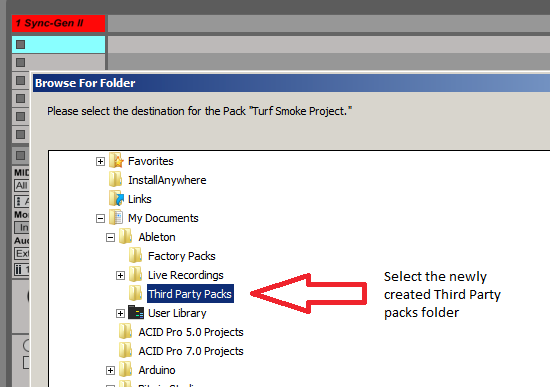
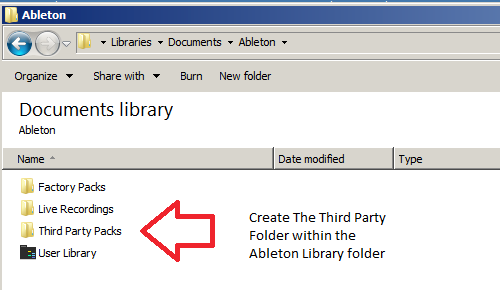
1. Create a folder entitled 'Third Party Packs' within the Ableton Library folder.

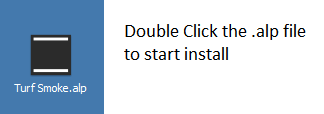
2. Download the .zip folder provided within your User Account > double-click it to extract its contents and then locate the .alp file. 

3. When opening Ableton Live, the program will ask where you wish to install the project folder.

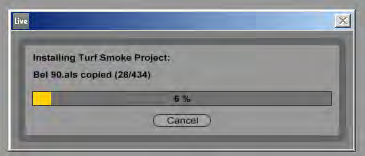
4. Locate the 'Third Party Packs' folder that you created in step 1. of the installation process, and select 'OK' > Live will then begin the unpacking process.

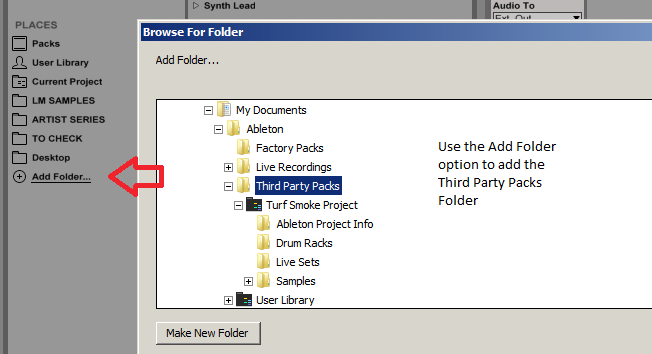
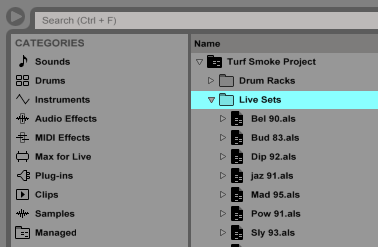
5. Once the unpacking is complete, you now need to inform Ableton Live of where the sample pack is located > from the browser window, select 'Add Folder' and navigate to the project folder where you installed the pack (inside the 'Third Party Packs' folder).

The Pack is now Installed and Ready for Use Within Ableton

Maschine 2.2.3+

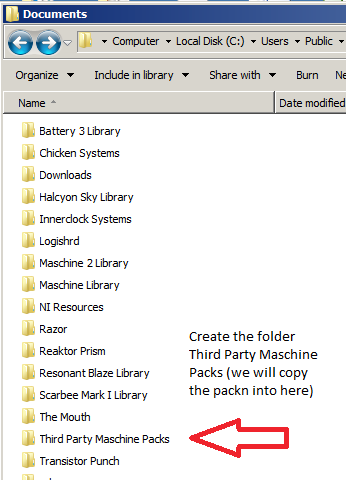
1. Create the folder titled 'Third Party Maschine Packs' > it is advisable to perform this in the same root folder as the Maschine Library, but it can be also be anywhere on your computer.

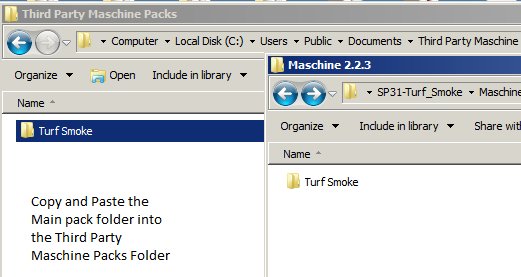
2. Download the .zip folder provided within your User Account, and double-click it to extract the main folder > copy and paste the contents of the Maschine 2.2.3 folder to the 'Third Party Maschine Packs' folder that you created in the previous step (Step 1.).

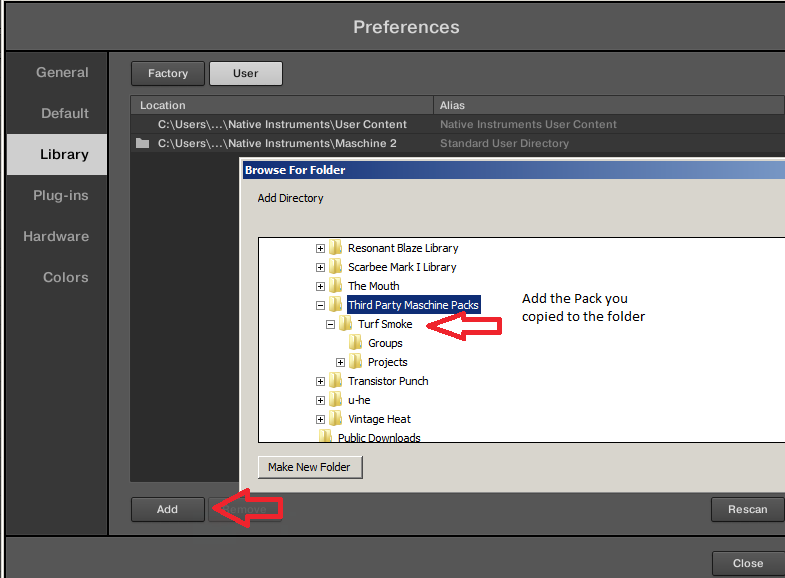
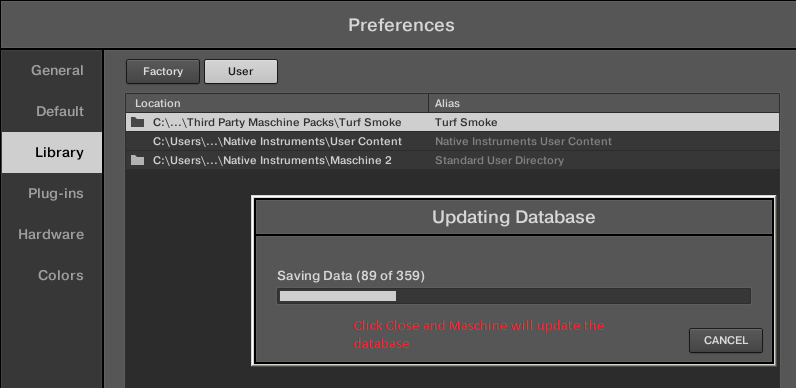
3. Open Maschine 2 and select the 'Preferences' tab from the menu > Select the 'User Paths' tab and then click 'Add'. From the pop up window locate the 'Turf Smoke' folder.

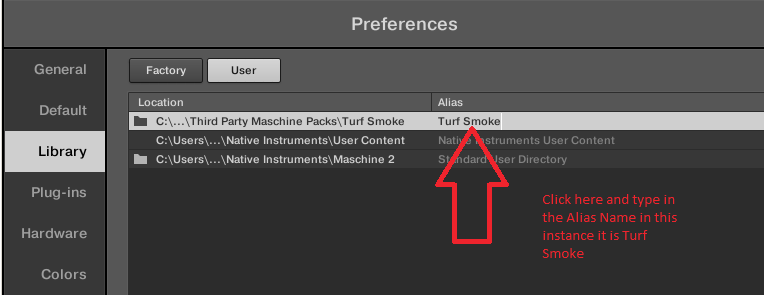
4. Important note: At this stage of the installation process, it is imperative to add an alias - to perform this double-click below the Alias box, and enter/type in the Alias name which will always be the same name as the pack's root folder name.

5. Select 'OK' and Maschine will now scan and add the contents of the pack to its database.

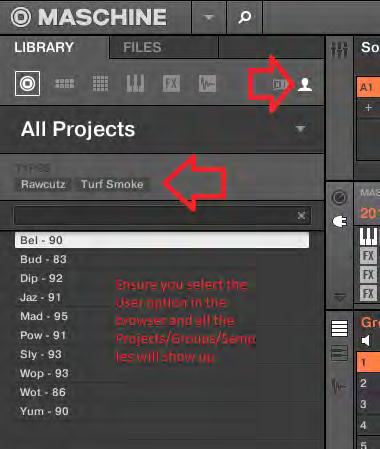
6. To Load content from the pack, go to the 'File Type Selector', ensuring that you have user presets selected first > press the 'Projects/Groups/Samples' icons and your content will now be visible and ready to load.

7. All content from the collection has been appropriately tagged, ready for easy file browsing.

Rex Files 

1. Download the .zip folder provided within your User Account, and double-click it to extract the main folder.

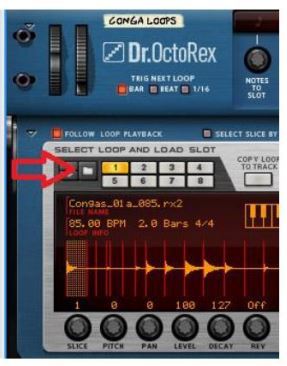
2. Rex files can be loaded in the ‘Dr. OctoRex’ player in Reason. Simply click the ‘Browse Patch’ tab, and locate the file you require. You can load up to 8x Rex files into the available slots.

3. The Rex files are now ready for use within the Dr.OctoRex Player. 

Sampler Patches

Halion

1. Download the .zip folder provided within your User Account, and double-click it to extract the main folder.

2. Copy/save the entire extracted sample pack folder to your computer or hard drive, ensuring that all folder structure remains intact.

3. When loading Halion patches you may need to locate the samples > this is simply done by double-clicking the '.fxp' file (Halion Patch) within the Halion browser window, and when prompted click on the automatic or manual search button > then locate the root folder of the pack  that you have purchased.

4. Halion will now find the samples for the patch. It is advisable to resave the patch, so you will not have to repeat this procedure.

5. The sample pack is now ready for use within Halion.

EXS24

1. Download the .zip folder provided within your User Account, and double-click it to extract the main folder.

2. Copy/save the sample pack folder to the 'Sampler Instruments' folder within Logic > this folder is located via the folder path below:

  • username/Library/Application Support/Logic/Sampler Instruments

3. The sample pack is now ready for use within EXS24.

NN-XT

1. Download the .zip folder provided within your User Account, and double-click it to extract the main folder.

2. Copy/save the entire sample pack folder to your computer or hard drive, whilst ensuring that all folder structure remains intact.

3. Select the 'Load Patch' tab on the NNXT user interface and use Reason’s browser to locate the NNXT folder within the sample pack > you will now be able to load your desired patch.

4. The sample pack is now ready for use within NN-XT.

Kontakt

1. Download the .zip folder provided within your User Account, and double-click it to extract the main folder.

2. Copy/save the entire sample pack folder to your computer or hard drive, whilst ensuring that all folder structure remains intact.

3. Use Kontakt’s browser to locate the 'Kontakt' folder within the sample pack, and then load desired patch.

4. The sample pack is now ready for use within Kontakt.

Reason 4 Refill

1. Download the .zip folder provided within your User Account, and double-click it to extract the main folder.

2. Copy/save the '.rfl' file to the Reason installation folder on your computer's hard drive.

3. Use Reason’s browser to load instruments or effects from the refill pack > this is located by following the folder path below:

  • username/Library/Application Support/Logic/Sampler Instruments

4. Open Refill within Reason, and the new presets will now be available for use within the sampler's browser area.

Plugin Boutique Rewards

Discover the most rewarding loyalty programme among all plugin retailers.

  • Free Loopmasters Samplepacks
  • Discounts on products and courses
  • Extra Virtual Cash claimed immediately at checkout
Find out more

Follow us:

X (Twitter) Facebook YouTube Instagram
Logo Logo

Plugin Boutique Limited, Part of the Beatport Group LLC.

Copyright © 2011-2025 Plugin Boutique. All rights reserved