/ Utility / Nx – Virtual Mix Room over Headphones
Waves

Nx – Virtual Mix Room over Headphones

5.0 (1 Reviews)
$29.99 $99.00

69% off until Dec 07

Waves Nx – Virtual Mix Room over Headphones
Waves Nx – Virtual Mix Room over Headphones gallery thumbnail
Buy Now
Product information

Nx – Virtual Mix Room over Headphones
Headphone to Speaker Translation You Can Trust

You don’t always have access to an ideal acoustic space. Quality headphones eliminate room issues, but mixes done on headphones rarely translate well to speakers. With consumers listening over both headphones and speakers, you have to be certain that your mixes translate to both.

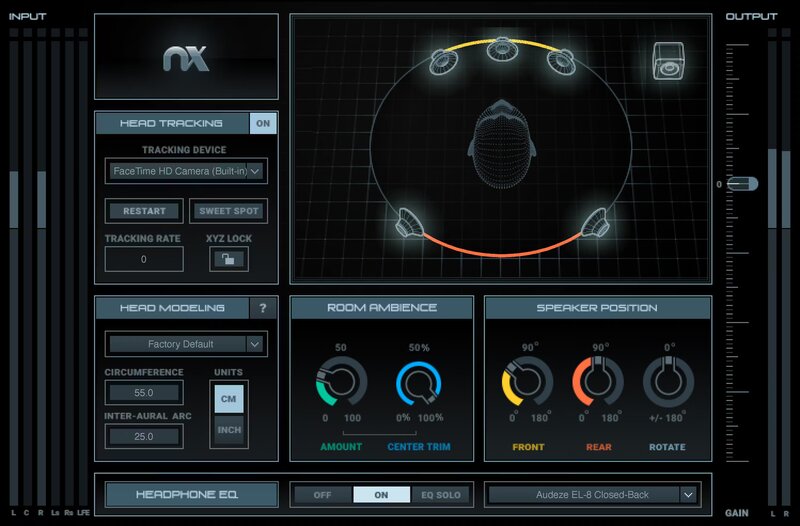
Nx Virtual Mix Room virtualizes a 3D acoustic space, and includes correction EQ curves for 270 headphone models—so you’ll feel like you’re mixing with speakers, in the perfect control room.

Features

  • Mix with confidence, knowing that mixes will translate over speakers
  • Monitor stereo, surround, and Ambisonics B-format
  • Customize speaker positioning and room ambience
  • EQ correction curves for over 270 headphone models
  • Judge depth, stereo balance, and panning properly with headphones
  • Head tracking for a totally immersive mix experience

System Requirements

Mac

  • macOS Monterey 12, Ventura 13, Sonoma 14, Sequoia 15
  • VST / AU / AAX

PC

  • Windows 10+
  • VST / AAX
Installation Instructions

1. Head to https://www.waves.com/create-account

2. Enter your email and choose a password to create an account (if you already have a Waves account, choose Log in, enter your details and head to Step 5) > click 'Submit'

3. Open your email inbox > click the activation link in the email from Waves

4. Click 'Log in here' > Log in to your Waves account

5. Click 'Register New Products'

6. Enter the Serial Number found in your Plugin Boutique user account > click 'Submit'

7. Click download in your Plugin Boutique user account or head to https://www.waves.com/downloads/central > download the Waves Central app for your operating system

8. Install Waves Central > Open Waves Central

9. Click 'Log in' > enter your log in details

10. Click the 'Install Products' tab

11. Tick the blue dot on all products you wish to install or click the top dot to install all products > click 'Install & Activate'

12. Click 'OK'

13. Open your DAW > open the Waves plugin

Your Waves plugins are installed and ready to use, enjoy!

Plugin Boutique Rewards

Discover the most rewarding loyalty programme among all plugin retailers.

  • Free Loopmasters Samplepacks
  • Discounts on products and courses
  • Extra Virtual Cash claimed immediately at checkout
Find out more

Follow us:

X (Twitter) Facebook YouTube Instagram
Logo Logo

Plugin Boutique Limited, Part of the Beatport Group LLC.

Copyright © 2011-2025 Plugin Boutique. All rights reserved










