


 Log In

Free gifts available with your purchase
Product information
Q-Clone
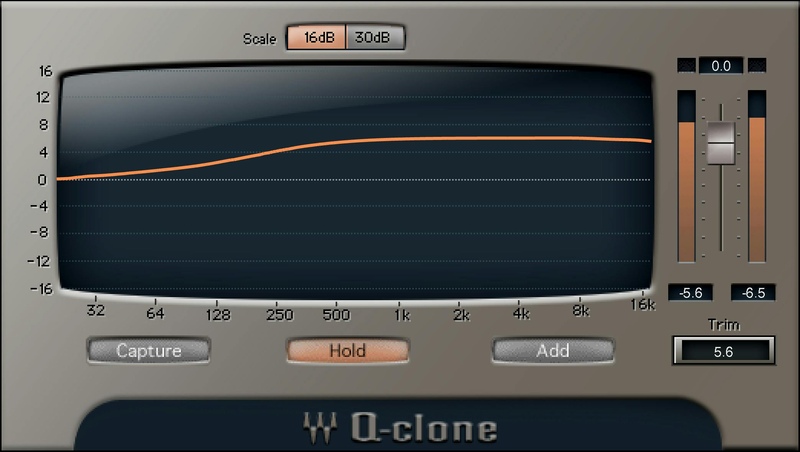
Capture Classic Curves from Hardware EQs
The Q-Capture/Q-Clone combination solves three crucial limitations with outboard analog EQ: You can’t use more than one instance of a hardware processor, you can’t save presets, and you can’t see the actual curve that’s being applied—which often doesn’t correspond to the panel markings.
Q-Capture “samples” a hardware EQ’s curve. Save it as a Q-Clone plugin preset, insert it in as many tracks as you like, and see the exact curve represented graphically. It’s pretty magical.
Features
- Use hardware EQ curves on as many DAW tracks as you want
- Save analog EQ settings as a plugin preset
- Bring the sound of classic hardware into your DAW’s projects
- Mix and match curves from different EQs
- Comes with a huge collection of presets from vintage hardware EQs
- Displays what’s really happening with analog EQ curves
- Use virtual cables for cloning plugins without an audio interface
- Clone plugins—save curves from several series EQs as one preset
System Requirements
Mac
- macOS Monterey 12, Ventura 13, Sonoma 14, Sequoia 15
- VST / AU / AAX
PC
- Windows 10+
- VST / AAX
Installation Instructions














