


 Log In

Free gifts available with your purchase
Product information
eMotion LV1 Live Mixer – 16 Stereo Channels
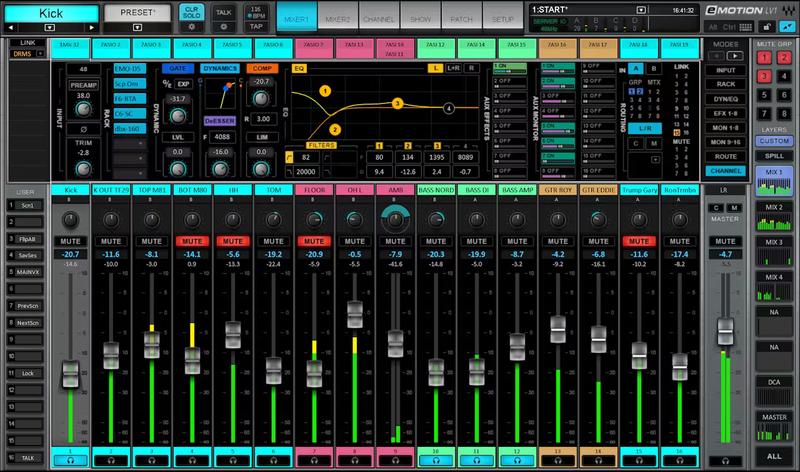
Step Up to the Next Level of Live Sound
Bring pristine, industry-acclaimed sound quality to any show, venue, or streaming event. With up to 16 stereo channels of unbeatable audio, full Waves plugin integration, and a customizable design to accommodate your personal workflow, eMotion LV1 addresses any live sound challenge.
Seamless integration with Waves’ 200+ plugins brings the award-winning signal processors used in studios around the world to live sound—for unlimited creative possibilities and precision control.
Features
- 32-bit, double-precision audio engine for headroom and clarity
- Run eight SoundGrid-compatible plugins directly on each channel
- Up to 16 stereo/mono input channels
- Live-optimized Waves eMo plugins provide channel strip processing
- Create custom layers for super-quick, personalized workflow
- Supports 44.1 to 96 kHz sample rates
- Connect & share up to 16 stage boxes, converters & computers
- Compatible with industry-standard controllers, including Waves FIT
- Windows and Mac 64 bit-compatible
- Smooth integration with Dugan Speech automixer plugin
- Practically unlimited processing power using multiple servers
- Mobile/tablet remote control from FOH, stage, or anywhere in the venue
System Requirements
Mac
- macOS Monterey 12, Ventura 13, Sonoma 14, Sequoia 15
PC
- Windows 10+
Installation Instructions














