


 Log In
Free gifts available with your purchase
Product information
SoundGrid Rack for VENUE
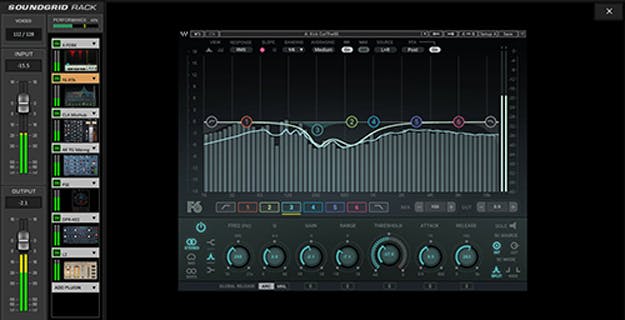
Expand Your VENUE | S6L Console with the Power of Waves Plugins
Now live engineers can run up to 64 stereo virtual racks, each containing up to 8 Waves plugins, directly within Avid’s VENUE | S6L console—with tactile control from the console’s surface knobs. SoundGrid Rack for VENUE makes it possible, with no computer host or external network switch.
Complete the system with the WSG-HD Waves SoundGrid Option Card, VENUE software v5.7 or later, a Waves SoundGrid server to process the plugins, and Waves plugin licenses of your choice.
Features
- Run Waves plugins directly within your Avid VENUE | S6L console
- Snapshot automation for plugin parameters
- Tactile control surface mapping for all Waves plugins
- Legacy VENUE show file compatibility
- All standard VENUE plugin features apply, like Config and Show modes
- Server redundancy with automatic failover
- 128 audio paths between Avid and SoundGrid at 96 kHz
- No external computer host or network switch necessary
- Follows standard operation of all plugins in the VENUE plug-in rack
- Connect up to two SoundGrid servers (primary and redundant)
- Bypass and navigate between Waves plugins within S6L
- Official supports for Avid I/O sharing
System Requirements
- Avid VENUE | S6L console
- macOS Monterey 12, Ventura 13, Sonoma 14, Sequoia 15
Installation Instructions














