Buy Mongoose, get a free gift with purchase:
Mongoose is a mid-side processor that sums all frequencies below a selectable crossover to mono, creating a mix that sounds natural in all environments.
Panning is one of the most powerful tools as mixing engineers, but due to the fact that mixes need to be created for multiple environments (headphones, speakers, etc), producers are bound by how they can pan instruments whilst still sounding natural on all of these playback systems.
Have you ever noticed that panning an instrument to one side sounds fine on loudspeakers but hurts your brain on headphones? This is because, in real life, no sound goes into just one ear unless it’s coming from your ear (like headphones).
Mongoose fixes this problem by summing low frequencies to mono so that no matter how far you pan your instruments, they will sound equally natural on both headphones and speakers.
Mongoose - Just the Facts
- Sums low-frequencies to mono with adjustable crossover
- Very low CPU impact
- Focus and tighten low-end while ensuring mix translation
- Create contrast with high-frequency widening
- Sculpt the width and depth of a mix
- No phase issues when summing to mono
Take on Mongoose
Keep in mind that a Mixer's job is essentially the same as that of a magician: to create a satisfying illusion in the mind of the audience. So while left and right are all you have in stereo, mono bass summing focuses the centre image while creating the illusion of greater space in the stereo field, which in turn simplifies the mixing process. Mongoose makes it easy to achieve a focused and punchy centre image with as much width on the sides as you like.
Features
- Quick solution for instant tighter mixes.
- Sums low frequencies to mono
- Super CPU efficient
- Make mixes translate better
System Requirements
Mac
- macOS 10.11 El Capitan or greater (64-bit only)
- VST2.4, VST3, AU, AAX
Windows
- Windows 7 or greater (64-bit only)
- VST2.4, VST3, AAX
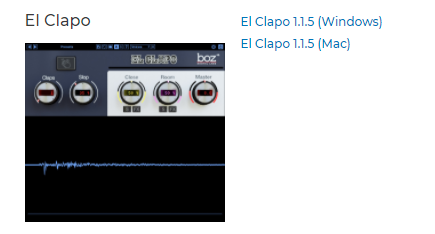
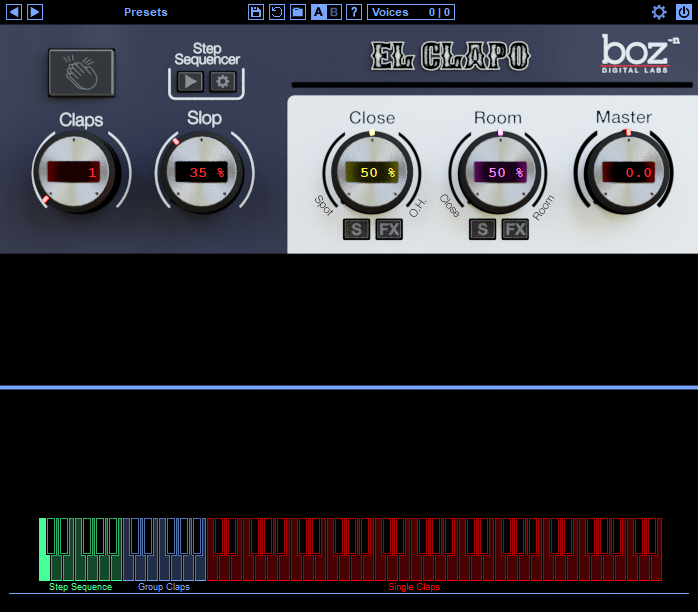
Note: El Clapo is used as an example.
Mac
Redemption
1. Click Download in your Plugin Boutique account or go to https://www.bozdigitallabs.com/plugin-boutique-retrieve/.
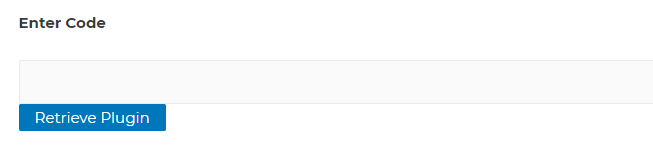
2. Copy and paste the code from your Plugin Boutique account > Click 'Retrieve Plugin'.

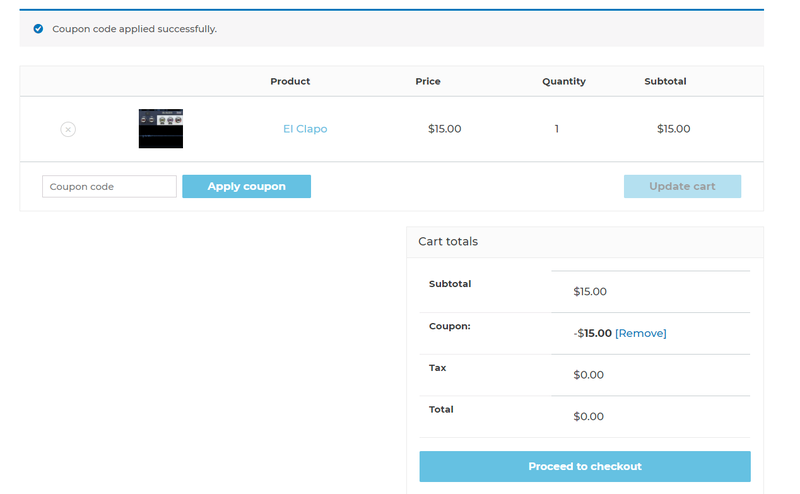
3. Review the order > Click 'Proceed to Checkout'.

4. Enter your email address, username and password > Click 'Register'.
Note: If you already have Boz Digital Labs account, select 'Click Here to Login' after entering your email address/username and password > Click 'Login'.

5. Check that your email is correct > Click 'Next'.

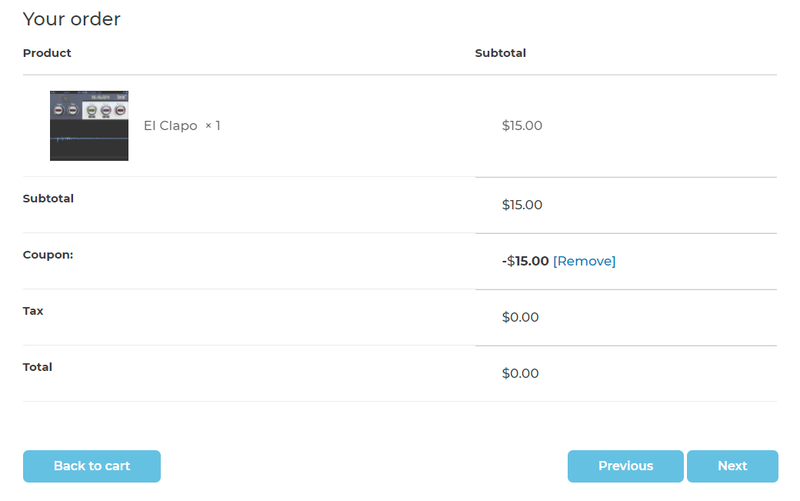
6. Review your order > Click 'Next'.

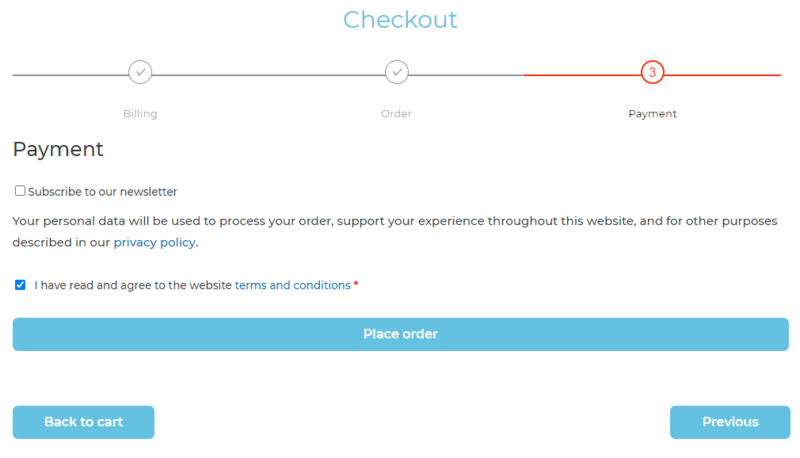
7. Click 'I have read and agree to the website terms and conditions' > Click 'Place order'.

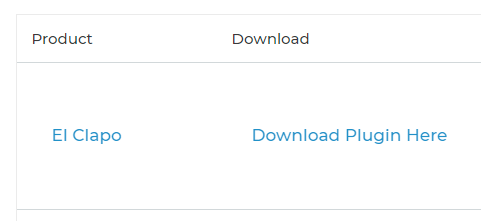
8. Click 'Download Plugin Here'.

9. Click the Mac link to download the installer.

Installation
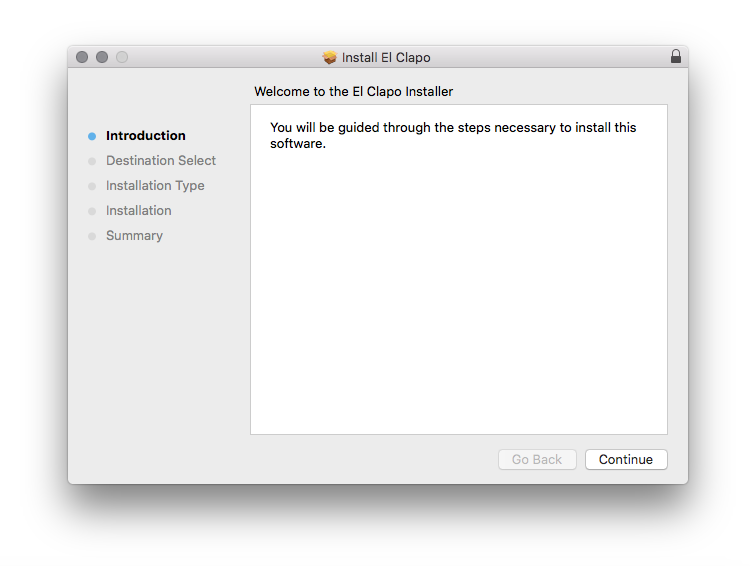
1. Run the .pkg installer > Click 'Continue'.

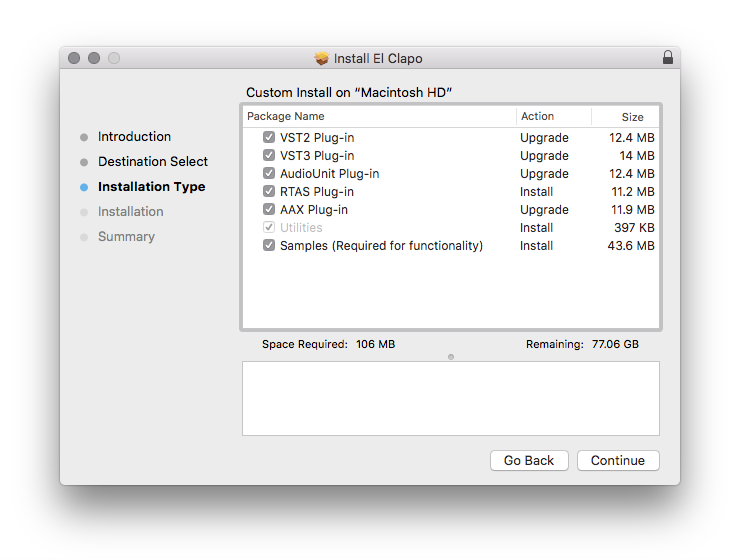
2. Select the formats you wish to install > Click 'Continue'.
Note: If you're unsure about which format to use, leave all options selected and proceed. Check out this article for more information.

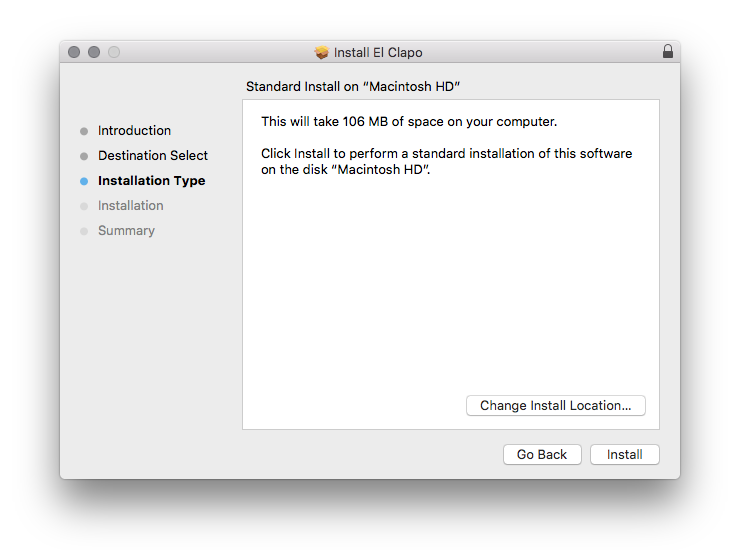
3. Click 'Install'.

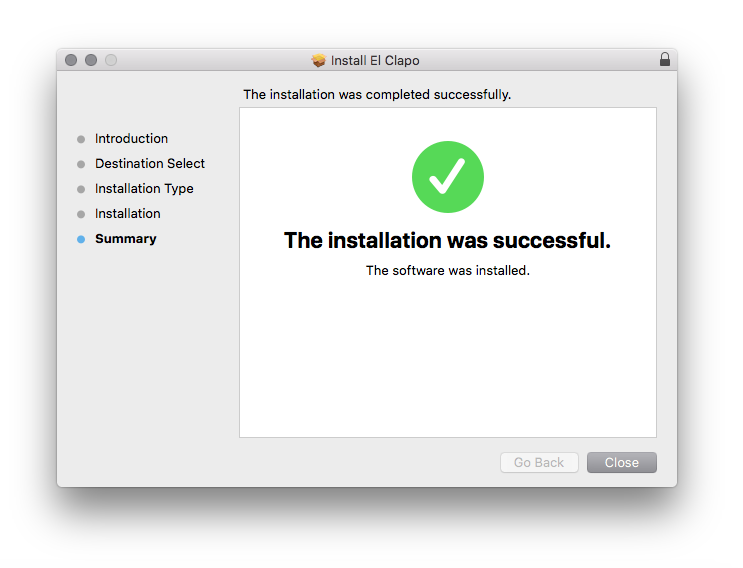
4. Click 'Close'.

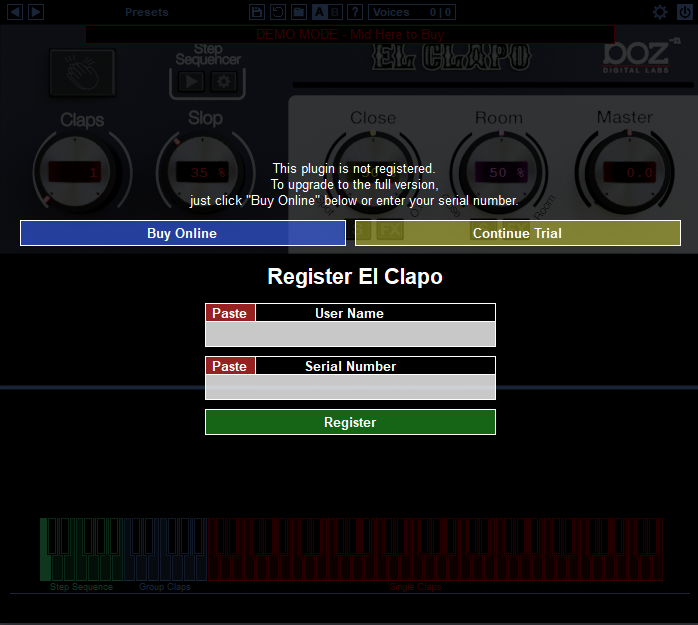
5. Open your DAW and open the plugin > Enter your Boz Digital Labs username and the serial code that you received in your Boz Digital Labs Account > Click 'Register'.

Your software is now authorised and ready for use!

Windows
Redemption
1. Click Download in your Plugin Boutique account or go to https://www.bozdigitallabs.com/plugin-boutique-retrieve/.
2. Copy and paste the code from your Plugin Boutique account > Click 'Retrieve Plugin'.

3. Review the order > Click 'Proceed to Checkout'.

4. Enter your email address, username and password > Click 'Register'.
Note: If you already have Boz Digital Labs account, select 'Click Here to Login' after entering your email address/username and password > Click 'Login'.

5. Check that your email is correct > Click 'Next'.

6. Review your order > Click 'Next'.

7. Click 'I have read and agree to the website terms and conditions' > Click 'Place order'.

8. Click 'Download Plugin Here'.

9. Click the Windows link to download the installer.

Installation
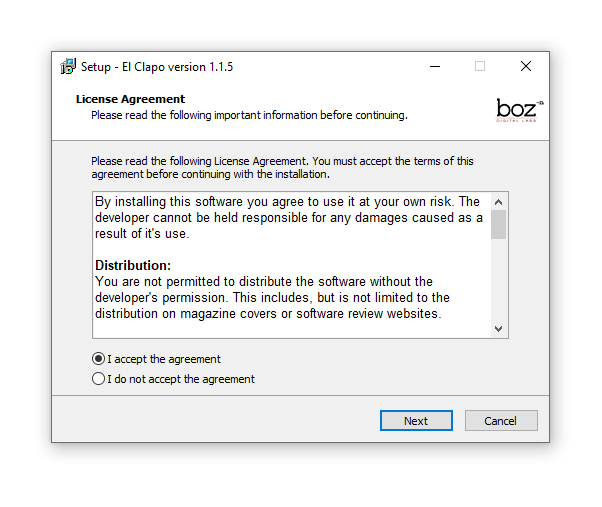
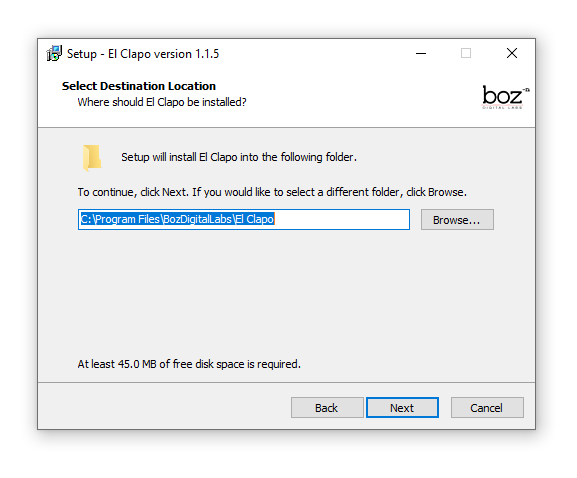
1. Double-click the .exe installer > Click 'I accept the agreement' then click 'Next'.

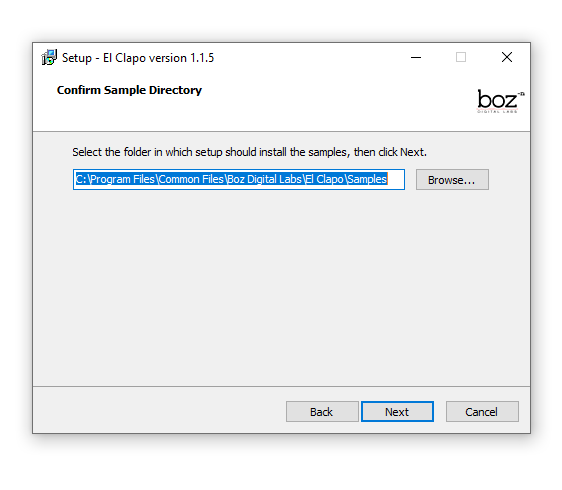
2. Click 'Next'.

3. Click 'Next'.

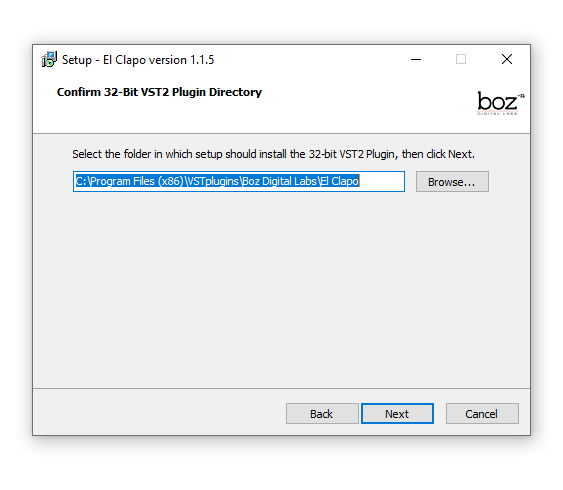
4. Select a VST folder in which to install the 32-bit software format > Click 'Next'.

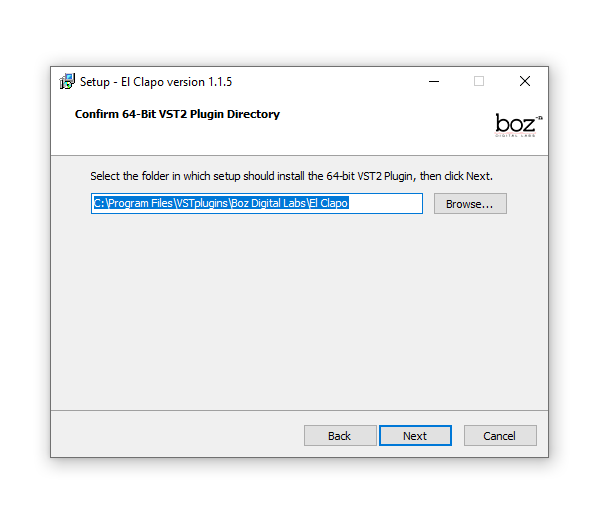
5. Select a VST folder in which to install the 64-bit software format > Click 'Next'.

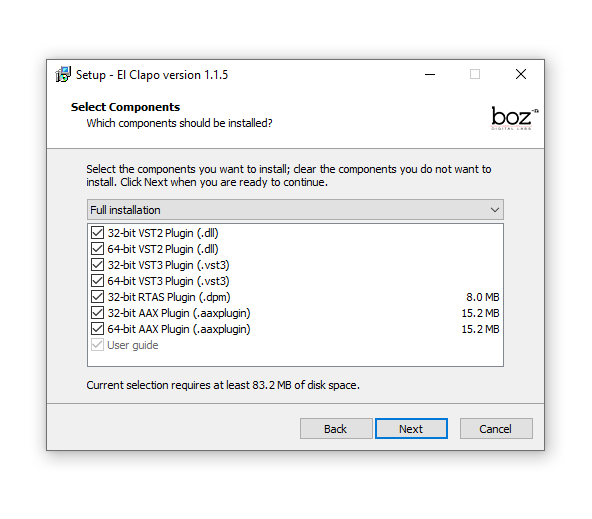
6. Select the components you wish to install > Click 'Next'.

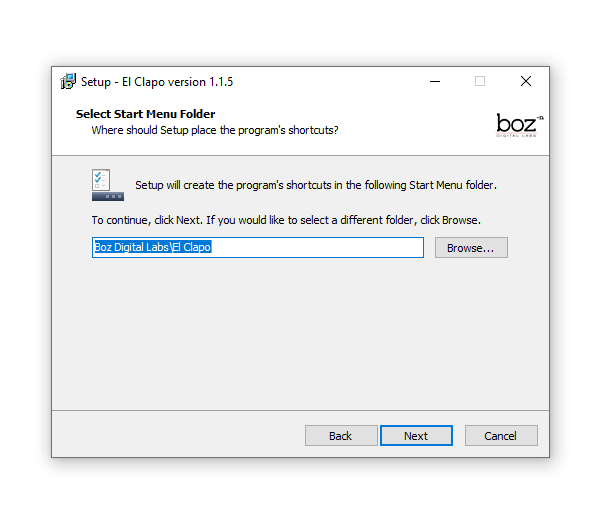
7. Click 'Next'.

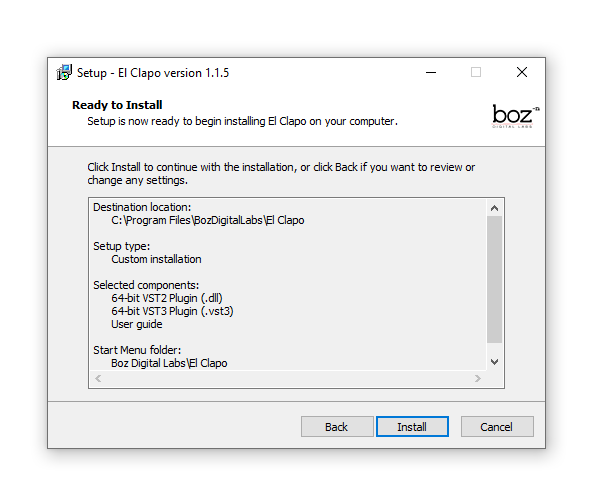
8. Click 'Install'.

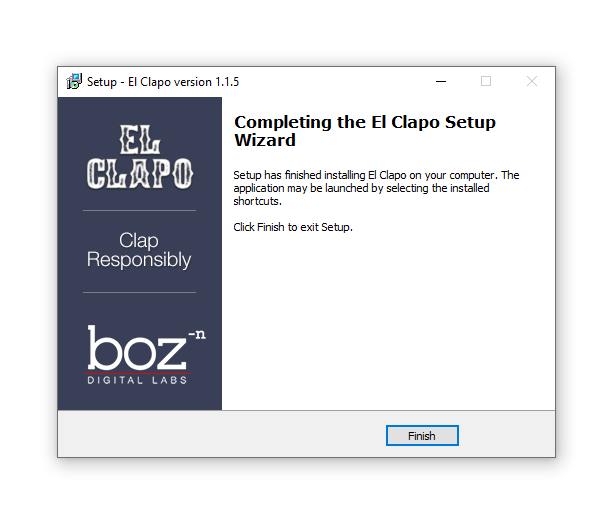
9. Click 'Finish'.

10. Open your DAW and open the plugin > Enter your Boz Digital Labs username and the serial code that you received in your Boz Digital Labs Account > Click 'Register'.

Your software is now authorised and ready for use!