/ Utility / Radio
Plugin Boutique

Radio

4.5 (5599 Reviews)
$10.00 $29.00

65% off until Dec 07

Radio User Interface - Main Image
Plugin Boutique Radio | Radio Streaming Audio Plugin gallery thumbnail
Plugin Boutique Radio | Introduction | Radio Streaming Audio Plugin gallery thumbnail
Plugin Boutique Radio | Examples Of Use | Radio Streaming Audio Plugin gallery thumbnail
Plugin Boutique Radio | Overview & User Guide | Radio Streaming Audio Plugin gallery thumbnail
Radio by Plugin Boutique | Radio Sampling & Editing gallery thumbnail
Buy Now
Product information

Air.Play

Radio lets you stream and sample from a diverse list of internet radio stations, both inside and outside of your DAW. Use Radio as a plugin within your DAW when you are feeling creative, and use it as a standalone application when you simply want to listen to the radio.

Once you launch Radio, you can select from a carefully curated list of online stations. The station presets are diverse and include a balance of comedy, sci-fi, police scanners, ambient, spoken word, paranormal and many more, so it’s easy to find something unexpected!

Simple to Use

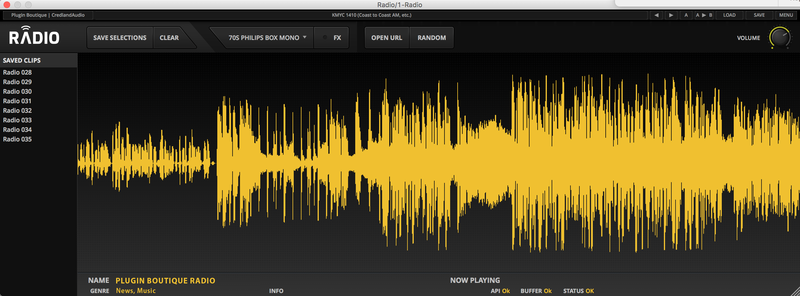
Radio records the last 30 seconds of any streamed material. Once you hear something you like, select it, save it and drag it into your DAW. Finding new samples to inspire your music has never been done like this before!

The onboard FX section lends Radio the authentic air of real consumer equipment, with 24 processors to make your feed sound like it’s coming through a genuine tube radio speaker, car stereo, phone or another device.

Radio stations focus on diversity, which will keep you coming back for new inspirational material.

Features

  • Buffer audio within Radio for sampling, or record everything in your DAW
  • Simply select clips from Radio’s display to save them permanently for later use
  • Drag and drop sampled clips from the plugin to your DAW
  • 24 FX emulations including vintage radios, car and portable stereos, small speakers and phones

Online Radio Features:

  • Station categories include Blues, World, Comedy, Chillout, Religious…
  • Curated station lists are maintained as web addresses change
  • Add your own station using a URL
  • Random button for radio station roulette
  • Featured station updated daily

System Requirements

Mac

  • OS X 10.7 and later (32-bit and 64-bit compatible)

Formats: 

  • Audio Units (AU)
  • VST
  • Standalone Application

Windows

  • Windows 7 and later (32-bit and 64-bit compatible)

Formats: 

  • AAX
  • VST
  • Standalone Application

Important Notes: 

  • Radio is designed for listening to the radio while you work or for inspirational purposes.  
  • The copyright of all sources remains with the creator, publisher or other rights holder.   
  • If you want to use any sound material recorded from Radio you will need permission from the rights holder. 
  • You should ensure that you comply with any legal restrictions for recording streamed audio that may exist in your country.

Awards

Testimonials

Jason Nevins

"Radio is awesome… a great creative tool".

Music Tech

"An excellent tool for coming up with new ideas and pushing you to be more creative with your sampling."

Product Reviews
Plugin Boutique Radio Review at MusicTech

Plugin Boutique’s Radio brings the world of internet radio stations to your productions. Alex Holmes tunes in… Radio key features: Direct sampling from internet radio stations Load from curated lists or from any radio URL Highlight snippets, save, then drag-and-drop audio 24 Sp...

Read More
Installation Instructions

Mac

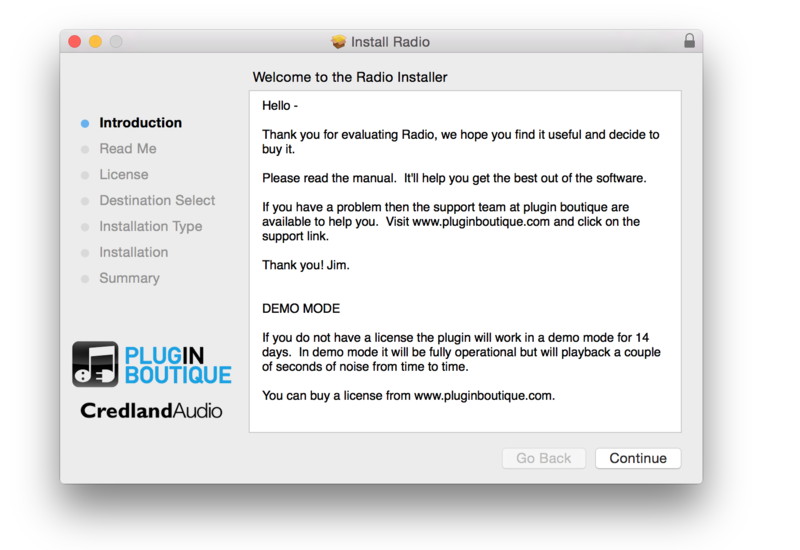
1. Download the .pkg installer file from your User Account and double-click it to begin the installation process.

2. Click 'Continue'.

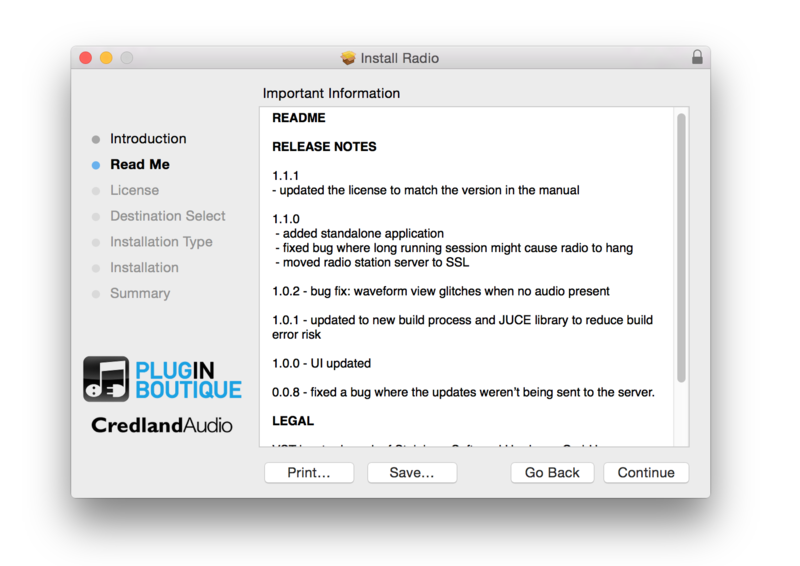
3. Read through the information and click 'Continue'.

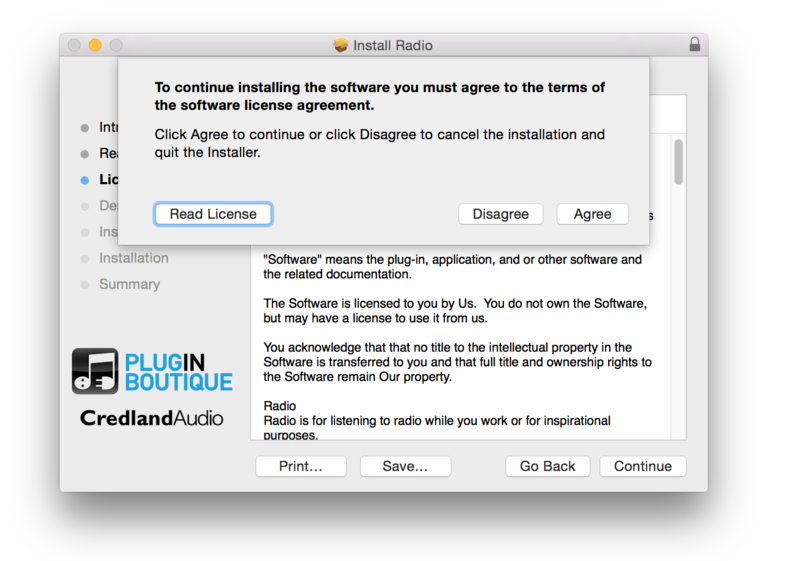
4. Read through the Licence Agreement > click 'Continue' and then 'Agree'.

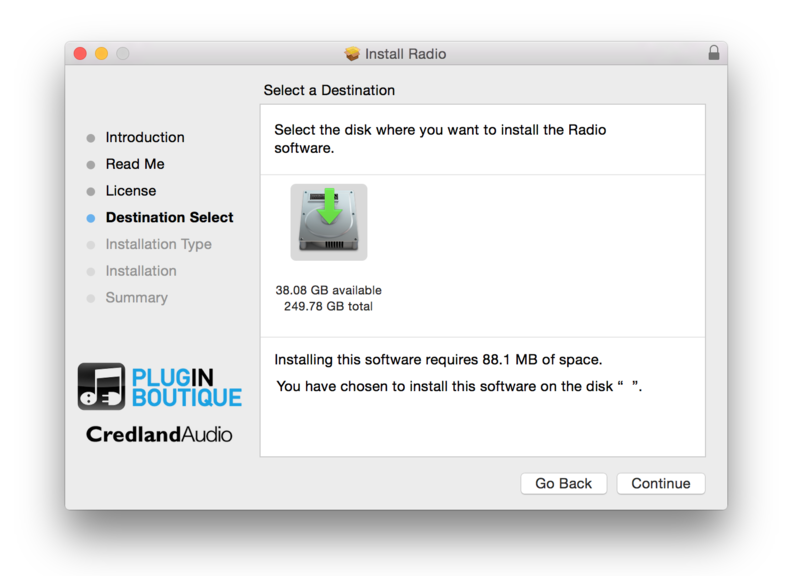
5. Select a computer destination in which to install Radio to > click 'Continue'.

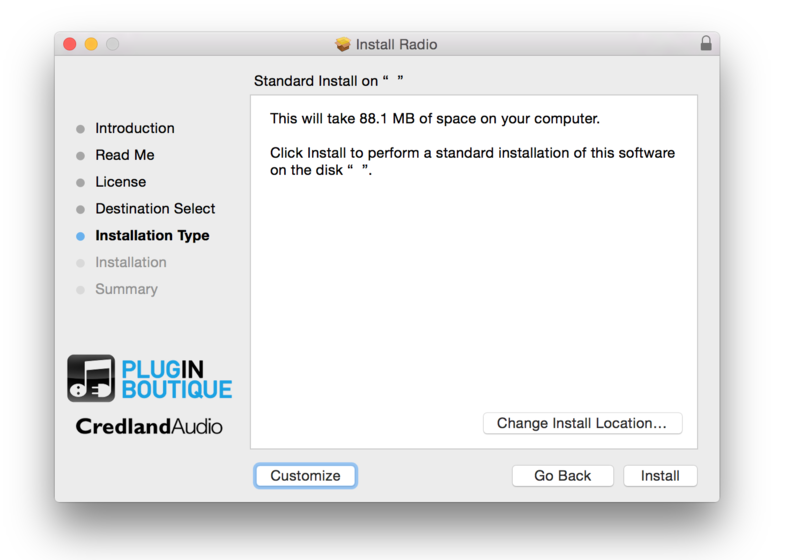
6. Review the installation and click 'Install'.

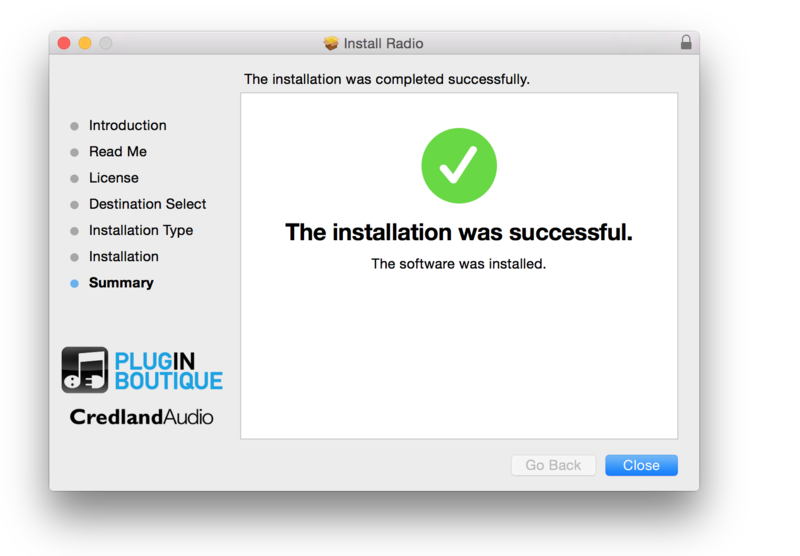
7. The installation of Radio has successfully completed > click 'Close'.

8. Restart your DAW, or open Radio from your computer's Applications folder (for standalone mode-use).

Note: Rescan your DAW's Plugin Selection to refresh and show the newly installed software (in the event that Radio fails to appear for use).

9. For use within a DAW; locate and open Radio onto a new software instrument track.

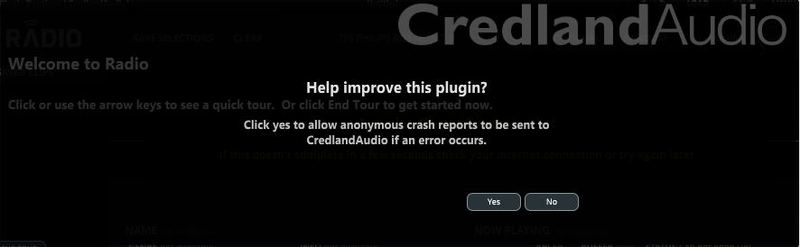
10. Click either the 'Yes or 'No' option depending on whether you wish to help us improve this plugin.

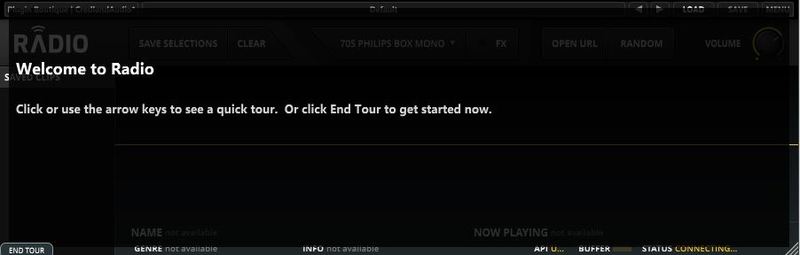
11. Follow the tour or click 'End Tour' (which is located at the bottom-left corner of Radio's user interface) to get started.

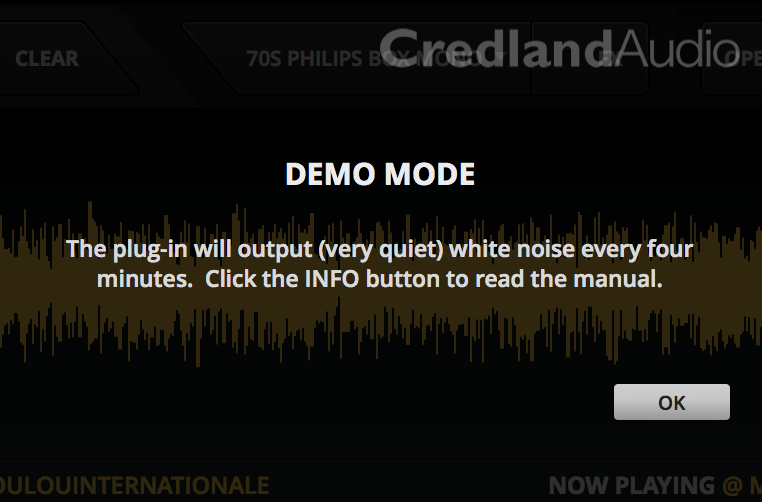
12. Click 'OK' to exit the Demo window and activate your Radio software.

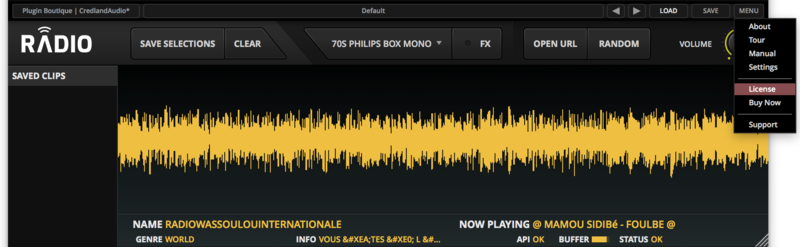
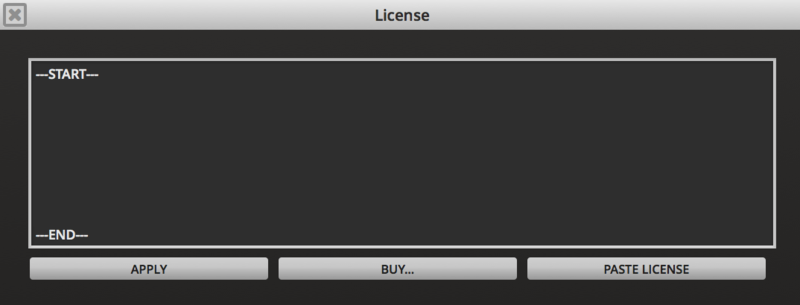
13. Click the 'Menu' option that is located at the top-right corner of Radio's user interface > then click the 'Licence' option to open the activation window.

14. Copy the serial number/code from your User Account, ensuring to include the ---START--- and ---END--- lines.

Example Serial...

---START---
32472140400000
"garry@pluginguru.com"
"Garry PluginGuru"
tctycbcu76d5hs8hxbxxe5a27fadcbc95d4b26ec01e631bcd756f81a69a
be88ffcd6902cf884c35b50c064e6adcc4ec46fd45112d32e84b6ce2c05
jxucycycyycycy8f1bd020c00ffe96542bfa37db1a1934a21a7ee7e6326
duididididididididi77777199b7398cc3f2760f98deaf453724098183
04f860926df40c1dc659
---END---

15. Click the 'Paste Licence' option to enter the serial code into Radio's activation window.

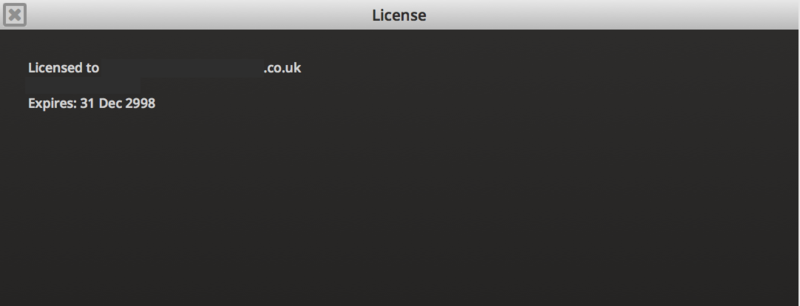
16. Click 'Apply' to activate Radio into full-mode.

Radio is now Ready for Use!

Windows

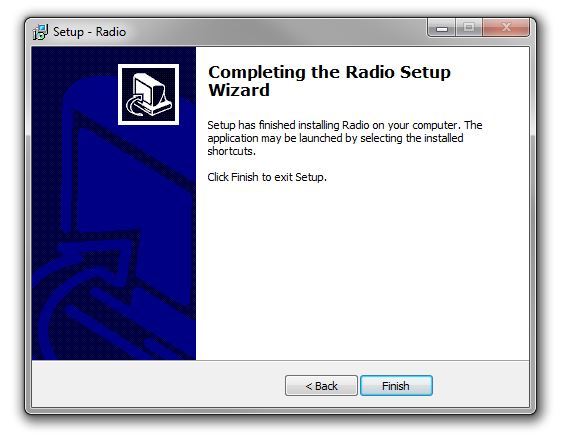
1. Download the .zip folder from your User Account and double-click it to extract the .exe installer file.

2. Double-click the installer file to begin the installation process.

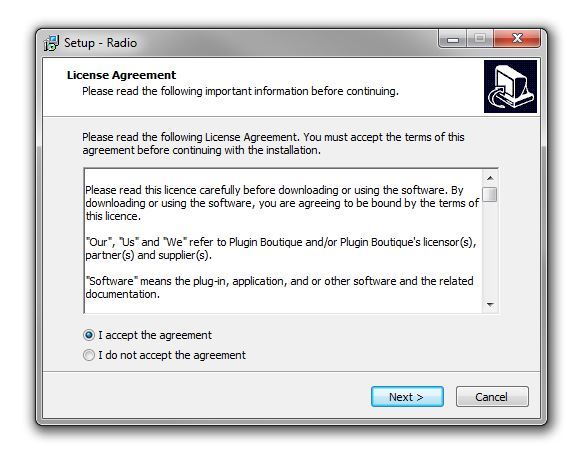
3. Read through the Licence Agreement before selecting 'I accept the agreement' > then click 'Next'. 

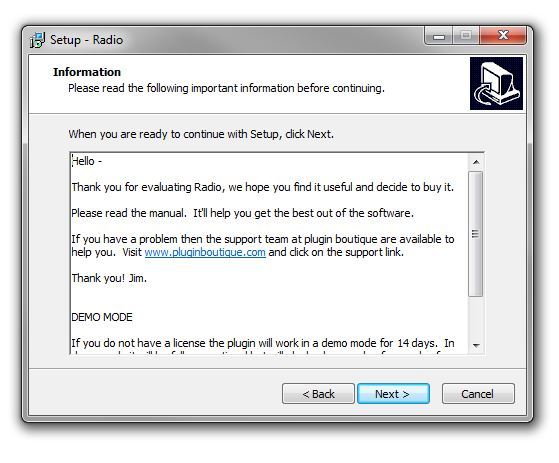
4. Read through the information and click 'Next'.

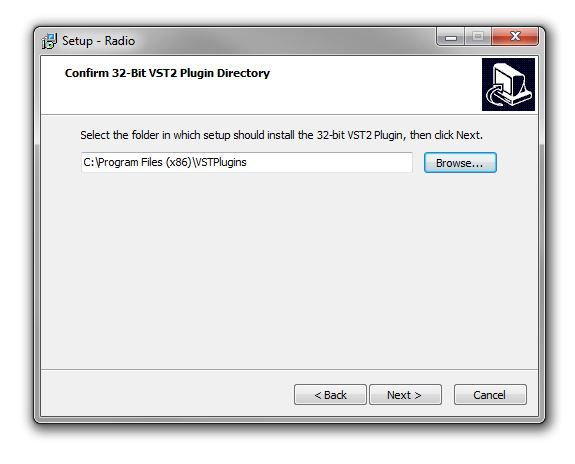
5. Select a VST folder in which to install the 32-bit version of Radio to > click 'Next'.

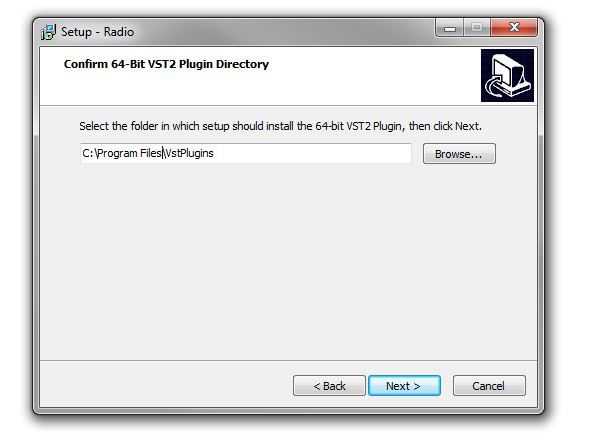
6. Select a VST folder in which to install the 64-bit version of Radio to > click 'Next'.

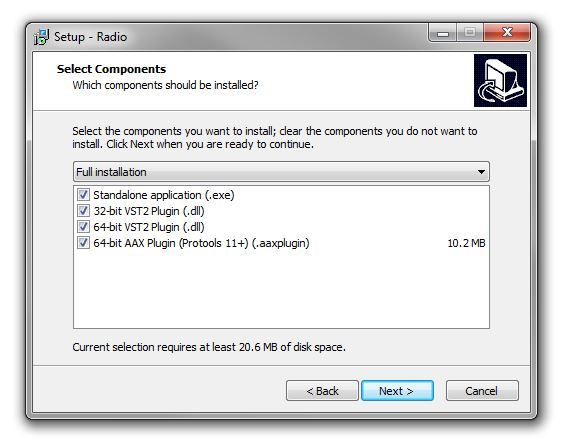
7. Select the software component (s) that you wish to install > click 'Next'.

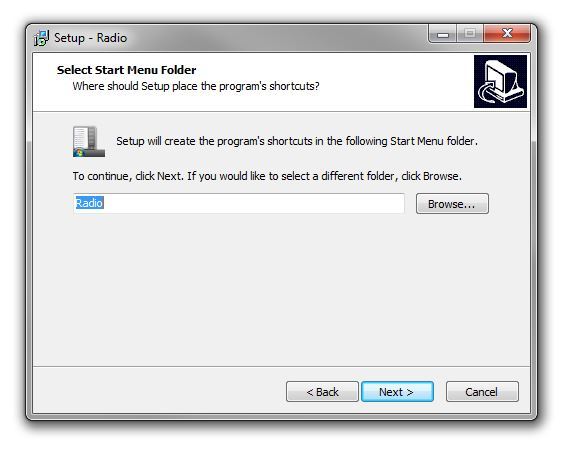
8. Select a Start Menu Folder in which to place a shortcut to Radio.

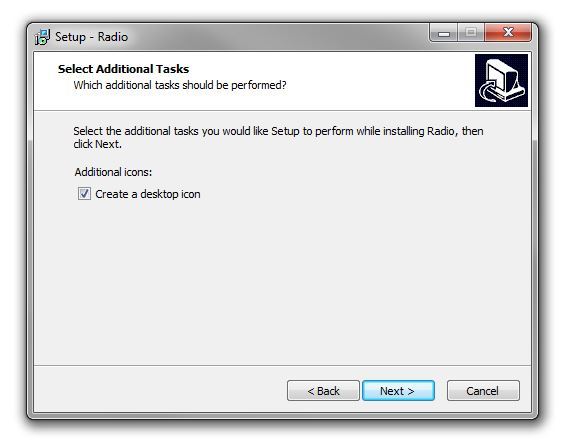
9. Select any Additional Tasks (in this instance creating a desktop application icon for Radio), before proceeding with the software installation.

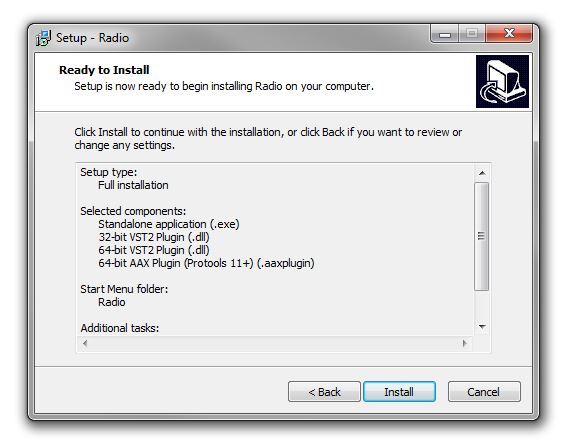
10. Review the installation and click 'Install'.

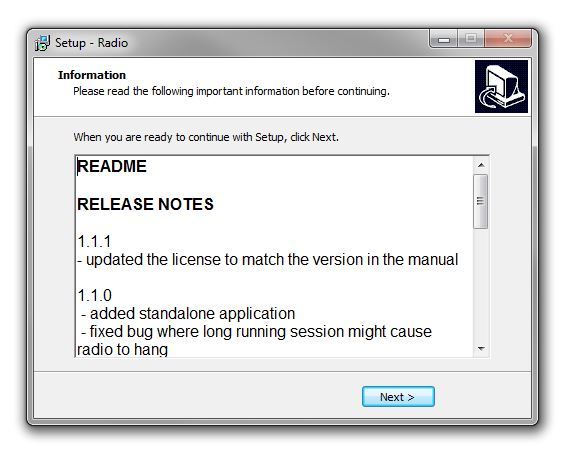
11. Read through the information and click 'Next'.

12. The installation has successfully completed > click 'Finish'.

13. Restart your DAW, or open Radio from your computer's Applications folder (for standalone mode-use).

Note: Rescan your DAW's Plugin Selection to refresh and show the newly installed software (in the event that Radio fails to appear for use).

14. For use within a DAW; locate and open Radio onto a new software instrument track.

15. Click either the 'Yes or 'No' option depending on whether you wish to help us improve this plugin.

16. Follow the tour or click 'End Tour' (which is located at the bottom-left corner of Radio's user interface) to get started.

17. Click 'OK' to exit the Demo window and activate your Radio software.

18. Click the 'Menu' option that is located at the top-right corner of Radio's user interface > then click the 'Licence' option to open the activation window.

19. Copy the serial number/code from your User Account, ensuring to include the ---START--- and ---END--- lines.

Example Serial...

---START---
32472140400000
"garry@pluginguru.com"
"Garry PluginGuru"
tctycbcu76d5hs8hxbxxe5a27fadcbc95d4b26ec01e631bcd756f81a69a
be88ffcd6902cf884c35b50c064e6adcc4ec46fd45112d32e84b6ce2c05
jxucycycyycycy8f1bd020c00ffe96542bfa37db1a1934a21a7ee7e6326
duididididididididi77777199b7398cc3f2760f98deaf453724098183
04f860926df40c1dc659
---END---

20. Click the 'Paste Licence' option to enter the serial code into Radio's activation window.

21. Click 'Apply' to activate Radio into full-mode.

Radio is now Ready for Use!

Bundle & Save

Plugin Boutique Plugins Bundle
$109.00
$275.00 (60% off)

Plugin Boutique Rewards

Discover the most rewarding loyalty programme among all plugin retailers.

  • Free Loopmasters Samplepacks
  • Discounts on products and courses
  • Extra Virtual Cash claimed immediately at checkout
Find out more

Follow us:

X (Twitter) Facebook YouTube Instagram
Logo Logo

Plugin Boutique Limited, Part of the Beatport Group LLC.

Copyright © 2011-2025 Plugin Boutique. All rights reserved