Log In

Free gifts available with your purchase

Your ears. Your music. Pick your studio.
Get more out of your Audio-Technica headphones
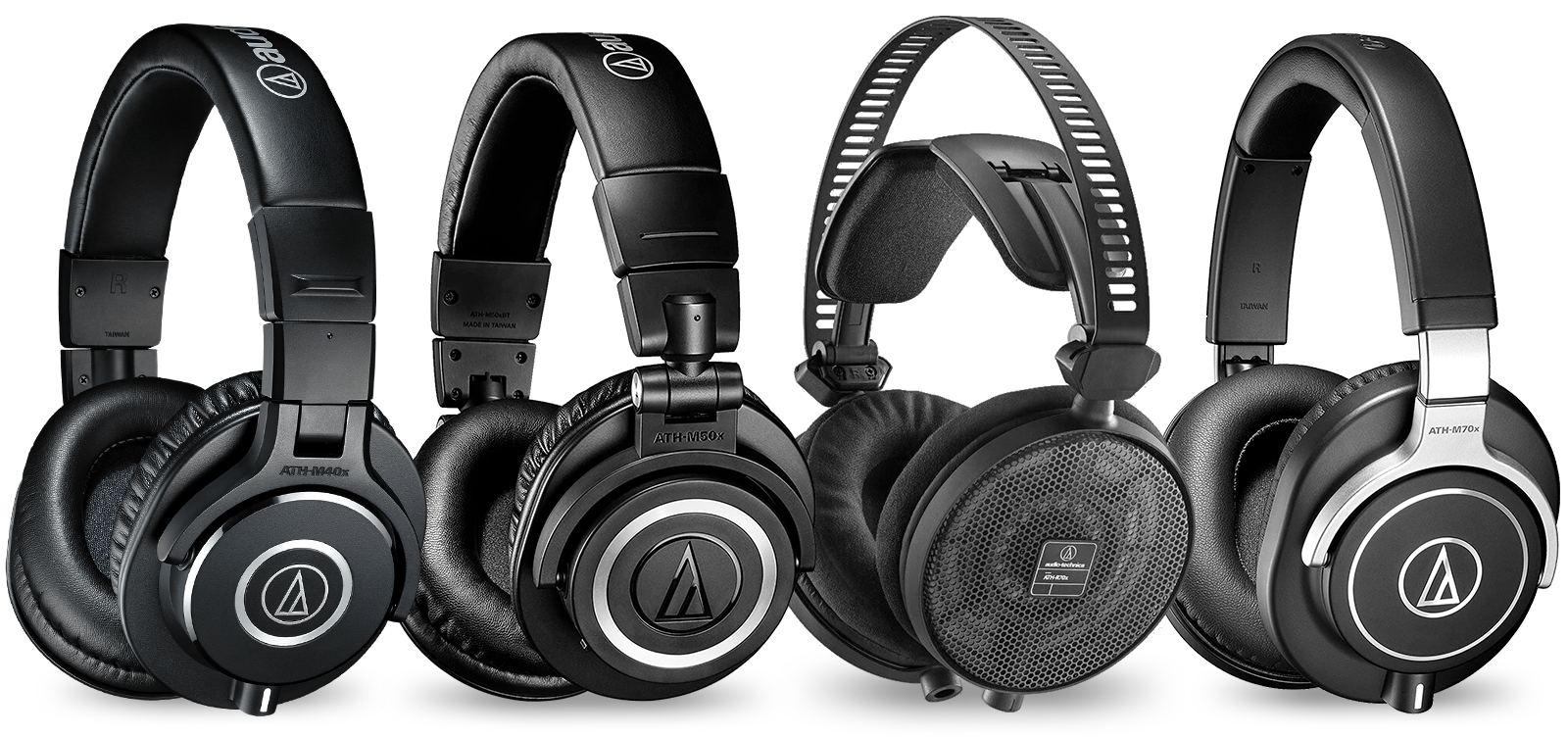
Important note: This product is specifically designed for use with Audio-Technica headphone models ATH-R70x, ATH-M70x, ATH-M50x and ATH-M40x. For all other headphone models see Immerse Virtual Studio All Access.
Immerse Virtual Studio is tuned by each studio’s mastering/mix engineer to deliver on the ATH-R70x, ATH-M70x, ATH-M50x and ATH-M40x the authentic reproduction of their studio and monitor frequency responses.
Trusted studio monitoring on headphones
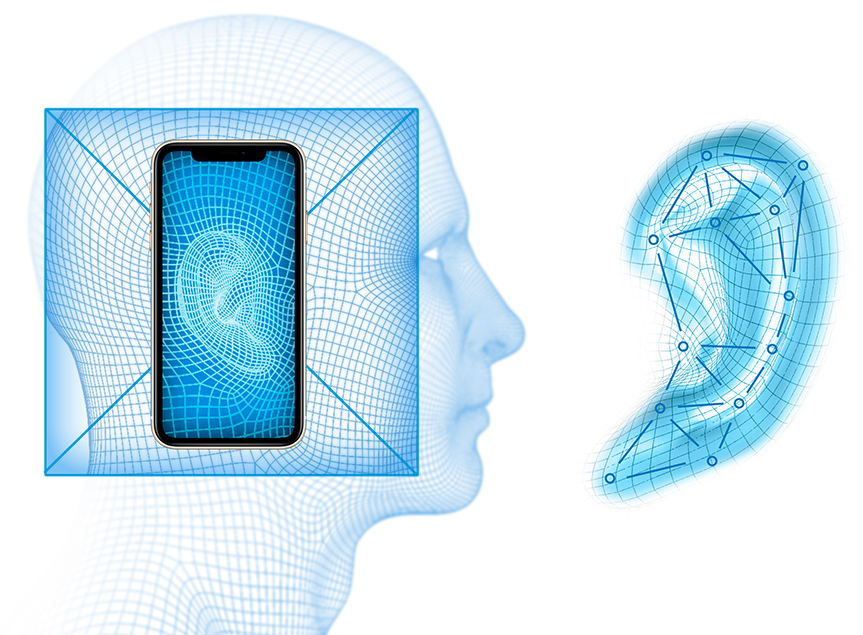
Immerse Virtual Studio uses sophisticated AI algorithms to put you in the sweet spot of some of the world’s most iconic sound studios. By modelling your unique ear shape and combining it with precise room measurements, Immerse delivers a true studio mixing environment on headphones that you won’t find anywhere else.
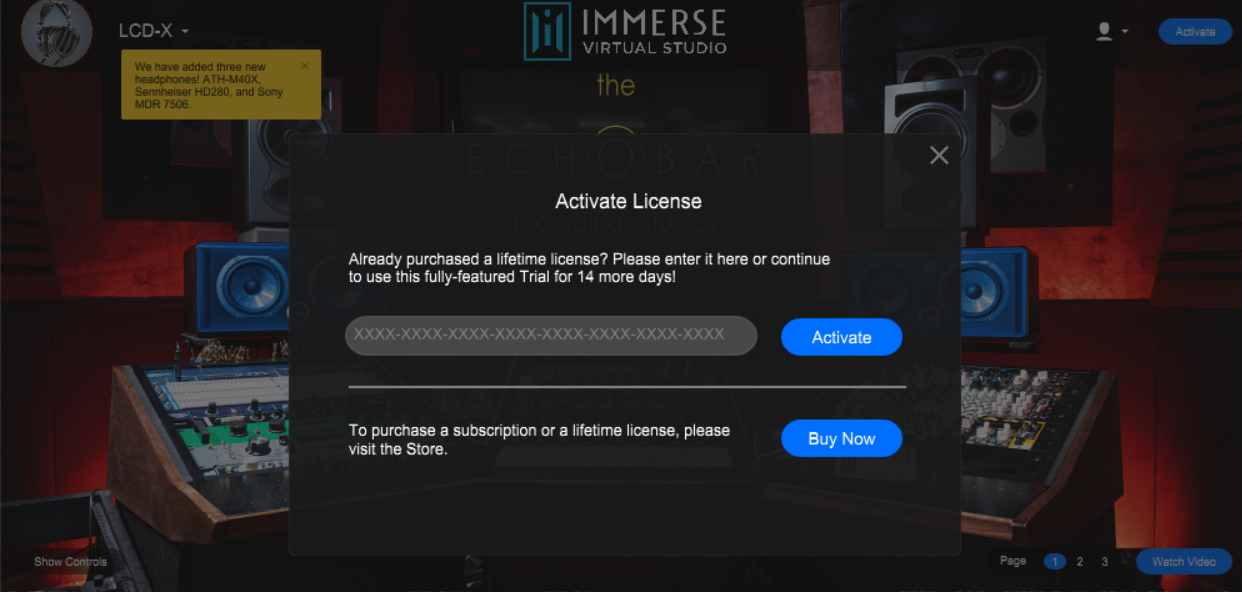
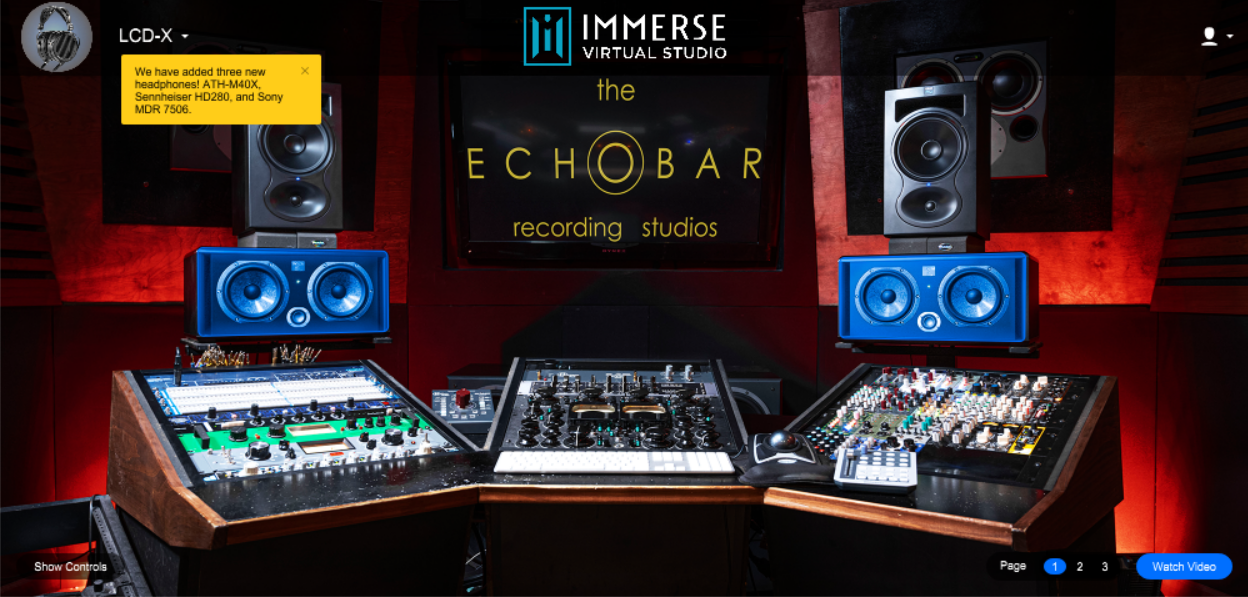
Multiple world-class studios
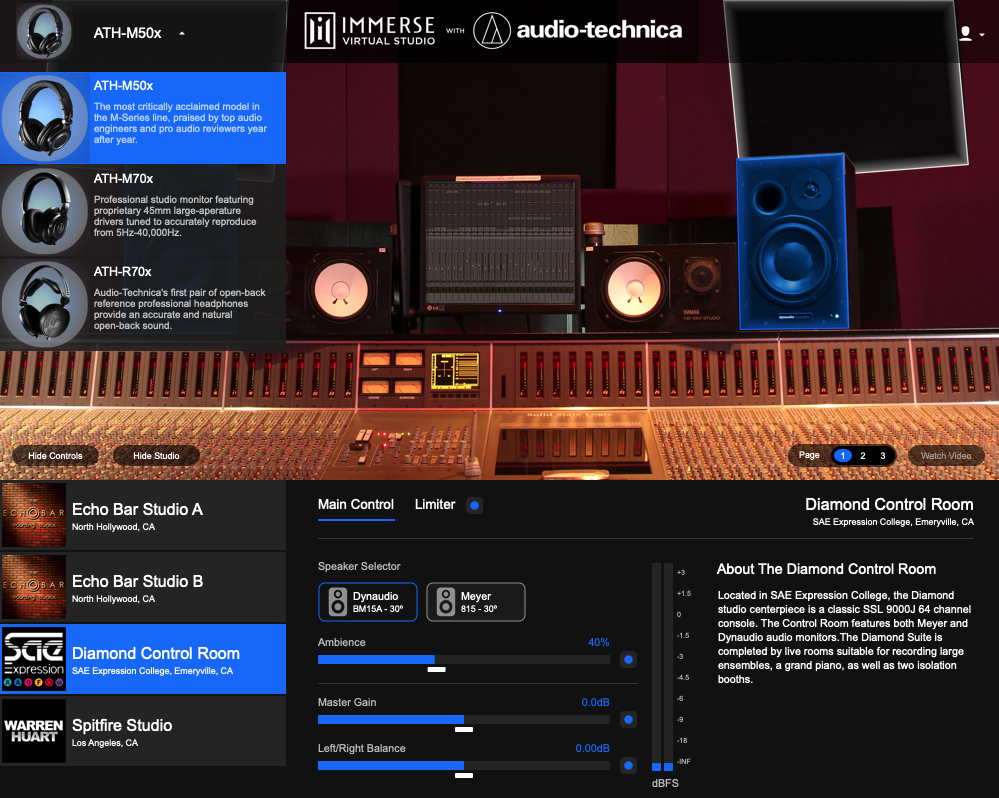
Access Multiple world-class studios, not just one. Mix in a studio that matches your style. Monitor it in multiple studios to gain the confidence that your mix sounds great everywhere.
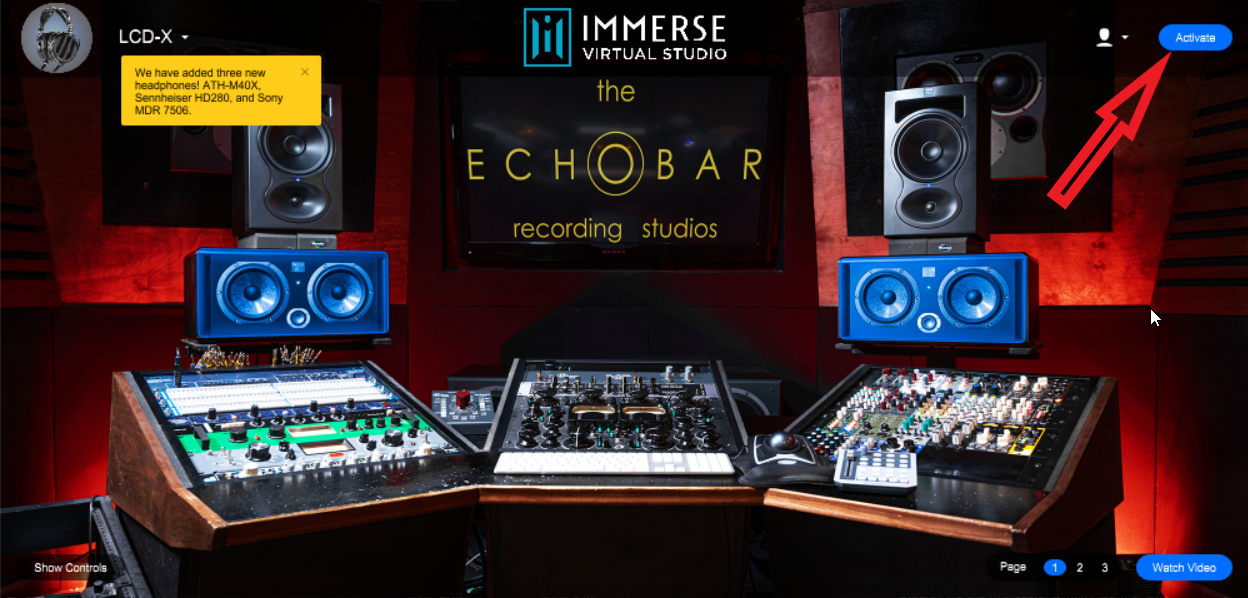
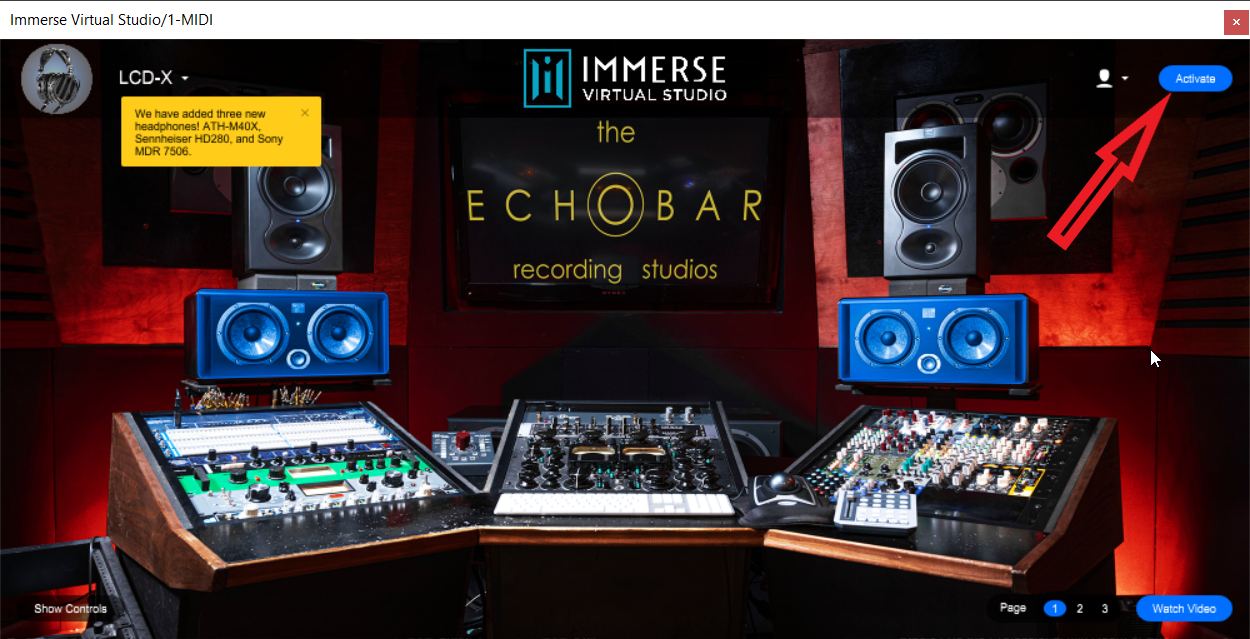
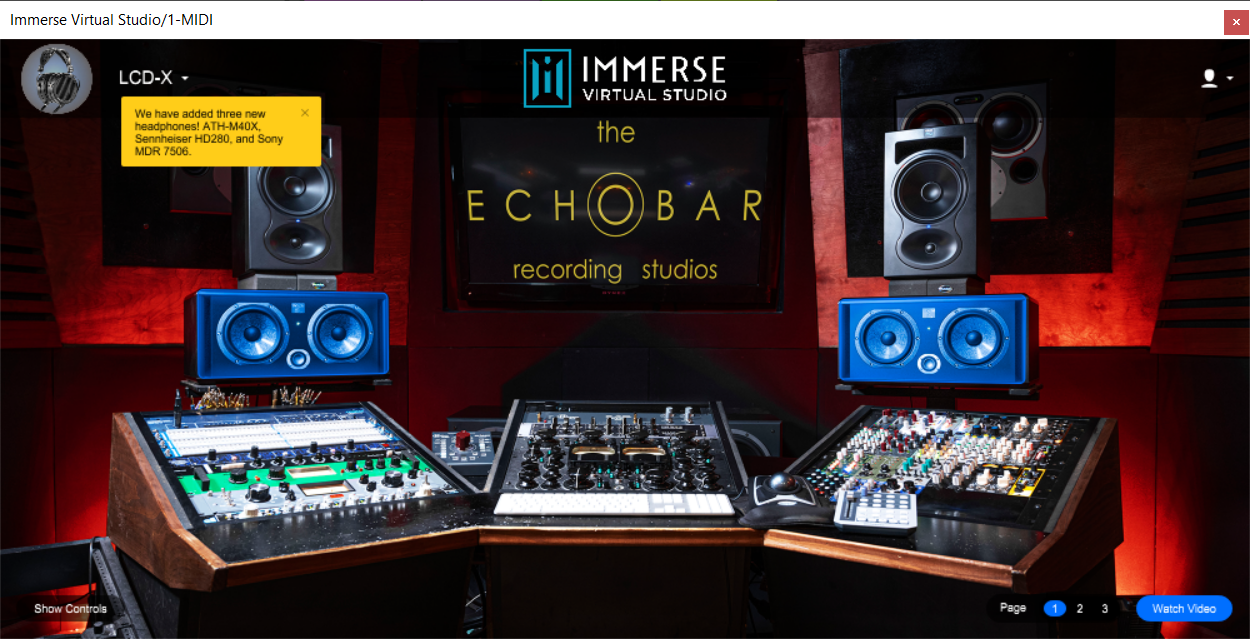
- Echo Bar Studios - The Echo Bar is located in North Hollywood owned and operated by Erik Reichers & Bob Horn. Erik Reichers and Bob Horn have produced, mixed, and engineered for some of the music industry’s most notable artists and professionals including Usher, BTS, Timbaland, Swae Lee, Michael Jackson, Marshmello, JJ Lin, Snoop Dogg, Dr Dre and many more.
- Diamond Control Room - Located in SAE Expression College in Emeryville, CA, the studio’s centrepiece is a classic SSL 9000J 64 channel console. The control room is part of the Diamond Suite. It features both Meyer and Dynaudio monitor speakers.
- Spitfire Studio - Spitfire studio, located in Los Angeles, California, has hosted a wide array of recurring mixing sessions, and clientele that includes Aerosmith, Rick Springfield, Ace Frehley, Slash, Daniel Powter, Trevor Hall, Black Veil Brides and many more.
- Music Friends Studio - Music Friends Recording Studio is located in the Eagle Rock neighbourhood of Los Angeles and has hosted a variety of recording and mixing sessions from pop icons Keisha, Alanis Morissette, and Ziggy Marley to alternative rock giants such as Bad Religion, All American Rejects, M83, Cherry Glazerr and others.
The ultimate reference tool
Music producers can benefit from utilizing the incredible monitors and acoustics of iconic studios. Mix confidently without adding any new gear to your home studio setup. Quickly and easily audition your mixes in multiple world-class acoustic spaces from the comfort of your Audio-Technica headphones without ever leaving your workstation.
Personalised to your ears
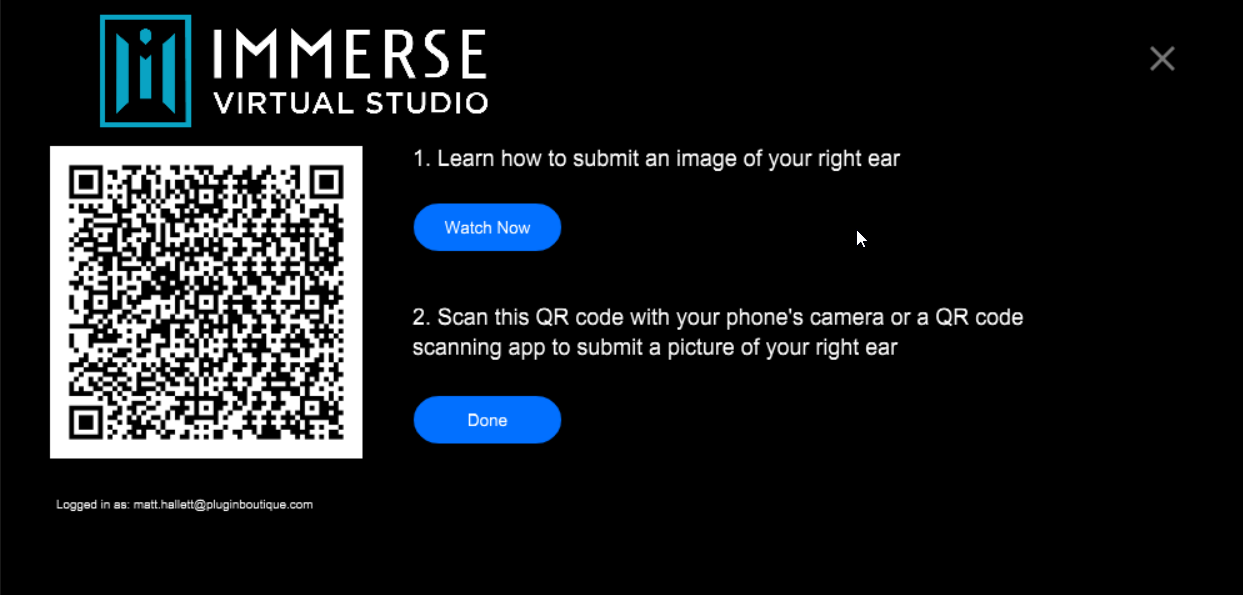
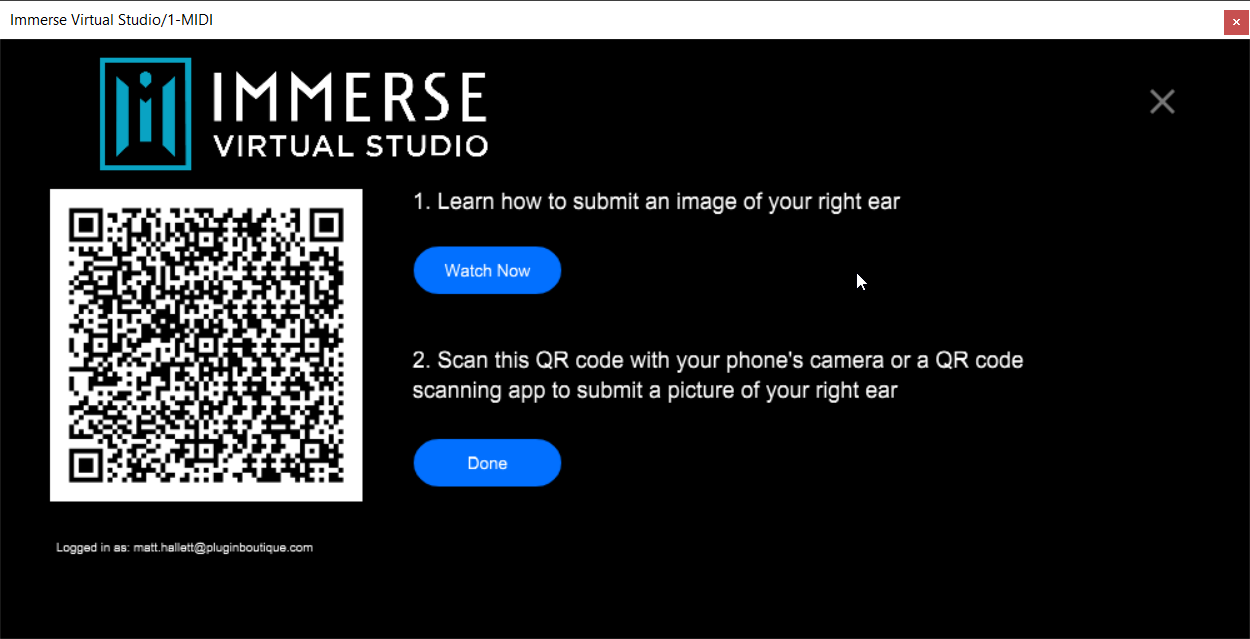
Using AI algorithms to create your personalized HRTF profile from a single image of your right ear, Immerse accurately reproduces world-class studios' sound environment, allowing you to audition your mix with confidence.
Features
- Optimized for Apple M1 - Apple M1 users can enjoy a faster and more reliable spatial mixing experience with significantly decreased CPU usage.
- Adjustable Headphone EQ - Adjust the amount of headphone-preset to suit your listening needs, making Immerse Virtual Studio fully compatible to work in tandem with Sonarworks SoundID Reference.
- Select between RMS and LUFS meters - Select between RMS and LUFS meters, and receive an instant visual indication on the main UI when the limiter is engaged.
System Requirements
- Formats: VST, VST3, AAX Native & AU
- MacOS: 10.9x and above
- Windows: Win10 and above
- Apple: M1 Chipset
- Memory: 4GB
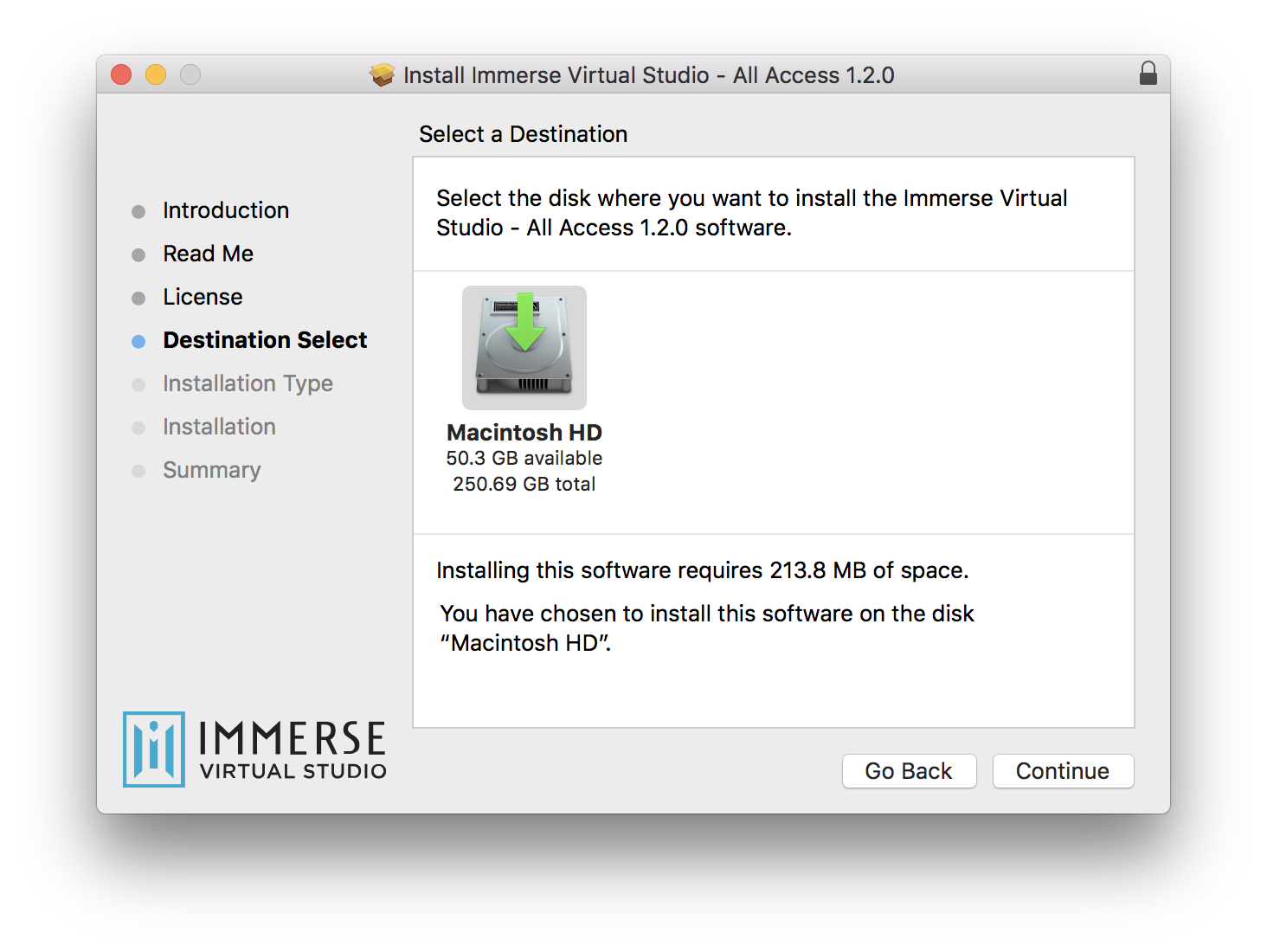
- Disk Space: 150MB
Czar
Nashville Audio Engineer.
"I must say that when I bypass it [the plugin], I’m not happy with what I’m hearing anymore. So I definitely like it on. I definitely like what it is doing."
Sound On Sound Magazine
Sound on Sound are one of the oldest and respected audio engineering publications in the industry.
“…if you want to know whether you’ve overcooked the low end, or if your vocal is sitting at the right level, or if your reverb ought to be more prominent, this is a valuable tool for sure.”
David Gnozzi
MIxBusTV.
"For those who don’t have a mixing room, this is a cool plugin to have."