Buy ListenHub, get a free gift with purchase:
Important Note: This software is ONLY available for Apple (macOS) platforms and will NOT function on Windows (PC) systems.
From bedroom to pro, producers and mixers are looking for a convenient way to quickly reference commercial tracks and gain more insight into their mix.
Ensure your mix stands strong against your favourite productions using ListenHub for macOS. Use it to easily A/B against songs from any streaming source such as Spotify, Apple Music, YouTube or your own media player.
Instantly listen to just the mid or sides, low-mids or highs and discover if your dynamics are competitive or crushed. ListenHub’s unique set of monitoring tools gives you the insights to make better mixing decisions.
Access ListenHub directly from your Mac or the free iOS and Android app for tablets and smartphones. ListenHub takes the immediacy, flexibility and tactile nature of a hardware monitor controller and marries it with the complete transparency of software routing. It can be used as a zero-latency plugin or a system-wide app hosting AU plugins on each output.
ListenHub is the audio control toolbox that places essential referencing and monitoring solutions at your fingertips
Listening to the same thing on repeat - this is what happens to us when you lose all objectivity; you become fixated on some details and miss others altogether. The bigger picture, the mix and the music are entirely lost. ListenHub gives you the perceptual resets and consistency required, so you can hear with fresh ears again.

Perceptual Reset
- A/B your mix with your favourite songs. Hear where you’re competitive and what you need to tweak.
- Solo different stereo channels to check mono compatibility, low-end focus and explore the stereo field.
- Isolate frequency bands for fresh perspectives and focus on overlooked details like kick and bass relationships.
- Don’t be fooled into thinking the loudest reference sounds the best. Remove any loudness bias by automatically matching the input level of all inputs.
Repeatable Results
- Stepped volume controls provide quick, repeatable listening levels for consistent mixing decisions.
- Simple loudness and dynamics metering keep you grounded. Stay green to stay competitive; it’s that simple.
- Spectral meters display the frequency content to ensure a balanced mix, reflective of your chosen reference tracks.
Get the free ListenHub app for your iOS or Android device, freeing up your screen space and unlocking the limitations of other plugins.
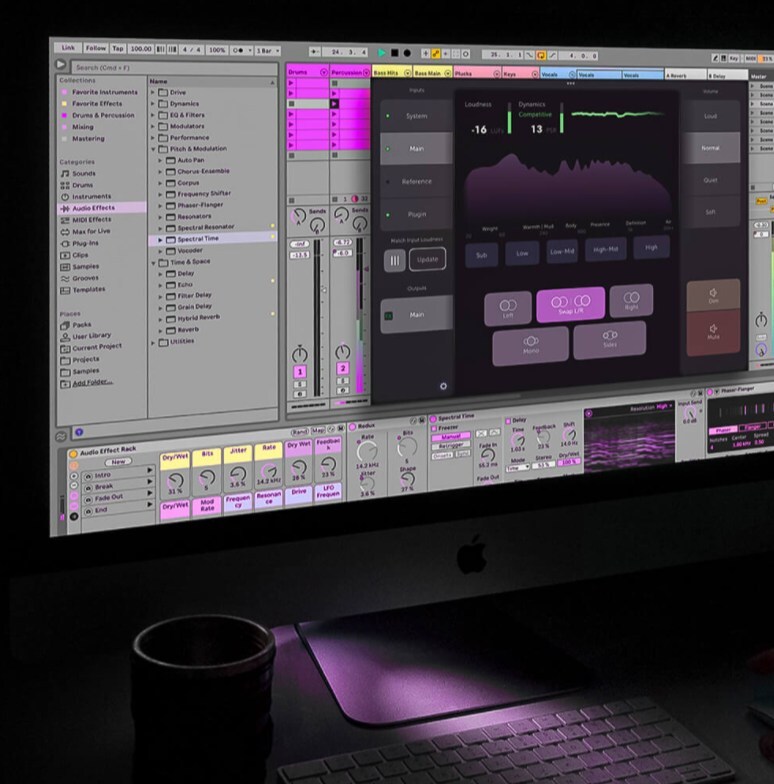
Enhance Your Workflow
- Audio meters are often intimidating because they are contextless and show many different standards. ListenHub features easy metering tools that help you stay on track with your music. These are meant to complement your ears, not replace them!
- Stop spending time looking for, buying, or downloading your reference tracks. Stream them from Spotify, Apple Music, YouTube, Tidal or from your own local storage.
- Take full advantage of powerful room correction and simulation software from Sonarworks, Steven Slate and others using our AU plugin hosting. Apply plugins to any of ListenHub’s outputs with your chosen settings automatically applied.
- Now, you can have different Sonarworks profiles for different sets of speakers or headphones without having to load profiles each time.
- Slate VSX can be used on all your system audio. You’ll soon become more familiar with your headphones, using them for mixing, streaming, and entertainment and the results will translate better than ever before.
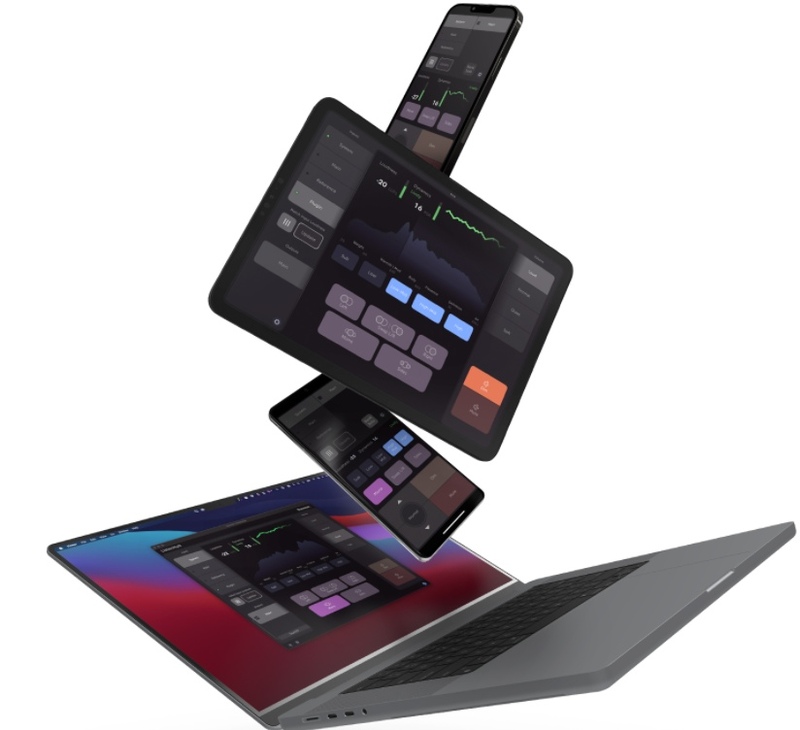
Features
- Multiple simultaneous inputs to reference a variety of sources, your system audio, files imported into your DAW, and your in-process mix.
- Easily switch between multiple outputs for different sets of monitor speakers or headphones.
- Host AU plugins on any of the outputs, with any configuration.
- Band solos in conjunction with the spectral analyser to identify issues, or reference specific frequency ranges of mixes you like.
- Channel solo to check mono compatibility and stereo width.
- Stepped volume control for precise and repeatable listening levels.
- The Match Input Loudness button automatically corrects level differences between your reference tracks.
- ListenHub's Auto-mute instantly catches loud bursts protecting your ears and your speakers.
- Want to ensure a dynamic and exciting mix? ListenHub will tell you if your mix is crushed, loud, competitive or lively.
- Use the Short-term LUFS meter to ensure a consistent level between different parts of your arrangement.
- Set your short-term loudness to the loudest part, and everything else will fall into place.
- Stop worrying about integrated loudness as each streaming service will apply loudness normalisation to your track, regardless.
System Requirements
- macOS 10.13 High Sierra or later (Intel / M1 Apple Silicon supported) (64-bit only)
- Standalone, VST3, AU, AAX (requires Pro Tools 11 or later)
Licensing
Sonnox ListenHub offers 2 activations per licence you buy. You can authorise your plug-in directly to your computer, using an iLok USB device or to iLok Cloud.
- iLok2 and iLok3 devices are supported
- iLok Cloud requires a constant active internet connection
Sonnox ListenHub comes with a free remote application for both iPhone, iPad and Android devices. This can be downloaded from Apple's App Store or on the Google Play store.
Remote App System Requirements
- iOS 9.3 and above
- iPad OS 13 and above
- Android 9 (Pie) and above
Important Note: This software is available for Apple platforms only and will not function on Windows systems.
Koen Heldens
"This software is truly incredible, especially since I can run it off an iPad which allows me to get some insights that I used to do with plugins and various virtual setups in the DAW itself."
Tyrone 'Cross Bone T' Harris
"ListenHub is an absolute beauty to work with, it’s so easy to use, and there’s nothing on the market that even comes close. ...ListenHub is going to be a game-changer."
Robbie Dwyer
"ListenHub fills a void that not many people realise is there. It's become an indispensable tool."
Verdict This inexpensive and powerful monitor controller system encourages best practices aimed at helping you create perfect mixes and masters. Pros +Great value compared to hardware +Plugin slots for monitor calibration +Elegant app-based control panel Cons Shared dri...
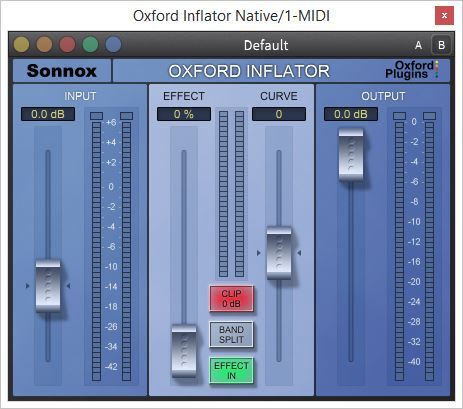
Read MorePlease Note: Sonnox Inflator is used as an example.
Registration
Note: This product supports both iLok USB and iLok Cloud activation. You will need a free iLok account, and either a physical iLok USB key OR an active internet connection (to start an iLok Cloud Session).
1. Go to the Sonnox registration page or find your product in your Plugin Boutique account and click DOWNLOAD.
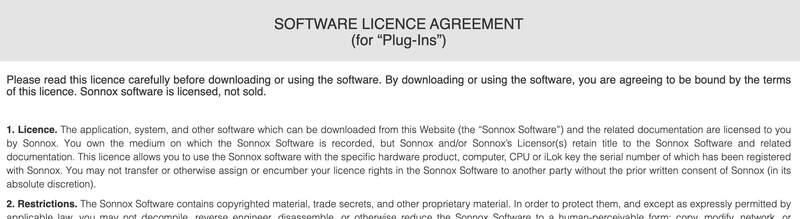
2. Read the Software Licence Agreement at the bottom of the page, click 'I Agree'.
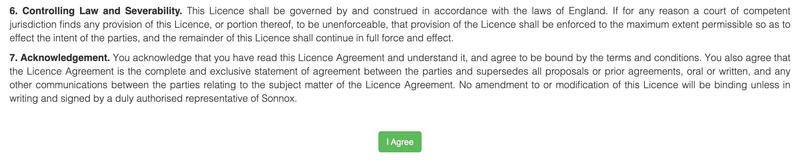
3. Find your 14 character activation key, marked as 'Serial Number' in your Plugin Boutique account and copy and paste it on this page and click Submit.
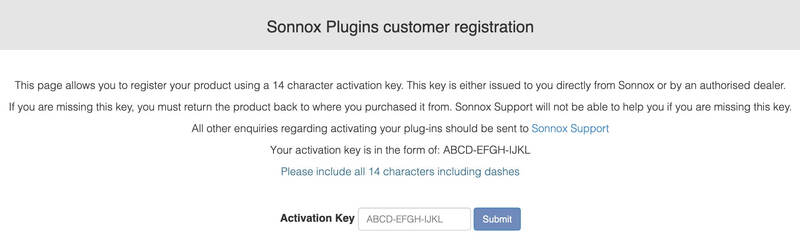
4. Enter your details and click 'Submit'.
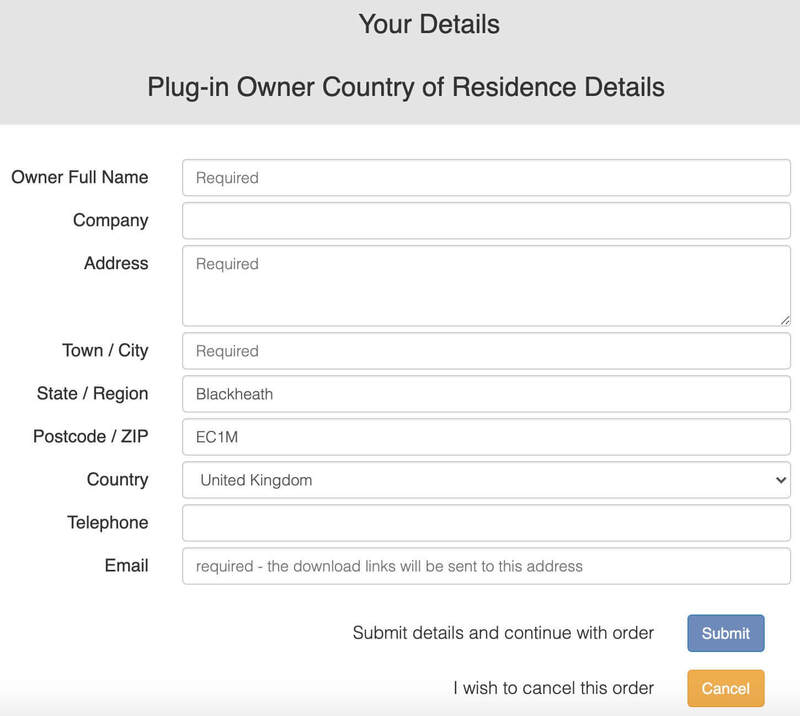
5. Your product is now registered.
Note: You will now receive a confirmation email containing your product serial number, licence details and installer links. Please keep this email safe as you may need the serial number to access any future upgrades or to re-download your product installers.
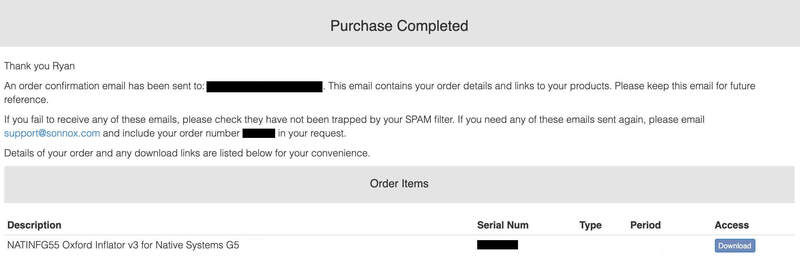
6. Open the Order Confirmation email that you just received from Sonnox and click 'Download' (If you can't find it, check your Spam/Junk folders).
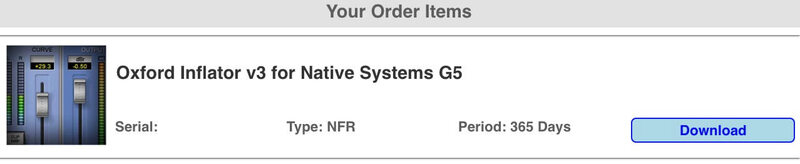
7. Enter your iLok User ID and click 'Verify'.
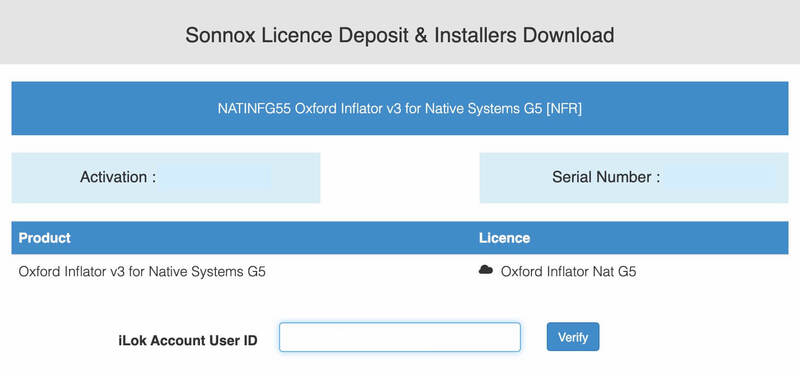
8. Check that the details are all correct and click 'Deposit' to add the serial to your iLok account. Your licence will now be available in your iLok License Manager but you will need to start an iLok Cloud Session in order to validate the activation inside your DAW.
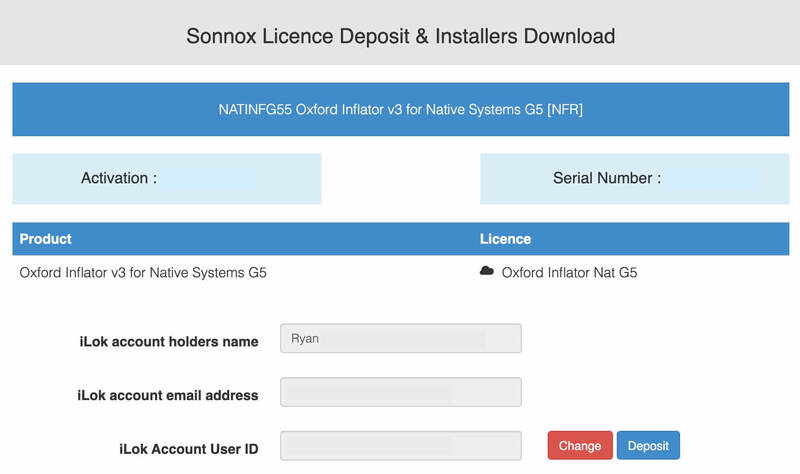
9. Start an iLok Cloud Session to complete the activation. To do this, open the iLok License Manager application, log into your iLok account, and then click File > Open Your Cloud Session.
Alternatively, if you have a physical iLok USB Key, you can simply drag and drop the licence onto your iLok USB within the iLok License Manager.
Mac Installation
1. Go back to the Order Confirmation email you were sent and click 'Download'.
2. Click 'Mac Installers'.
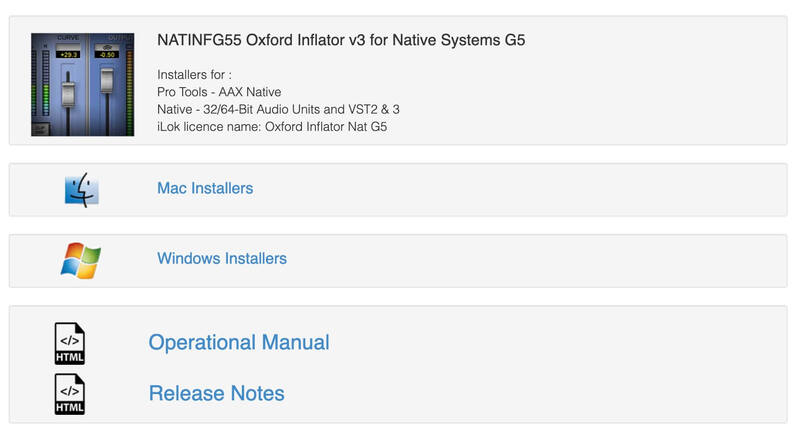
3. Click the name of the product in blue writing to download the installer.
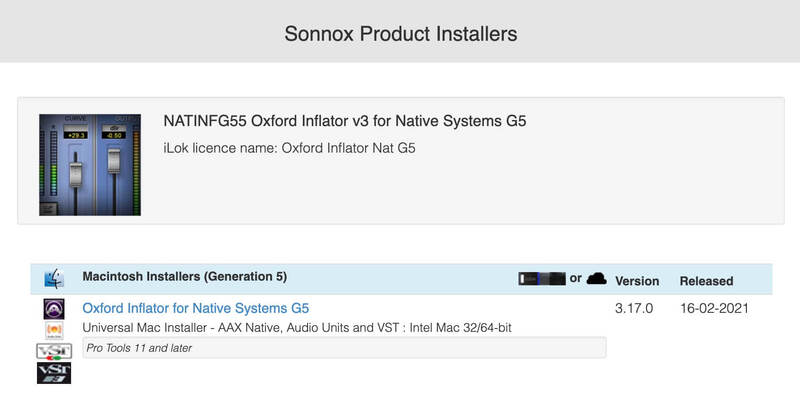
4. Once the installer has downloaded, double-click the file to open it and start the installation > click 'Continue'.
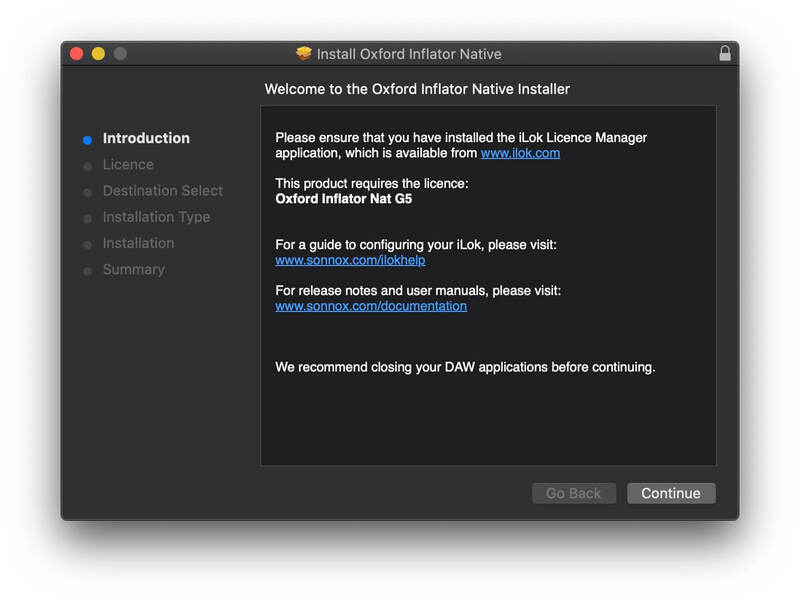
5. Read through the Software Licence Agreement and click 'Continue'.
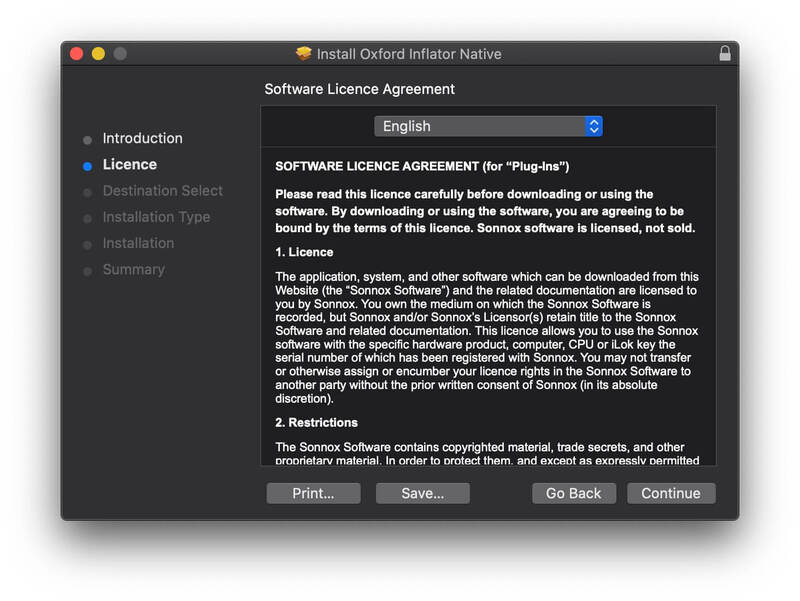
6. Click 'Agree' to continue.
7. Click 'Continue'.
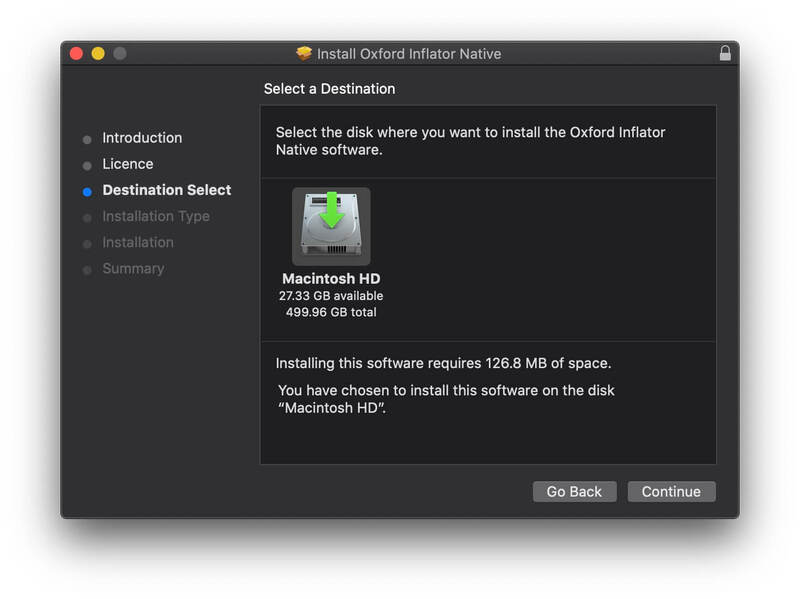
8. Select the formats that you wish to install. (If you are unsure about this, either leave the default selections or check out the Plugin Formats Explained article from our Help Centre).
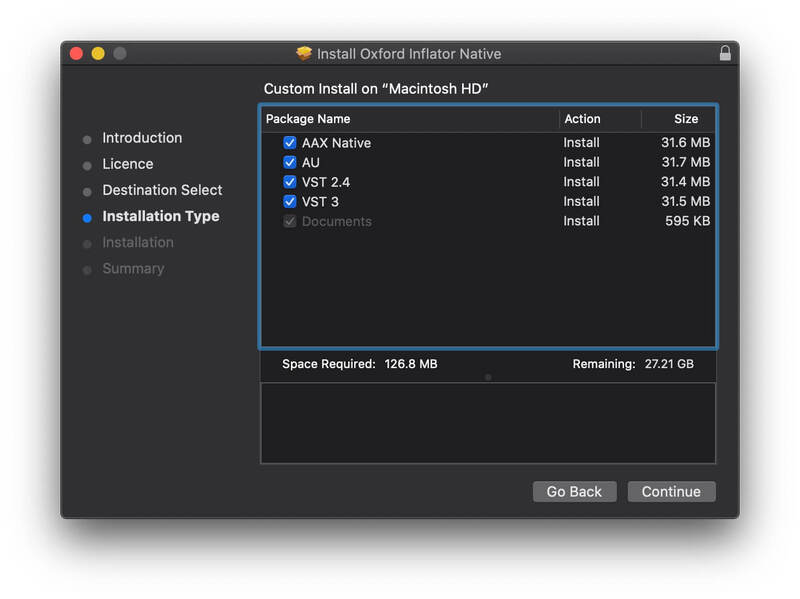
9. Click 'Install' and enter your password to verify the installation.
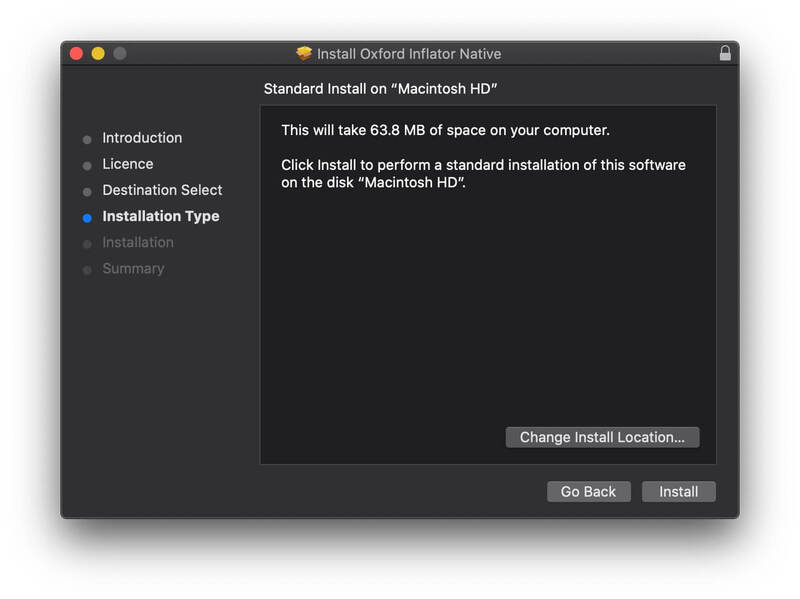
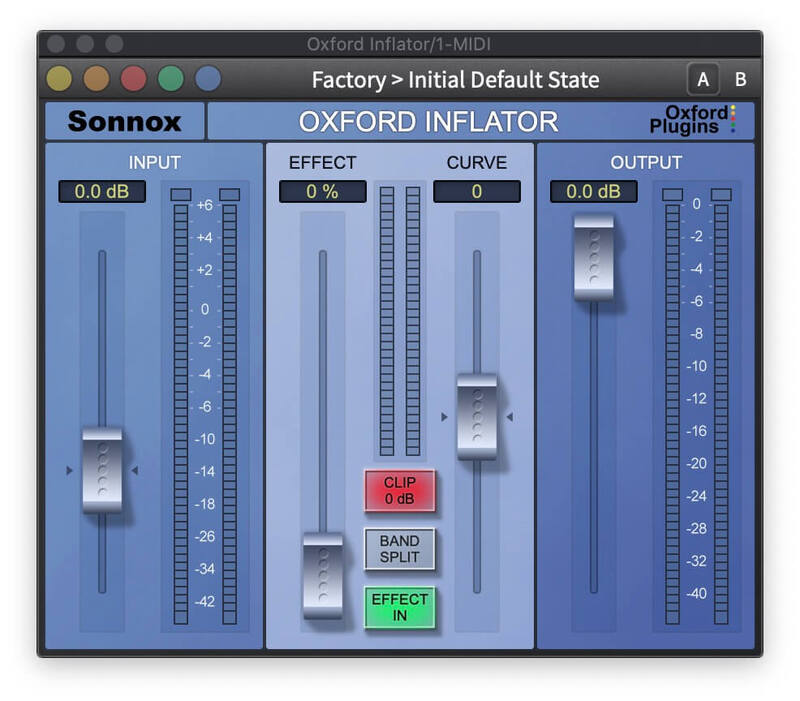
Your software is now installed and ready to use within your DAW.
Windows Installation
1. Go back to the Order Confirmation email you were sent and click 'Download'.
2. Click 'Windows Installers'.
3. Click the name of the product in blue writing to download the installer.
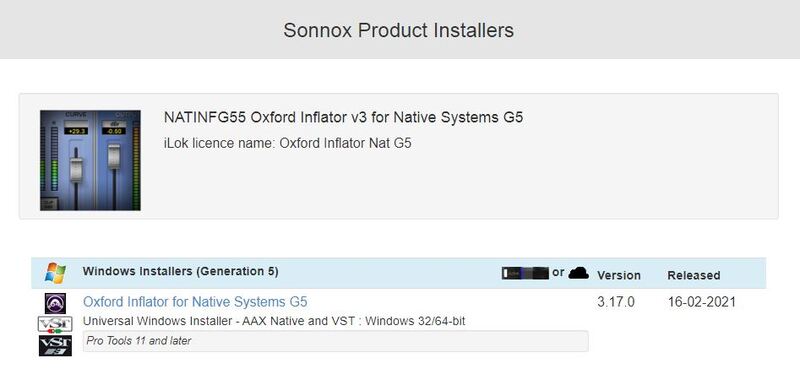
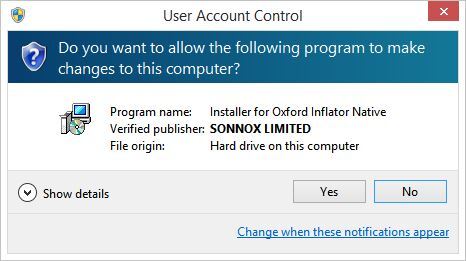
4. Double-click and open the installer file, then click 'Yes'.
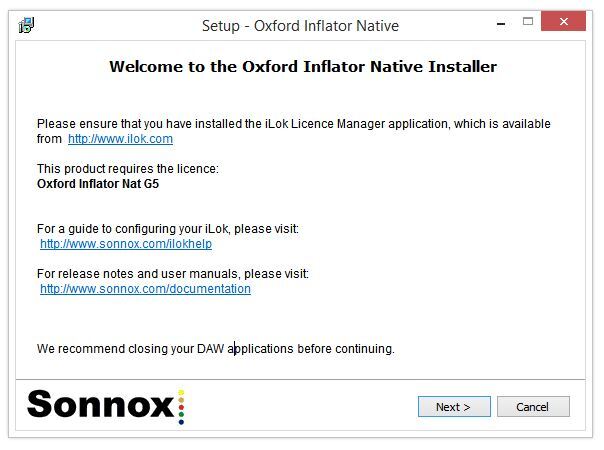
5. Click 'Next'.
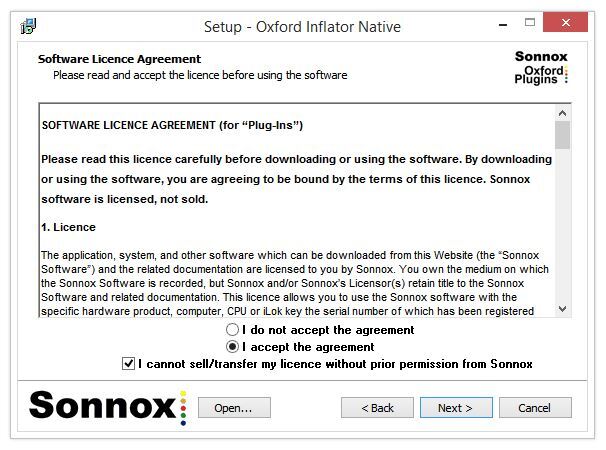
6. Read the Software Licence Agreement > Select 'I accept the agreement' > Click 'I cannot sell/transfer my licence without prior permission from Sonnox' > Click 'Next'.
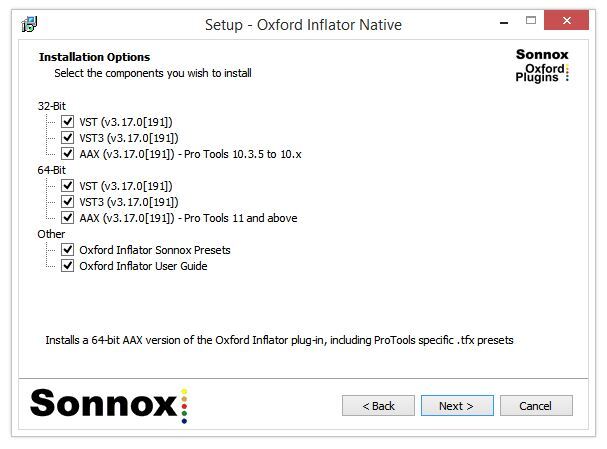
7. Select the formats that you wish to install. (If you are unsure of this, either leave the default selections or check out the Plugin Formats Explained article from our Help Centre).
8. Leave the file locations at their defaults (unless you use a custom plugin folder) and click 'Install'.
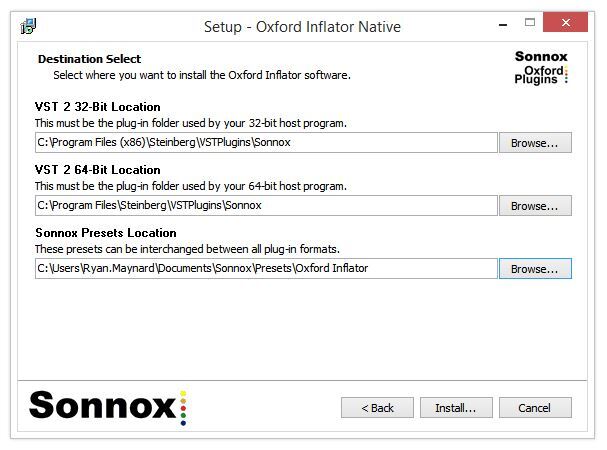
Your software is now installed and ready to use within your DAW.