


 Log In
.jpg)
Free gifts available with your purchase
The Rich Analog Sound Of The World’s Most Popular Multichannel Tape Machine
Now compatible with any soundcard on Mac and PC
For more than 30 years, artists and engineers alike have been drawn to the warm analog sound, solid low-end, and overall presence of the Studer® A800 Multichannel Tape Recorder. The sheer number of albums recorded on this legendary 2” analog tape machine — including classics from Metallica, Stevie Wonder, Tom Petty, A Tribe Called Quest, and Jeff Buckley — serve as shining examples of the musicality of analog tape.
Fully authenticated by Studer, and modeled by UA’s world‑renowned team of DSP engineers and magnetic recording expert Jay McKnight, the Studer A800 Multichannel Tape Recorder plug-in is the first product of its kind. By faithfully modeling the entire circuit path of the famous A800 machine from Allen Sides' collection at Ocean Way Studios, this is the most accurate representation of multitrack analog tape recording available.
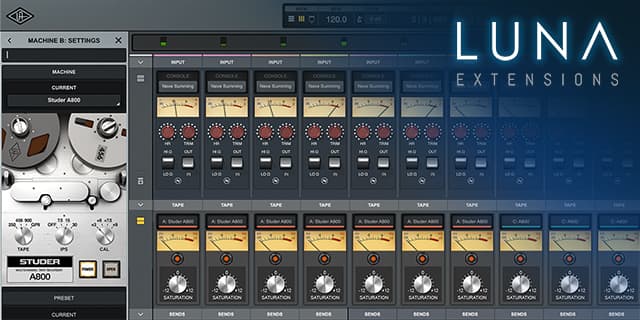
A Groundbreaking Tape Machine
Introduced in 1978, the Studer A800 was the first microprocessor-controlled tape machine. Years ahead of its time, the A800 remains a sonic benchmark, and can still be found in studios worldwide. However, with their massive steel frame and meter bridge, twin half-horsepower motors and cast alloy deck plates, original A800 units tip the scales at a backbreaking 900 pounds. The Studer A800 Multichannel Tape Recorder poses none of the hardware hassles, yet retains all the beautiful sonics that make tape a beloved recording medium.
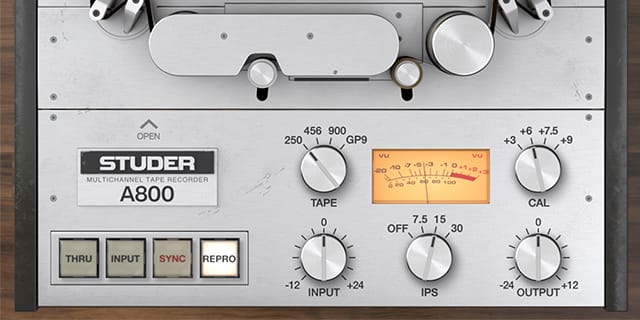
Capturing the Magic of Tape
Just like magnetic tape, you can dial in a clean sound, or just the right amount of harmonic saturation using the Studer A800's Input and Output controls. The IPS control steps through tape speed choices (7.5, 15, or 30 IPS), each with distinct frequency shift, head bump and distortion characteristics. The tape Type control lets users choose from four of the most popular magnetic tape formulas — each with their own subtle sonic variation. There is also a secondary set of controls like Noise, EQ, and Bias for an even more jaw-dropping palette of tape textures.
Features
- Use any audio interface, with both UAD Native and Apollo Realtime/UAD-2 versions included
- Track and mix with the complete Studer A800 electronic signal paths, including Input, Sync and Repro paths
- Add warmth, presence, cohesion, and low-end punch that only genuine tape can provide
- Create complex analog textures with the distinct sounds of multiple tape formulas
- Use the Studer A800 LUNA Extension to easily add warmth to your entire mix on a per channel basis
Versions Included with your Purchase
- UAD Native: Runs on your Mac or PC without any UA hardware
- Apollo Realtime & UAD-2: Runs accelerated on Apollo interfaces and UAD-2 hardware
- macOS Big Sur 11, Monterey 12, Ventura 13, Sonoma 14, Sequoia 15 and Tahoe 26
- Windows 10 or Windows 11 (64-bit editions)
- Intel, AMD, or Apple silicon processor
- Internet connection to download software and authorize UAD Native plug-ins (UADx)
- Free iLok account
- Compatible with iLok USB (2nd generation or higher) but not required
- Free UA Connect application for managing UAD Native plug-ins (UADx)
- A supported DAW compatible with VST3, AU, or AAX plug-in file formats.
Reviews Summary
While it aims to provide a helpful overview, it may not capture every perspective or detail. We encourage you to read individual reviews to make an informed decision.
The plugin is overwhelmingly praised for its analog tape saturation, with users highlighting its ability to add warmth, punch, and fullness to drums, vocals, bass, and the mix bus. Most reviewers consider it a game changer for vintage tone and track glue, recommending subtle use and disabling the hiss feature, despite a single negative review.


