


 Log In

Free gifts available with your purchase
Record-Ready, Low-End Tones
- An Amp Room suite packed with amps, cabs, and pedals, such as Bass Standard Line V8, Supernova Parallel Channel 300W, The Cardinal 100W, and a Direct Input DI
- Includes the Amp Room platform, three amps, one DI module, five cabs, ten stompboxes, 13 effects and utilities, microphone options, presets, and more
- Featuring cabinet IR captures with moveable microphones, a parametric equalizer for added tone shaping
Get album-ready bass tones for everything from vintage ‘60s & ‘70s vibes to modern chart music and the heaviest distorted metal. Amp Room Bass Suite includes expertly modeled amps like Bass Standard Line V8, Supernova Parallel Channel 300W, and The Cardinal 100W.
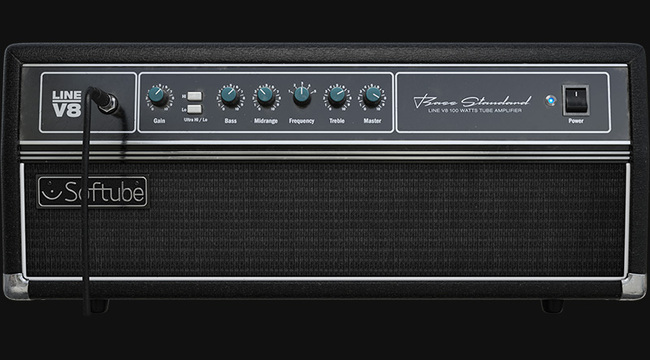
Bass Standard Line V8
This all-tube gem of an amp is the way to go for a bass sound with punch and grit, but also when searching for superb tone and clarity. Its quad of 6L6s offer an unexpected fullness of sound, and this bass ampis excellent for sparkly, clean guitar tones, too.
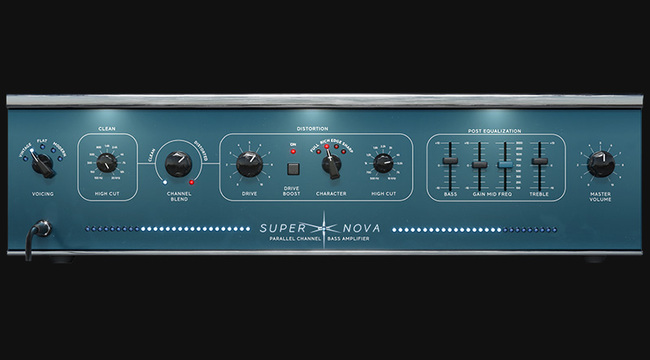
Supernova Parallel Channel 300W
Design your dream bass tone with Supernova, our modern parallel bass amp. You can easily sculpt your tone with the predefined EQ modes, distort one channel to your heart’s content, blend the clean DI signal back, and return clarity and rumble in the low end for bass tones that shine like stars.

The Cardinal 100W
This bass amp has a few tricks up its sleeve. Based on an early '70s 100W UK valve PA amp, The Cardinal delivers tones with thick bass, tremendously firm mids, and clear treble. It takes pedals well and is a sleeper of a guitar amp.
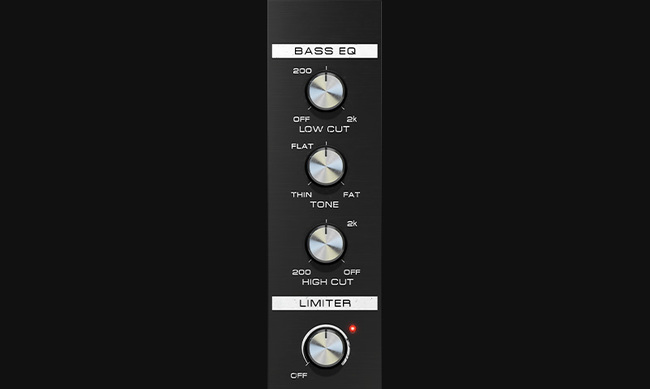
Direct Input DI
Looking to achieve a great DI signal? Inspired by the Softube Focusing Equalizer, this EQ has a mid-band tone in the musical middle. Sculpt your sound by setting the low cut and high cut where they sound right, then adjust the tone control from thin to fat according to taste.
System Requirements
- macOS Big Sur 11, Monterey 12, Ventura 13
- Windows 10 (64-bit), Windows 11
- Softube account
- iLok account
- Computer with AU, VST, VST3, and/or AAX-compatible DAW host software
- Internet access (for downloading installers and managing licenses)
Supported CPU Families
- Apple macOS computers with Intel Core i3/i5/i7 or Apple silicon (M1 or newer) CPU. Apple silicon is supported natively.
- Windows computers with quad-core Intel Core i3/i5/i7 or AMD quad-core processors with SSE 4.2 support.
- Other Intel processors (Celeron, Pentium, and Xeon) are compatible if they support SSE 4.2 instructions.
Supported Host Software (DAW)
Any 64-bit VST, VST3, AU, or AAX (Pro Tools 11.0.2 or higher) compatible host application should work. However, due to plug-in host differences between DAWs—and our rigorous standards—Softube only officially test their plug-ins and instruments in the most recent versions of Pro Tools, Logic Pro, Cubase, Ableton Live, Studio One, and Reaper. Softube plug-ins are not tested regularly in non-listed systems. They will likely work if the system requirements are met. However, the manufacturer cannot guarantee a solution for issues in unsupported systems.
Softube strongly recommend using VST3, as some of their plug-ins have features that are not present in the older VST format. Supported sample rates: 44.1, 48, 88.2, 96, 176.4, and 192 kHz, in both mono and stereo. The most recent maintenance release of your DAW application is recommended. AAX DSP is not currently in active development. TDM/VENUE/RTAS are no longer supported. See Legacy Installers.
Important note
- Make sure that you always use the latest iLok License Manager. It is not included in the Softube installer but can be downloaded from www.ilok.com


