Log In

Free gifts available with your purchase
Best-In-Class Orchestral Solo Strings Library
CineStrings SOLO was recorded at the world famous MGM Scoring Stage at Sony Pictures Studios in Los Angeles. Recorded and mixed by veteran legend Dennis Sands, the CineStrings SOLO Library enhances our essential CORE collection with masterful performances and recordings of some of the greatest LA scoring musicians. This collection will function as an exceptional cinematic voice of its own in your sound palette. An expressly composer-friendly solo string library, CineStrings SOLO is intuitive, versatile and complements its predecessors beautifully in both usability and sound.
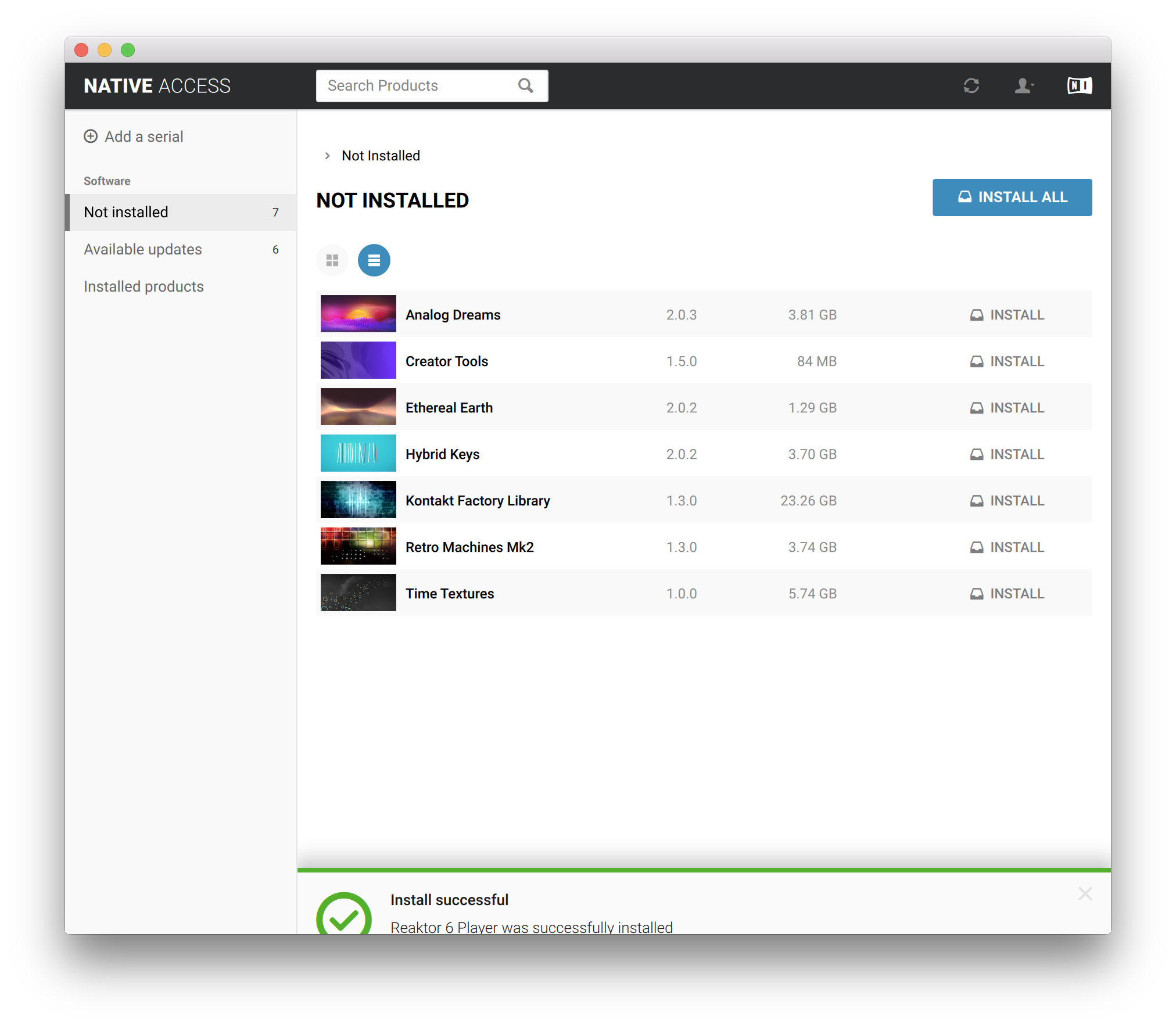
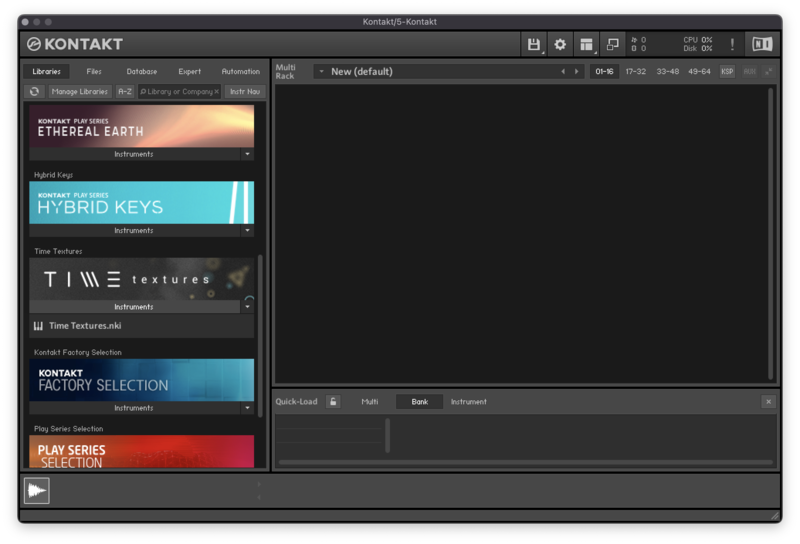
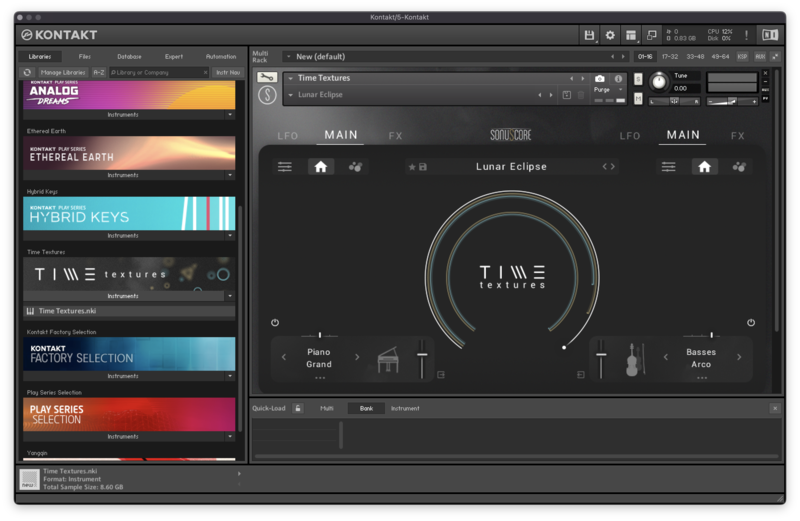
As with all CineSymphony libraries, the CineStrings SOLO library does not require you to purchase any additional sample playback software, and is licensed to work with the Native Instrument’s free Kontakt Player. Explore the latest version of Kontakt HERE. All you need is a sequencer like Logic, Cubase, Digital Performer, LIVE, Pro Tools, Cakewalk, or even Apple GarageBand and you’ll be up and running. You can also use CineStrings SOLO with your favorite notation software such as Sibelius or Finale.
Intuitive Graphic Interface
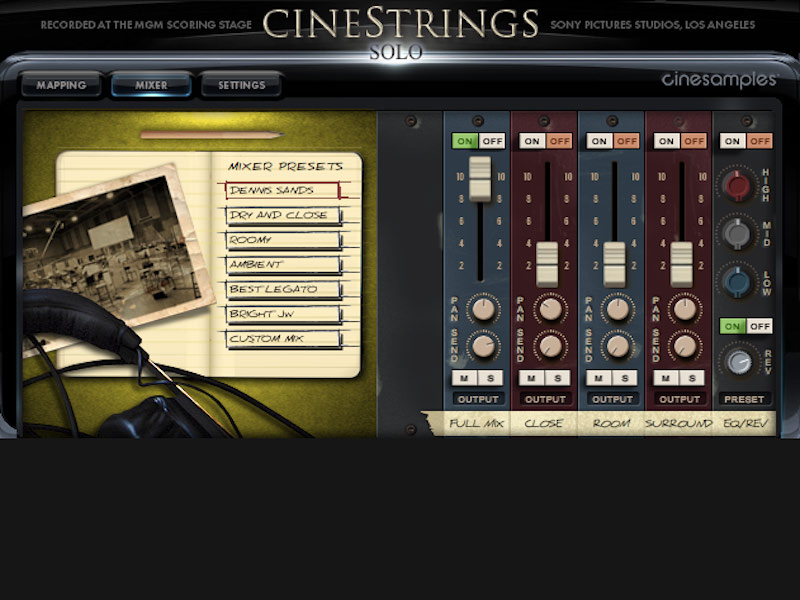
Cinestrings SOLO, as with our other CineSymphony series libraries, has a very intuitive and easy to use graphic interface with quickly selectable presets that can help you write, program and mix. You can tailor these settings to your specific practices. The Mapping page can quickly set you up for velocity, key-switching or MIDI continuous controller (CC) articulation switching. Our Mixer page allows you to quickly access our Full mix or the three other microphone positions. The Settings page allows for advanced control over each of these patches for sound design, programming and other useful features.
What’s in CineStrings Solo?
CineStrings SOLO features deeply sampled solo patches for:
- Violin 1
- Violin 2
- Viola
- Cello
- Bass
- Articulations include:
- Standard and Espressivo sustains with smooth dynamics
- Standard and Espressivo seamless legatos
- Spiccato @ 5-6xRR @ p through f
- Staccato @ 2-4xRR @ p through f
- Marcato @ 2-3xRR
- Pizzicato @ 5xRR @ p through f
- Extra Articulations include:
- Violin 1, Violin 2, Viola - Short Spiccato @ 5xRR
- Violin 2, Viola, Bass - Bartok Pizzicato @ 3xRR
- Violin 1, Violin 2, Viola - Tremolos @ p to f
- Unique Features
CINESAMPLES' ADAPTIVE LEGATO ENGINE
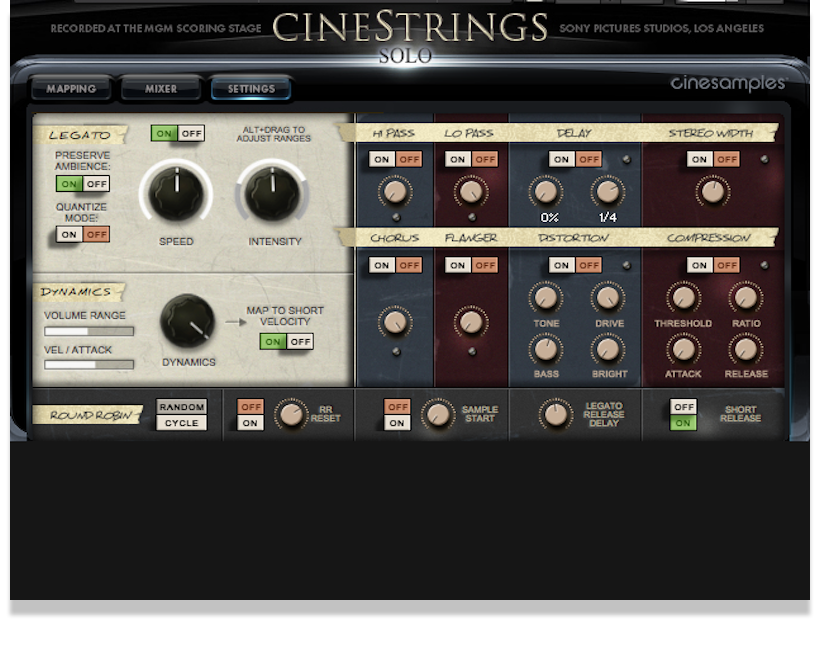
CineStrings SOLO's True Legato patches feature a brand new adaptive legato engine, built from the ground up. This new engine features extra interface controls, allowing you to tailor the legato response to your own playing style. The legato script in CineStrings SOLO is designed to respond musically to your performance. The engine detects your playing speed and intelligently adjusts the interval speed to match. This means you can play slow, expressive lines and fast runs in a single performance, without touching the speed dial. Additionally, the intensity parameter responds to velocity.
What is "True Legato"? True Legato means that we sampled all of the intervalic leaps throughout the ranges, both upwards and downwards, for each instrument. When you play a True Legato patch, it instantly analyzes the intervals you play, then plays the appropriate transitional leap between the notes. The result is a smooth and realistic legato performance.
ENSEMBLE PATCHES

CineStrings SOLO also includes very versatile 'Chamber Ensemble' patches (Articulations and Legato). These patches map the instruments across a single keyboard, the ranges of which can be adjusted on the SETTINGS tab of the user interface.
MAPPING
CineStrings SOLO includes a brand new Mapping area that allows for greater flexibility in customizing composer workflows.

The new mapping system allows for articulations to be blended together, using polyphonic keyswitching or overlapping velocity/CC ranges. This allows for even more flexibility for tailoring CineStrings SOLO to your individual needs. For example, you could combine a Marcato articulation with a Spiccato for a harsh attack. You may add articulations using the + Add Articulation + button and subtract articulations using the X on the right. The Accent Overlay control layers an additional articulation (Marcato, Staccato, Spiccato) over the attack of sustains. Turning on ACCENTED LEGATO adds this layer to the legato transitions.

LEGATO
After much experimentation, we've determined that a smoothly connected bow-change style of legato yields the best results when implemented into our system of creating realistic legato instruments. We auditioned many transitions and this is the best sounding. While there are other approaches to legato, the results of those did not meet our standards. Our goal is to create something easy to use and playable right out of the box. We found a balance between flexibility and realism, which may not encompass every type of transition. The bow change legato is the most realistic sounding for our method of recording.
INFINITE SUSTAINS (Infinite Bow Feature)
On the lower right corner of the mapping tab is the Infinite Sustains control. By default, it's activated by a green Keyswitch with True Legato on. Following a legato transition, sustains play without a natural bow change within the looped sample. This is understandably an unnatural occurrence, but it provides the necessary bow length needed in slower tempi. The True Legato patches contain the same function without short articulations. In the Extra Patches folder, there are Legato patches labeled as (Infinite Bow) that play the infinite sustains by default.
System Requirements
- Kontakt Player 5.3.1 or higher
- Kontakt (Player) 5 supports: Stand-alone, VST®, Audio Units, RTAS® (Pro Tools® 8 and higher), DXi, ASIO, Core Audio®, DirectSound®, WASAPI
- Native 64-bit support for stand-alone and plug-in versions on both Mac & PC
This instrument requires the FREE or FULL version of Kontakt 5.3.1+