Log In

Free gifts available with your purchase
Essential Woodwind Orchestra

CINESAMPLES' ADAPTIVE LEGATO ENGINE
Cinesamples applied its Adaptive Legato Engine from CineStrings SOLO, Tina Guo Acoustic Cello Legato, and Viola da Gamba to CineWinds CORE. It allows you to tailor the legato response to your own playing style, and is designed to respond musically to your performance. The engine detects your playing speed and intelligently adjusts the interval speed to match. This means you can play slow, expressive lines and fast runs in a single performance, without touching the speed dial. Additionally, the intensity parameter responds to velocity.

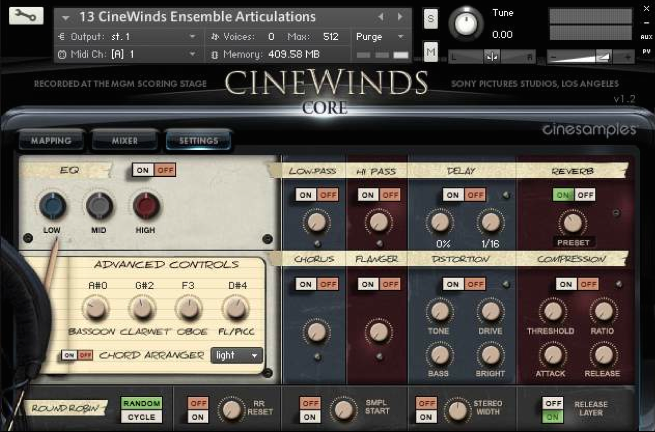
In the Settings Tab, the VOLUME RANGE controls how much the volume is affected by CC1. So those who use CC1 and CC11 together can keep the slider all the way down, and those who only use the mod wheel can turn it up.
Using the VEL / ATTACK function, the attack of each note responds to your velocity. Lower velocities will generate a slower attack.
QUANTIZE MODE
In any True Legato instrument, there will be some lag when playing note-to-note transitions. This is usually compensated for by moving all notes slightly to the left in the sequencer, or by using a track pre-delay. The problem with most legato libraries is that the timings of each note are inconsistent; the first note in a phrase will sound immediately, while subsequent notes will be delayed. The Quantize Mode tackles this problem by calculating the legato lag time, and applying the same delay to non-legato samples. This means you can quantize a performance, shift the MIDI to the left, and the timings of each note will be consistent.
NEW MAPPING TAB
CineWinds CORE includes a brand new mapping area styled after CineStrings SOLO that allows for greater flexibility in customizing composer workflows.
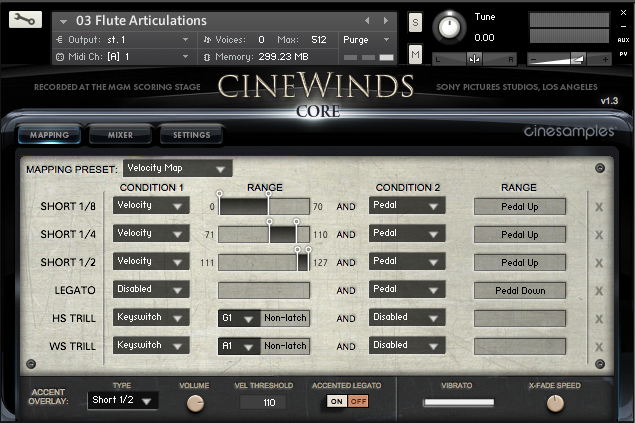
ACCENT OVERLAY
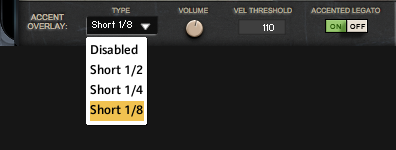
The Accent Overlay control layers an additional articulation (Marcato = Short 1/2, Staccato = Short 1/4, Spiccato = Short 1/8) over the attack of sustains. Turning on ACCENTED LEGATO adds this layer to the legato transitions.
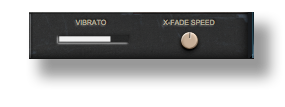
NEW VIBRATO CONTROL
In the Mapping tab, the Vibrato fader allows for a variable crossfade speed into and out of vibrato samples. This control defaults to CC2 but can be assigned to any controller.
ENSEMBLE PATCHES
The new Ensemble Patches add the Piccolo at 8va, an octave above the flute. The new Ensemble Chords Patch is a triadic chord builder that functions like CineOrch.
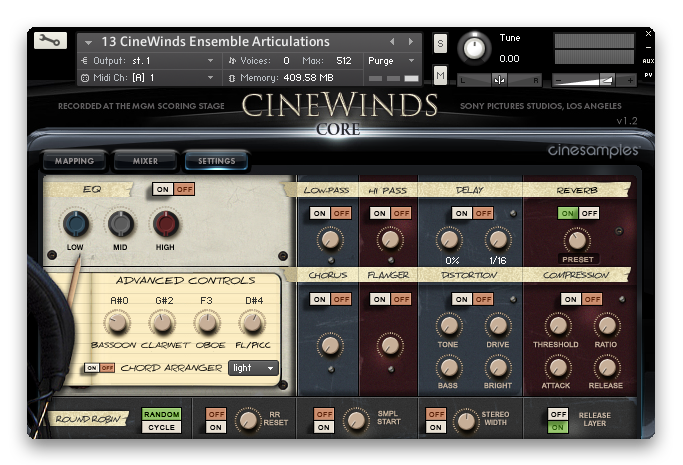
ENSEMBLE PATCHES
CineWinds Core 1.2 now includes the addition of several new 'Ensemble' patches. These new patches combine the core instruments (Piccolo, Flute, Oboe, Clarinet, Bassoon) into a single patch stretched across the keyboard. These Ensemble patches encompass most of the primary short and sustain articulations of each instrument, the ranges of which can be adjusted on the SETTINGS tab of the user interface.
DEEP DE-NOISING
Cinesamples have painstakingly implemented a multi-layered de-noising process on every sample in the entire CineWinds CORE and PRO collection. The result is a tremendous improvement on the samples in previous versions.
CHORD ARRANGER
In the Middle Left area, you can find the NEW exclusive feature called “Chord Arranger”. By turning on this feature, the user will be able to play a chord and have the patch automatically assign it to an instrument, instead of using the basic instrument switch ranges. When activated, the script will divide the notes up and send them to different instruments - for instance with a wide voiced 3-note chord: the top note to flute / oboe, the middle note to oboe / clarinet and the bottom note to bassoon. The user can also choose between the settings “light” (one instrument per note), “medium (two instruments per note)” and “heavy” (3 instruments per note so long it is within their range). “Light” is the most realistic setting whereas “Heavy” is a very thick arrangement. “Medium” is often useful for block chord arrangements." Since the script is "listening" to the chord being played, there is a slight delay, so fast- short passages may cause problems.
Articulations
All of the Articulations Patches in CineWinds Core contain shorts of various lengths and dynamics, as well as sustains and trills. We recorded multiple repetitions per note and multiple dynamics as follows:
Also, all of the mapping in the Articulations Patches is dynamic, so you can select from 5 intuitive presets in the user interface. A custom mapping grid is offered, for users who wish to customize the parameters beyond the presets. Every parameter and value is changeable, and nearly any combination is possible. Of course, if you are not a tweaker, you can stick with one of the 5 preset mappings (recommended).
True Legato
What is True Legato? True Legato means that we sampled all of the intervalic leaps throughout the ranges, both upwards and downwards, for each solo woodwind. When you play a True Legato patch, it instantly analyses the intervals you play, then plays the appropriate transitional leap between the notes. The result is a smooth and realistic legato performance. For all instruments we did this at 3 dynamic levels, again using our dynamic morphing to blend seamlessly from piano to fortissimo. A key feature of our True Legato patches, is the Polyphonic Legato mode. This mode allows you to play lines of 2 or more notes simultaneously, while maintaining the appropriate transition samples between all notes. This is especially effective when playing chords that need to connect in a realistic way.
Kontakt and NKS Integration
CineWinds Core v1.4 is scripted for Native Instruments' Native Kontrol Standard (NKS) format.
System Requirements
- Requires Kontakt 5.8.1 and above (Works with both the free Kontakt Player and the paid, full version of Kontakt)
- Requires a minimum of 36 GB free hard drive space during installation. Library size is approx. 18 GB after installation
- Minimum 4 GB RAM Recommended
- Kontakt 5.8.1 Minimum System Requirements
- Mac OS X 10.10 through 10.15, i5
- Windows 7, Windows 8, or Windows 10 (latest Service Pack, 32/64-bit) Intel Core 2 Duo or AMD Athlon 64 X2
- Kontakt 5.8.1 Supported Interfaces
- Mac OS X (64-bit only): Stand-alone, VST, AU, AAX
- Windows (32/64-bit): Stand-alone, VST, AAX
This instrument requires the FREE or FULL version of Kontakt 6.7.1+