Log In

Free gifts available with your purchase
Authentic reproduction of a classic harpsichord recorded at the MGM Scoring Stage
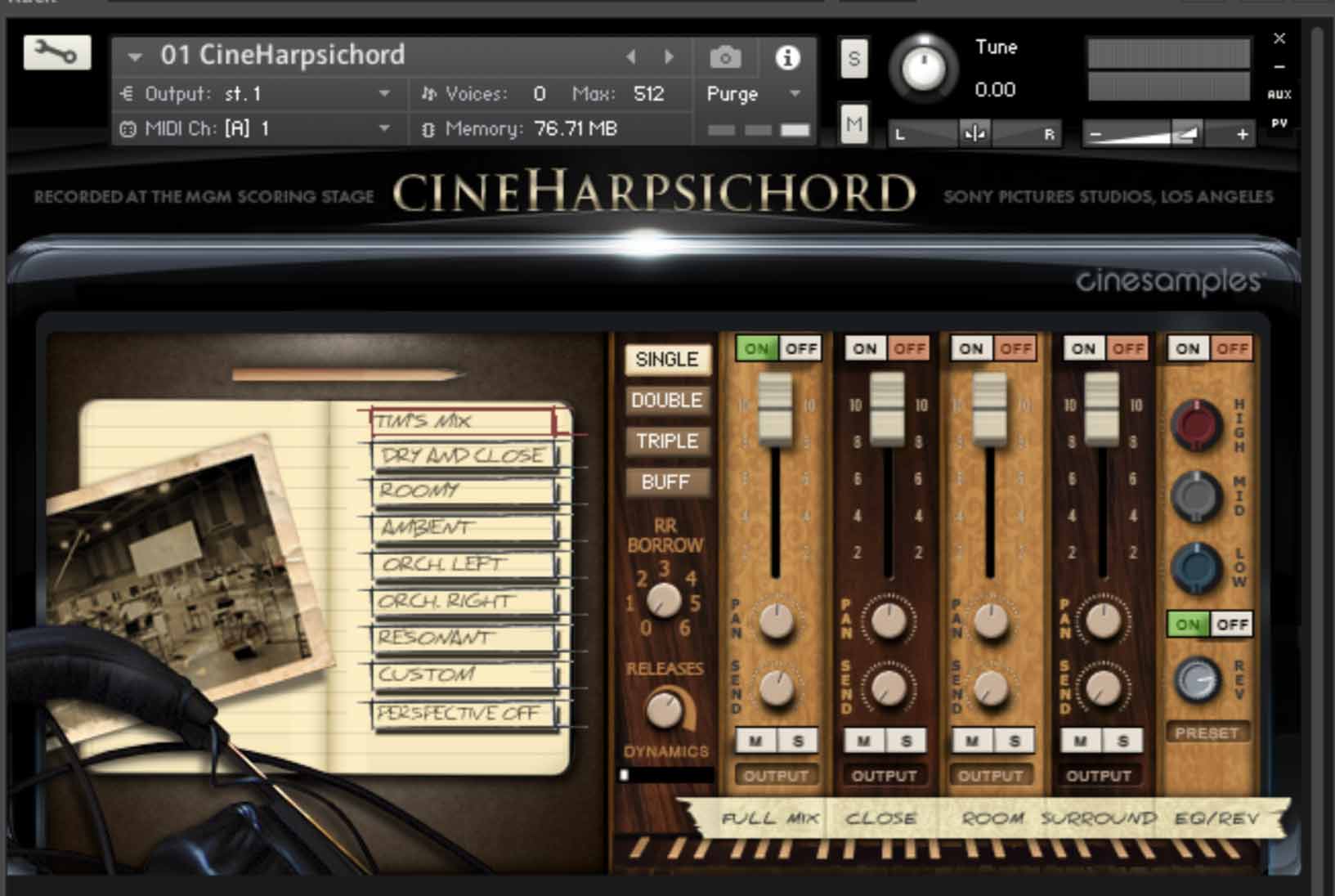
There are 3 patches of the harpsichord, each is based on its own mix:
- CineHarpsichord
- Baroque
- Vintage
The main mix, 01 CineHarpsichord, includes FULL, CLOSE, ROOM, and SURROUND mixes similiar to our other libraries. Use the mix presets on the left for a variety of mix perspectives from Tim's Mix (the main mix), Dry and Close, Orch Left and Right, and a custom mix you can save. Because the harpsichord is such a percussive instrument, Cinesamples delayed the close microphones to time-align with the room and surround microphones to prevent that typical flamming effect. That delay is applied within the FULL mix as well as the CLOSE mix.
The 02 Baroque mix is very specific in every aspect - perspective, image, and tonal shape. Therefore, one stereo fader is all that is needed. This is a more ambient mix with a touch of the close microphones without the time-aligned delay in order to provide a more silky, distant feel.
The 03 Vintage mix is also very specific in every aspect and thus, only one stereo fader is needed. This mix favors a closer perspective with tape emulation and discrete out-board analog treatment including a Chandler EQ and tube harmonic distortion.
The Perspective Fader

CineHarpsichord includes our new Perspective Mode feature which allows for changes through microphone positions. When you activate Perspective Mode, a slider appears that gives a smooth crossfade between the microphone perspectives. The slider is automatically mapped to the Mod Wheel, giving instant control of the relative depth of CineHarpsichord.
Disposition
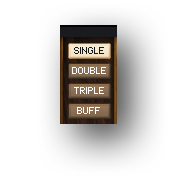
The disposition of a harpsichord is the set of choirs of strings it contains. The modern adaptation of a Franco-Flemish 1624 Iohannes Rückers Colmar harpsichord we sampled had multiple choirs of strings accessible by switching stops. These included two sets of 8-foot strings, one set of 4-foot strings, and a buff stop (lute stop) - a stop that pressed pieces of soft leather against the first 8-foot set of strings to produce a muted, pizzicato tone.
- Single: 1x8’
- Double: 2x8’
- Triple: 2x8’ + 1x4’
- Buff: 1x8’
On the Triple stop, lower velocities reveal a slight time difference between the choirs of strings. This is due to the physical mechanism plucking the lower choir of strings before the upper choir. During normal playing, they sound at the same time.
Round Robin Borrowing
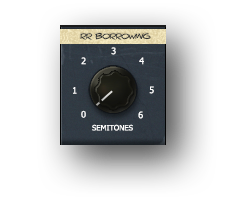
The RR Borrow knob employes surrounding notes as additional round robins. A value of 6 results in up to +/- a tritone of borrowing providing up to an additional 24 round robins per note. A value of zero plays two round robins per dynamic level. Higher values result in more round robins and more tonal variation.
Release Volume
This knob offers control over the volume of the release samples. Note: this will affect the ambience of the instrument.
Dynamics

Normally there is very little dynamic variation on a harpsichord. However, the dynamics control allows for a certain range of variation.
Kontakt and NKS Integration
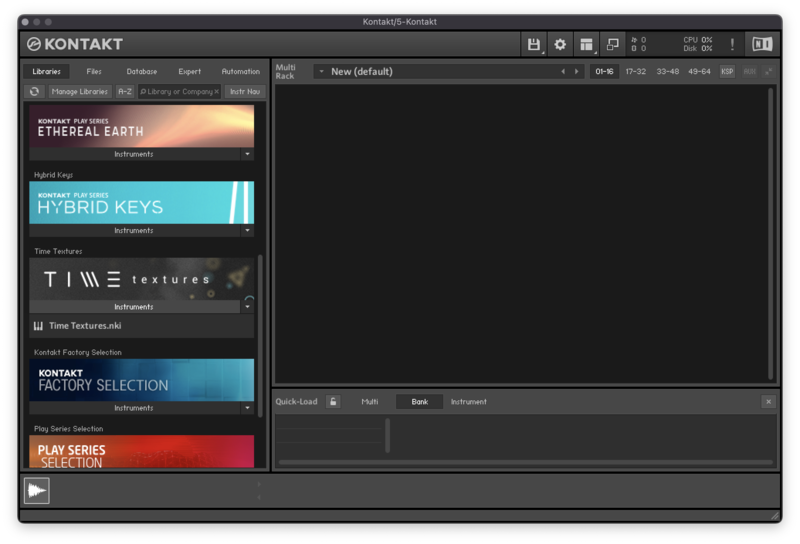
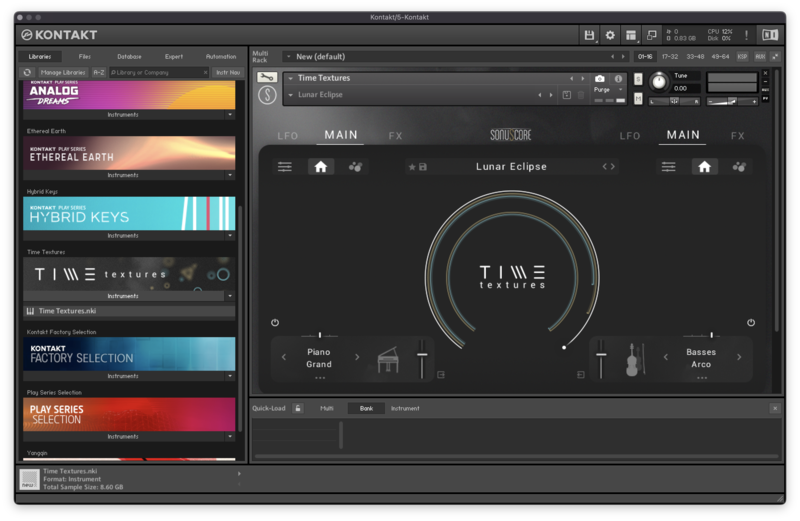
CineHarpischord has been scripted for Native Instruments' Native Kontrol Standard (NKS) format.
System Requirements
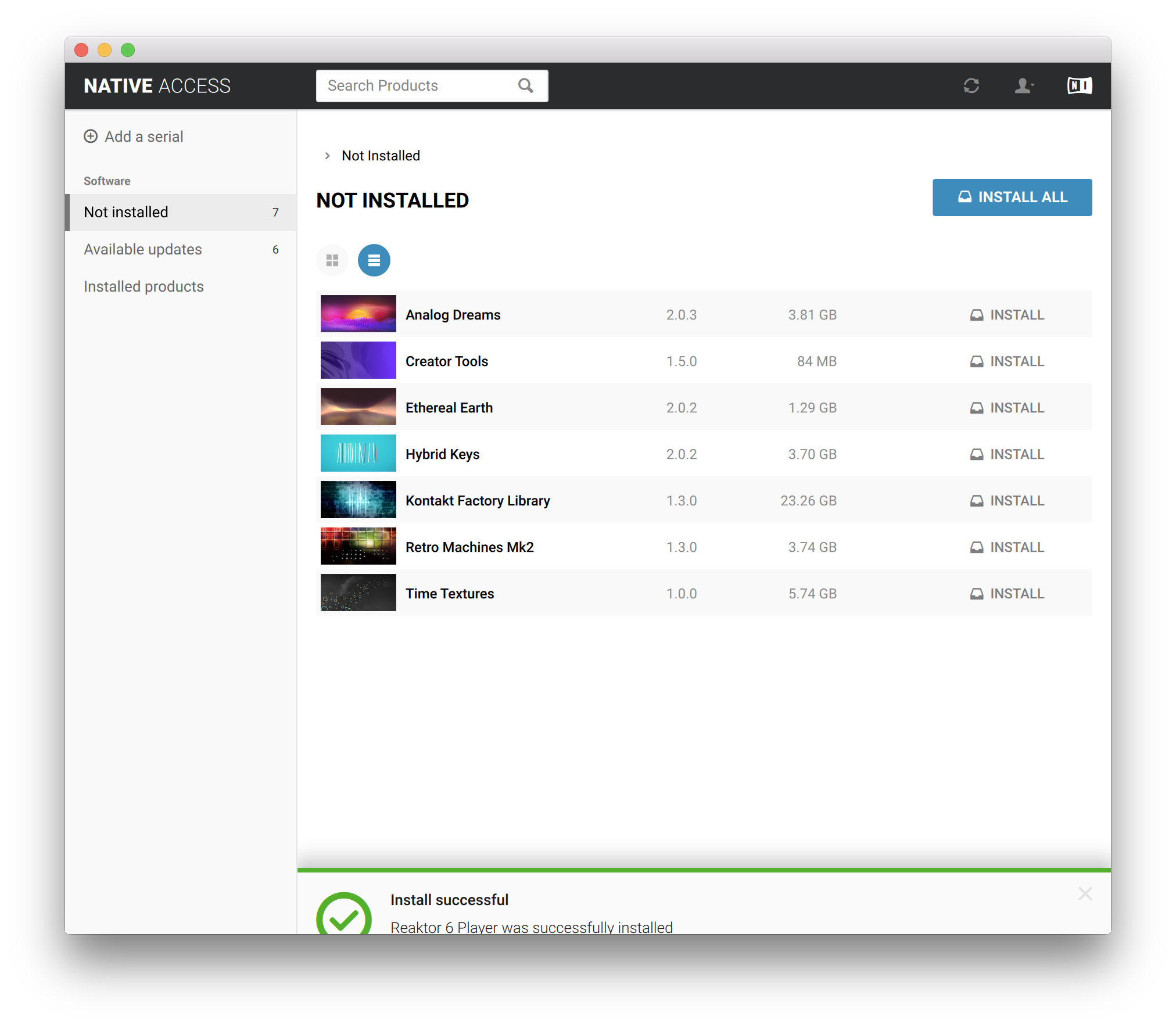
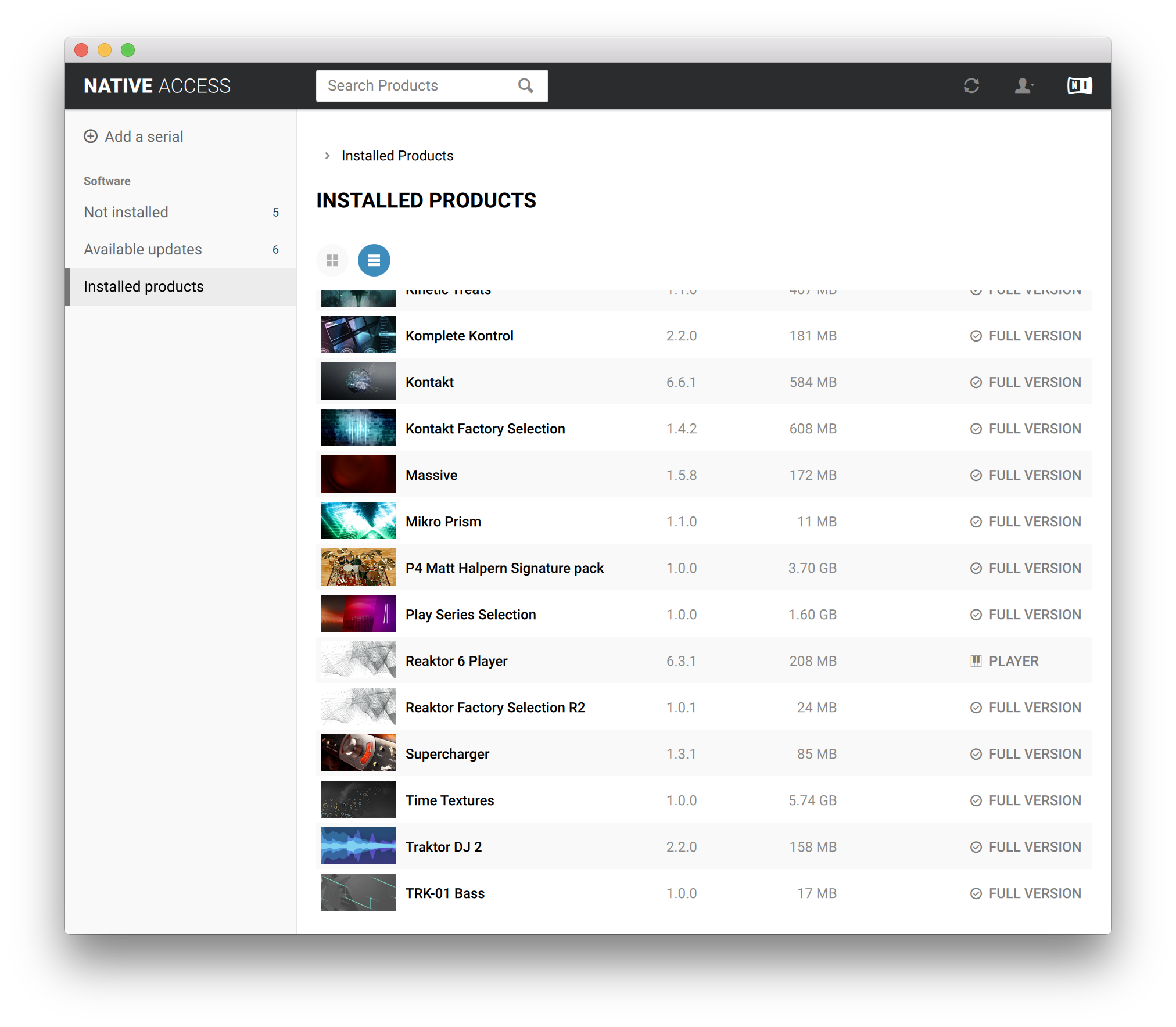
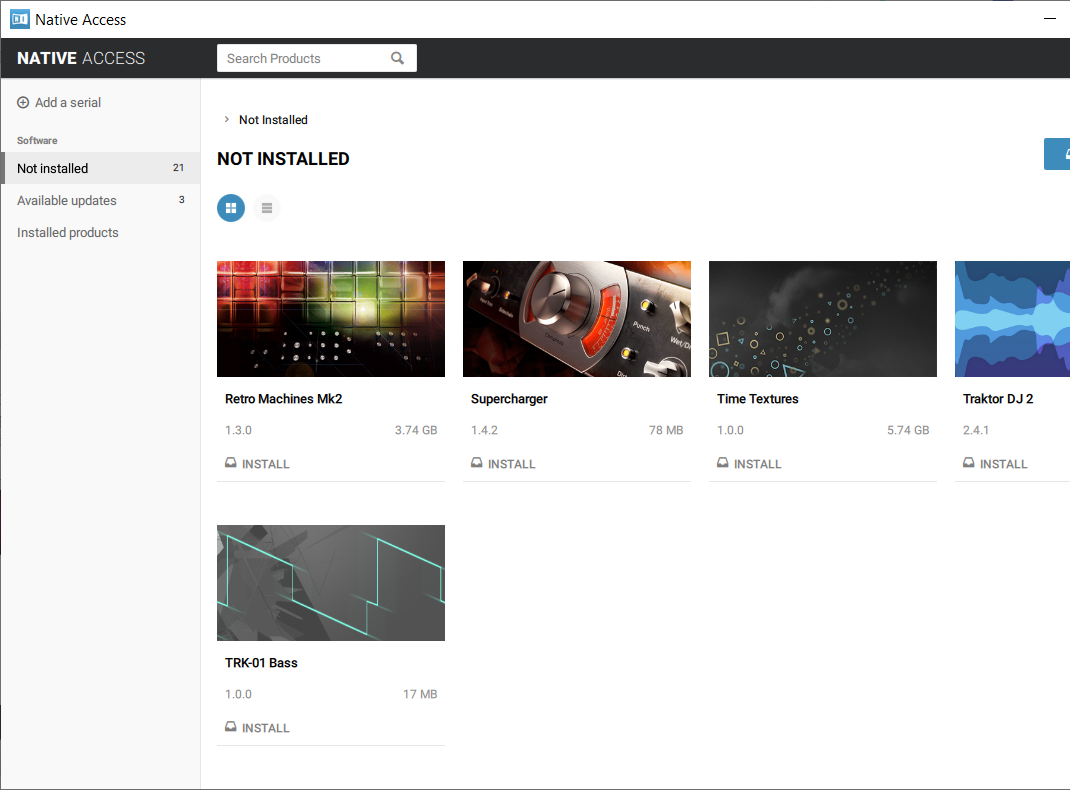
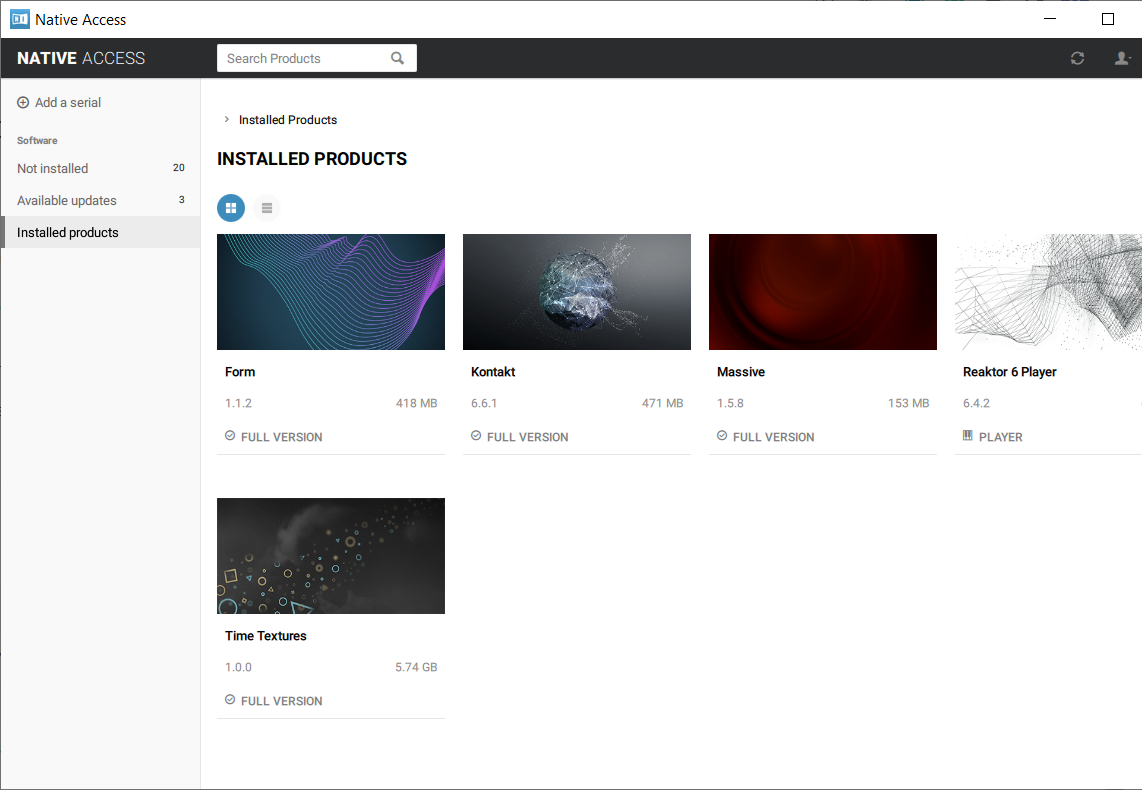
- Requires Kontakt 6.6.1 and above (Works with both the free Kontakt Player and the paid, full version of Kontakt)
- Requires a minimum of 8GB free hard drive space during installation. Library size is approx. 3.55GB after installation
- Minimum 4GB RAM Recommended
This instrument requires the FREE or FULL version of Kontakt 6.6.1+