Log In

Free gifts available with your purchase
Powerful sound-design tool based off Tina Guo's acoustic/electric cello and erhu
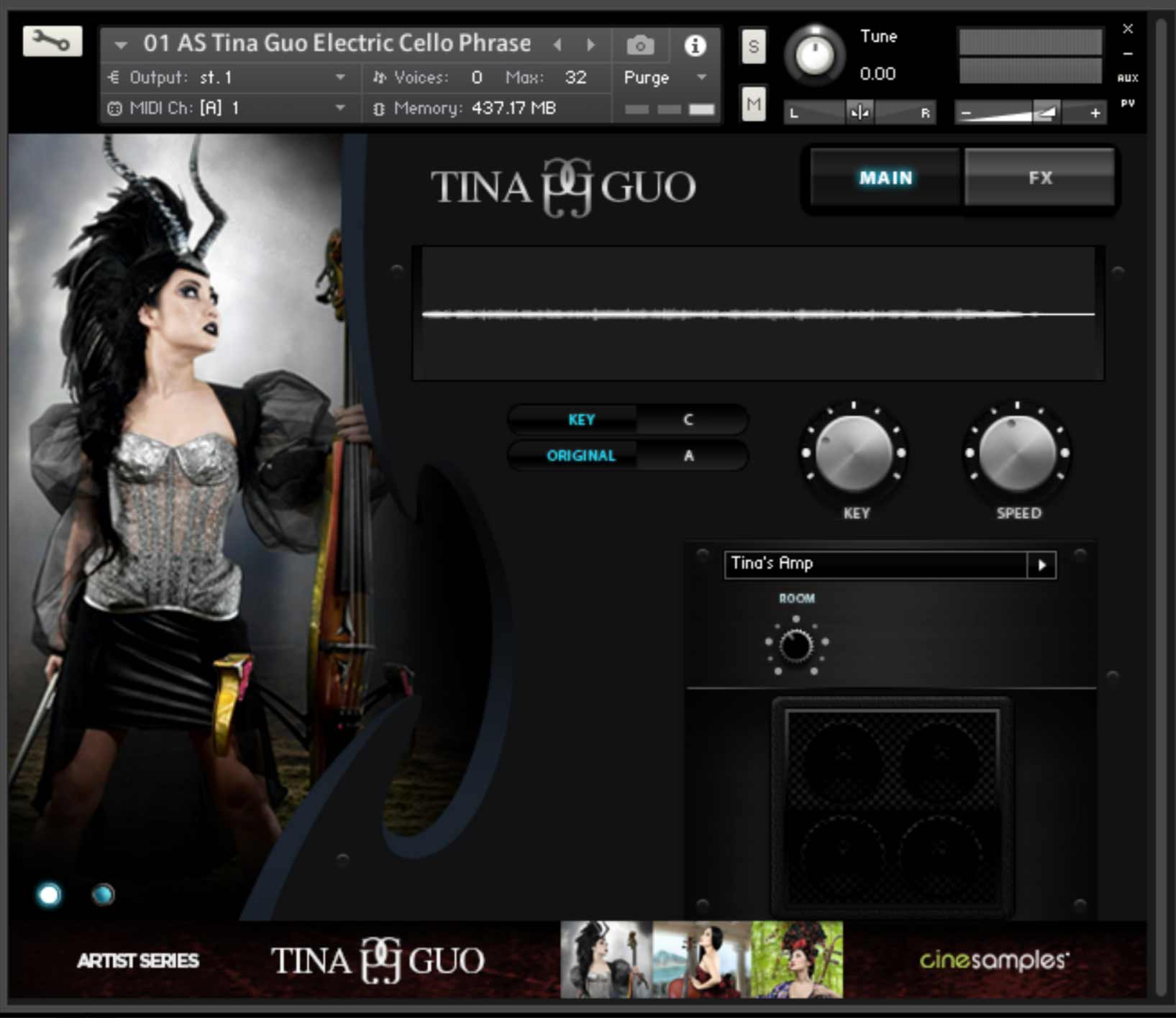
An expansive arsenal of innovative sound design and composition tools brought to life through a collection of expressive electric and erhu performances. The Acoustic Cello Legato patches, recorded at the legendary MGM Scoring Scoring Stage at Sony Pictures Studios in Los Angeles, includes Cinesamples' CineStrings Solo Legato engine and Infinite Bow feature.
About Tina Guo

Tina Guo has developed an international multi-faceted performance and recording career as a classical acoustic cellist, heavy metal electric cellist, erhuist, and composer. Her distinctive sound and improvisatory style have been featured in major motion picture, television, and game scores. Taking her formal training from USC to new musical heights, she enjoys experimenting with a wide range of effects and digital processors, ever expanding upon her sound.
As Tina’s distinguishes herself most remarkably through her live musical performances, her numerous appearances on arena stages have naturally taken her around the globe to countries including Denmark, Greece, Sweden, Germany, Russia, Spain, Italy, France, Japan and the UK, among many others. She has lent her talent to live film and game attractions and television events such as the The Grammy Awards, American Idol, Dancing With The Stars, The Sundance and Tenerife Film Festivals, Comic Con and the League of Legends World Championship.
Her extensive credit list as a studio musician features acclaimed Hollywood scores such as Inception, Sherlock Holmes, and Iron Man 2. Tina’s cello work (acoustic and electric) can also be heard on major video game titles including Call of Duty: Black Ops II, Diablo III and Grammy-nominated (Best Score Soundtrack for Visual Media) Journey, to name just a few. She is also very well known for her work in television music on Family Guy, The Mentalist, King of the Hill and more, as well as various commercials for United Airlines, Mazda, Apple iPhone and more.
Tina performs on her Gand & Bernadel Cello made in Paris, France in 1880. On electric cello, she plays a customized Yamaha SVC-210 as a Yamaha Performing Artist, and exclusively through ENGL amps. Tina also plays an Erhu made in Shanghai, China.
The Library
The Tina Guo library offers an exquisitely unique and progressive take on the Acoustic and Electric Cello, as well as the traditional Chinese instrument, the Erhu. Encapsulating Tina’s ultra-expressive and experimental performance style within a sample library is an undertaking that was accomplished through blurring the lines between music and sound design- a vital element of her music. An expansive arsenal of innovative sound design and composition tools introduce a multitude of new ways to explore and create fresh sounds that will certainly take your productions to the next level. The Tina Guo library includes the popular Tina Guo Acoustic Cello Legato.
New Features
Reflecting the fact that Tina’s sound and approach to her instruments are constantly evolving, the library includes a multitude of inventive features that give the player the opportunity to similarly develop fresh sound in many new and different ways. These include:

The Phrase Builder: A system for constructing melodic ideas using fragments of Tina’s performances in a variety of playing styles
Drone Designer: Create variable sonic beds by manipulating intensity and navigating through long samples of unfolding cello drones using the Mod wheel
Built-in Granular Synth FX: Explore harmonically rich and complex sound design spread across the stereo field with left-right grainer functionality
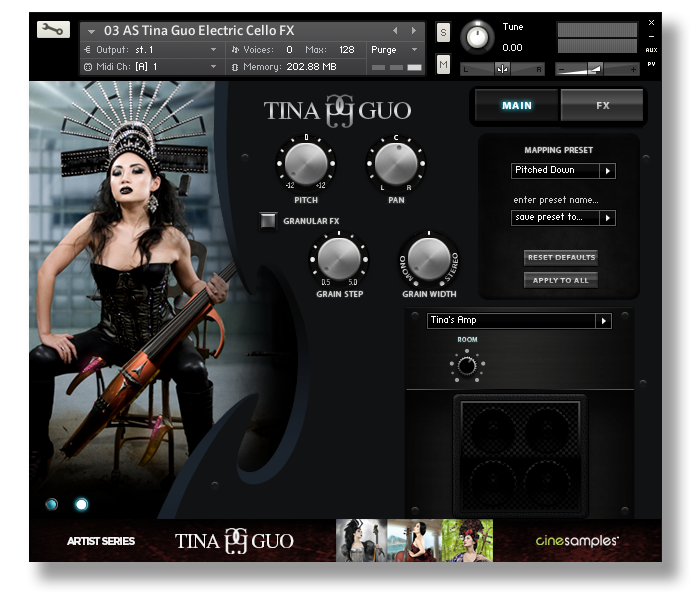
Repeated Note Round Robin Staccatos (RNRRS): A new function that automatically switches to a separate RR sample set upon repeating a short note, resulting in a far more natural cello sound and feel
System Requirements
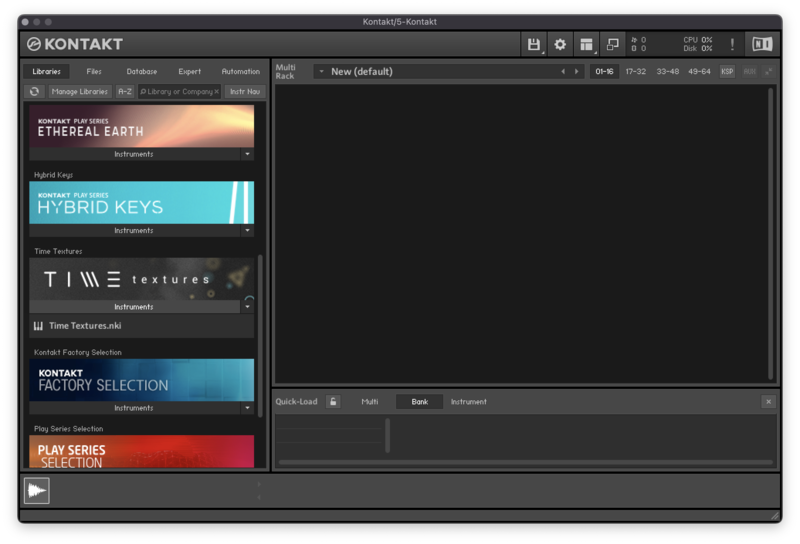
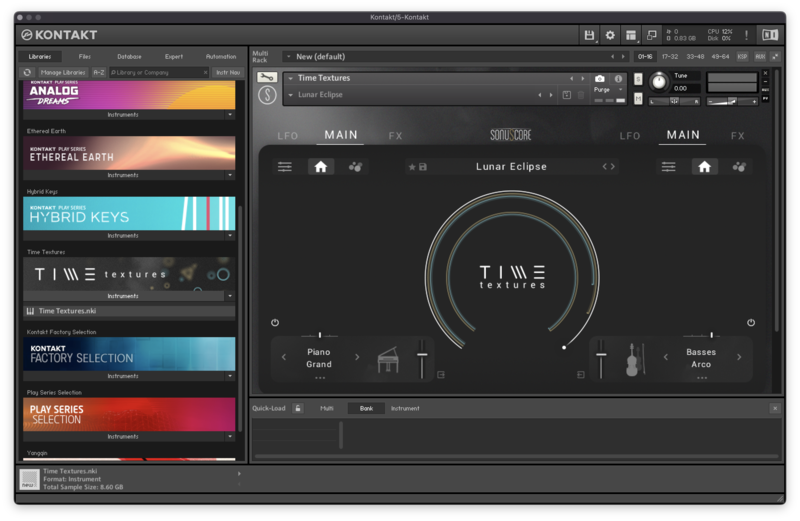
- Requires Kontakt 6.7.1 and above (Works with both the free Kontakt Player and the paid, full version of Kontakt)
- Requires a minimum of 32 GB free hard drive space during installation. Library size is approx. 15.5 GB after installation
- Minimum 4 GB RAM Recommended
This instrument requires the FREE or FULL version of Kontakt 6.7.1+