Log In
.jpg)
Free gifts available with your purchase

Transformed Tube Driven Modular Synth
What's Different Between Versions?
Pro Edition
Featuring extended sample ranges spanning 6 octaves (1 below and 1 above theStandard’s 4-octave range) and up to 13 round robins, capturing all the natural variationsthat occur when you retrigger the same key. Crafted for professionals and liveperforming musicians alike who want to explore Vespera’s full capabilities without compromise, with 32 GB of system RAM recommended.
Delivers the same exceptional presets and sample maps as the Pro edition but optimized to 1 round-robin per note and a 4-octave range. Perfect for enthusiasts and budding musicians with limited systems, the Standard edition provides a comprehensive introduction to the world of Vespera while maintaining overall quality and performance.
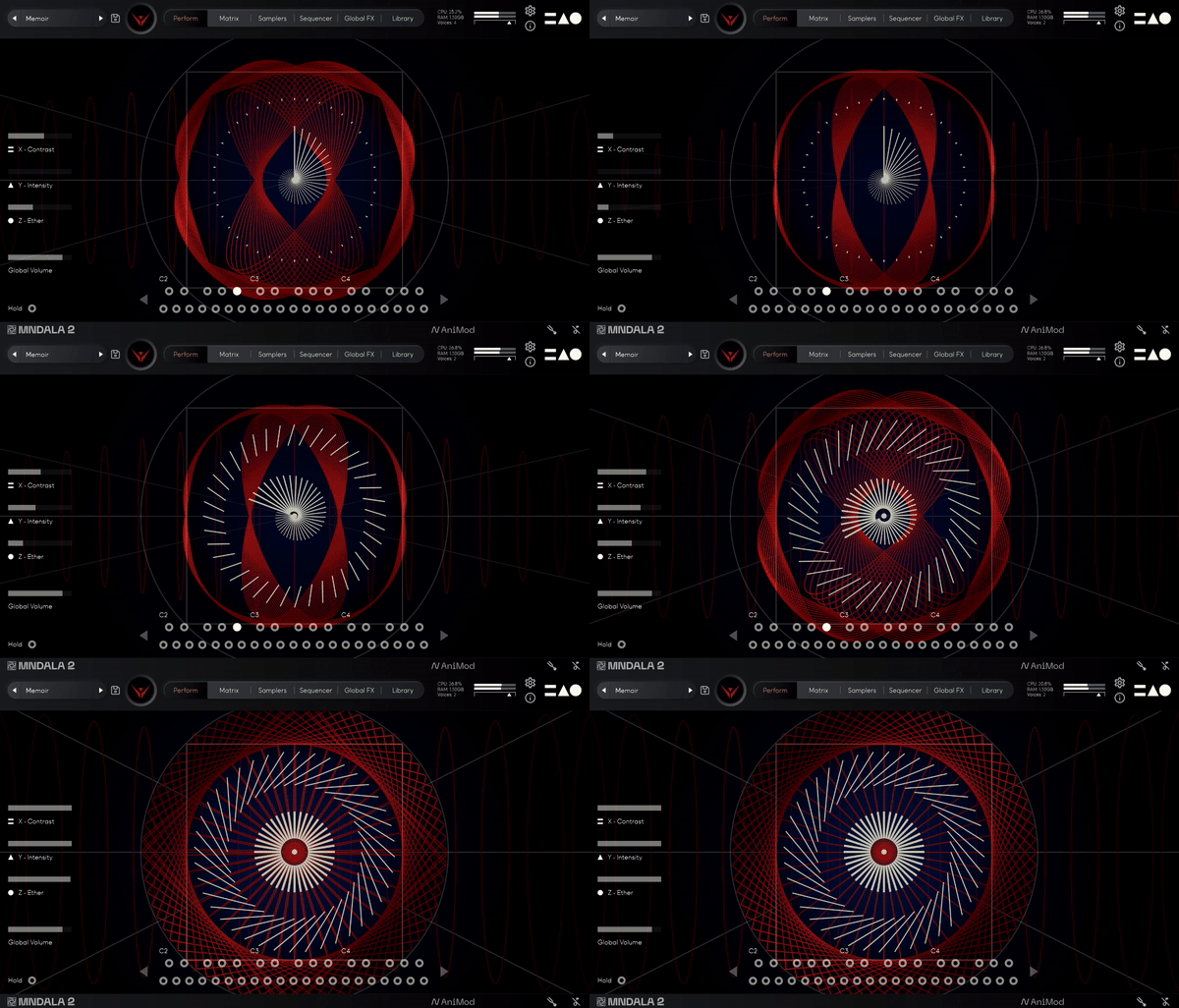
The result of extensive sonic experimentation focused on acoustic synthesis, Vespera is a hybrid electro-acoustic synthesizer that seamlessly merges the raw distortion of tube-driven circuits with the innate resonance of physical objects. Each oscillation undergoes a complete transformation by painstaking re-amping through a vibrational speaker transducer -resonating through diverse mediums, including drums with various skins, metal springs, and the sympathetic vibrations of resonant instruments such as a rare giant Indian Ezraj and a Swedish Nyckelharpa. The outcome is a diverse array of organic textures and tones that transforms the grit of the original distorted modular synth signals into completely new sounds, unlocking unique possibilities for sonic exploration.
Powered by MNDALA 2's Animistic Synthesis capabilities, Vespera becomes an extension of your musical expression. Its nonlinear features allow each patch to resonate spontaneously, intuitively responding to the subtlest nuances of your touch. With over 128+ velocity possibilities at your disposal (powered by Sample Start Modulation), Vespera seamlessly integrates into your musical journey, offering an unprecedented level of articulation and responsiveness, surpassing the capabilities of traditional physical and virtual synths. Vespera is not just an instrument; it's a portal to a vast, unexplored sonic universe. Its meticulously designed patches beckon you to venture into a multidimensional realm of dark, gritty, and hauntingly beautiful sounds. Vespera's expansive sonic palette offers a multitude of unique reactive variations, pushing the boundaries of traditional modular synthesis. From pulsating rhythms to ethereal atmospheres and gritty textures to haunting drones, Vespera is a limitless playground for your sonic exploration.
Features
- Presets: 140
- Sample Maps: 83
- Total Samples included: 25,174
- Size: 19.3 GB
- Round Robins: 13
- SSM™ powered samples: 83
- Range: C0-C6 (6 octaves)
- Format: 48 Khz / 24 Bit Stereo, .mntra Format
System Requirements
macOS
- Mac OS (10.14.6+) including M1 Chip support
- 19.3 GB installed, 40 GB required for setup
- Minimum 8 GB of RAM and an i5 or better CPU required
- Supported by all VST/AU/AAX compatible DAWs
Windows
- Windows 7+
- 19.3 GB installed, 40 GB required for setup
- Minimum 8 GB of RAM and an i5 or better CPU required
- Supported by all VST/AU/AAX compatible DAWs