


 Log In

Free gifts available with your purchase

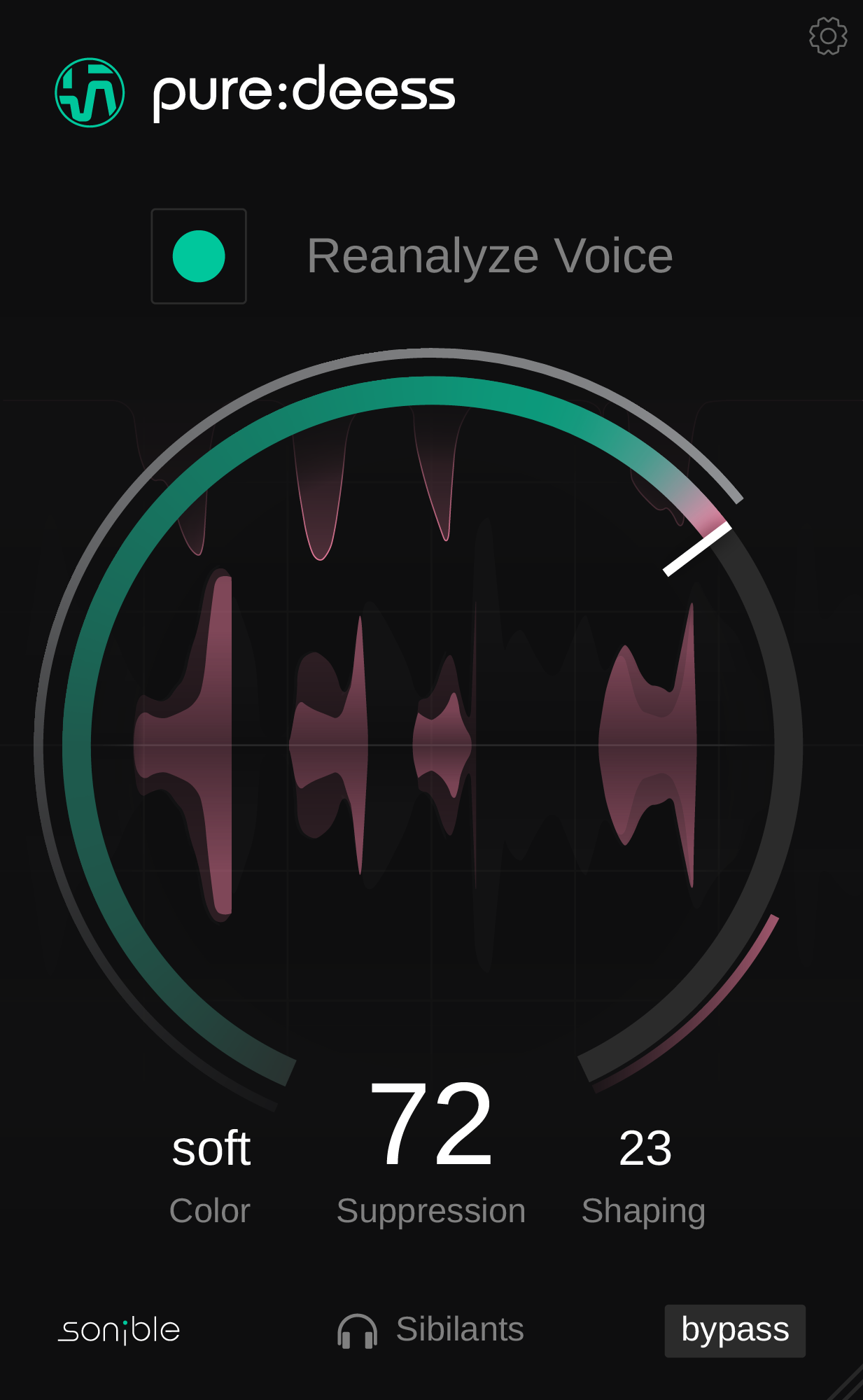
pure:deess automatically detects and solves sibilant sounds and provides intuitive controls for suppression, color and spectral shaping. With these three straightforward controls and sonible’s AI-powered voice analysis, pure:deess is ideal for creators looking for a great sound without being overwhelmed by controls.
Under the hood – the power of AI-processing in pure:deess
Featuring some of the analysis and processing technologies from sonible’s smart:deess plugin, pure:deess listens to the input signal (a speaker or vocalist) and identifies different sibilants (s, sh and more). From here, a target spectrum is computed for the particular voice, and individual sibilant sounds are processed towards that target. This means that the plugin can also boost to revive dull sibilants and increase intelligibility.
Suppression: The user controls how much processing is applied using the large central dial. When the Suppression level is low, only the louder sibilants are reduced; turn it up further to tame even the minor details in the recorded audio.
Color: This parameter changes the target character the plug-in aims for. With Color set to Soft, sibilant elements are softened a lot, making this a good setting where intelligibility can be sacrificed (for example backing vocals). In Neutral, the characteristics of the original sibilants can be preserved, with only harsh resonances corrected. Sharp focuses on retaining presence and intelligibility while reducing the unnaturally harshest material.
Shaping: The Shaping parameter in pure:deess adjusts the intensity of spectral processing, shaping sibilants toward the selected Color. Higher values apply stronger shaping for a more consistent sound and lower values maintain natural variations with minimal processing. This ensures precise de-essing while preserving the intended vocal character.
Features
- AI-Powered De-Essing: Automatically detects and processes sibilant sounds (s, sh, etc.) for a balanced vocal tone.
- Intelligent Suppression: Adjust how much sibilance is reduced, from subtle control to complete taming.
- Color Adjustment: Choose from Soft, Neutral, or Sharp to shape the character of sibilants.
- Spectral Shaping: Fine-tune the intensity of processing to maintain a natural or more polished sound.
- User-Friendly Interface: Three intuitive controls for quick and effective results without complexity.
System Requirements
Mac
- macOS 10.15+ (M1 Apple Silicon supported) (64-bit only)
- RAM - at least 4 GB (recommended)
- CPU - at least Intel DualCore i5 (recommended)
- Plugin Formats - AU, VST2, VST3, AAX, MultiRack Native
PC
- Windows 10+ (64-bit only)
- RAM - at least 4 GB (recommended)
- CPU - at least Intel DualCore i5 (recommended)
- Plugin Formats - VST2, VST3, AAX, MultiRack Native


