/ Expansion Packs / VirtualCZ Expansion Pack: Deep Space
Plugin Boutique

VirtualCZ Expansion Pack: Deep Space

4.7 (336 Reviews)
$5.00 $19.00

73% off until Dec 07

VirtualCZ Expansion Pack: Deep Space - Main Image
Buy Now
Product information

Introducing the Deep Space Expansion Pack for our Phase Distortion Synth - VirtualCZ!

The 'Deep Space' expansion brings you 64 cinematic presets best suited for Sci-Fi sound production as well as genres such as Ambient, Electronica, Drum & Bass, Dub Techno and even EDM intros and breakdowns. Perfect for bringing a touch of futuristic sound to your productions utilising VirtualCZ's distinct, unique timbre.

Carefully crafted sounds of the 'Deep Space' soundbank include atmospheres, textures, pads, various FX, sweeps and sequences, that will provide instant inspiration to all music and motion picture audio producers, both in retro and contemporary settings.

Produced by Adam Pietruszko (knobz.net), specialising in avant-garde cinematic sound design, to bring you that deep, nostalgic, experimental feeling.

Features

  • 64 Presets
  • 15 x Atmospheres and Textures
  • 14 x FX
  • 9 x Sequences
  • 7 x Pads
  • 9 x Keys
  • 4 x Sweeps
  • 4 x Leads
  • 2 x Bass

System Requirements

  • The full version of VirtualCZ is required to run this expansion pack.

Important Note: Plugin Boutique's VirtualCZ Synthesiser is required to run this software!
Installation Instructions

Note: Sunshine State/Digital Nostalgia are used as the examples.

Windows (VST3)

Note: The built in preset browser supports the VST3 .vstpreset format, so if you are in doubt this is the type of preset to use!

1. Download the.zip folder from within your User Account and double-click it to reveal its contents.

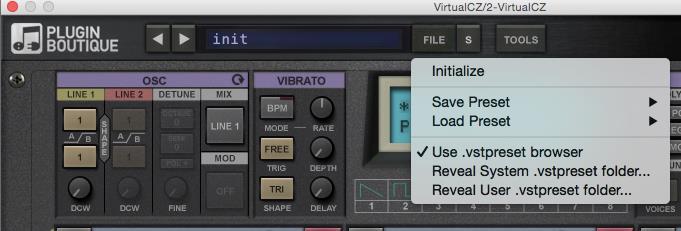
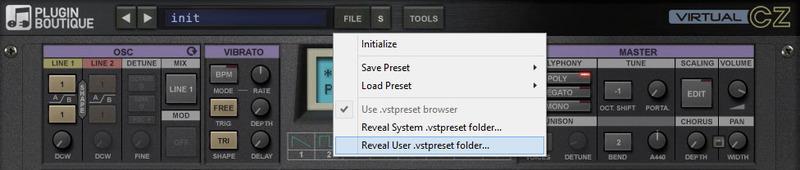
2. Launch VirtualCZ within your DAW and click the ‘FILE’ option from the drop-down menu > select ‘Reveal User .vstpreset folder’.

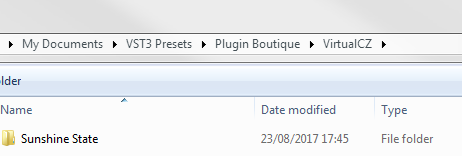
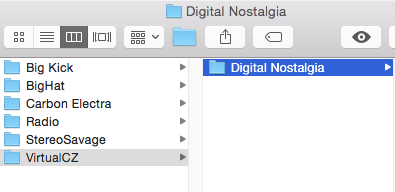
2. Once the folder has opened, create a new folder within the existing VirtualCZ ‘VST Presets’ directory.

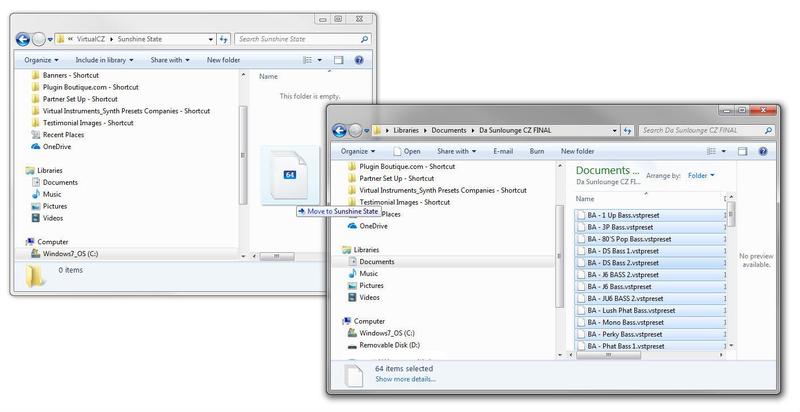
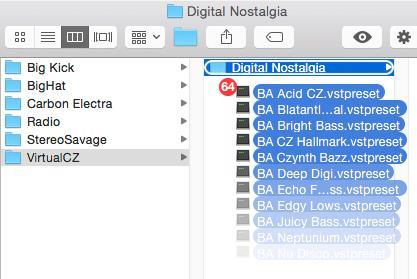
3. Drag and drop/copy the .vstpreset files to the folder that you have created.

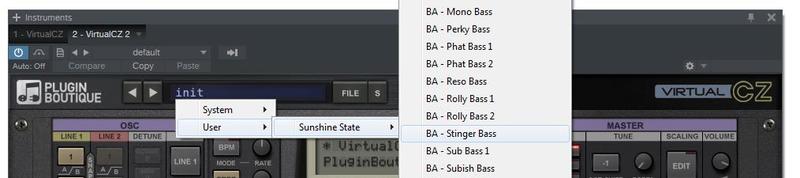
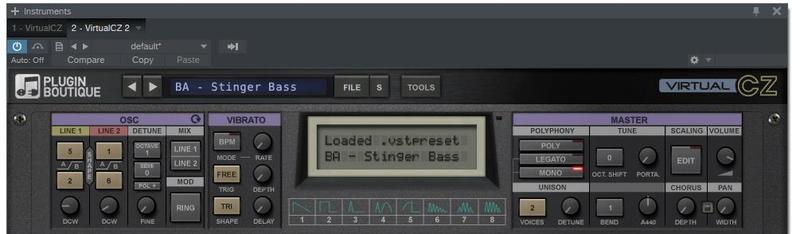
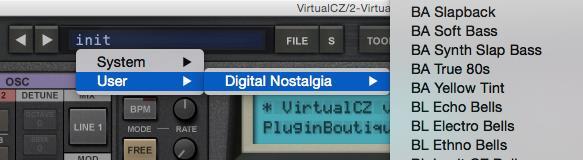
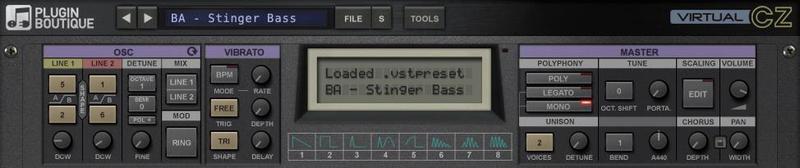
4. Close and restart VirtualCZ > select the ‘init’ tab and click ‘User’ from the drop-down menu. Select the preset name that you wish to upload and use e.g ‘BA Stinger Bass’.

The Expansion Pack/Preset is now Ready for Use Within VirtualCZ

Mac (VST3)

Note: The built in preset browser supports the VST3 .vstpreset format, so if you are in doubt this is the type of preset to use!

1. Download the.zip folder from within your User Account and double-click it to reveal its contents.

2. Launch VirtualCZ within your DAW and click the ‘FILE’ option from the drop-down menu > select ‘Reveal User .vstpreset folder’.

3. Once the folder has opened, create a new folder within the existing VirtualCZ ‘VST Presets’ directory.

4. Drag and drop/copy the .vstpreset files to the folder that you have created.

5. Close and restart VirtualCZ > select the ‘init’ tab and click ‘User’ from the drop-down menu. Select the preset name that you wish to upload and use.

The Expansion Pack/Preset is now Ready for Use Within VirtualCZ

VST2, Audio Unit (AU) & ProTools Format Presets

VST2 Format Presets

These preset file names end with the extension ‘.fxp’ (for individual presets), and ‘.fxb’ (for banks).

There is no fixed location, so you can place the preset files to a computer desintation of choice. Banks or individual presets can be loaded via the VirtualCZ ‘File’ option/menu, or via your VST2 host. When using the VST2 version of VirtualCZ, disable the .vstpreset browser, to load the VST2 banks.

AudioUnit Format Presets (.aupreset)

These preset file names end with the extension ‘.aupreset’. They only work in Audio Unit (AU) compatible (Ableton & Logic) hosts on Mac stations. The locations to copy/save them to are shown below:

System Presets folder:

  • /Library/Audio/Audio/Presets/Plugin Boutique/VirtualCZ

User Presets folder:

  • ~/Library/Audio/Audio/Presets/Plugin Boutique/VirtualCZ

ProTools Format Presets (.tfx)

These preset file names end with the extension ‘.tfx’. ProTools presets are usually located in the following folders:

Mac:

  • ~/Documents/Pro Tools/Plug-In Settings/VirtualCZ

Windows:

  • %UserProfile%\Documents\Pro Tools\Plug-In Settings\VirtualC

Bundle & Save

VirtualCZ+ Bundle
$25.00
$89.00 (71% off)
Plugin Boutique VirtualCZ Complete Expansion Bundle
$29.00
$79.00 (63% off)

Plugin Boutique Rewards

Discover the most rewarding loyalty programme among all plugin retailers.

  • Free Loopmasters Samplepacks
  • Discounts on products and courses
  • Extra Virtual Cash claimed immediately at checkout
Find out more

Follow us:

X (Twitter) Facebook YouTube Instagram
Logo Logo

Plugin Boutique Limited, Part of the Beatport Group LLC.

Copyright © 2011-2025 Plugin Boutique. All rights reserved