Log In

Free gifts available with your purchase
Blue Cat's Remote Control is a plug-in that allows you to control and monitor in real time several MIDI controllable plug-ins or devices from a single customizable user interface.
Is the user interface of your favourite plug-in is not satisfying? Your favourite hardware device is too complicated to control? Your project contains hundreds of plug-ins and you would like to control them all from a single user interface? Do you need to undo/redo all of your modifications? Would you like to instantly recall all settings of your favourite MIDI devices from your DAW projects? If so, then this product was designed for you!
With Blue Cat's Remote Control, you can choose any type of control (switches, faders, joysticks, knobs) or meter, assign a MIDI channel and CC number to each control, customize its response curve. You can also choose a built-in skin that suits your needs for every instance of the plug-in, or create your own (see the Skins section): this is the best way to create your own user interface to control your entire Digital Audio Workstation (DAW) and external hardware the way you have chosen. Since the Remote Control can also be controlled via MIDI, you can also use it to remap and transform MIDI messages, from one MIDI CC to another, with different response curves or MIDI channels.
Typical applications: MIDI remote control, MIDI CC mapping, MIDI CC values monitoring, transform automation to MIDI and MIDI to automation, custom user interface.
Features
- Virtual MIDI control surface and monitoring tool.
- Control or monitor in real-time any MIDI-controllable plug-in or external MIDI device.
- 30 built-in skins with various types of controls and meters (knobs, faders, switches, joysticks...).
- Customize the controls response curve with advanced settings.
- Create your own Digital Workstation controller thanks to the KUIML Language.
- Transform automation lanes into MIDI CC messages.
- Instant preset recall with MIDI CC messages.
- Easy controls assignments with MIDI learn.
- Undo/Redo.
Blue Cat Audio Standards
- Full MIDI control and automation support, MIDI Learn.
- No CPU load on idle: processing shuts down when fed with silence (optimal CPU usage).
- Customizable user interface with transparency & zoom.
- Automation and MIDI output: record output parameters as automation curves or send MIDI CC messages to other plug-ins for powerful side chain effects.
- Smooth Bypass: noiseless plug-in activation / deactivation.
- Full-featured integrated presets manager.
- Copy/paste the state of the plug-in between instances.
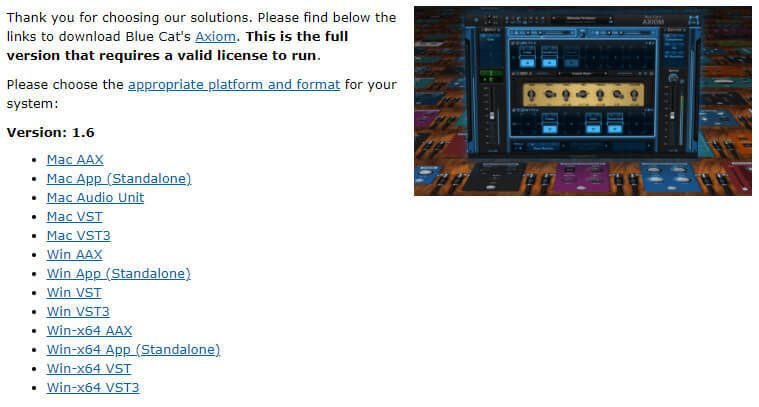
- Available as Mac-AAX / Mac-AU / Mac-VST / Mac-VST3 / Win-AAX / Win-VST / Win-VST3 / Win x64-AAX / Win x64-VST / Win x64-VST3
- Any sample rate supported.
System Requirements
macOS
- Intel or Apple Silicon Processor
- macOS 10.9 or newer
- Any VST/AU/AAX compatible host applications
- 64-bit only
Windows
- SSE2-enabled processor (Pentium 4 or newer)
- Windows Vista or newer
- Any VST/AAX compatible host application
- 32-bit or 64-bit
Awards

If you want to wield greater power over your MIDI software and hardware, this suite of virtual control surfaces might be the answer. For the past 25 years, MIDI has provided electronic musicians with a means by which the various elements of their rigs can communicate. However, managing a compl...
Read More