


 Log In
.jpeg)
Free gifts available with your purchase

Air.Play
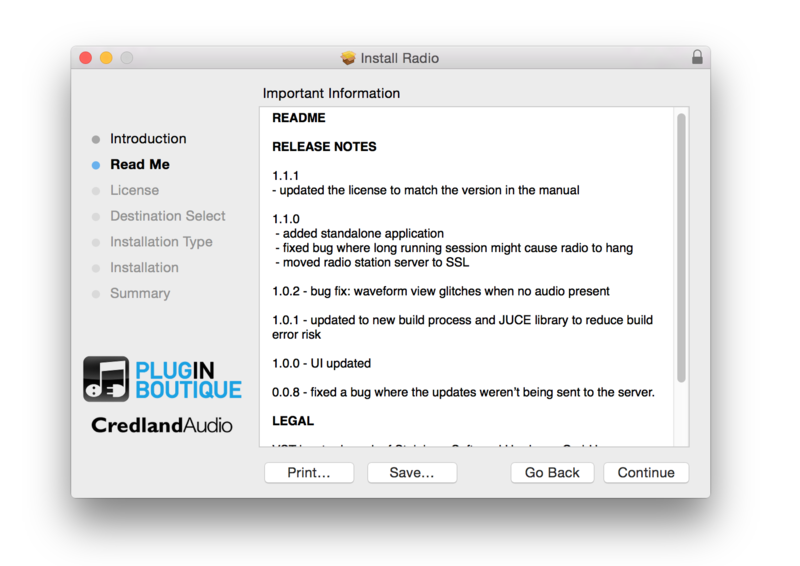
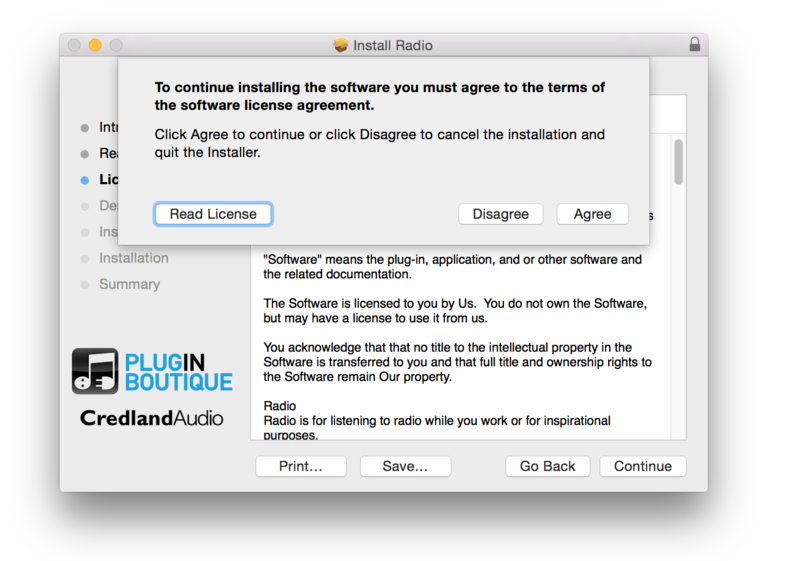
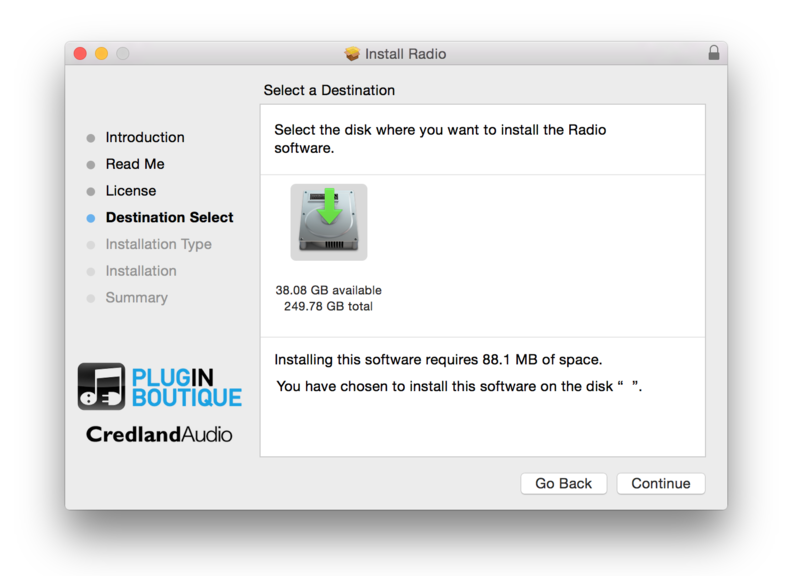
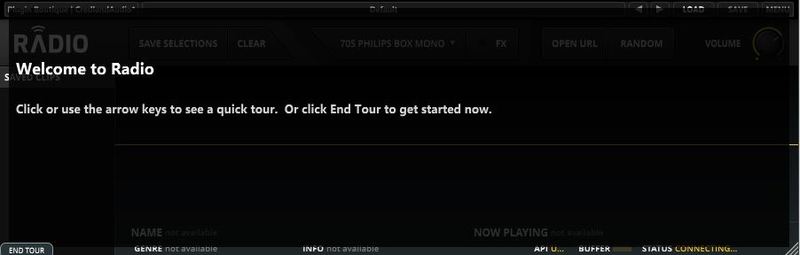
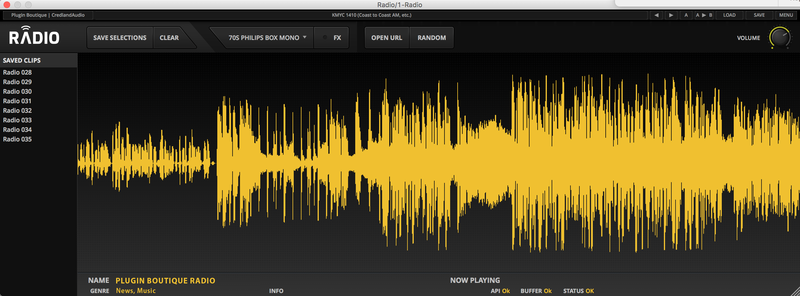
Radio lets you stream and sample from a diverse list of internet radio stations, both inside and outside of your DAW. Use Radio as a plugin within your DAW when you are feeling creative, and use it as a standalone application when you simply want to listen to the radio.
Once you launch Radio, you can select from a carefully curated list of online stations. The station presets are diverse and include a balance of comedy, sci-fi, police scanners, ambient, spoken word, paranormal and many more, so it’s easy to find something unexpected!
Simple to Use
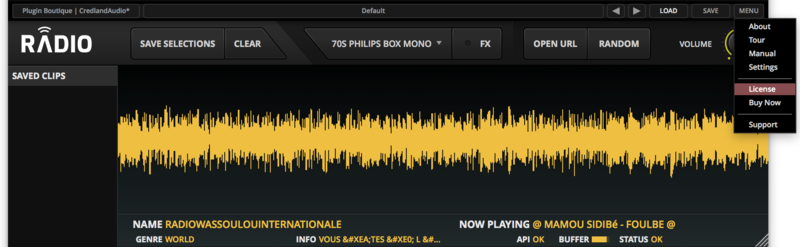
Radio records the last 30 seconds of any streamed material. Once you hear something you like, select it, save it and drag it into your DAW. Finding new samples to inspire your music has never been done like this before!
The onboard FX section lends Radio the authentic air of real consumer equipment, with 24 processors to make your feed sound like it’s coming through a genuine tube radio speaker, car stereo, phone or another device.
Radio stations focus on diversity, which will keep you coming back for new inspirational material.
Features
- Buffer audio within Radio for sampling, or record everything in your DAW
- Simply select clips from Radio’s display to save them permanently for later use
- Drag and drop sampled clips from the plugin to your DAW
- 24 FX emulations including vintage radios, car and portable stereos, small speakers and phones
Online Radio Features:
- Station categories include Blues, World, Comedy, Chillout, Religious…
- Curated station lists are maintained as web addresses change
- Add your own station using a URL
- Random button for radio station roulette
- Featured station updated daily
System Requirements
Mac
- OS X 10.7 and later (32-bit and 64-bit compatible)
Formats:
- Audio Units (AU)
- VST
- Standalone Application
Windows
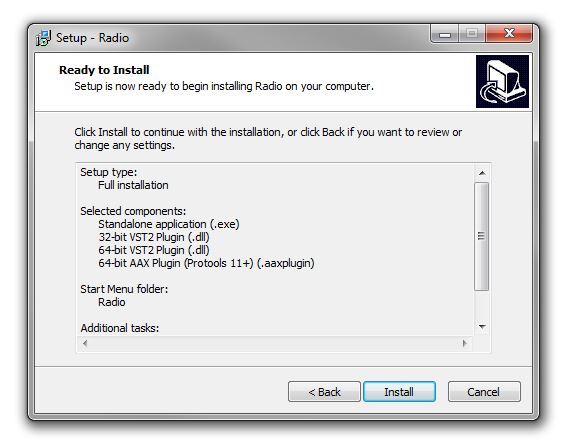
- Windows 7 and later (32-bit and 64-bit compatible)
Formats:
- AAX
- VST
- Standalone Application
Important Notes:
- Radio is designed for listening to the radio while you work or for inspirational purposes.
- The copyright of all sources remains with the creator, publisher or other rights holder.
- If you want to use any sound material recorded from Radio you will need permission from the rights holder.
- You should ensure that you comply with any legal restrictions for recording streamed audio that may exist in your country.
Awards

Jason Nevins
Songwriter, Record Producer & Remixer
"Radio is awesome… a great creative tool".
Music Tech
Magazine and website for producers, engineers and recording musicians
"An excellent tool for coming up with new ideas and pushing you to be more creative with your sampling."
Plugin Boutique’s Radio brings the world of internet radio stations to your productions. Alex Holmes tunes in… Radio key features: Direct sampling from internet radio stations Load from curated lists or from any radio URL Highlight snippets, save, then drag-and-drop audio 24 Sp...
Read More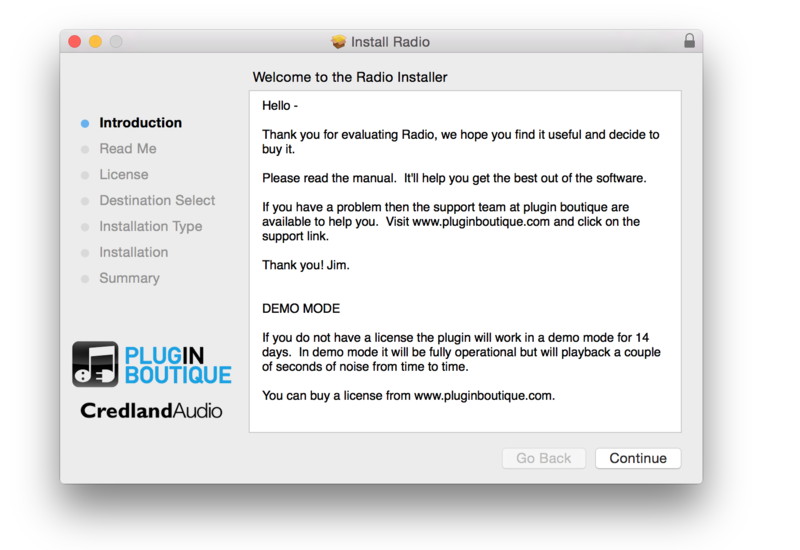




Reviews Summary
While it aims to provide a helpful overview, it may not capture every perspective or detail. We encourage you to read individual reviews to make an informed decision.
Reviewers widely praise the Radio plugin as a creative, fun, and inspiring tool for directly streaming and capturing unique internet radio samples into their DAWs. Key highlights include the smooth drag-and-drop 30-second recording buffer, built-in lo-fi audio coloring effects, and a wide variety of global stations. Minor criticisms include an outdated station directory, a somewhat clunky station manager, and occasional stability issues on certain setups, but users overall consider it a valuable sound design and production asset.


