


 Log In

Free gifts available with your purchase
Eos 2.0 was a massive update our Eos algorithmic reverb. For version 2.1 we rebuilt Eos from bare metal, increasing stability and compatibility across all platforms. The all-new user interface is fresher looking as well as more amenable to touch control. This, combined with its new preset management makes Eos 2.1 a breeze to use.
Choose!
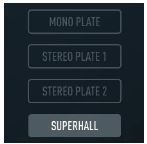
Eos 2 consists of four high-quality reverb algorithms, custom-designed for us by ValhallaDSP with the modern production environment in mind. Three different plate simulators and the Superhall algorithm deliver a broad palette of reverb flavours.
Control!

With its entirely procedural, resizable GUI, Eos offers understated beauty and an excellent user experience that adapts to your visual needs. With version 2.1, Eos not only looks coherent across all platforms, but its slick preset manager also enables you to use and share your creations across hosts and devices. It just works.
Shape!
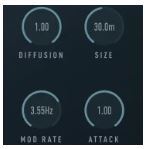
Eos 2’s controls put you in the driver’s seat. Want a traditional dark plate reverb? Eos can do that. How about a short, dense room sound for your drum buss? Not a problem. Where Eos really comes into its own is when you drop Superhall on your piano or synthesizer tracks. The incredibly long modulated hall sounds of Eno-style ambience are where Eos thrives, something that is not possible with convolution ‘verbs.
Filter!
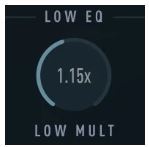
Eos 2’s EQ section offers precise control over the spectral character of your reverb. The addition of crossover controls makes its algorithms more flexible than ever. From surgical adjustments to the experimental - it’s all right there at your fingertips. Want boomy bass and sizzling top-end? We’re not telling you to do that. But you can!
Features
- Bespoke Reverb Algorithms: Eos includes four high-quality, studio-grade custom-designed reverb algorithms: Three different plate simulators and the Superhall algorithm for expansive dense and rich reverbs with gentle modulation.
- Flexible Sound Shaping: Eos' reverb parameters (pre-delay, diffusion/density, size, attack and decay), offer precise control over the plugin’s spatial characteristics.
- Modulation: Rate and depth controls apply time-varying changes to the delay lines within the reverberators, making the effect sound more realistic when used gently and otherworldly at extreme settings.
- Filtering and Frequency Shaping: On top of a pair of simple EQ filters (low cut and high cut) at the reverberators' inputs, Eos allows the user to adjust the way in which high and low frequencies decay, altering the tonal quality of the reverb tail.
- Infinite Decay: The reverberators' decay time can be set to infinity, freezing any input signal, somewhat like a looped sample. A setting suited to creating unusual effects, providing ample sound design possibilities.
- Mix and Lock: Adjust the balance between the dry input and the effect signal. With the LOCK button engaged, the Mix parameter will not change when loading presets.
- Mono In, Stereo Out: Eos can be used in a mono-in/stereo-out or stereo-in/stereo-out context. It creates a stereo reverb output even if the input signal is mono
- Fully Resizable Hi-Dpi/Retina GUI: Eos 2’s vector-based GUI is resolution-agnostic, and displays the same on every system and resolution. Easily resize the UI (per instance) to match your visual needs, from postage stamp to poster-sized.
Music Radar
Up to the minute news and reviews for all music makers.
"If you’re in need of reverb, snap up this bargain right away and you’ll be enjoying it for years to come!"
Ask Audio
Daily resource covering the latest news, reviews, tutorials and interviews for digital music makers, by digital music makers.
"EOS 2 is an amazing and simple reverb plugin."
Mac
- macOS 10.12 Sierra or newer (M1 Apple Silicon supported) (64-bit only)
- VST, VST3, AU, AAX
Windows
- Windows 8.1 or newer (64-bit only)
- VST, VST3, AAX
Linux
- Ubuntu 18 or newer (64-bit only)
- VST, VST3
Important Note: This software is 64-bit compatible ONLY and will NOT function on 32-bit systems.


