


 Log In
Free gifts available with your purchase
The Multi-Mode Monster, Reborn
The legendary analog polysynth’s filter reworked as a superbly powerful, modern plugin for your DAW.
If you want a filter with depth, character, and complexity; look no further.
M12-Filter is a full-featured recreation of the multi-mode filter found in Oberheim’s iconic Matrix-12, kitted out with awesome updates that make this plugin one of the most powerful, performable sound-shaping tools around.
Combining intuitive, gorgeous-sounding modelled analog filter tone control with programmable modulation envelopes, a detailed mod matrix, and bonus random and mod osc parameters, M12-Filter is set to become your go-to choice for creative frequency control. Create anything from smooth sweeps to rhythmic motion, all the way to full-blown, randomized glitch meltdowns: this plugin can handle it all.

The most advanced, adaptable filter of its era
In 1984, audio and electronics legend Tom Oberheim developed a groundbreaking subtractive, analog polyphonic synthesizer; a brave move when the digital synth revolution was taking the industry by storm. Standing the test of time, his brainchild instrument is now considered a classic, and our emulated version takes pride of place in V Collection. One of the main reasons it turned heads in the 80s was its audacity, the sheer power of its signal routing options, and its multi-mode filter.
The original synthesizer’s filter employed a single filter per voice, but provides no fewer than 15 different filter modes. This included Low Pass and three High Pass modes, two Band Pass modes, a Notch filter, and a Phase Shift mode. It also included another 4 modes, combining 1-Pole Low Pass filters with other modes. This unique selection of filter options is largely responsible for the immense power and scope of the fabled Matrix sound.
This filter is now available as a re-energized creative plugin for your DAW.
“But what does a filter actually do?”
For many music producers and electronic musicians, filters are an essential part of their sound and creative process. Put simply, filters cut or boost certain sound frequencies, letting you control the tonal ‘shape’ of audio.
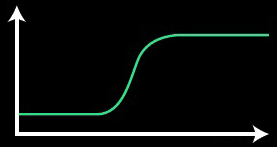
For example, if you had a vocal recording that you wanted to remove some low, bassy rumbles from, you could use a high-pass filter.
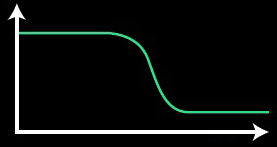
A low-pass filter could be used in the same way, but to remove unwanted high frequencies; maybe to tame particularly zingy cymbals or hi-hats in a drum recording.
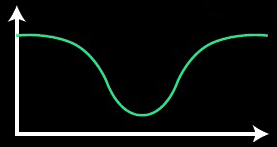
Notch filters can pinpoint certain frequencies and either boost or cut them; one great use for these is to find and remove clothy, unwanted mid-range resonance from recordings of acoustic instruments.
Originally developed to remove broadcast noise and make the most of radio bandwidth, nowadays filters are an essential creative tool for music professionals.
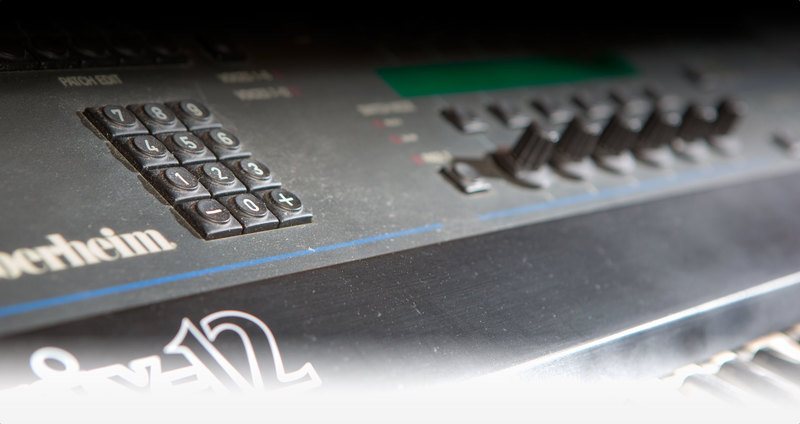
Iconic filter tone with a modern twist
As if accurately recreating Tom Oberheim’s original filter wasn’t amazing enough, we have also supercharged this virtual version with contemporary features that we know you’re going to love.
Practically an instrument in its own right, our reborn M12-Filter is packed with intuitive yet powerful features. With it, you’ll be able to transform your source material into totally new sounds; create pulsing patterns; perform dramatic sweeps; or simply hone your tone using one of its many filter modes. Its CPU-friendly, low latency architecture also make it the perfect, animatable filter to use in your live sets and performances.
Made possibly through the magic of Arturia’s True Analog Emulation technology, we originally brought the sonic signature of this 80s icon into the 21st century studio in Matrix-12 V, our critically acclaimed software version of Oberheim’s classic, and a jewel in the crown of the Arturia V Collection. Call it selfish, but we are a company of musicians, and we wanted to unleash the power of Matrix-12 V’s filter, free it from the software synth, and create a new, exciting DAW plugin. To echo the depth and complexity of its synth family, we supercharged the filter with extra processing, modulation envelopes, and vast routing options with a modulation matrix.
Twin analog filters
The plugin features two discrete analog filters, each identical to the original with cutoff and resonance control, as well as all 15 original modes. For total control freaks, we have also added filter effect panning and level control for each filter.
Filter processing
M12-Filter offers 4 filter routing options: A, B, series, and parallel, giving you huge control over its sound. We’ve also included a dry/wet knob, as well as a MatrixBrute-style master cutoff that affects both filters at once.
Modulation envelopes
This control section lets you adjust each of its 3 envelopes, letting you create anything from slowly evolving sonic mutations to full-on step sequences. Tempo-sync’d or free and easy, continuous or one-shot, it’s all up to you.
Modulation matrix
The brain of the operation. With your filters prepared, your processing selected, and your mod envelopes assigned, you can link your envelopes, random, and mod osc to over 20 destinations, all discretely configurable.
Features
- 40 presets from top sound designers
- State-of-the-art TAE® analog modeling
Virtual recreation of the Matrix 12 multimode filter
- 2 instances of the Matrix 12 filter within one plugin instance
- 15 disctincts filter modes available per filter instance
- Cutoff frequency, resonance, pan and out volume controls for each instance
- Master cutoff control for controlling both instances' cutoff at once
- 4 audio routing configurations
- Global dry / Wet and output filter controls
Random values genrator
- Can be synchronized with DAW’s clock
3 advanced multi-segments envelopes
- 2 modes: loop or triggered by audio
- Synchronized with DAW’s clock
- Can be used as LFOs, step sequencer or envelopes
- Predefined presets
Modulation oscillator
- Audio range modulatotion source for parameters frequency modulation
- 5 waveforms
Modulation matrix
- Envelope, random generator and mod oscillator as sources
- 8 assignable destinations slots with 22 reachable parameters
System Requirements
- Works in Standalone, VST, AAX, Audio Unit, NKS (64-bit DAWs only).
Mac
- Mac OS 10.13+
- 4 GB RAM
- 4 cores CPU, 3.4 GHz (4.0 GHz Turbo-boost) or Apple Silicon CPU
- 1GB free hard disk space
- OpenGL 2.0 compatible GPU
Windows
- Win 10+ (64bit)
- 4 GB RAM
- 4 cores CPU, 3.4 GHz (4.0 GHz Turbo-boost)
- 1GB free hard disk space
- OpenGL 2.0 compatible GPU
- ARM processors not supported on Windows
Protection
All Arturia software is protected by the Arturia Software Center.


