Log In

Free gifts available with your purchase

Overview
The Mosaic Series was conceived to keep composers creative: Each instrument features a unique set of foundational elements, designed to be combined and layered into lush, cinematic textures. Mosaic Keys explores the sonic warmth of electric keys, delivering moving synthetic keyboards, organic found sounds, and effectual sound design elements.
Synthetic Keys
Featuring over 130 snapshots designed by the Heavyocity team, Mosaic Keys re-envisions electric keys: Empowering composers to quickly and easily layer lyrical melodies over rich, cinematic soundscapes and pulsing rhythmic beds. With over 5 GB of production-ready content, Mosaic Keys will invigorate your toolkit of keys, pushing the traditional forward into a complex scoring tool.
Mosaic Engine
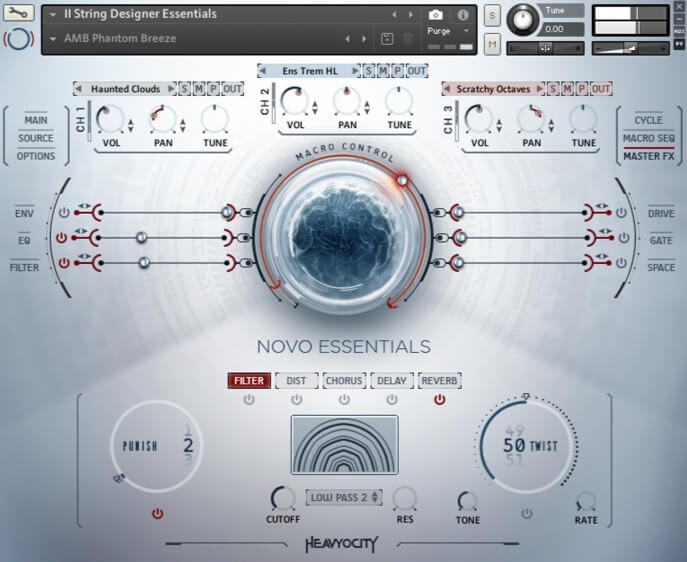
Mosaic Keys does offer a truly dynamic set of electric keys content, but the real power of the instrument comes in the thrilling combinations created by layering these sources across the Mosaic Engine’s three channels. Rhythmic, lyrical, sparse, emotional, eclectic. The possibilities are truly endless -- especially considering Mosaic Keys contains 130 carefully-crafted Snapshots to get you started.
Features
- Designed Electric Keys: Layer lyrical melodies over Warm Cinematic Soundscapes
- Synthetic Keys: Combine organic found sounds and intricate noise layers to create Lush, Modern Textures
- Includes 180 Snapshot Presets carefully crafted by the Heavyocity team
System Requirements
- Powered by the Kontakt 6 Engine
- Kontakt 6 (Player) or later
- Komplete Kontrol integrated (NKS-ready)
Minimum System Requirements
- Mac: macOS 10.12, 10.13 or 10.14 (latest update), i5
- PC: Windows 7, Windows 8, or Windows 10 (latest Service Pack), Intel Core i5 or equivalent CPU, 2 GB RAM


Tori Letzler
Composer | American Horror Story: Apocalypse, Batman vs. Superman: Dawn of Justice, Captain Marvel, Iron Fist, Wonder Woman
"As with all Heavyocity lines, Mosaic Keys is another great addition to my growing toolkit. The ability to isolate various parts of each sample opens up a world of possibilities."
Germaine Franco
Composer | Coco, Dope, Tag
"Mosaic Keys is an incredibly inspiring and intuitive tool. With such an expansive range of textures and colours, it will no doubt find its way into many of my future projects."
Ramin Djawadi
Grammy-nominated Composer | Game of Thrones, Iron Man, Pacific Rim, Safehouse, The Great Wall, Westworld
"Mosaic Keys is an arsenal of warm keyboard tones, carefully constructed with just the right amount of colour, complemented by an analogous swath of gritty, attitude-laden patches."