/ Transient Shaper / Punctuate
Newfangled Audio

Punctuate

4.7 (92 Reviews)
$49.00 $99.00

50% off until Jan 05

Punctuate - User Interface
Buy Now
Product information

Based on the Transient Emphasis section of the award-winning Elevate Mastering Limiter, Punctuate is a multi-band transient modulator based on the critical bands in the human ear. Punctuate's intelligent algorithms allow you to control the transient emphasis or suppression of all 26 critical bands with just 4 controls. This makes for an incredibly powerful, but very easy to use, transient modulator.

Punctuate is also available in the Eventide Elevate Mastering Bundle.

Features

  • Multi-Band Transient Emphasis or Suppression magically reshapes the dynamics or your single channel or whole mix
  • Auditory Modelling means that even drastic changes sound natural
  • Intelligent Adaptive Algorithms allow you to control up to 26 transient shapers with just 4 controls
  • Integrated metering shows you what the algorithm is doing at all times
  • Filter Bank page lets you modify the filters and solo each channel for expert tweaking if desired

System Requirements

Windows

  • Windows 8 and later (Windows 11 supported) (64-bit only)
  • AAX, VST2, VST3

Mac

  • macOS 10.9 and later (Intel / M1 Apple Silicon supported) (64-bit only)
  • AAX, AU, VST2, VST3

Important Notes:

  • Newfangled Audio tests their desktop plugins in Ableton Live, Cubase, FL Studio, Logic Pro, Pro Tools, and Studio One (However, their plugins should work with any compatible host.)
  • No iLok dongle is required to run this software - only a FREE iLok account/Manager is required for authorisation.
Testimonials

Andrew Scheps

"The transient processing is genius!"

Sebastian Arocha Morton

"I'm mastering some songs at 96K and it performs like a dream..."

John McCaig

"This is my new go-to mastering plugin."

Installation Instructions

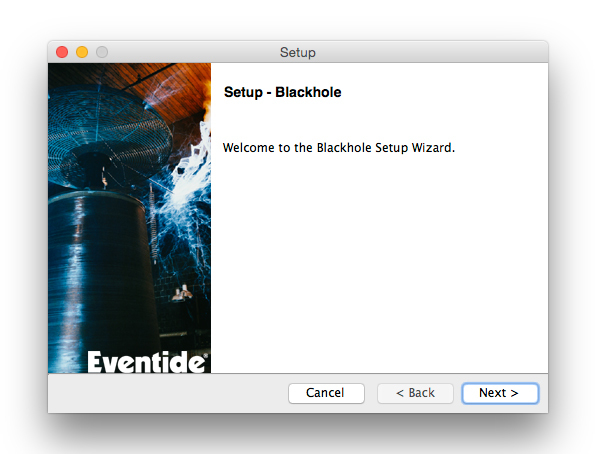
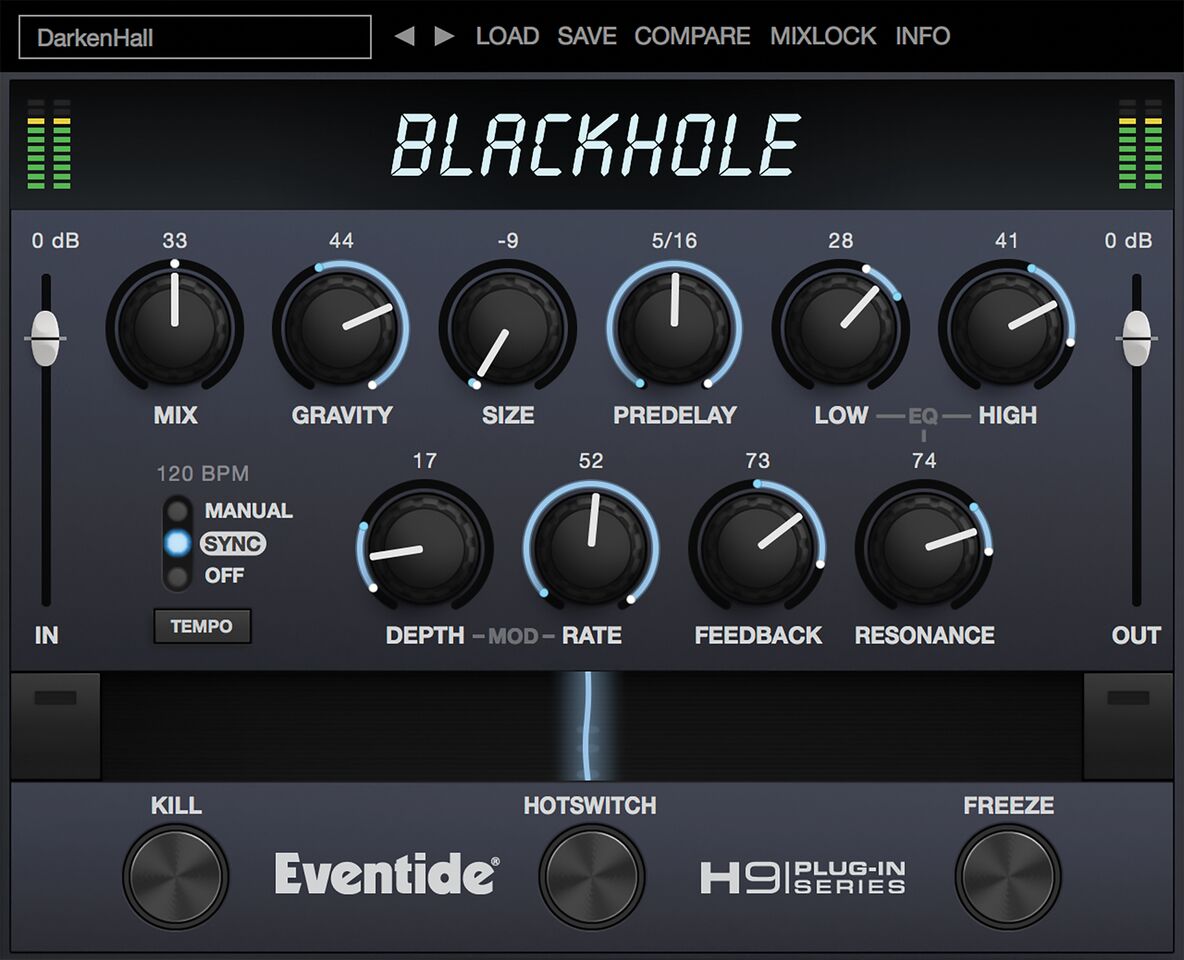
Please note: Blackhole is used as an example.

Registration

1. Create an iLok account by following the steps from our help centre article - Getting Started with the iLok License Manager. If you already have an iLok account, skip this step.

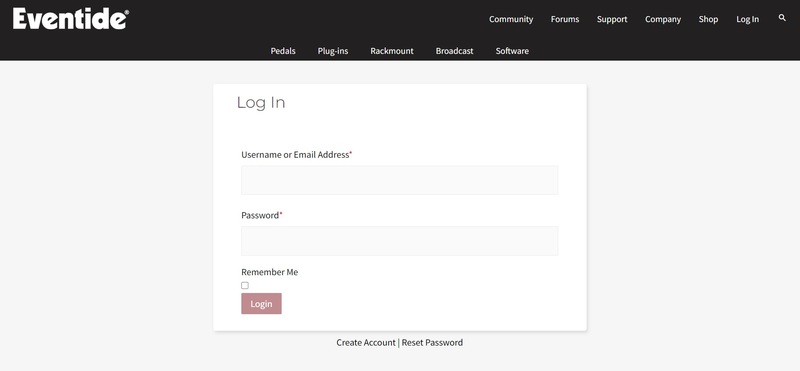
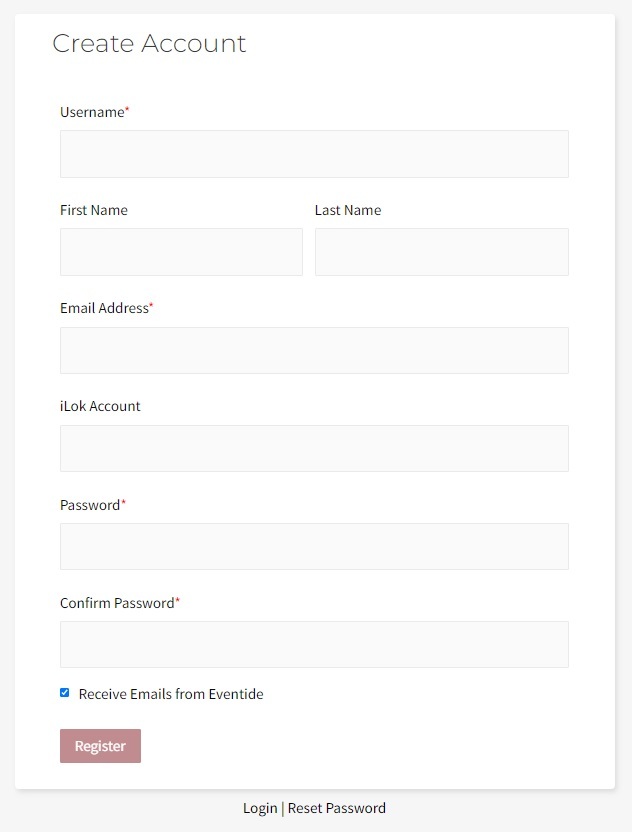
2. Go to https://www.eventideaudio.com/login > Click 'Create Account' at the bottom of the page.

3. Enter your details (including your iLok Account User ID) > Click 'Register'.

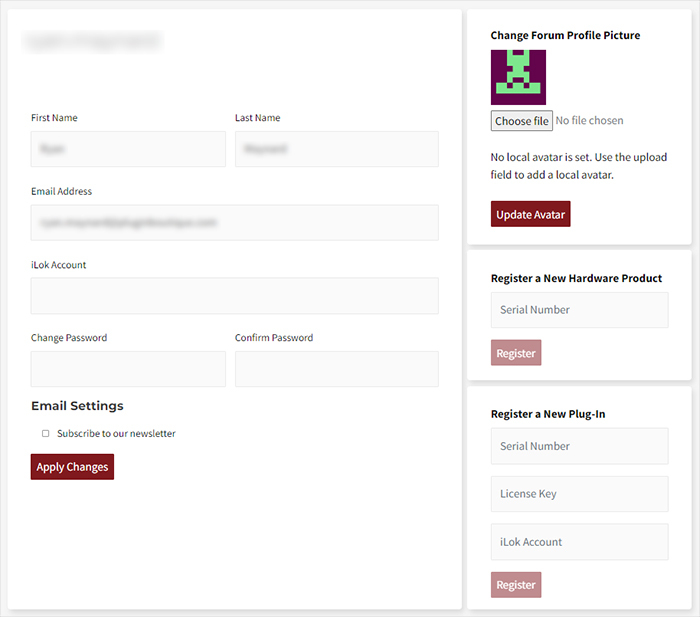
4. You will now be redirected to your My Account page.

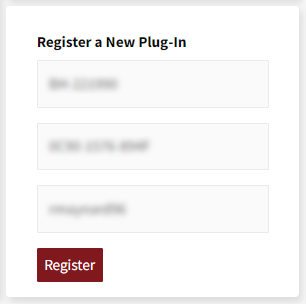
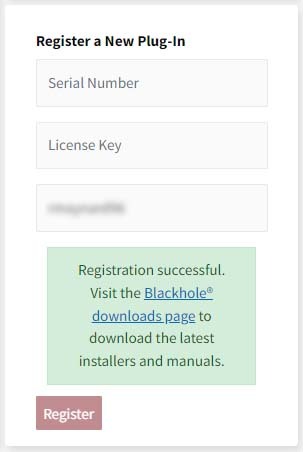
5. In the bottom right corner of the page, enter the license key (format 1234-1234-1234) found in your Plugin Boutique account, as well as your iLok Account User ID > Click 'Register'. Please note: a Serial Number is now not required

Please note: Make sure there are no spaces at the beginning or after your license key.

6. Your software is now registered.

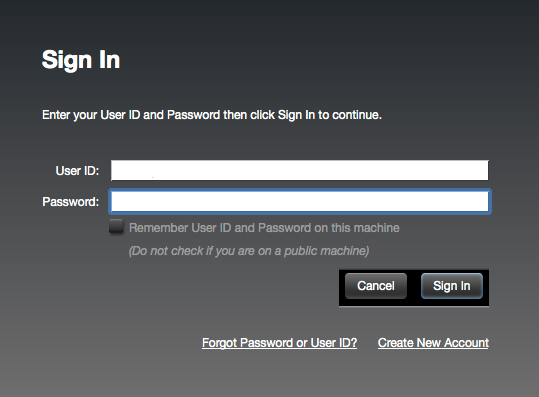
7. Launch the iLok License Manager application > Sign into your account.

8. Enter your iLok user ID and password > Click 'Sign in'.

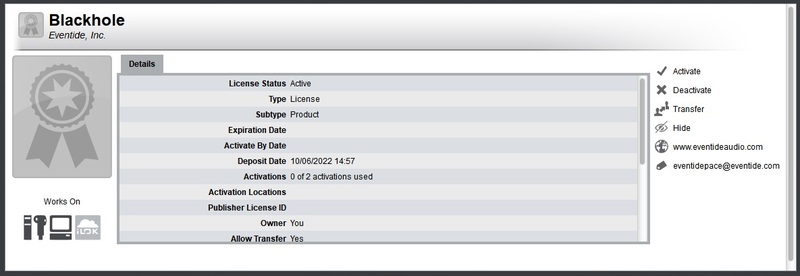
9. Your license should now be listed within your iLok account.

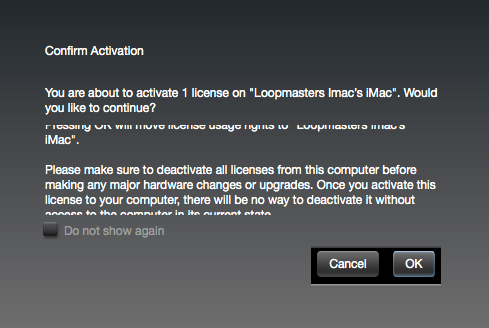
10. Double-click on the license to bring up additional options > Click 'Activate' (located on the right of the screen).

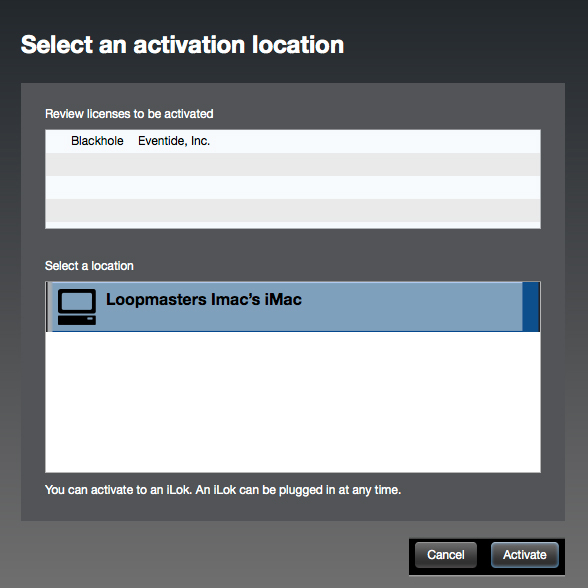
11. Select where you wish the license to be activated > Click 'Activate'.

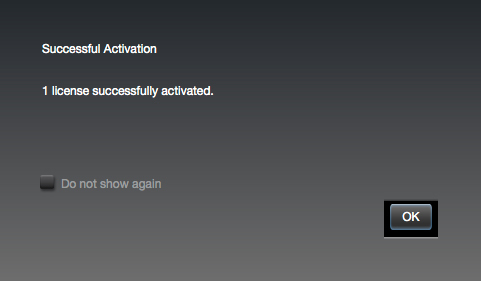
12. Click 'OK'.

13. Click 'OK'.

Mac Installation

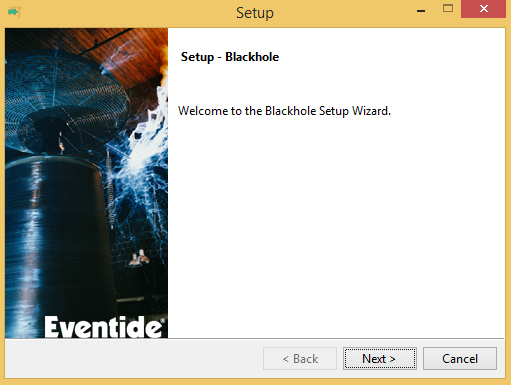
1. Download the Mac installer from https://www.eventideaudio.com/downloads/ > Run the installation > Click 'Next'.

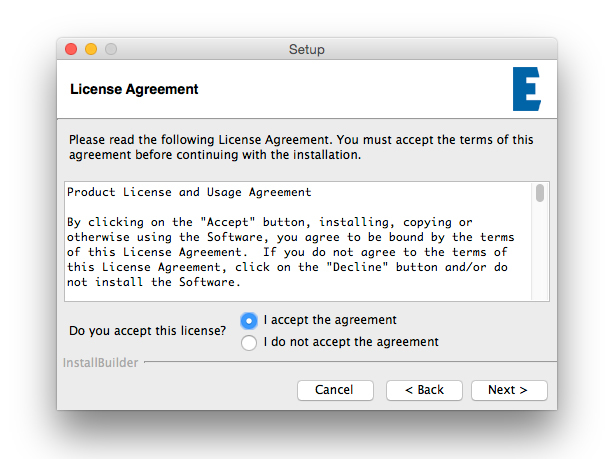
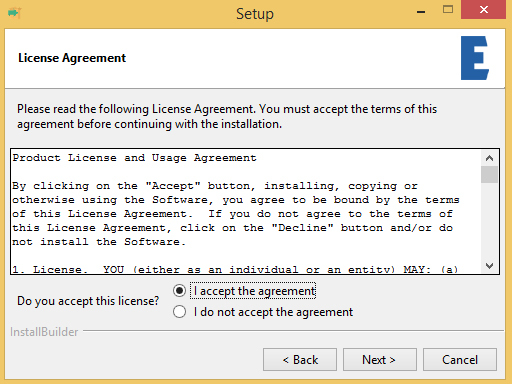
2. Click to accept the license agreement > Click 'Next'.

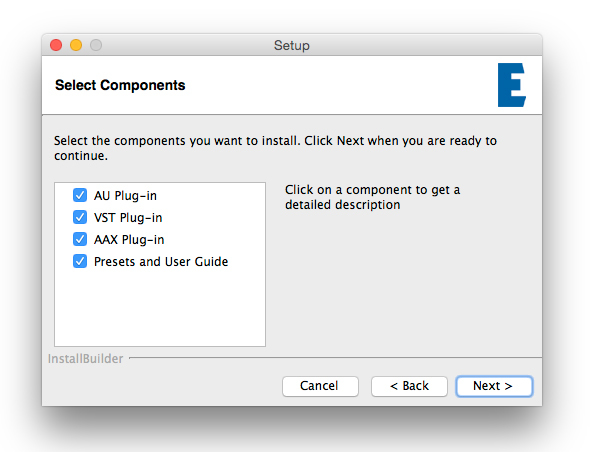
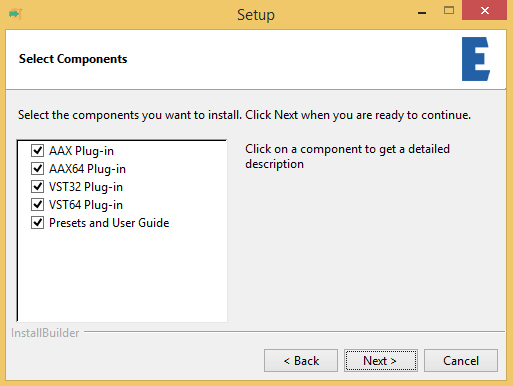
3. Choose which plugin formats you'd like to install > Click 'Next'.

Please note: If you're unsure, leave all options selected or check out our help centre article Plugin Formats Explained for more information.

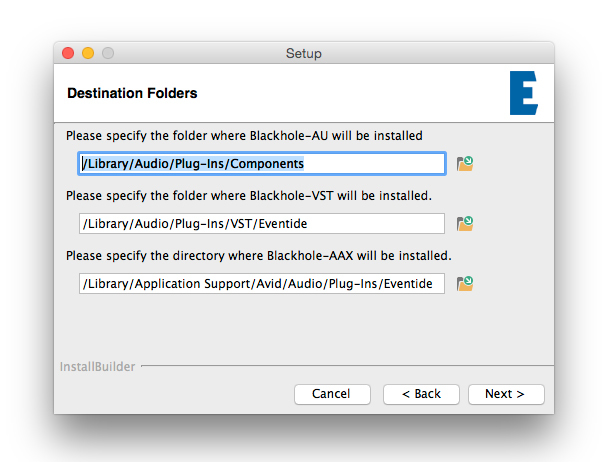
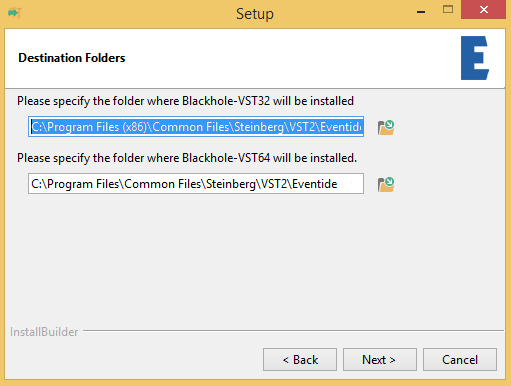
4. Select the destination folders (or leave them as the defaults) > Click 'Next'.

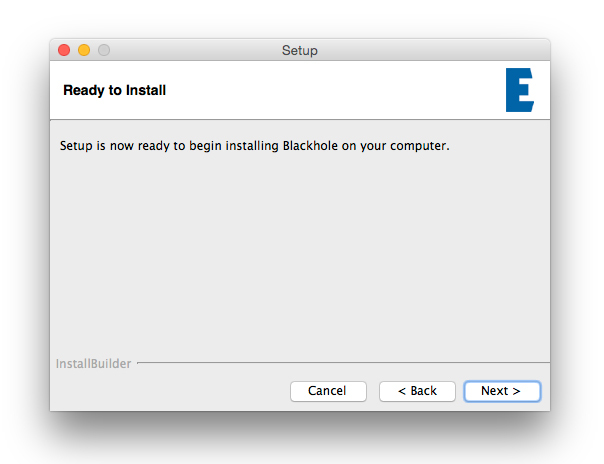
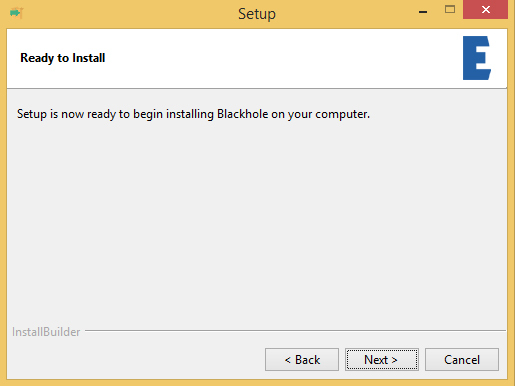
5. Click 'Next'.

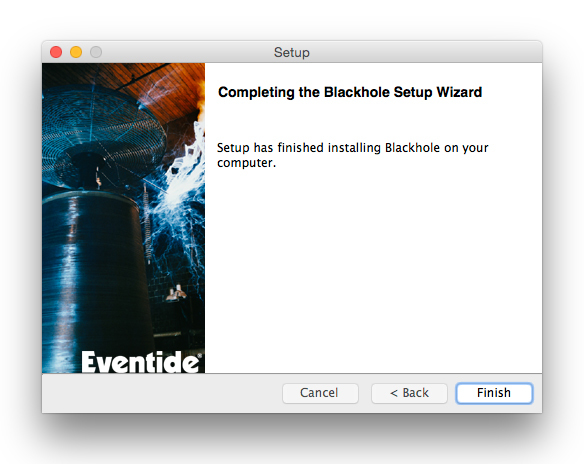
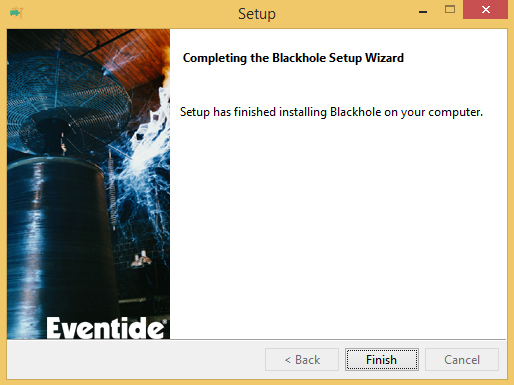
6. Click 'Finish'.

Your new software is now fully activated and ready to use within your DAW!

Eventide Blackhole Main Image

Windows Installation

1. Download the Windows installer from https://www.eventideaudio.com/downloads/ > Run the installation > Click 'Next'.

2. Read the License Agreement > Select 'I accept the agreement > Click 'Next'.

3. Choose which plugin formats you'd like to install > Click 'Next'. If you're unsure, leave all options selected or check out our help centre article Plugin Formats Explained for more information.

4. Select the destination folders (or leave them as the defaults) > Click 'Next'.

5. Click 'Next'.

6. Click 'Finish'.

Your new software is now fully activated and ready to use within your DAW!

Eventide Blackhole Main Image

Plugin Boutique Rewards

Discover the most rewarding loyalty programme among all plugin retailers.

  • Free Loopmasters Samplepacks
  • Discounts on products and courses
  • Extra Virtual Cash claimed immediately at checkout
Find out more

Follow us:

X (Twitter) Facebook YouTube Instagram
Logo Logo

Plugin Boutique Limited, Part of the Beatport Group LLC.

Copyright © 2011-2025 Plugin Boutique. All rights reserved