/ Utility / Lowtility 2
Venomode

Lowtility 2

4.5 (430 Reviews)
$9.00 $19.00

52% off until Dec 08

Lowtility 2
Lowtility 2
Venomode Lowtility 2
Venomode Lowtility 2 - Stereo Bass Utility - Walkthrough gallery thumbnail
Buy Now
Product information

Stereo Bass Utility

Lowtility 2 is a low-end filter and mid/side utility plugin. It lets you cleanly cut the low frequencies from your mix, and modify the stereo width of the low end.

Lowtility is a stereo tool designed to control the low end of your mix. It features a variable-slope low pass filter, along with a separate section for finely tuning the stereo width of the bass frequencies.

With the stereo meters, you can visualise how the left and right channels interact, making sure you don't have any phase-cancellation issues.

Features

Width Adjustment
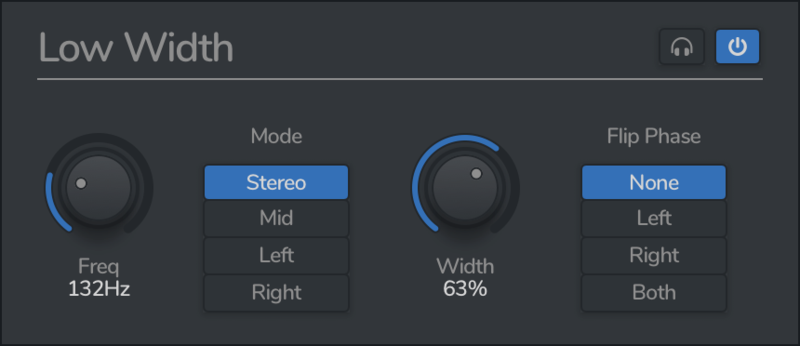
Lowtility 2 lets you adjust the stereo signal of your low-end to clean up bass frequencies. Choose to reduce the width, or make it mono keeping either the mid-channel or one of the left and right channels.

Low Cut
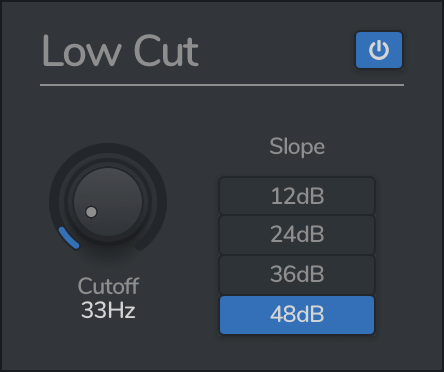
Cut the low frequencies using a choice of 4 different filters, from a gentle 12dB roll-off, to a steep 48dB slice.

Stereo Meters
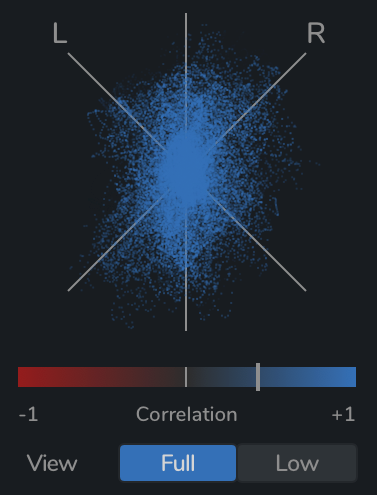
Lowtility 2 features both a Goniometer and a Correlation meter, visually displaying the phase and stereo information of your signal. The meters can be switched between the full band or just the low band.

System Requirements

Windows

  • Windows 10 and later (64-bit only)
  • VST / VST3 / AAX compatible DAW

Mac

  • macOS 10.13 and later (M1 Apple Silicon supported) (64-bit only)
  • VST2, VST3, AU & AAX compatible DAW

Ubuntu

  • Ubuntu 18.04 and later (64-bit only)
  • VST2 & VST3 Compatible DAW

Note: Lowtility 2 should work in any DAW that can run VST, VST3, AAX, or AU plugins, on any dual-core system with at least 1 GB of RAM.

Important note: When accessing this software via a Rent to Own plan or the Beatport Studio membership, it's installed and run through the Beatport Access portal. An internet connection is required every 30 days to validate your license.

Installation Instructions

Note: Complexer 2 is used as the example.

Mac

Registration

1. Go to https://venomode.com/redeem

2. Enter your Full Name, Email Address, Voucher (found in the 'Serial' section within your Plugin Boutique User Account) and Password > Click 'Register'.

Installation

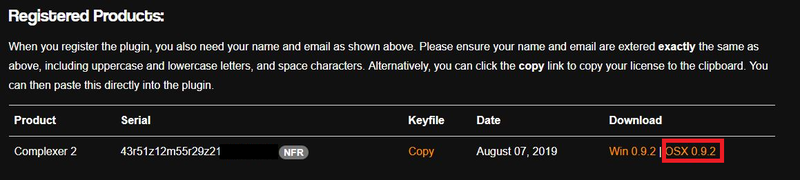
1. Within the section titled 'Registered Products', select the Mac OS X installer to download the installer file.

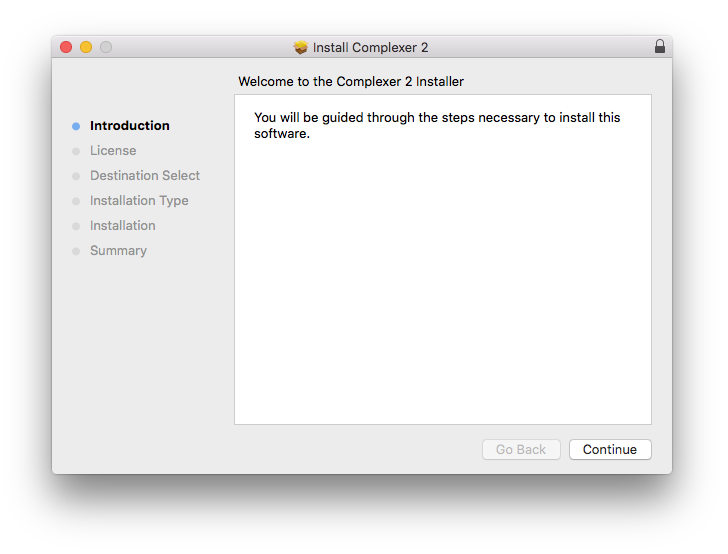
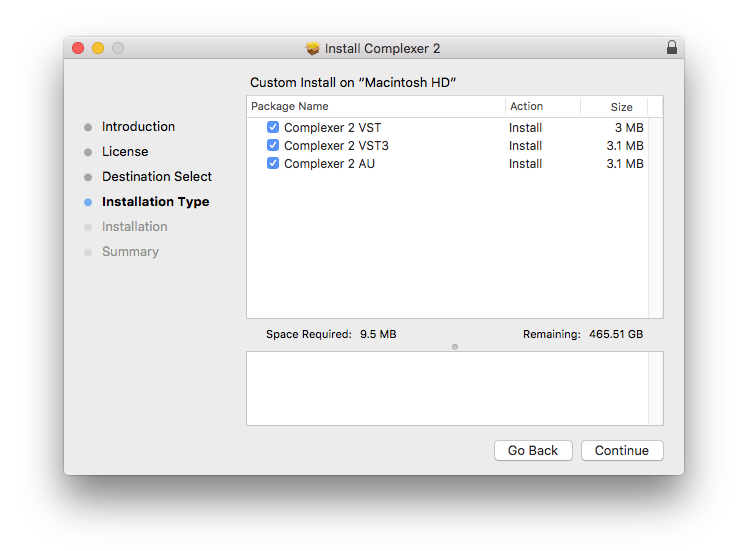
2. Open the .pkg file to begin the installation > Click 'Continue'.

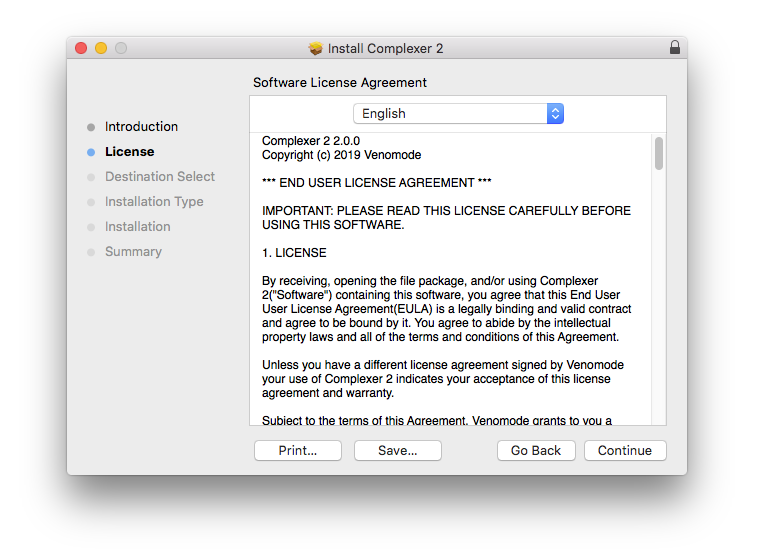
3. Click 'Continue'.

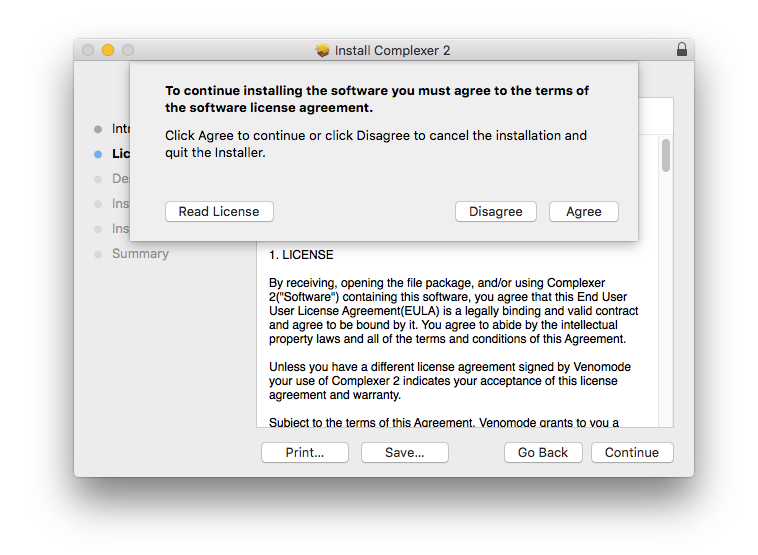
4. Click 'Agree'.

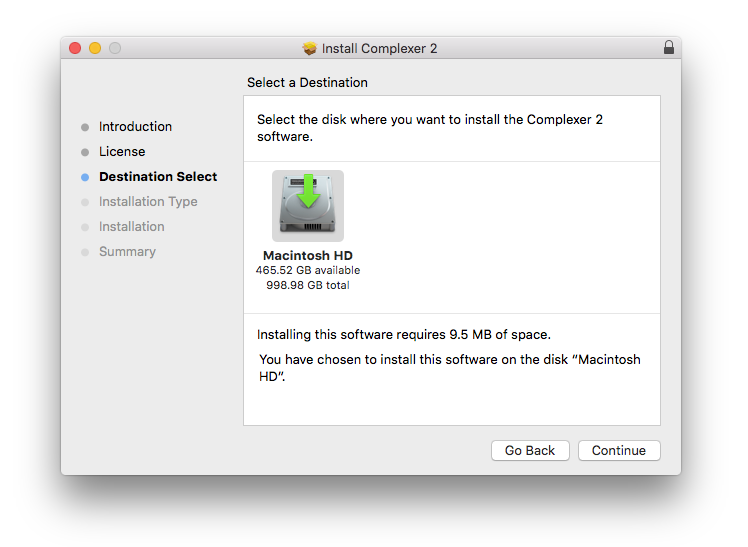
5. Click 'Continue'.

6. Click 'Continue'.

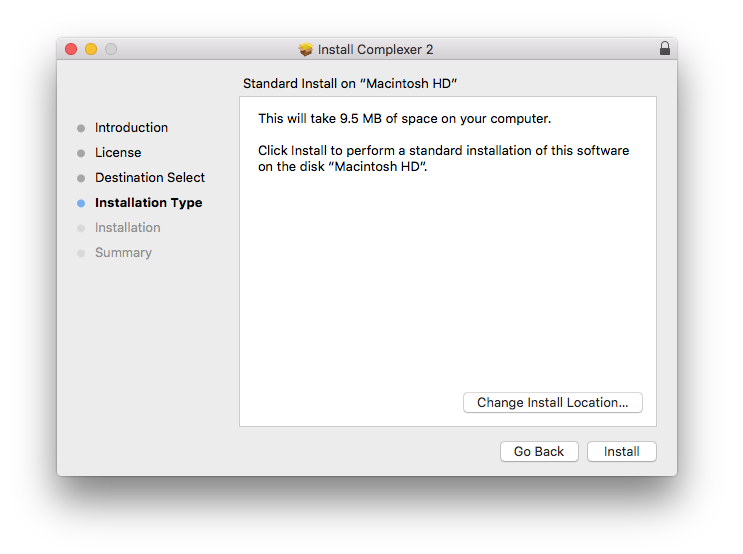
7. Click 'Install'.

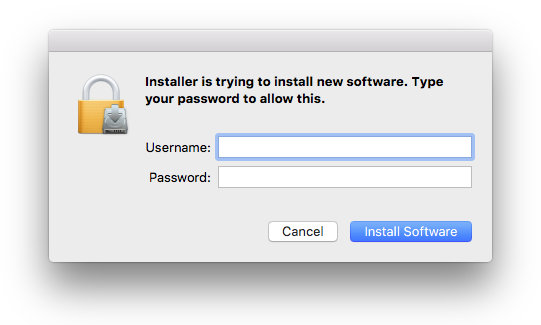
8. Enter your computer Username and Password > Click 'Install Software'.

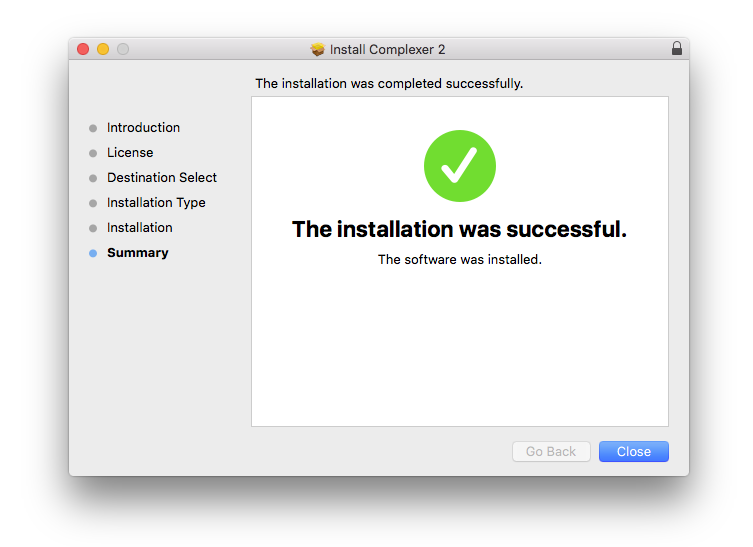
9. The installation is complete > Click 'Close'.

Activation Type 1

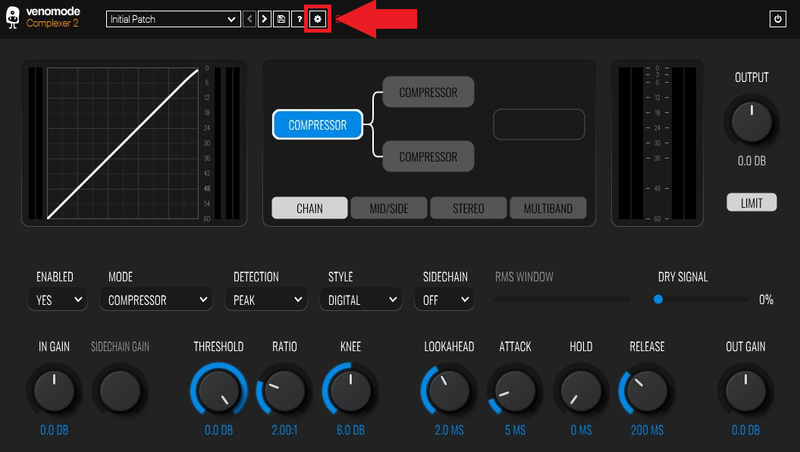
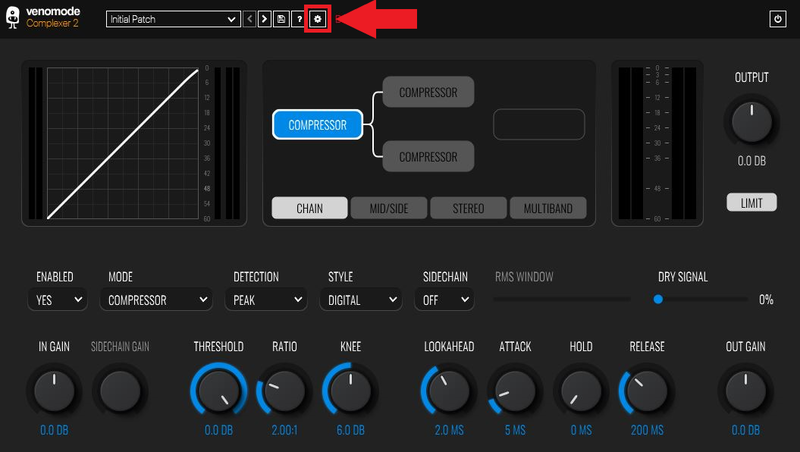
1. Open your newly-installed plugin in your DAW > Click the Gear icon at the top of the plugin window.

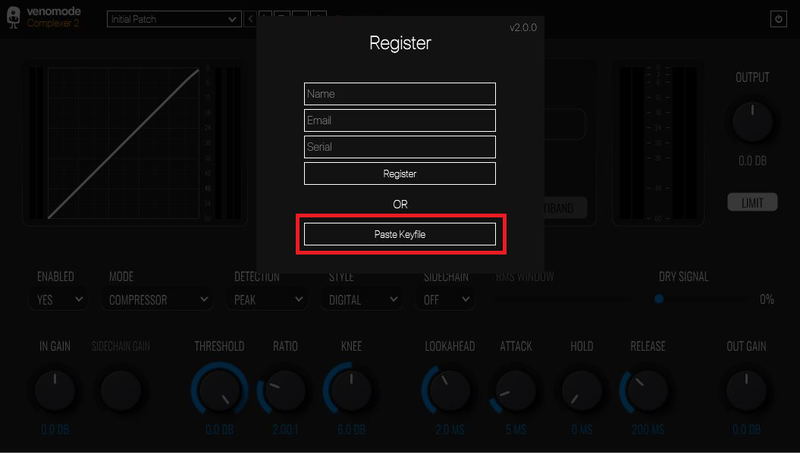
2. Enter your Name, Email Address and Serial Number found in your Venomode user account > Click 'Register'.

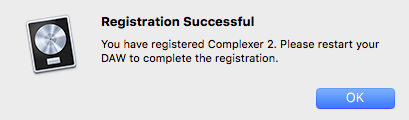
3. Click 'Ok' > Restart your DAW.

Activation Type 2

1. Open your newly-installed plugin in your DAW > Click the Gear icon at the top of the plugin window.

2. Go to your Venomode User Account > Click 'Copy' to copy your Keyfile to the clipboard.

3. Go back to the plugin in your DAW > Click 'Paste Keyfile'.

4. Click 'Ok' > Restart your DAW.

Your software is now activated and ready to use within your DAW.

Windows

Registration

1. Go to https://venomode.com/redeem

2. Enter your Full Name, Email Address, Voucher (found in the 'Serial' section within your Plugin Boutique User Account) and Password > Click 'Register'.

Installation

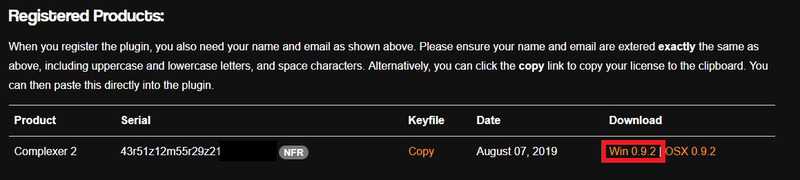
1. Within the section titled 'Registered Products', select the Windows installer to download the installer file.

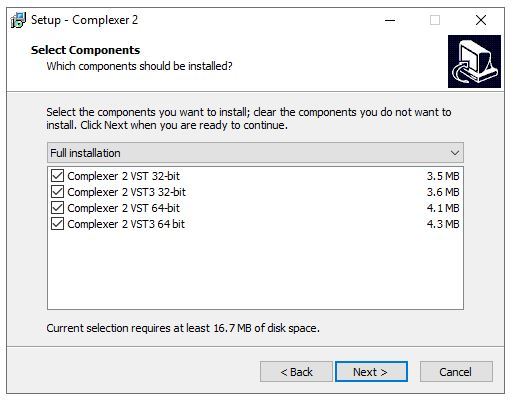
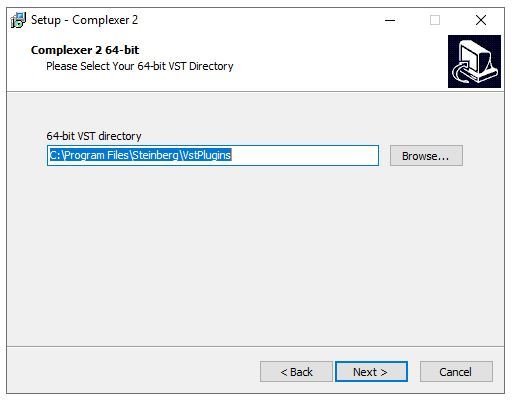
2. Open the .exe file to begin the installation > Select 'I Accept the Agreement' and click 'Next'.

3. Click 'Next'.

4. Click 'Next'.

5. Click 'Next'.

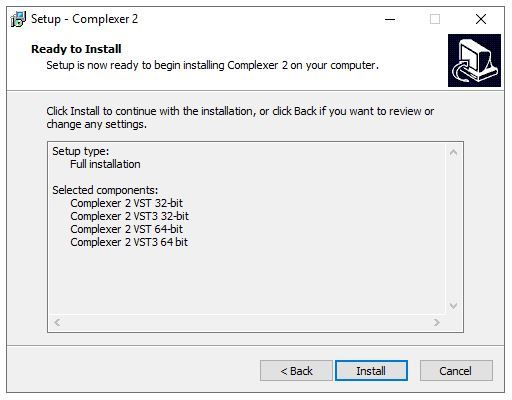
6. Click 'Install'.

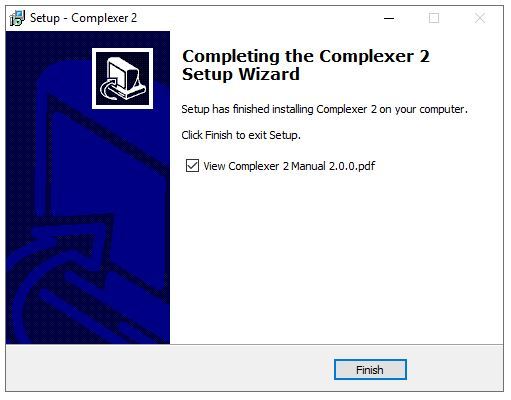
7. Click 'Finish'.

Activation Type 1

1. Open your newly-installed plugin in your DAW > Click the Gear icon at the top of the plugin window.

2. Enter your Name, Email Address and Serial Number found in your Venomode User Account > Click 'Register'.

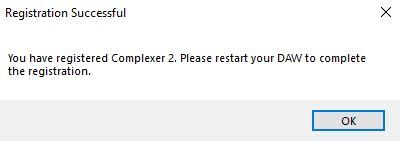
3. Click 'Ok' > Restart your DAW.

Activation Type 2

1. Open your newly-installed plugin in your DAW > Click the Gear icon at the top of the plugin window.

2. Go to your Venomode User Account > Click 'Copy' to copy your Keyfile to the clipboard.

3. Go back to the plugin in your DAW > Click 'Paste Keyfile'.

4. Click 'Ok' > Restart your DAW.

Your software is now activated and ready to use within your DAW.

Plugin Boutique Rewards

Discover the most rewarding loyalty programme among all plugin retailers.

  • Free Loopmasters Samplepacks
  • Discounts on products and courses
  • Extra Virtual Cash claimed immediately at checkout
Find out more

Follow us:

X (Twitter) Facebook YouTube Instagram
Logo Logo

Plugin Boutique Limited, Part of the Beatport Group LLC.

Copyright © 2011-2025 Plugin Boutique. All rights reserved