Buy ATA Auto Time Adjuster, get a free gift with purchase:
Important Note: This product is only available as an AAX and is only compatible with newer versions of ProTools (9 and above)
Auto time adjuster is a plugin delay compensation (PDC) plugin, originally designed for use in Pro Tools LE 7 & 8 (RTAS), as they lacked built-in PDC. ATA continues to be a useful tool with newer versions of ProTools (9+/AAX) that include PDC, as users can benefit from the large latency limit (50,000 samples), and the increased accuracy of measuring plugin latency directly (including outboard), rather than relying on the values reported by plugins.
ATA is inserted on each track in your mix. The actual latency of all plugin and outboard inserts is then measured using a short burst of audio, or 'ping' triggered from the ATA inserted on the master fader. ATA then calculates and sets appropriate delays for each ATA on each track or bus, bringing all tracks into alignment and providing the tightest timing possible.
Features
- Ping based delay compensation.
- Works with software and hardware inserts.
- Lock individual ATAs.
- Manual latency entry.
- Group delay preview in PT mixer.
- Large latency limit of (50,000 samples).
- Increased timing accuracy by measuring latency directly.
- Outboard insert support.
System Requirements
- Windows 10 or above
- Mac OSX 10.9 or above
- 64-bit only
- AAX only
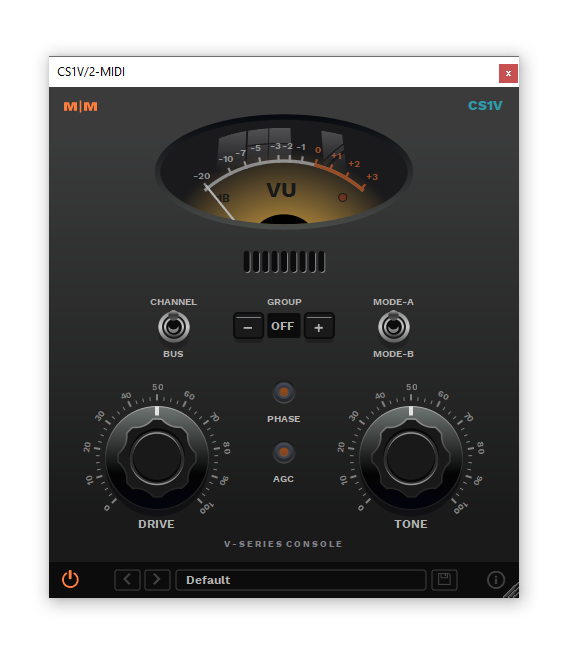
Important Note: CS1V Console Channel is used as the example.
Mac
Installation
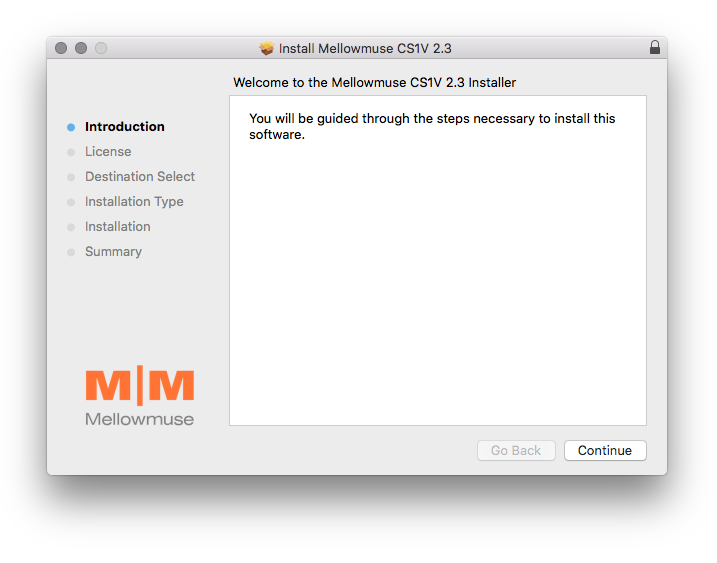
1. Download the .pkg file from within your Plugin Boutique User Account and double-click it to extract the contents.
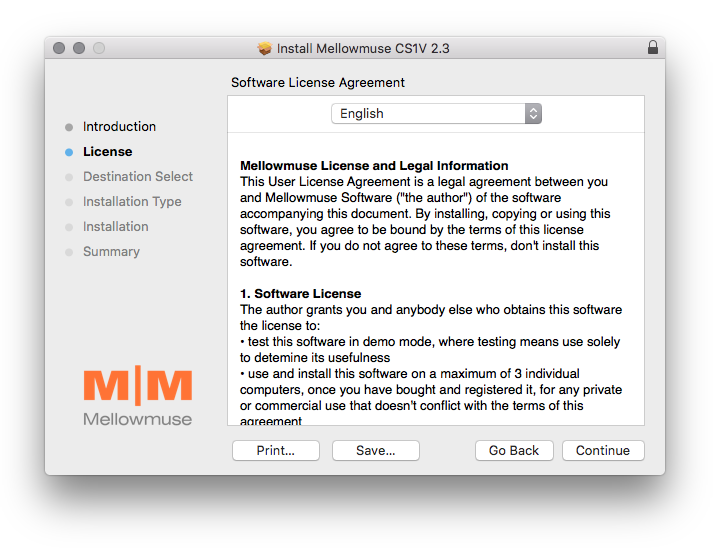
2. Open the .dmg file to begin the installation > Click 'Continue'.

3. Click 'Continue'.

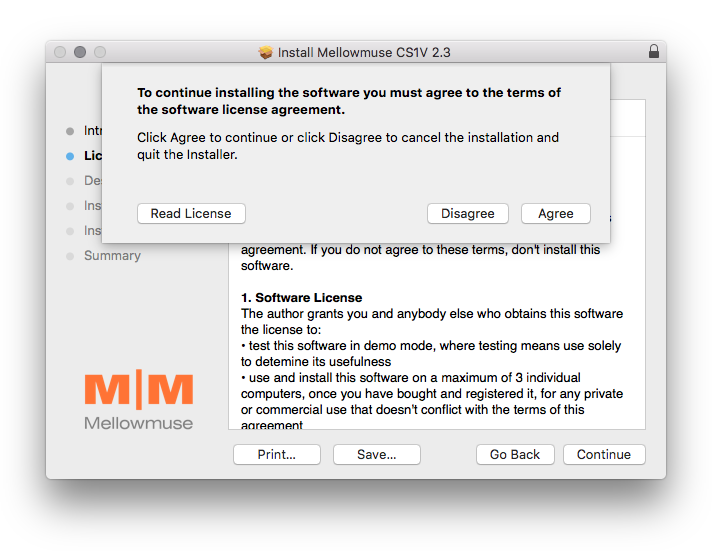
4. Click 'Agree'.

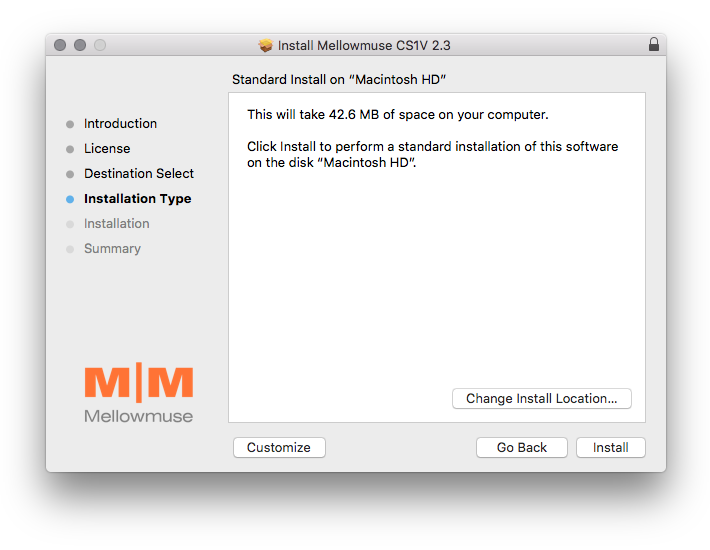
5. Click 'Install'.

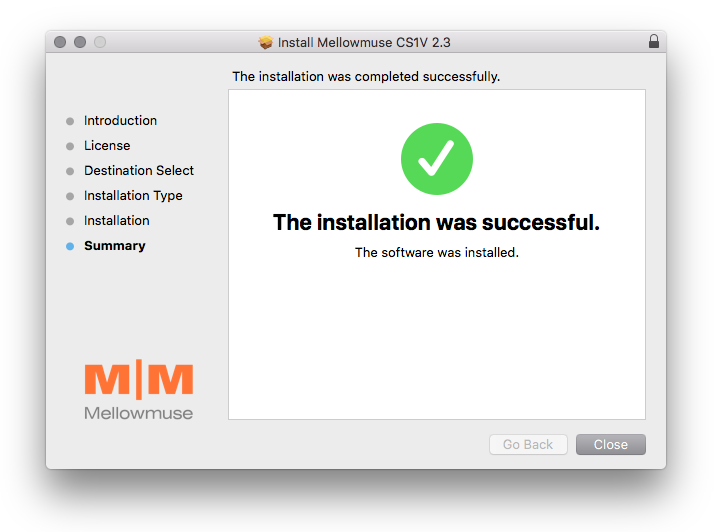
6. Click 'Close'.

Activation
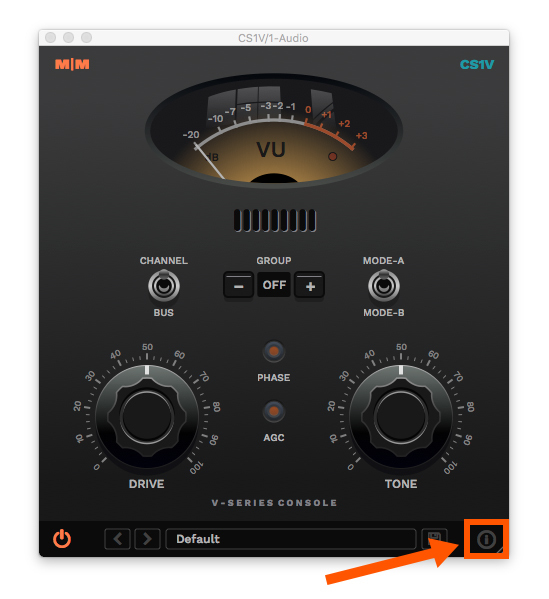
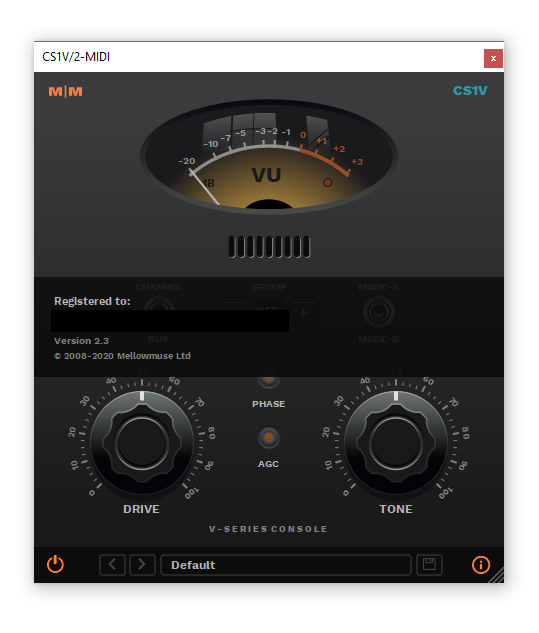
1. Open CS1V inside of your DAW > Click the i icon at the bottom right of the GUI.

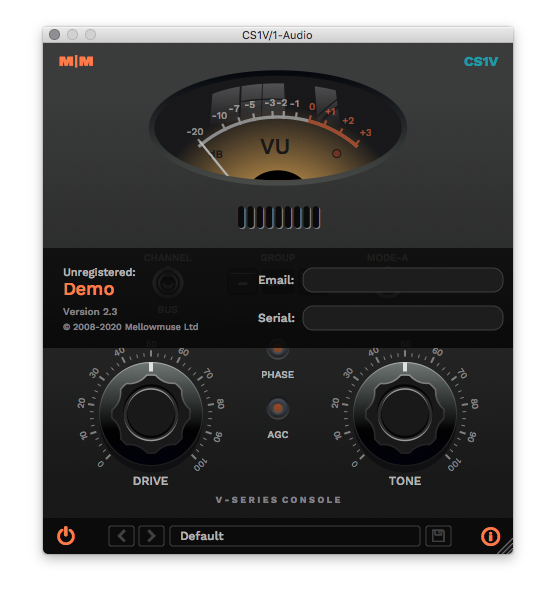
2. Enter your email address and the serial number found within your Plugin Boutique User Account > press Enter on your keyboard.

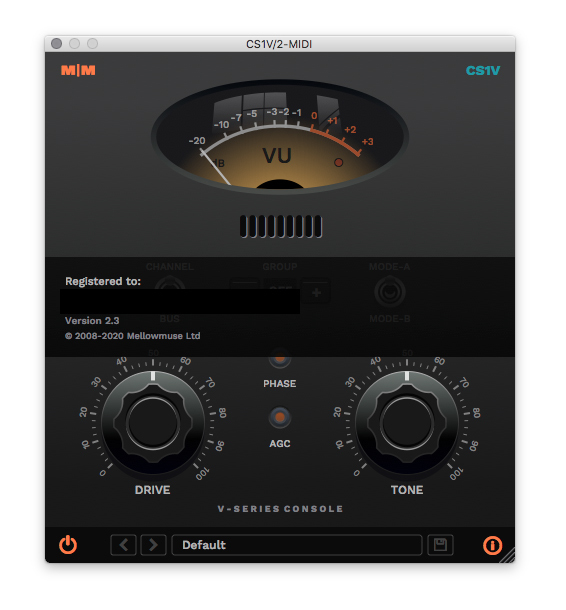
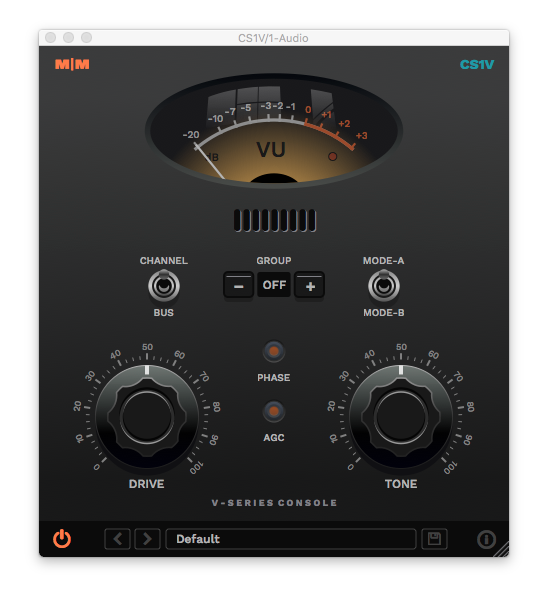
3. Click the i icon again to close the registration information.

Your plugin is now authorised and ready for use in your DAW!

Windows
Installation
1. Download the .zip file from within your Plugin Boutique User Account and double-click it to extract the contents.
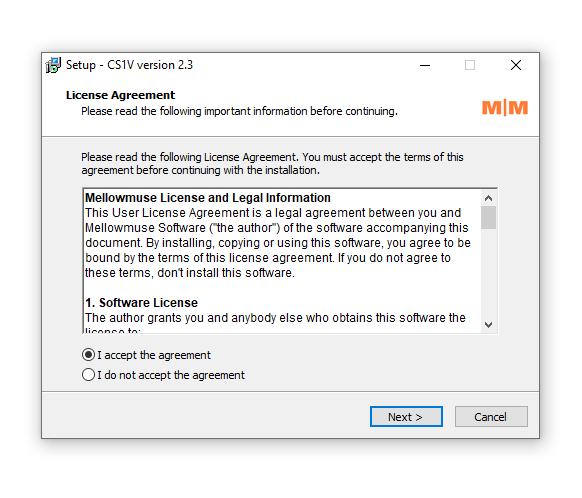
2. Open the .exe file to begin the installation > Select 'I Accept the Agreement' and click 'Next'.

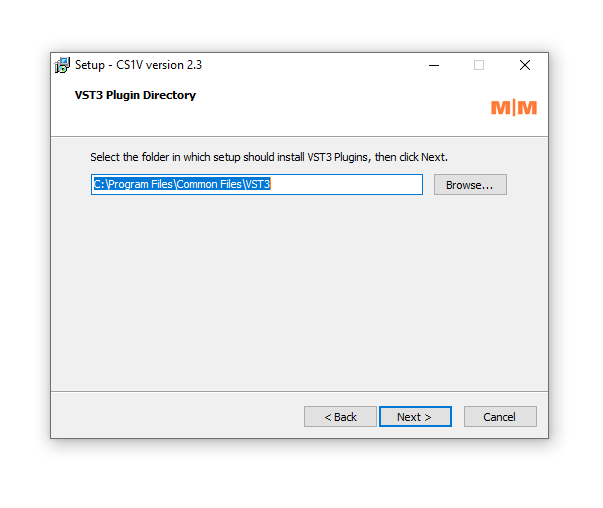
3. Check that the location of your VST3 folder is correct > Click 'Next'.

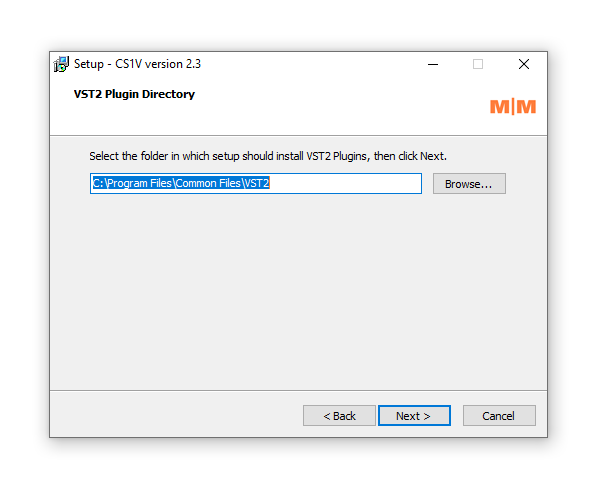
4. Check that the location of your VST2 folder is correct > Click 'Next'.

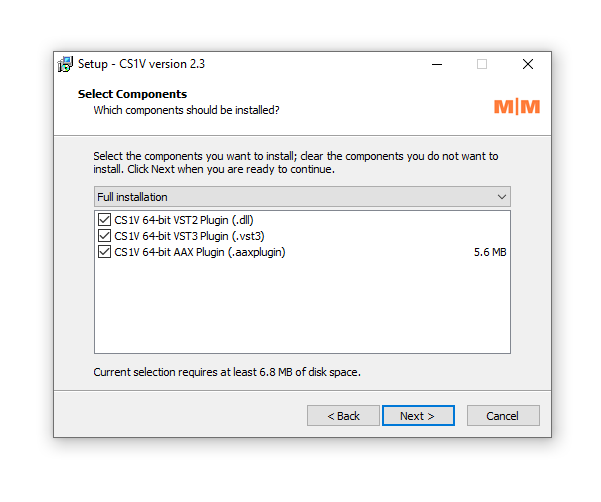
5. Click 'Next'.

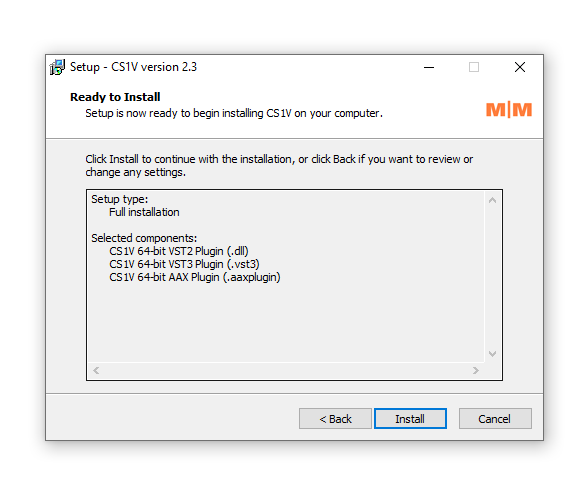
6. Click 'Install'.

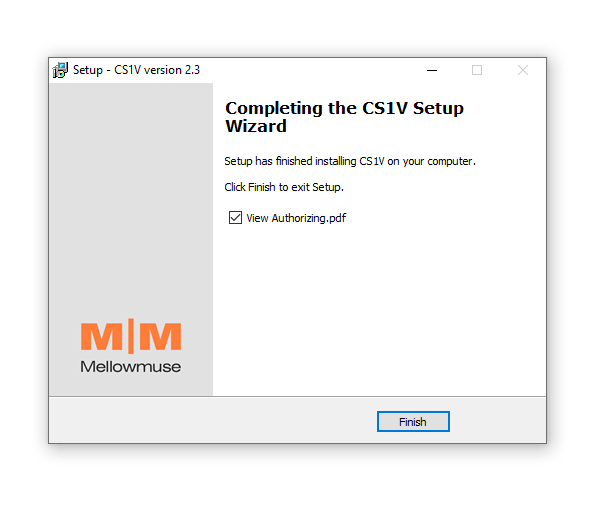
7. Click 'Finish'.

Activation
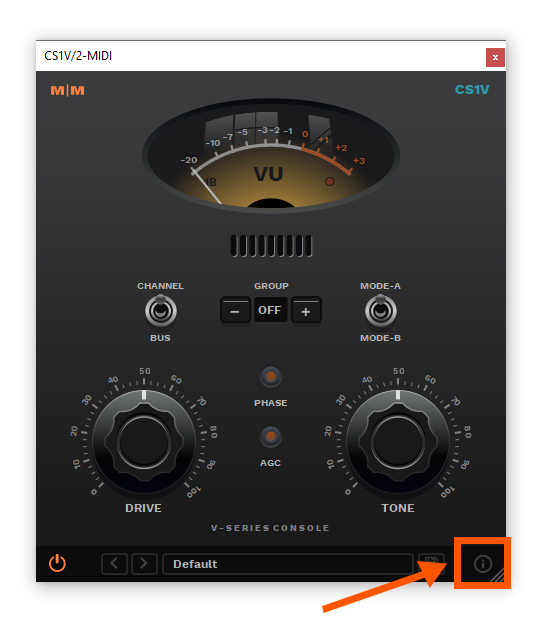
1. Open CS1V inside of your DAW > Click the i icon at the bottom right of the GUI.

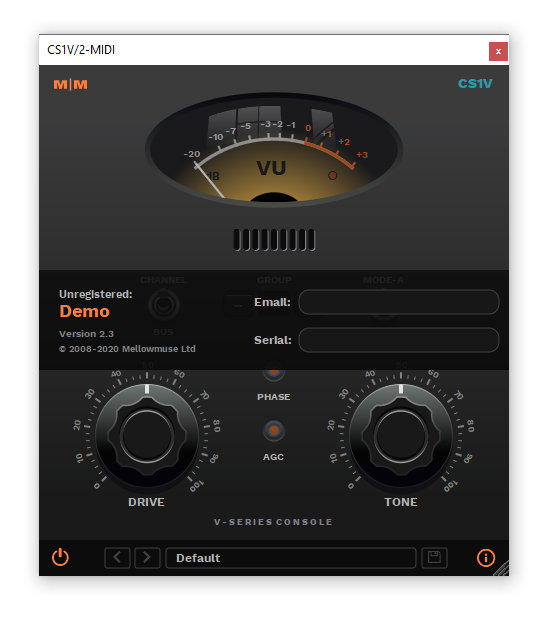
2. Enter your email address and the serial number found within your Plugin Boutique User Account > press Enter on your keyboard.

3. Click the i icon again to close the registration information.

Your plugin is now authorised and ready for use in your DAW!