


 Log In

Free gifts available with your purchase

Noise Reducer
An advanced audio noise reducer with a simple and straightforward interface
Brusfri is a highly advanced audio noise reducer, packed into a simple and straightforward interface. It is very well suited for cleaning up noisy audio recordings while retaining sound quality.
Unlike many other noise reducers on the market, Brusfri doesn’t mess with audio phasing to suppress noise (a technique that often comes with audible side effects). Instead, multiple fine-tuned gates are used to silence unwanted noise.
Anatomy
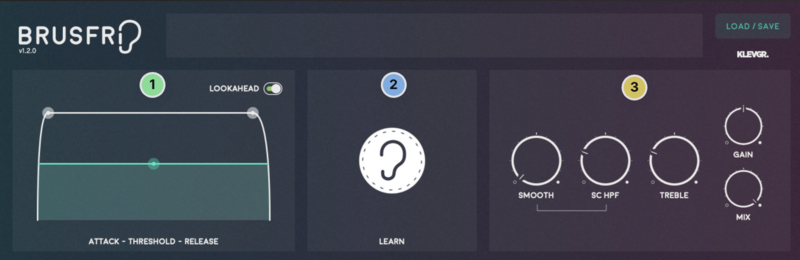
1. Attack / Threshold / Release - These parameters control all the internal expanders relatively.
2. Learn Button - Brusfri needs some noise to be analysed. Most of the time, this is the only thing that's needed. Push and hold to feed audio data and create a noise profile.
3. Tonality - Most of the time, Brusfri does a good job in creating a noise profile that works as expected, but in some cases (especially when there's heavy noise involved) one needs to tweak a bit.
What is that noise?!
Can we shut down the vent system for the whole building, please?
You know the feeling when you just have recorded the best take ever for your new creation and it’s time to edit when you realise there’s a constant hiss in the background interfering with the performance. It happens to us all, whether you’re working with music, film, podcasts or radio, unwanted noise is a problem that pops up now and then. With the improvement of sound quality over the years, what was once hidden behind tape hiss can now be audible and bothersome and we need noise reduction to tackle it.
Features
- Several frequency-trimmed expanders build an intelligent noise suppressor
- No phase-altering, which leaves the desired sound untouched (no squishy artifacts as in many other noise reducers)
- Intuitive and unique user interface
System Requirements
- macOS 10.10 or later (optimized for the M1-processor)
- Windows 7 SP1 or later
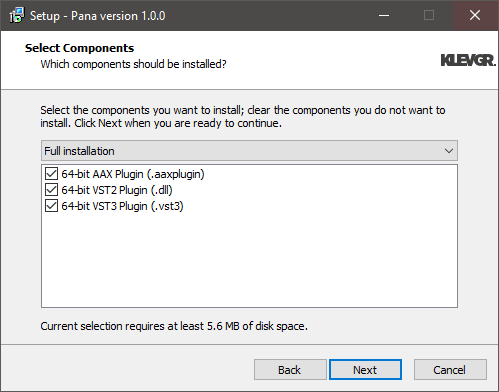
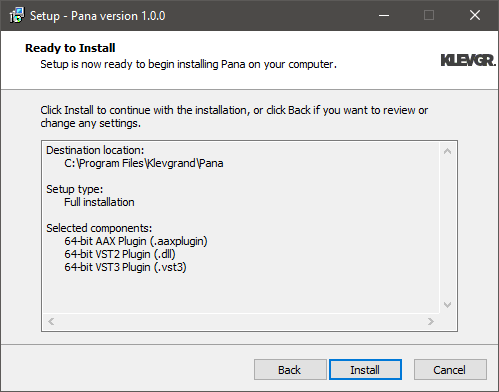
- AU, VST-2, VST-3, AAX











Reviews Summary
While it aims to provide a helpful overview, it may not capture every perspective or detail. We encourage you to read individual reviews to make an informed decision.
Customers highly praise the plugin as an easy-to-use, fast, and CPU-efficient noise reduction tool that effectively cleans up recordings from fan noise, 60-cycle hum, and analog gear. While users note it can become aggressive if pushed too far, it is widely regarded as a must-have, high-quality solution for treating imperfect recording environments and bedroom setups.


