Buy GotoEQ, get a free gift with purchase:
Premium Equalizer
A classic EQ unit reinvented for the digital age
GotoEQ is a new evolution of a vintage passive tube-based program equalizer, expanding on that classic sound with dynamic EQ bands.
GotoEQ performs the classic ‘low-end trick’ with dual Boost and Attenuate controls for its low shelf, but it also offers the ability to perform a 'high-end trick', with a similar formulation of high shelving.
With continuous frequency selection, you can tune each band as you like. But most importantly of all, GotoEQ’s two mid bands offer dynamic attenuation, bringing a musical approach to the classic EQ unit.
Usage
Simultaneously boost and cut the low shelf to create that low-mid scoop on bass tracks. De-ess vocals or de-harsh overheads by engaging dynamic attenuation and tuning the high-mid band. Add air to signals with the high shelf filter, and ‘scoop’ the high-mids using a ‘high-end trick’. Get control over the ‘nose’ of bass tracks with dynamic attenuation of the Low Mid and High Mid bands. Subtly EQ a whole mix or bus using light settings and mild compression
Anatomy
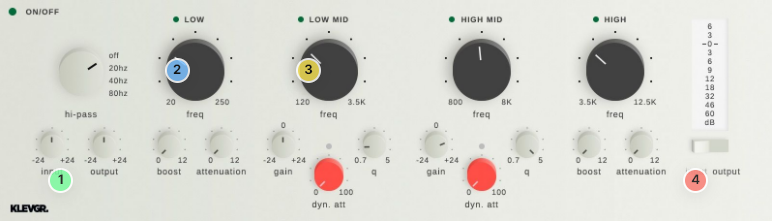
1. Prepare for treatment - To let the dynamic processors work at their best, make sure to set the right input level.
2. Classic style filters - Two shelving filters with separate Boost & Attenuation controls. To achieve the 'Pultec' effect, both boost and attenuation must be above 0 dB.
3. Dynamic parametric EQs - These work a bit differently than the Low & High filters – a dynamic processor attenuates the signal. Fine-tune with the gain knob.
4. Level like a boss - VU-meters for Input or Output levels.
Features
- Low and High Shelf filters, with detailed modelling of a classic passive EQ unit
- Two parametric dynamic filters
- High-pass filter: 20/40/80 Hz
- Preset library
- Continuous frequency selection for all four bands
- Boost and Attenuation for the Low and High shelving bands
- Gain, Q, and Dynamic Attenuation for the two mid bands
- Finely-tuned compression algorithm makes mid bands react dynamically to the signal
- Global Input and Output Gain controls (+/-24dB)
- Global bypass and individual band bypass
- Peak metering for the input or output
System Requirements
- macOS 10.10 or later (optimized for the M1-processor)
- Windows 7 SP1 or later
- AU, VST-2, VST-3, AAX
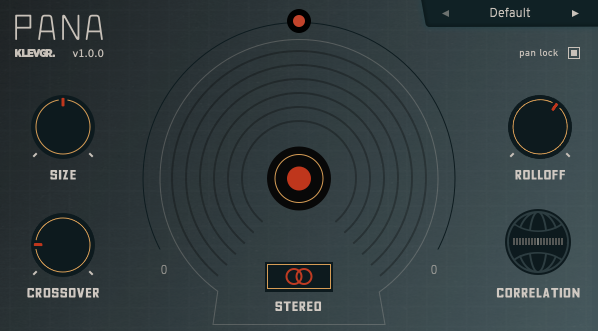
Please Note: Pana is used as the example:
Mac
License Redemption
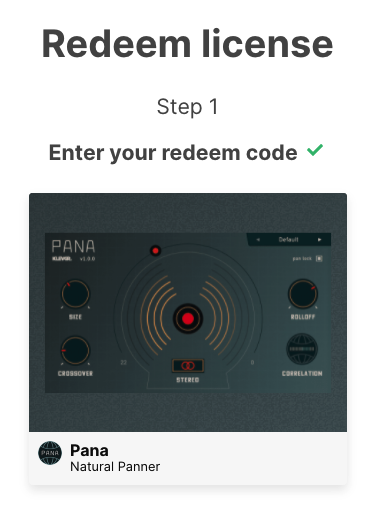
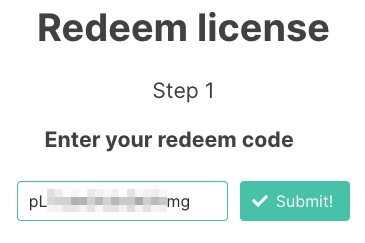
1. Navigate to https://klevgrand.com/redeem > Paste your 16 digit redemption code found in your Plugin Boutique User Account > Click 'Submit!'.
2. Your redemption code has been accepted > Scroll down to Step 2.
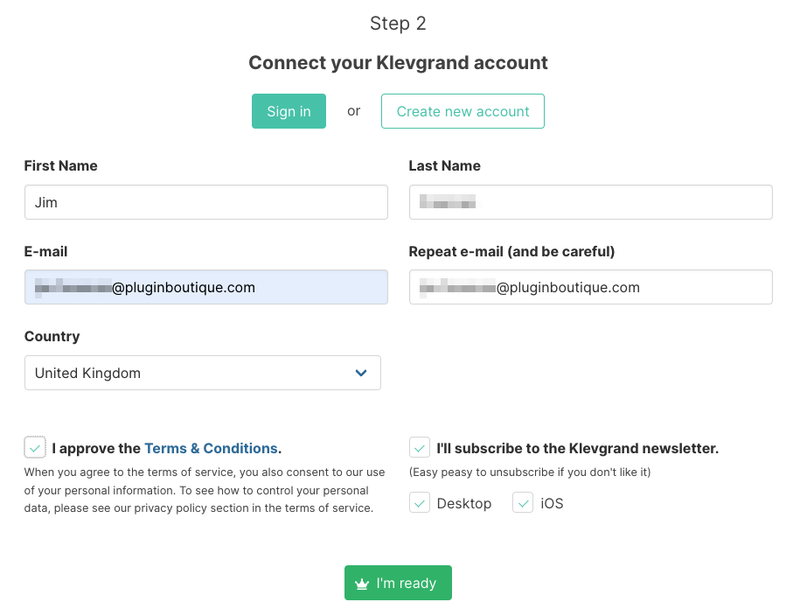
3. Click either 'Sign in' if you already have a Klevgrand account, or 'Create new account' if you do not > Fill in your personal details > Click 'I'm ready'.
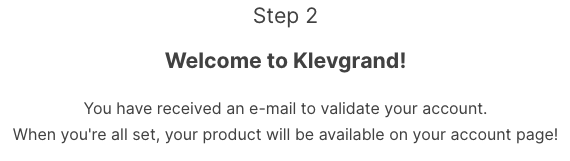
4. Your account has now been created.
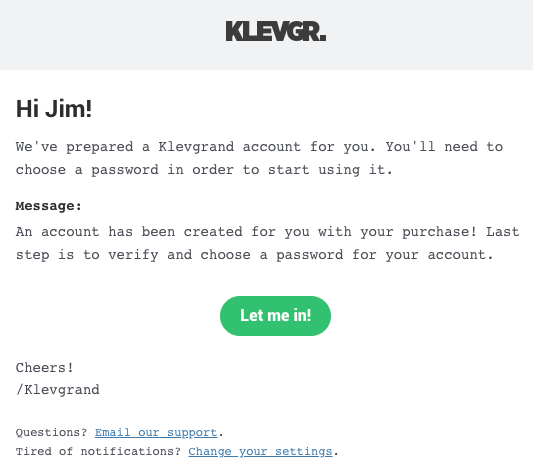
5. Navigate to your email inbox and locate the activation email that you should have received from Klevgrand > Click 'Let me in!' to activate your account.
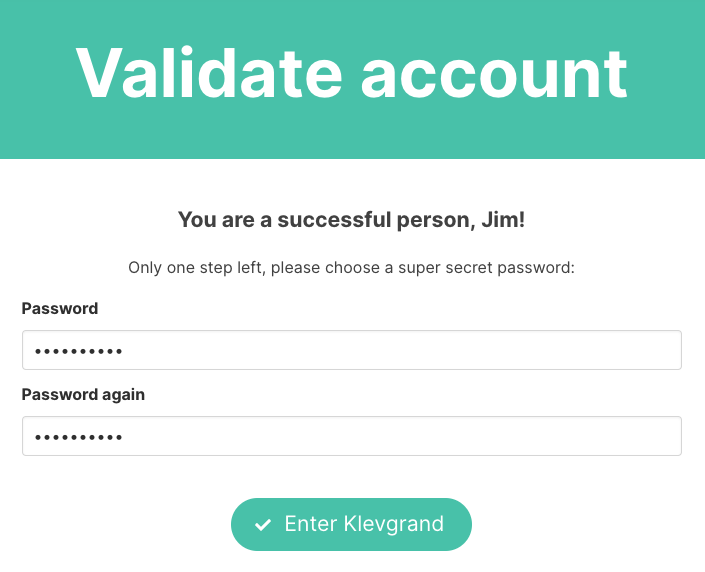
6. Create a password for your account > Click 'Enter Klevgrand'.
7. Your software and serial number is now available within your Klevgrand account > Click the Apple logo to download the installer file.
Installation
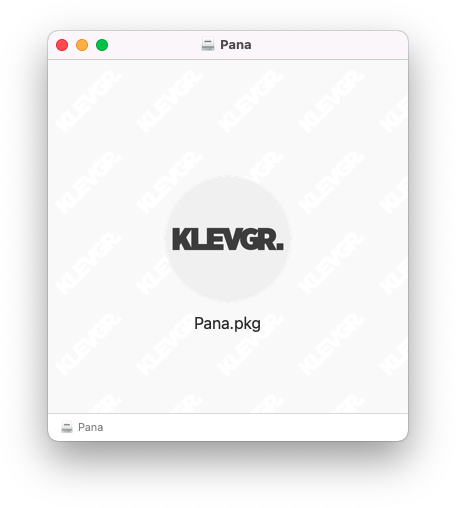
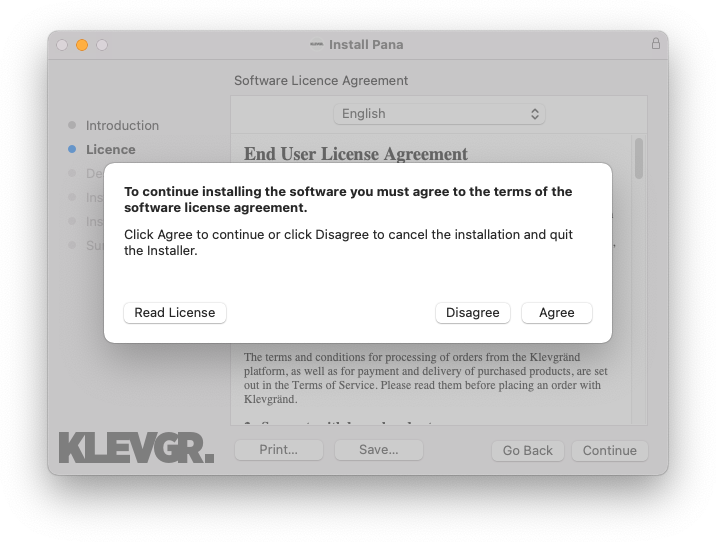
1. Launch the pana_x_x_x_macOS.dmg installer file.
2. Double click the KLEVGR. logo to launch the installer.
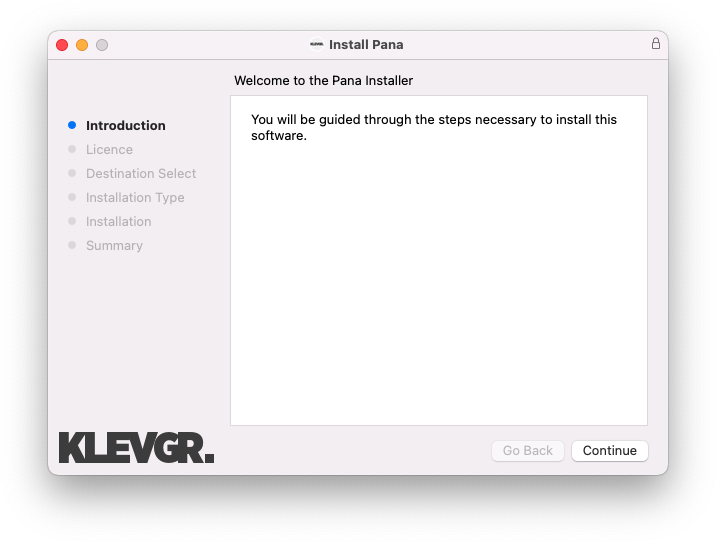
3. Click 'Continue'.
4. Click 'Continue'.
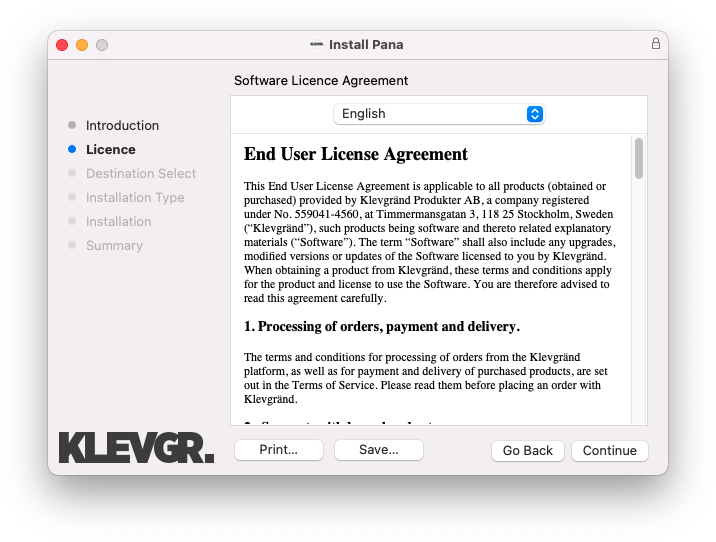
5. Click 'Agree'.
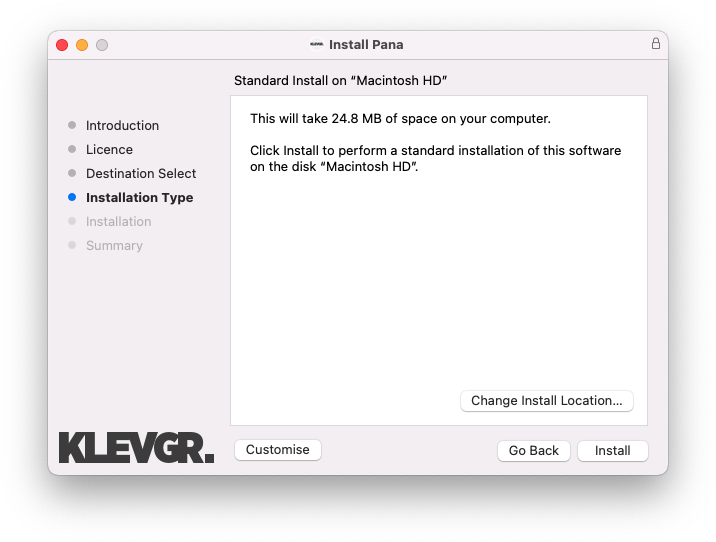
6. Click 'Install'.
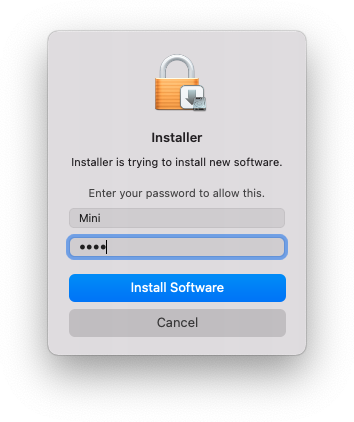
7. Enter your system password > Click 'Install Software'.
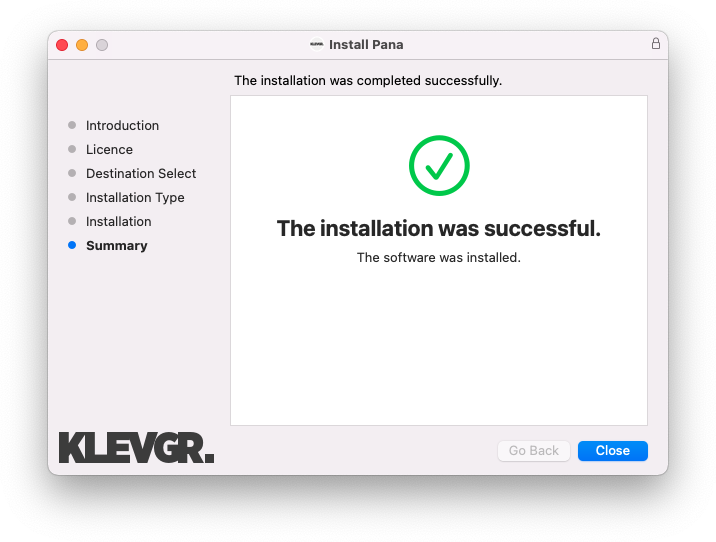
8. Click 'Close'.
9. Navigate back to your Klevgrand My Account page > Click on the serial number to copy it to your clipboard.
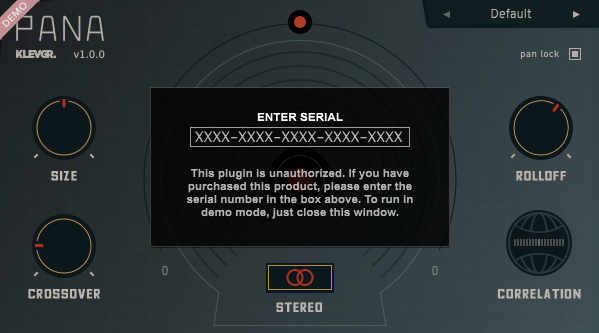
10. Launch your DAW > Create a new audio track > Insert Pana onto the channel > Paste your serial number into the box.
Your software is now activated and ready to use within your DAW
Windows
License Redemption
1. Navigate to https://klevgrand.com/redeem > Paste your 16 digit redemption code found in your Plugin Boutique User Account > Click 'Submit!'.
2. Your redemption code has been accepted > Scroll down to Step 2.
3. Click either 'Sign in' if you already have a Klevgrand account, or 'Create new account' if you do not > Fill in your personal details > Click 'I'm ready'.
4. Your account has now been created.
5. Navigate to your email inbox and locate the activation email that you should have received from Klevgrand > Click 'Let me in!' to activate your account.
6. Create a password for your account > Click 'Enter Klevgrand'.
7. Your software and serial number is now available within your Klevgrand account > Click the Windows logo to download the installer file.
Installation
1. Unpack the pana_x_x_x_win.zip installer file > Launch the pana_x_x_x_win.exe file.
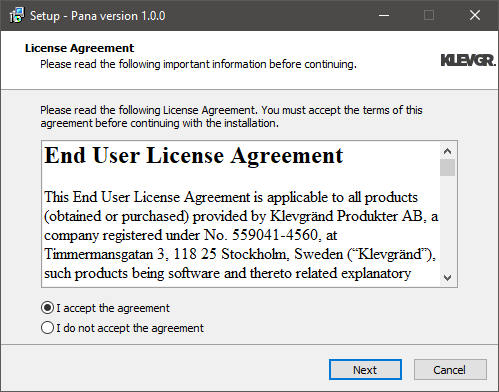
2. Click 'I accept the agreement' > Click 'Next'.
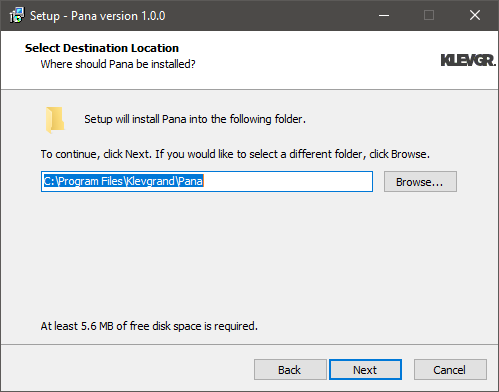
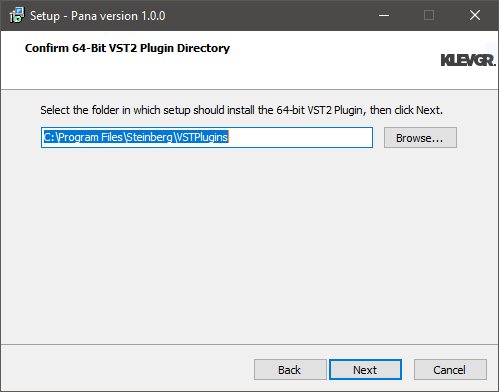
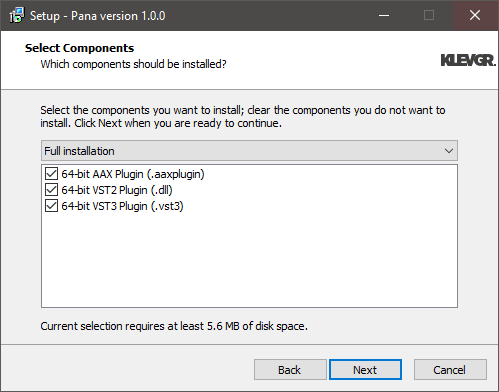
3. Click 'Next'.
4. Click 'Next'.
5. Click 'Next'.
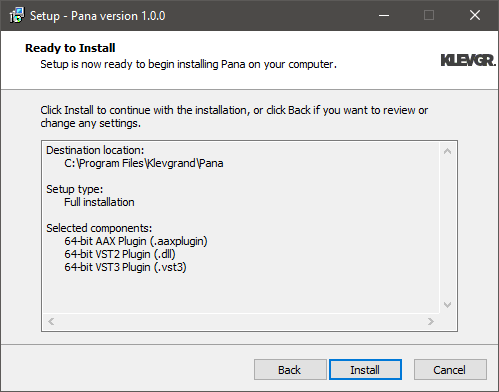
6. Click 'Install'.
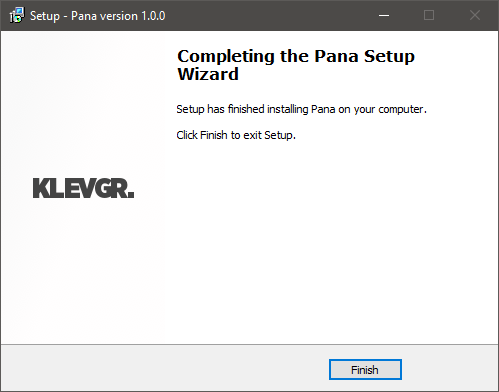
7. Click 'Finish'.
8. Navigate back to your Klevgrand My Account page > Click on the serial number to copy it to your clipboard.
9. Launch your DAW > Create a new audio track > Insert Pana onto the channel > Paste your serial number into the box.
Your software is now activated and ready to use within your DAW