Log In

Free gifts available with your purchase

Vibrant • Profound • Eternal
CHROMA personifies the ageless beauty of the piano. Painstakingly recorded from a world class Yamaha C3, it fully captures the sonic exuberance of the ideal piano sound. It is not only the perfect recreation of the acoustic properties, but it is also a full exploration of the instrument. From the rich depth of the single note, to mallets, pads, and e-bow, rich and inspiring soundscapes – CHROMA is more than a piano, it is the experience of the piano itself
- CHROMA is the new SONUSCORE flagship piano.
- CHROMA offers 4 freely adjustable microphone positions.
- CHROMA has an unique core engine that both recreates the piano’s original sonority, but also creates new and abstract soundscapes.
- CHROMA comes with an adjustable velocity curve to match the dynamics to every piano keyboard.
A Piano For All Times
CHROMA is not only a high-quality go-to piano for even your most demanding orchestra needs, it is also an endless source for inspiration. With over 23 velocity layers and 8 round robins for mechanical sounds, CHROMA reflects the real piano sound closer than ever before. The recordings include palm mutes, brushes, mallets, e-bow, and chains – a full sonic exploration of the Yamaha C3 grand piano.
Choose Your Piano
Though CHROMA was recorded from a top-class Yamaha C3, Sonuscore developed it to shape the sound to any timbre you might need. With an adjustable velocity curve, the dynamic response can be matched to any keyboard. The sound can further be adjusted by attack, decay, delay, density, octavation, detune, sample-start, pan-randomizer and more.
Realism At Your Fingers
With fully adjustable mechanical sounds and 4 freely adjustable microphone positions (A/B, X/Y, ORTF and submic), CHROMA will become your choice piano for your high-quality orchestral needs.
Intuitive And Natural
From the interface through to the sound, CHROMA feels natural and easy to access.
The Main Page
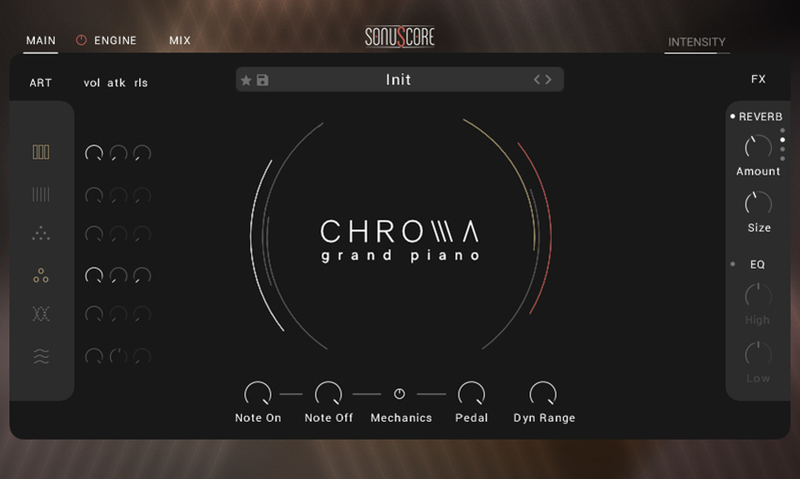
Access the most important parameters like articulation mix, FX and mechanics to shape the sound to your desire.
The Engine Page
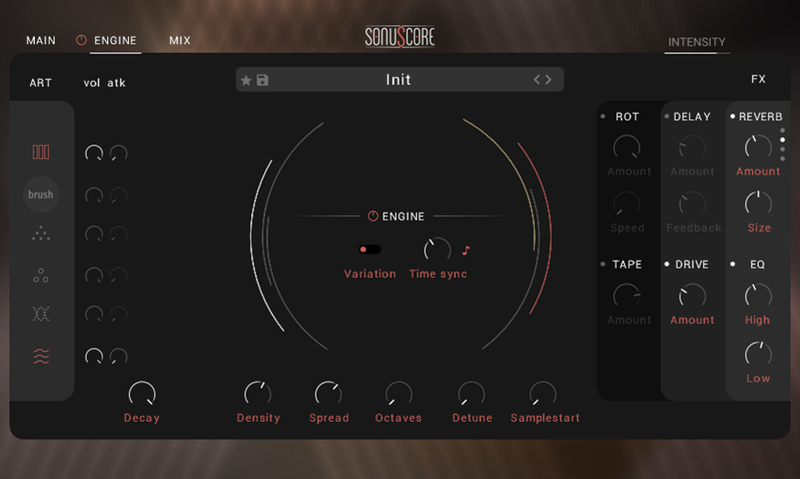
Turn the engine on to extend CHROMA's capabilities and create and control extraordinary soundscapes.
Preset Browser
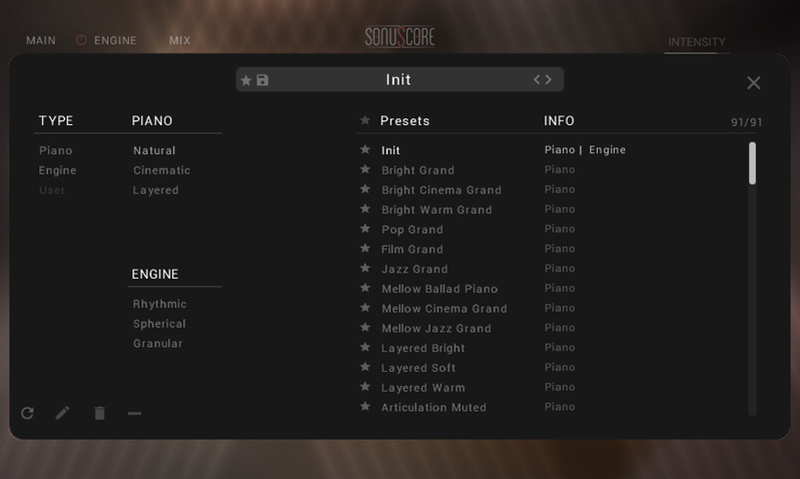
Filter and choose from over 90 creative and inspiring presets. Find the perfect style or create and save your own.
The Mix Page
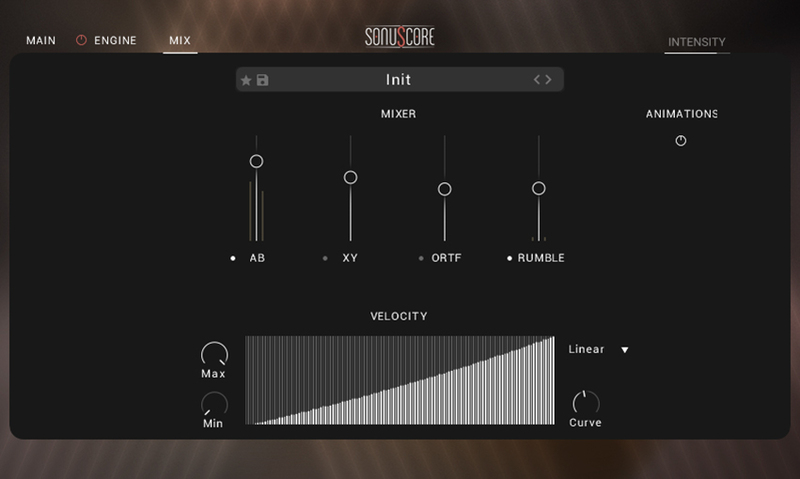
Adjust and mix four different mic positions and set the velocity curve to match your preferred dynamic response.
A Complete Sonic Exploration
Multiple Articulations
The piano was completely explored for the recording of this library. Not only were the notes played the traditional way, but Sonuscore also used mallets, brushes, palm mutes, e-bow, and chains, all adjustable and combinable in the virtual instrument itself.
Add Mechanical Detail
Live the pure grand piano experience and control mechanical sounds like Note On, Note Off and Pedal for an even more realistic feel.
The Engine - Create Abstract Soundscapes
Utilizing the different recordings of the piano and its body along with an arsenal of creative effects, CHROMA provides for a great deal of inspiring options. From new and abstract soundscapes, to mimicking the sound of rain, CHROMA is not just a piano, but a powerful sound design tool.
About The Yamaha C3
The Yamaha C3 grand piano is the highest quality studio piano offered by Yamaha. With a reputation for its responsive touch, expressive tonal qualities, and rich resonance, it has made itself at home with top-tier professionals, studios, and concert halls alike.
Features
- Revolutionary SONUSCORE flagship grand piano
- Perfect recreation of the acoustic properties of a Yamaha C3 piano
- Also an inspiring tool for creating new and abstract soundscapes
- Full mod wheel support of unique core engine, inspired by TIME TEXTURES
- Multiple modifiable articulations like brushes, mallets, e-bows, palm mutes, and chains
- Over 23 velocity layers and 8 round robins
- 4 freely adjustable microphone positions
- Over 90 ready-to-go naturalistic & cinematic ensemble presets
System Requirements
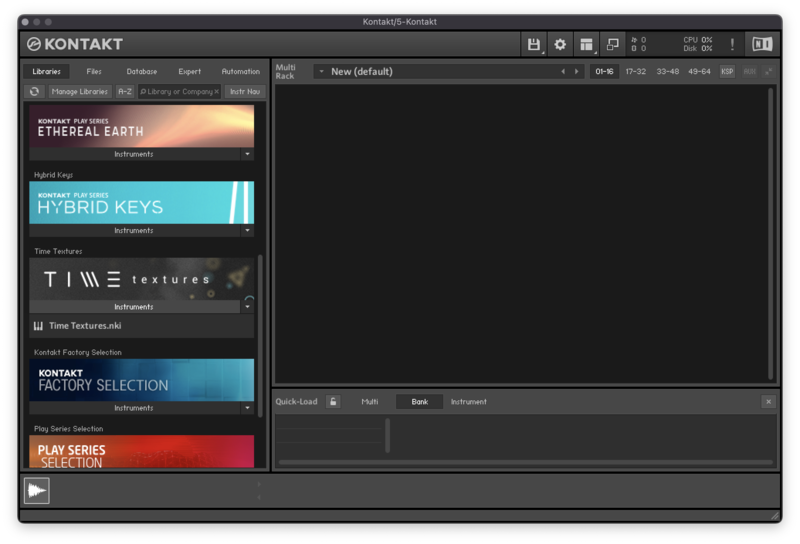
- Works with the FREE KONTAKT PLAYER
- KONTAKT Version 6.7.1 or higher
- macOS 10.14 or higher
- Windows 10 or higher
- 8GB RAM (more recommended)
- At least 11 GB of free hard disk space. SSD hard disk recommended.
- Be advised that some presets of CHROMA need a fast CPU to run smoothly and require an Intel i7 processor or higher.

Please Note: This product is compatible with the FREE Kontakt Player 6.7.1 or later.