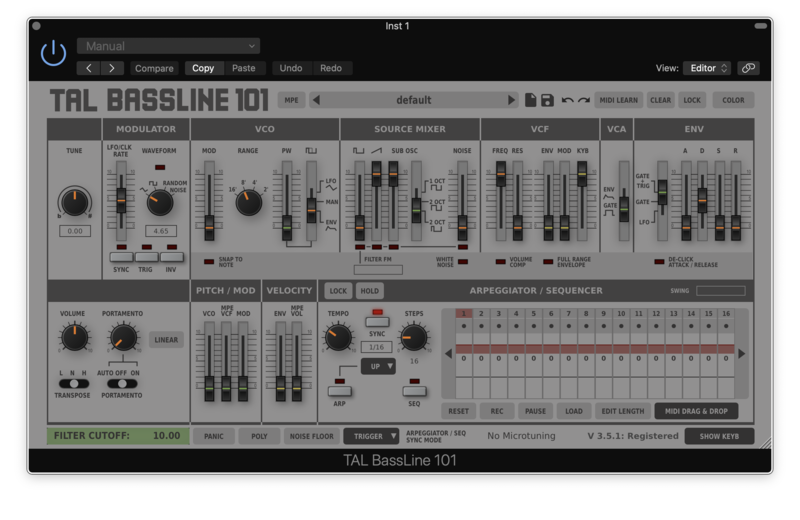
Buy TAL-Dub-X, get a free gift with purchase:
TAL-Dub-X is a remake of TAL's popular original freeware TAL-Dub plugin with a lot of additional features plus AAXand macOS 64-bit support.
TAL-Dub-X is no emulation of a specific hardware delay effect and it has its own special sound.
Don’t expect one of the very clean digital delays. An important part of the delay is a special saturation stage and a high-quality low-pass filter with resonance setting.
This makes the delay suitable for endless delay effects. It’s possible to use MIDI automation to control the parameters.
Features
- Drive knob controls saturation
- High-quality resonance filter
- High pass filter
- Delay time up to 2 seconds
- Host tempo sync
- TAP button
- Feedback and POST filter routing
- PING PONG mode
- Stereo triangle LFO modulation for delay time and resonance filter
- MIDI LEARN for easy automation
- Useful presets included
- Accurate Meter
- Resizeable GUI
- MTS, MPE supported
- Supports MIDI Mapping
System Requirements
Mac
- Mac OS X 10.9 or higher (64-bit only)
- Universal Binary 2 with native Apple M1 support.
- VST, VST3, Audio Unit, AAX
Windows
- Windows 7 or higher (64-bit only)
- VST, VST3, AAX
Please Note: AAX Format requires Pro Tools 10.3.6 or higher.
Registration
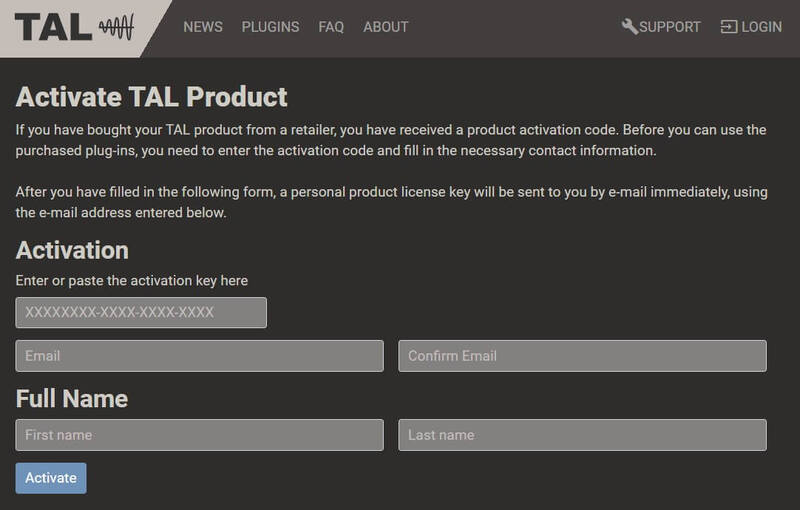
1. Click 'Download' in your Plugin Boutique account or go to https://tal-software.com/activate.
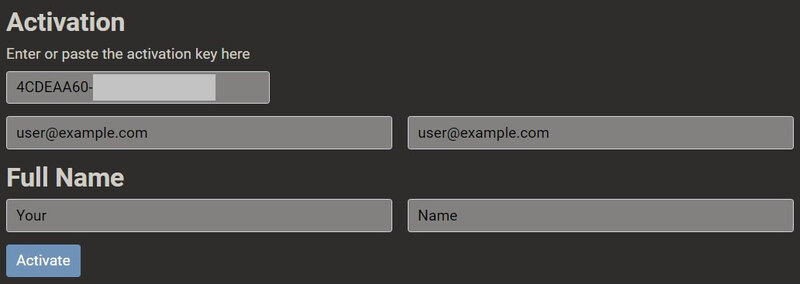
2. Enter the serial number/activation key and other details on the activation page > Click Activate.
3. Your activation code has now been registered.
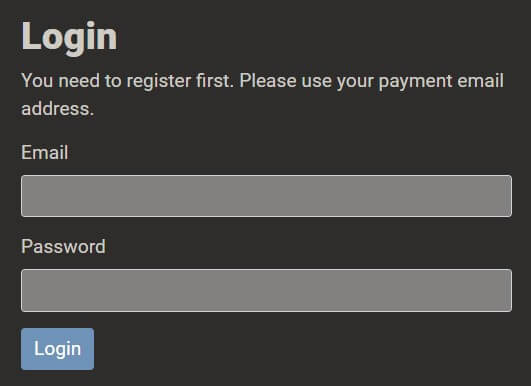
4. Copy the password that was sent to you via email > Go to https://tal-software.com/login.
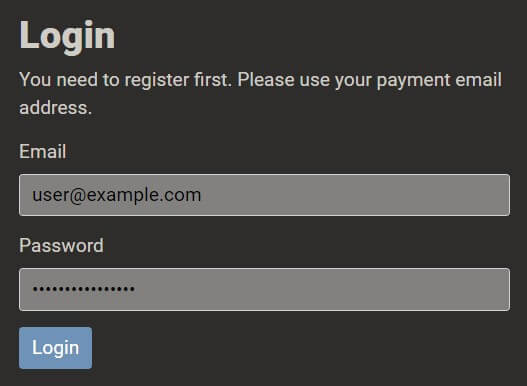
5. Enter your email address > Paste the password you were given > Click 'Login'.
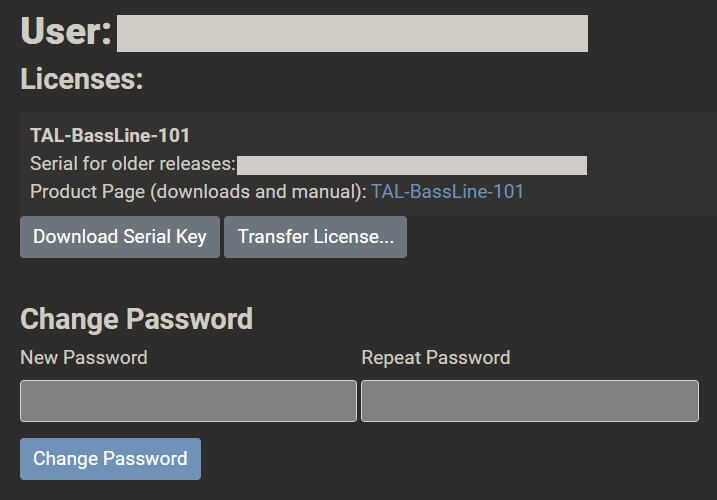
6. Click 'Download Serial Key'. You can change your TAL account password here.
Windows Installation
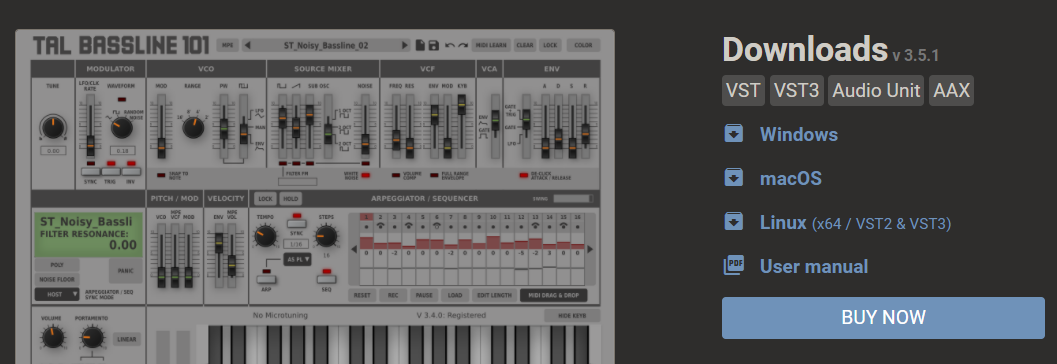
1. Click the blue hyperlink after 'Product Page (downloads and manual):' > Download the installer.
2. Open the zip folder you've just downloaded > Run the appropriate installer for your setup and if you're unable to use VST3/AAX in your DAW, please move the .dll file to your VST folder and rescan your plugins in your DAW/restart your computer.
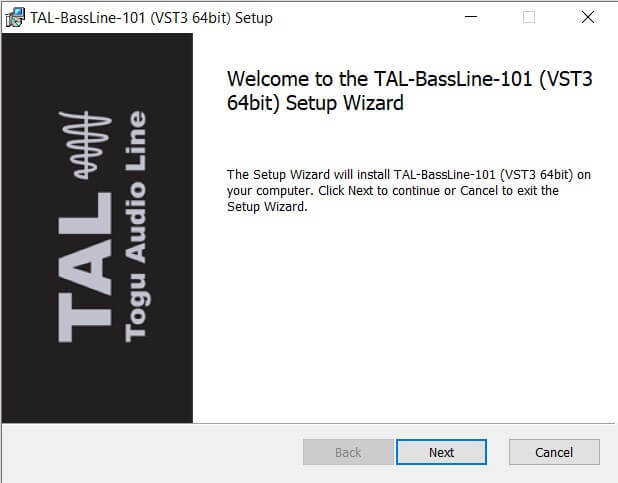
3. Click 'Next' to start the installation.
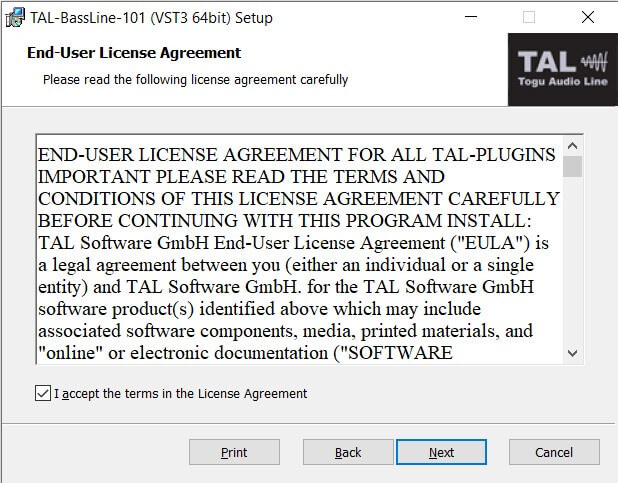
4. Read the End User License Agreement > Click 'Next'.
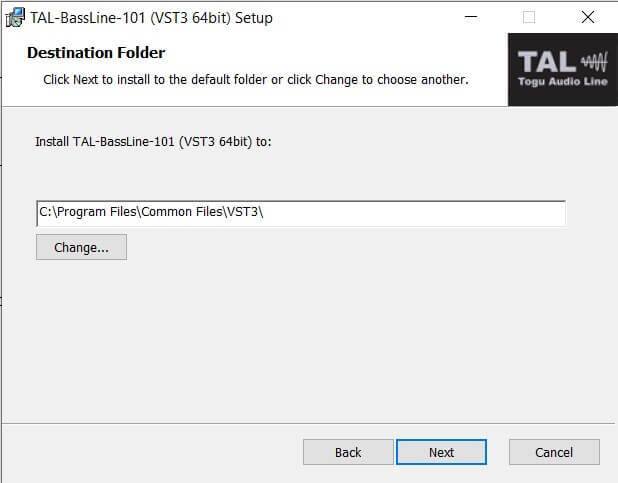
5. Click 'Next'.
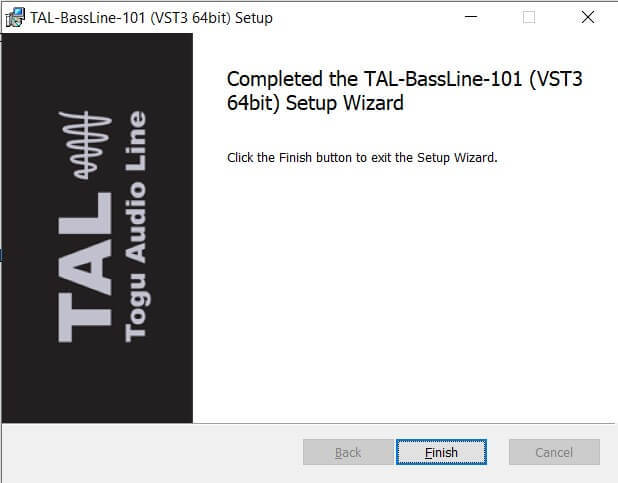
6. Click 'Finish' to complete the software installation.
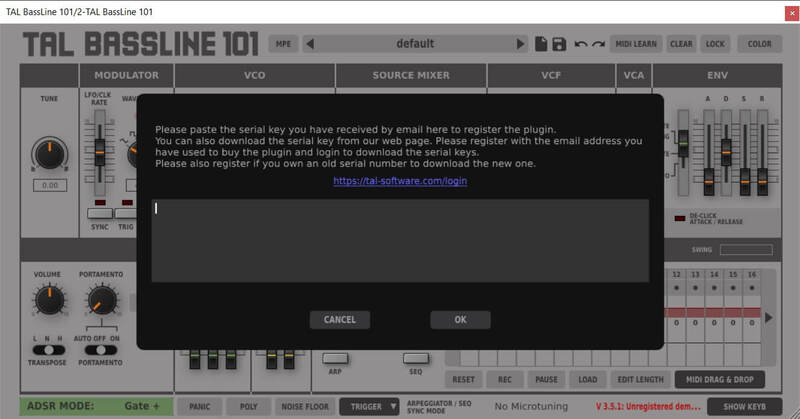
7. Your software is now installed > Open your DAW and load your new software > Copy and paste the serial key from the .txt file you downloaded earlier (available in the TAL User Area) > Click 'OK'.
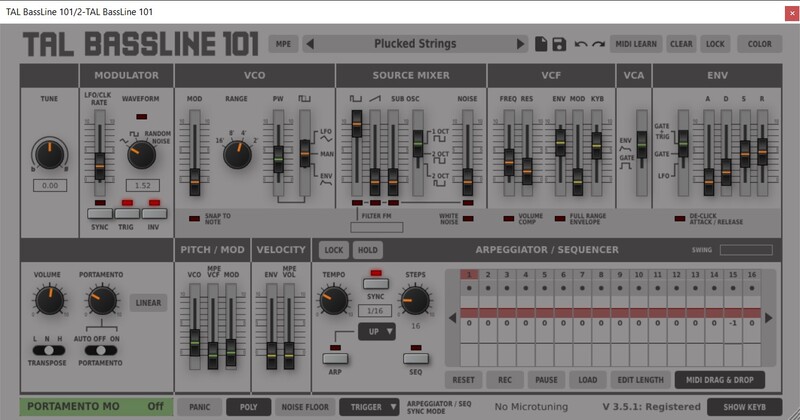
Your software is now activated and ready to use in your DAW.
macOS Installation
1. Click the blue hyperlink after 'Product Page (downloads and manual):' > Download the installer.
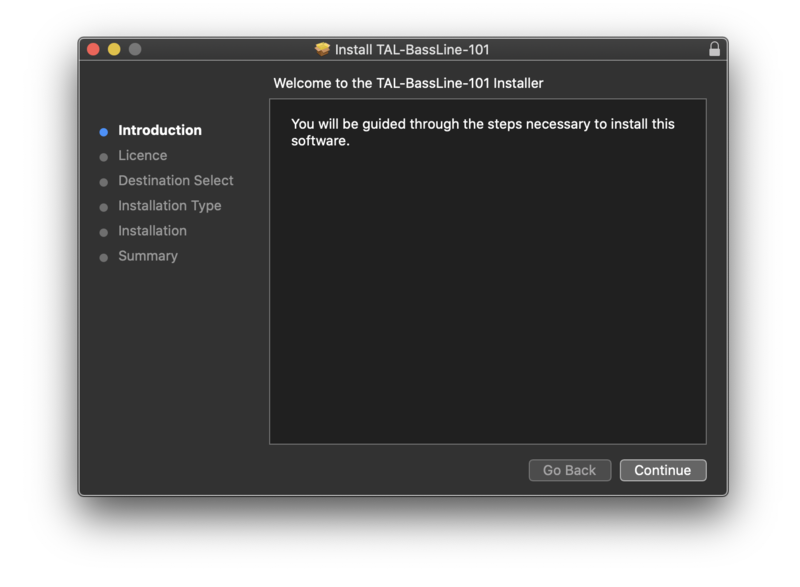
2. Open the .pkg folder you've just downloaded > Click 'Continue'.

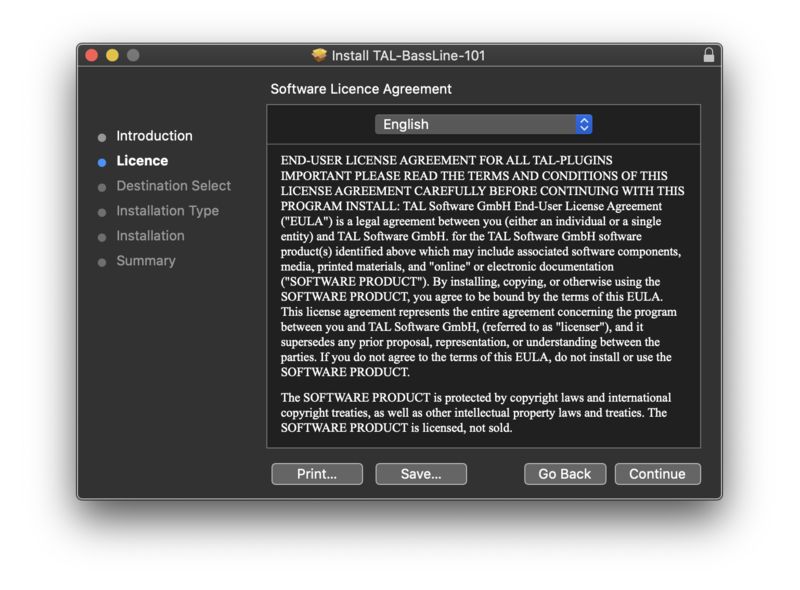
3. Click 'Continue'.

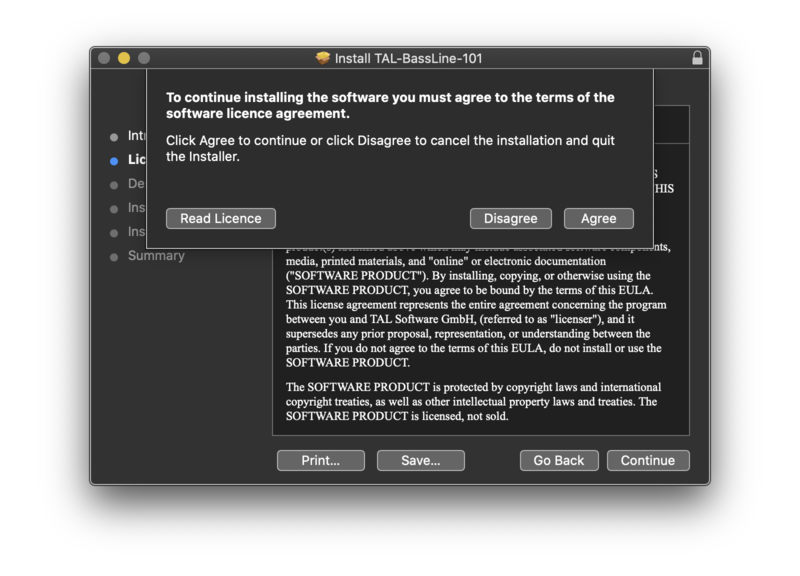
4. Click 'Agree'.

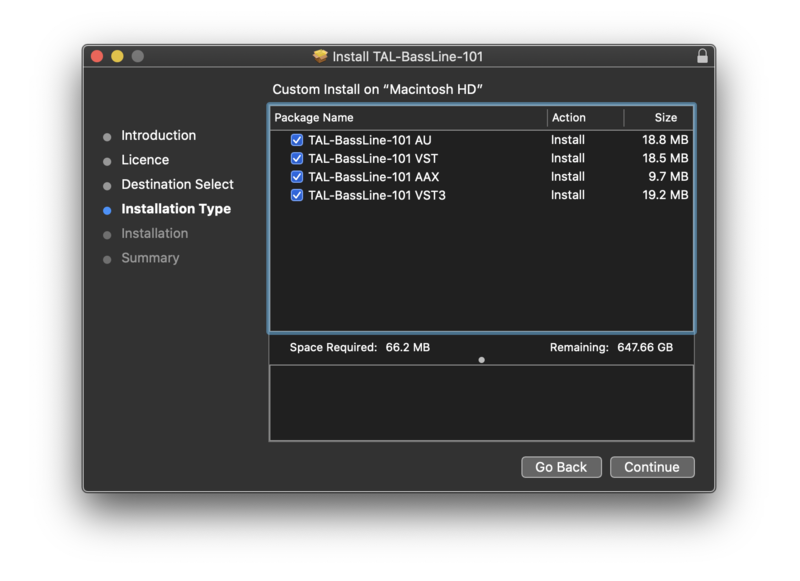
5. Click 'Continue'.

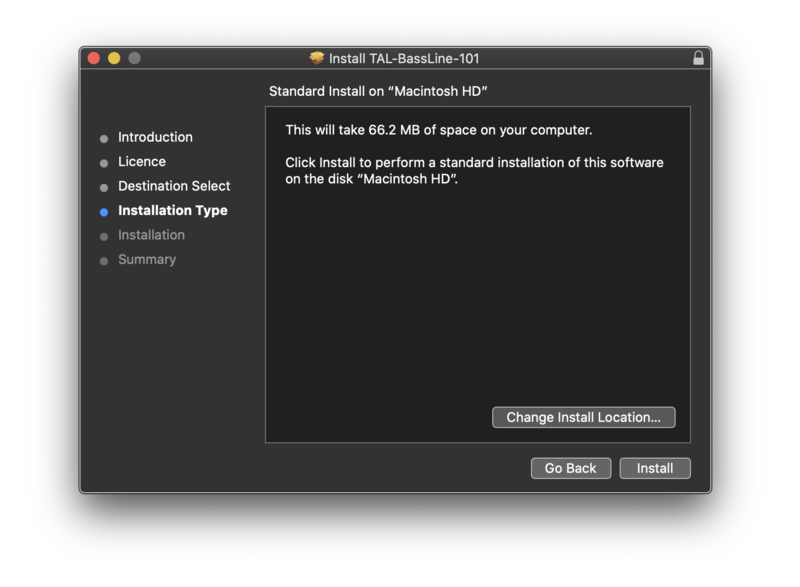
6. Click 'Install'.

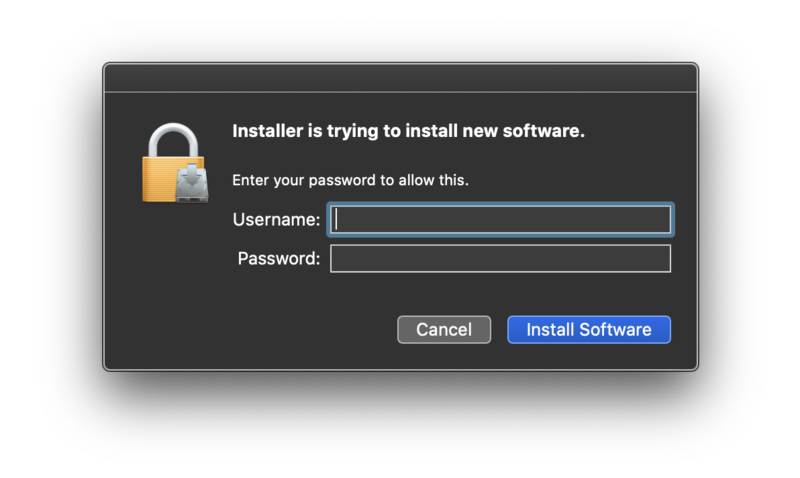
7. Enter your computer Username and Password > Click 'Install Software'.

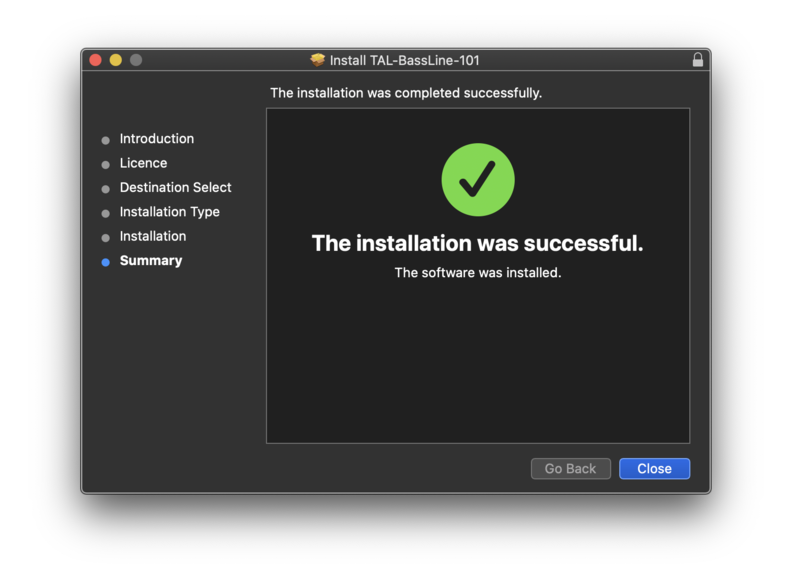
8. Click 'Close'.

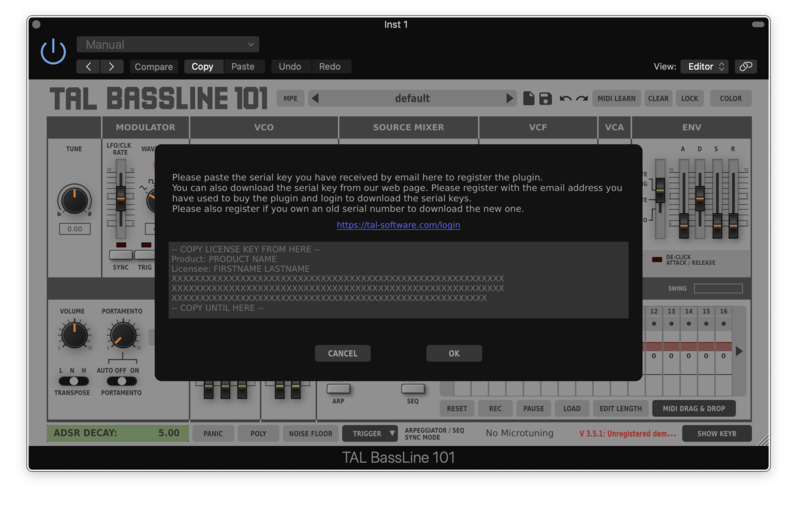
7. Your software is now installed > Open your DAW and load your new software > Copy and paste the serial key from the .txt file you downloaded earlier (available in the TAL User Area) > Click 'OK'.
Your software is now activated and ready to use in your DAW.