Note: Audiority's Driving Force SoundBank is used as the example.
1. Download the zip folder from your User Account.
Note: Ensure that your Omnisphere plugin is not running when downloading the zip folder.

2. Double-click the zip folder to extract and reveal its contents.
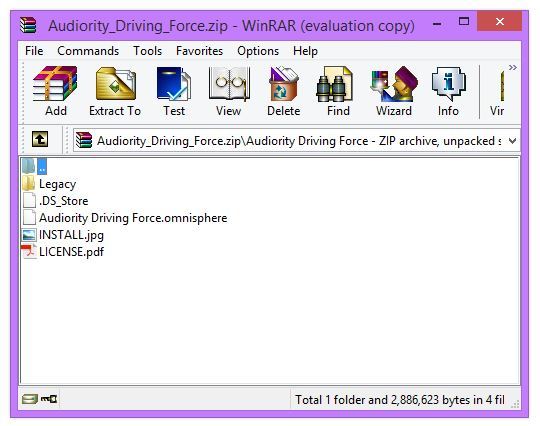
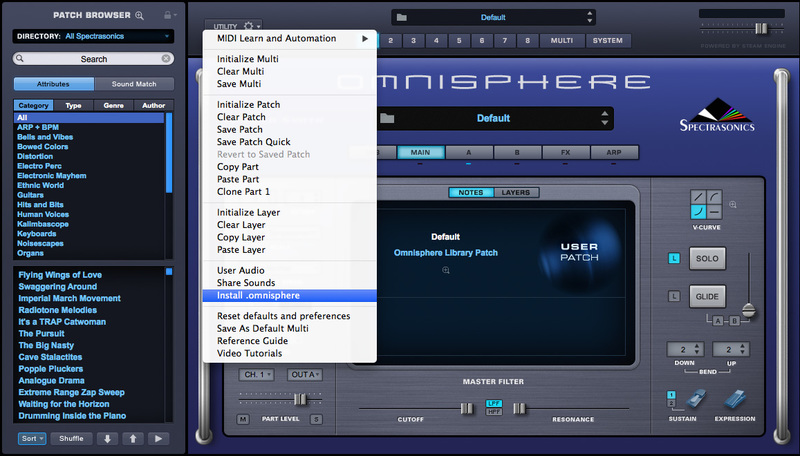
3. Open Omnisphere and click on the 'Utility' menu to select the 'Install .omnisphere' option from the drop-down selection.
4. Select your Audiority SoundBank file (which in this instance is 'Audiority Driving Force.omnisphere') and wait for the installation to complete.
5. The Audiority library appear within the Directory menu, and is now ready for use within Omnisphere.
Legacy Installation
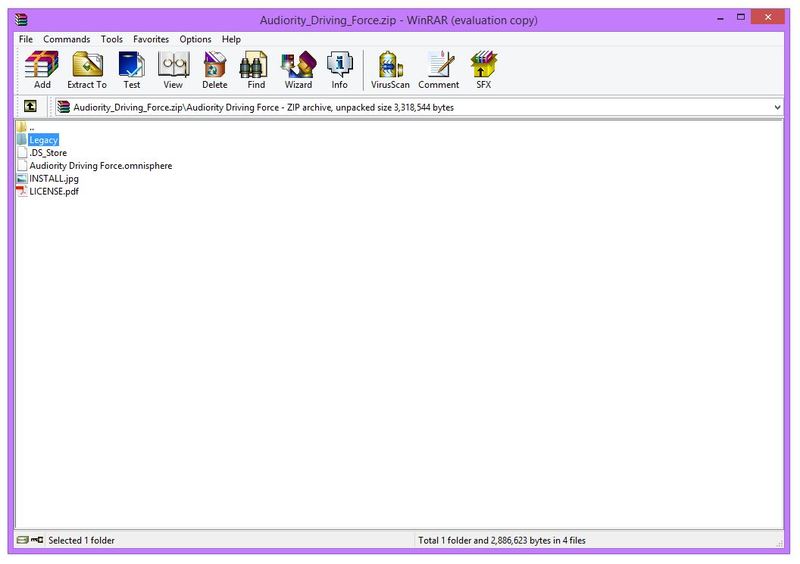
1. If you are installing the Legacy Omnisphere v1 presets, you'll need to locate and open the 'Legacy' presets folder that is available within the zip folder of your product download.
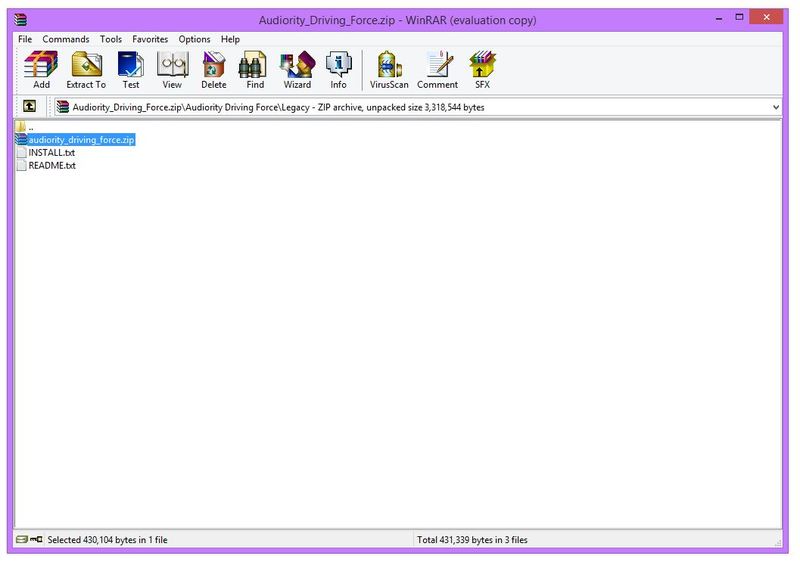
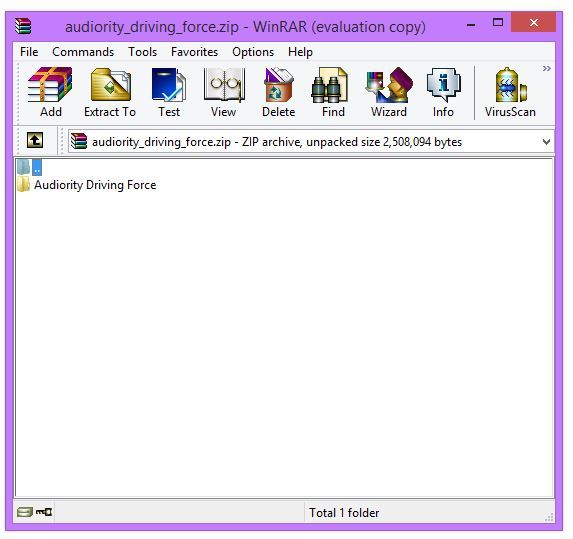
2. Double-click the preset folder (which in this instance is named 'audiority_driving_force.zip' file) to extract and reveal its contents > this action will create a new folder with the name of the soundbank e.g 'audiority_driving_force.'
3. Drag and Drop/Copy the entire folder into your Omnisphere Presets folder.
For PC Computers, the preset folder path is:
- Windows: C:\ProgramData\Spectrasonics\STEAM\Omnisphere\Settings Library\Patches
Note: Program Data is usually located within a hidden folder, so it will be faster to simply Copy and Paste or type the folder path into your computer's address bar.
For Mac Computers, the preset folder path is:
- Mac OSX: Macintosh HD/Library/Application Support/Spectrasonics/STEAM/Omnisphere/Settings Library/Patches
4. Open Omnisphere from your VST selection, and refresh the Patch Library by clicking the circle arrow icon located at the bottom side the VST's Patch Browser.

5. You will now be able to locate and open your Audiority SoundBank via the 'Directory' menu of Omnisphere's browser section.



 Log In


