Buy Serum Expansion Pack: Latin Tech House, get a free gift with purchase:
Please note: These presets are compatible with Serum v1 and v2
Introducing Serum Expansion Pack: Latin Tech House, a complete selection of patches for creating Latin-inspired Tech House with Xfer's Serum.
These 64 Latin American-styled presets will equip you with everything you need to create your next Tech House hit.
Latin Tech has been absolutely dominating in the Tech House scene recently, and it's not hard to see why! Now, you can take the reins, harnessing the very best in signature Latin Tech sounds in your next production.
With a selection of the finest Tech House sounds this side of Buenos Aires, it'll be no time at all before you capture the dreamy melodic elements of Latin Tech House, with a huge range of foot-stompingly thick and punchy bass patches to boot!
It's truly all killer, no filler with this incredible Latin Tech House Serum Expansion.
Features
- 64 presets for Xfer Records Serum
- 20 Basses
- 16 Plucks
- 14 Leads
- 7 FX
System Requirements
- The latest version of Xfer Records Serum
Please note: Cinematic Serum is used as an example as the installation process is identical for all expansions.
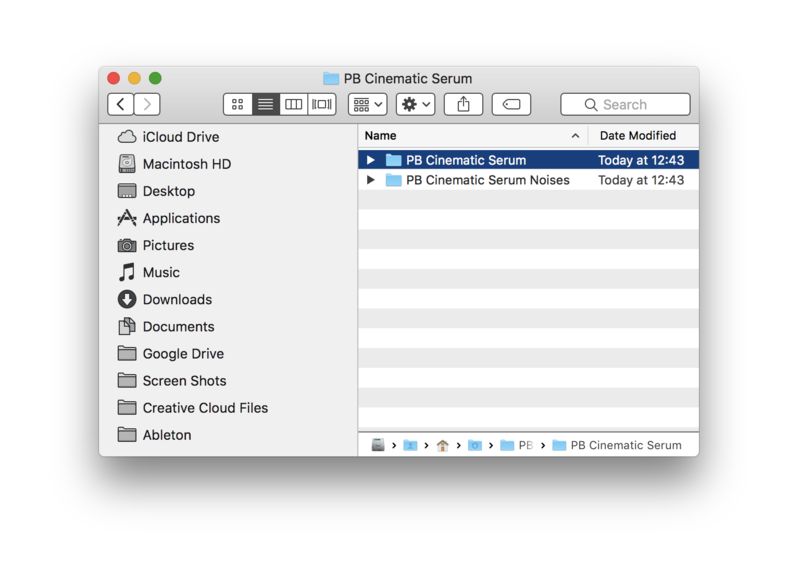
1. Download the .zip folder from within your User Account, and double-click it to reveal its contents.
2. Save the main folder to a computer location of choice, e.g documents or to an external hard drive.
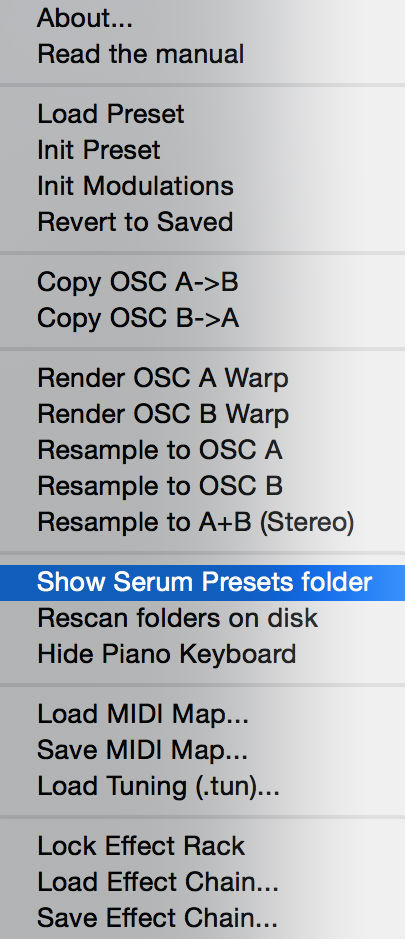
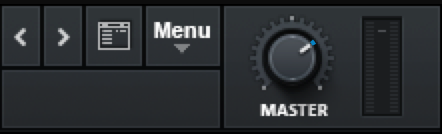
3. Open Serum within your DAW > you need to begin by loading the patches into the ‘Serum Presets’ folder which can be located by clicking ‘Menu’ tab.
Note: The 'Menu' tab is located at the top-right corner of Serum's user interface.

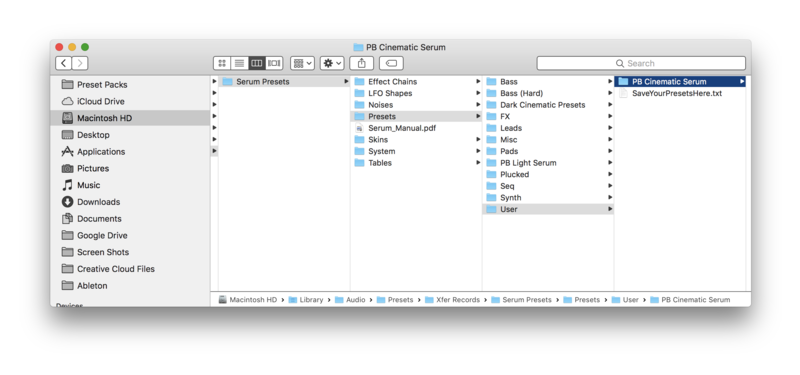
4. Click the ‘Show Serum Presets folder’ option > this will open the location of Serum’s entire available content within the 'Serum Preset' folder directory.

5. Locate the ‘Presets’ folder, then the ‘User’ folder contained within it > Copy and paste the folder titled 'PB Cinematic Serum' into the 'User' folder.


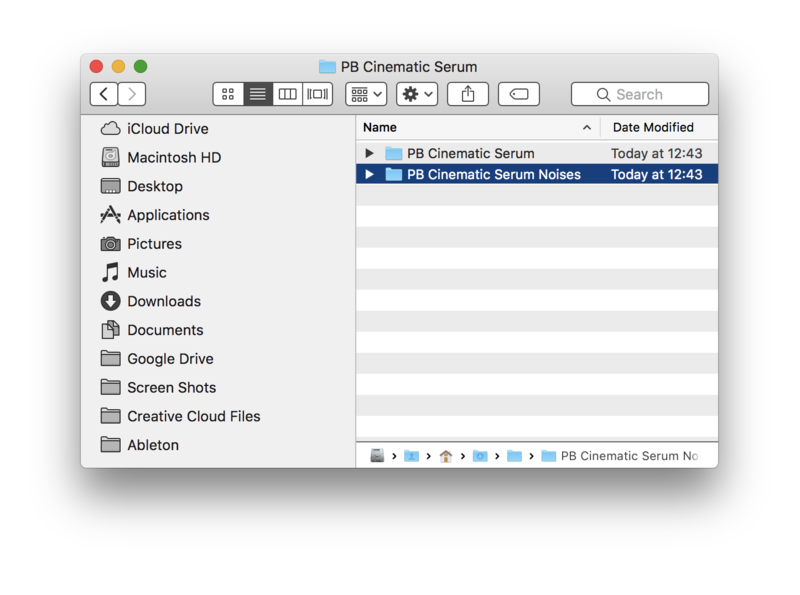
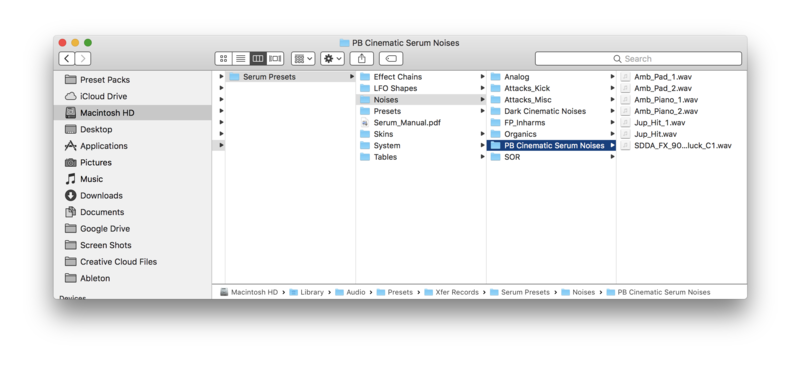
6. Locate the 'Noise' folder > Copy and paste the folder titled 'PB Cinematic Serum Noises' into the 'Noises' folder.


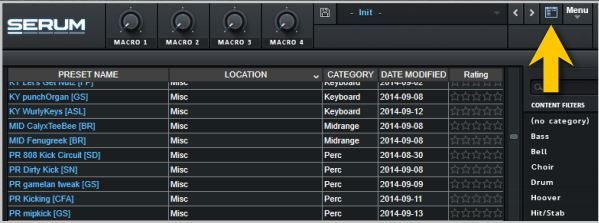
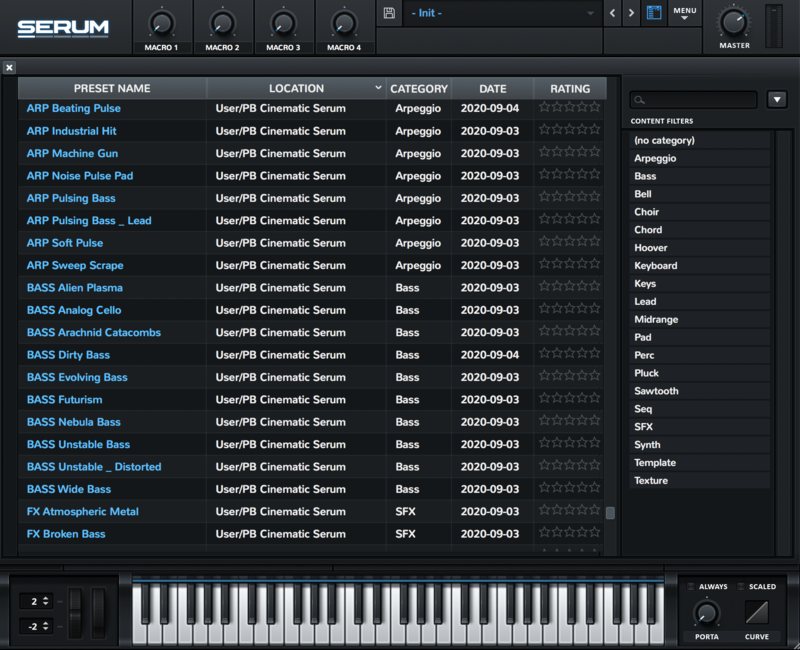
7. Close and reopen Serum before clicking the ‘Browser’ folder icon/tab (as highlighted by the yellow arrow below) on the left-side of the ‘Menu’ tab, and you will then see your presets in the list (as shown below). Double-click your preferred preset to load it into Serum.

The Presets are now Ready for Use Within Serum!