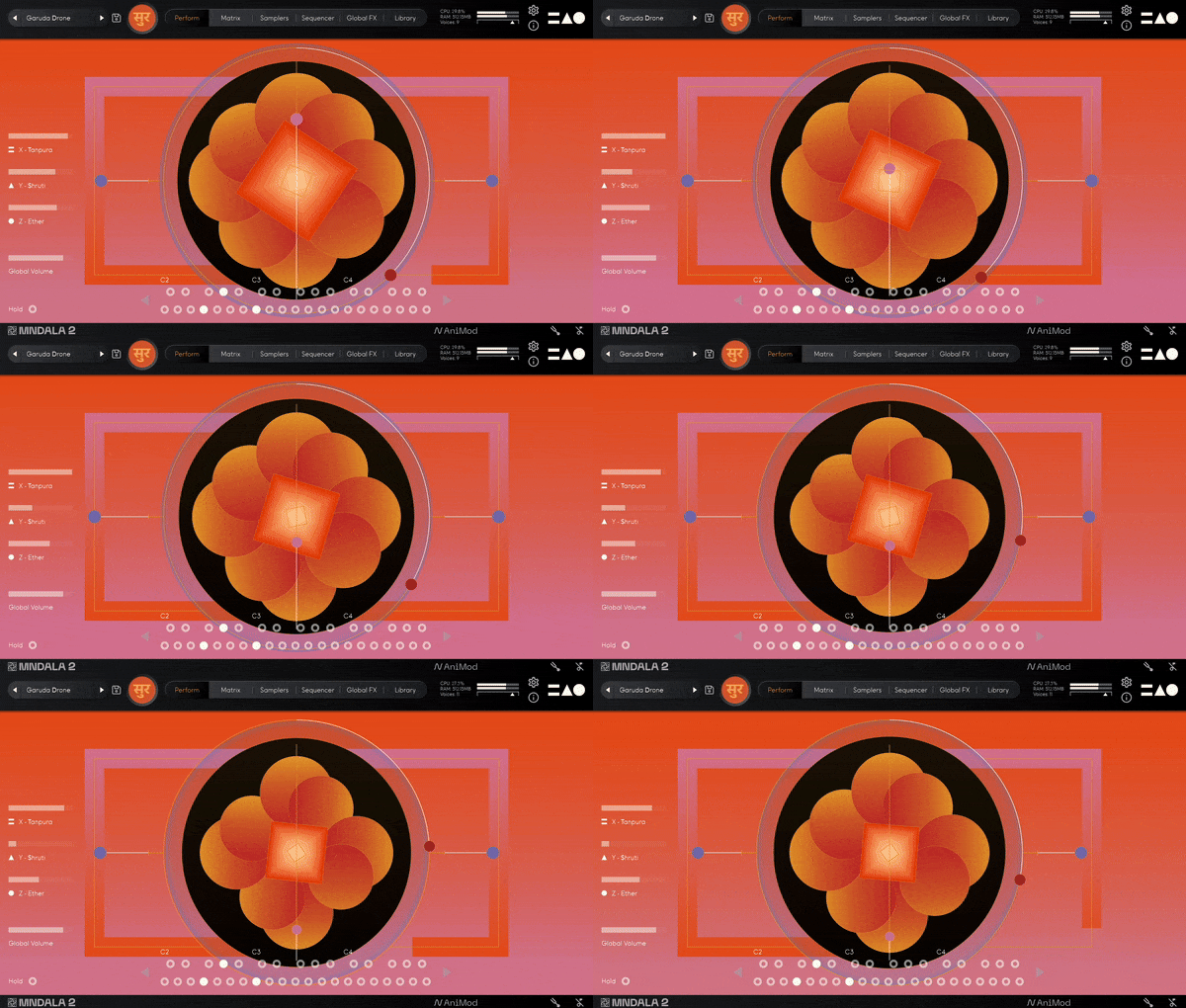
Please note: Huracan is used as an example. You will need to install the MNDALA 2 engine to use Mirage.
Mac
1. Download the MNDALA 2 Engine installer from your Plugin Boutique User Account > Extract the .zip archive > Launch the .pkg installer.

2. Click 'Continue'.
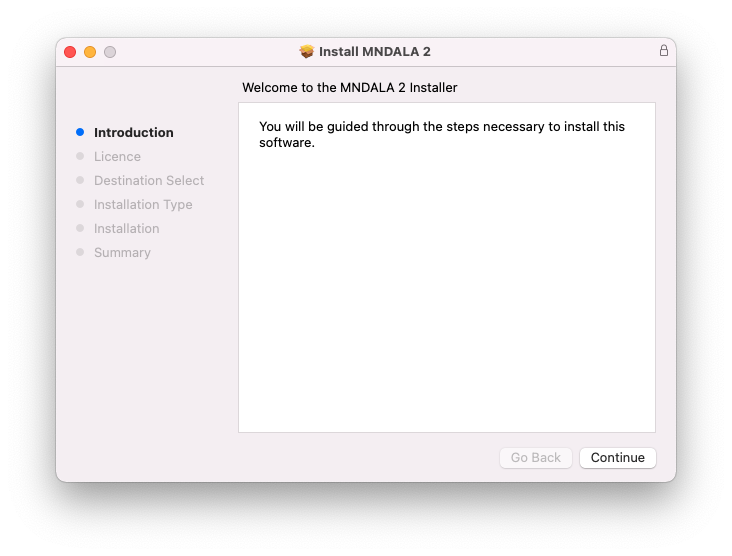
3. Click 'Continue'.
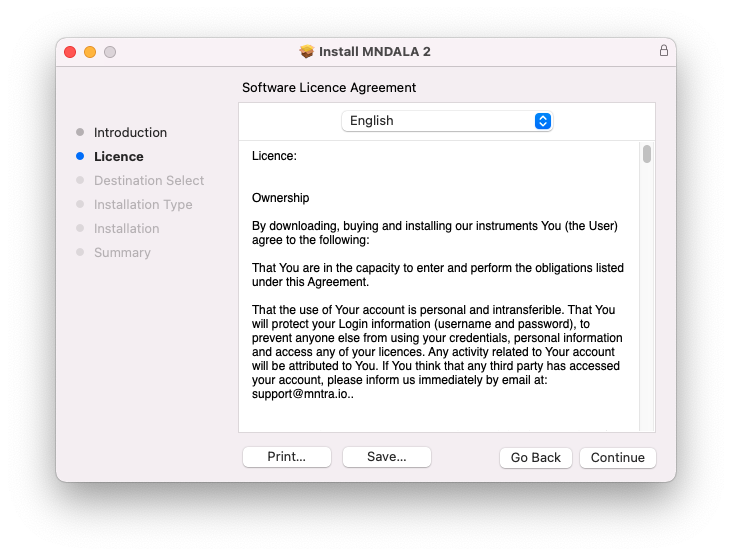
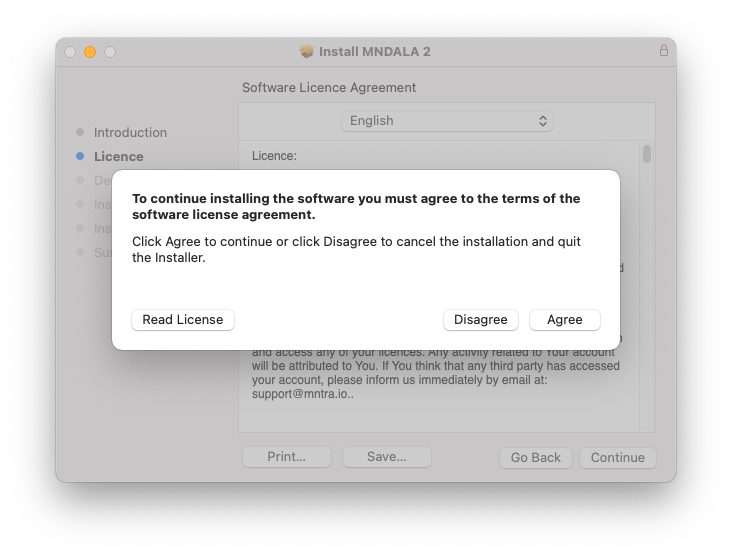
4. Click 'Agree'.
5. Click 'Continue'.
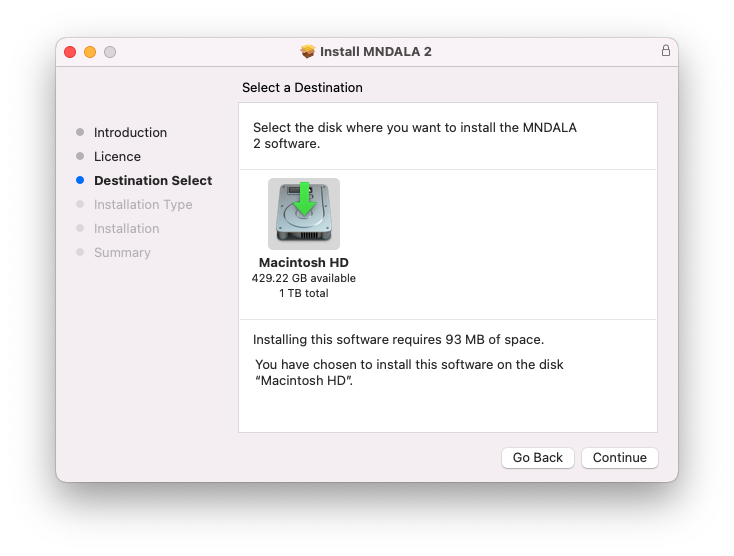
6. Click 'Install'.
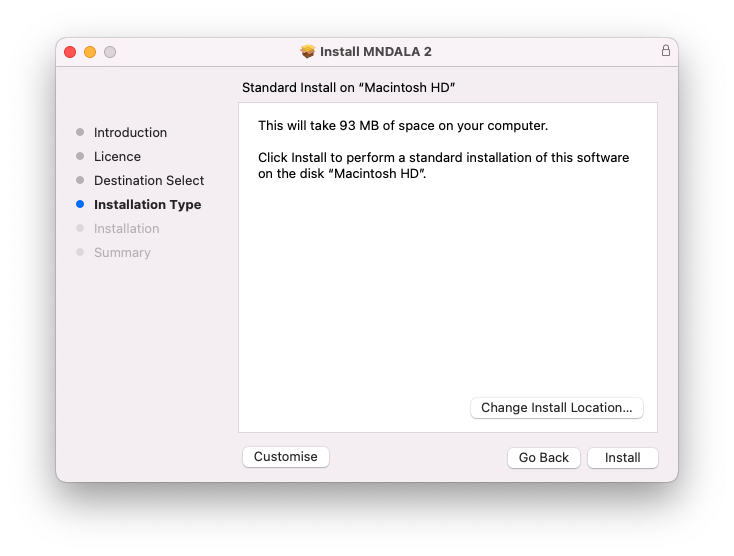
7. Click 'Install Software'.
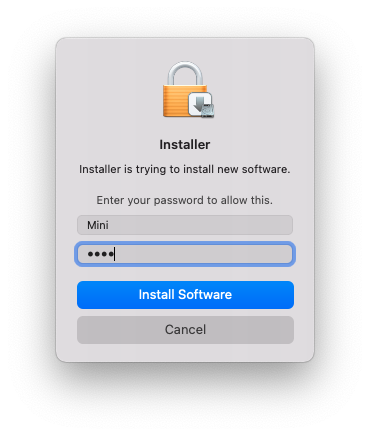
8. Click 'Close'.
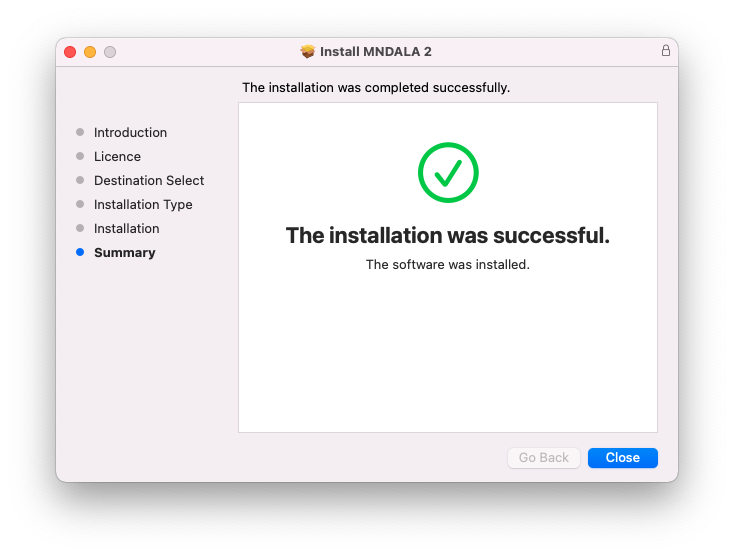
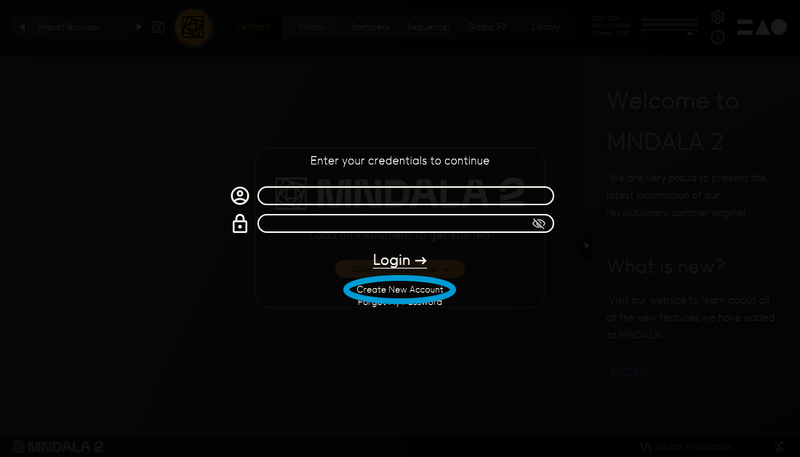
9. Launch your DAW > Insert MNDALA 2 on a new instrument track > Click 'Create New Account' (If you have an existing MNTRA Instruments log in and skip to step 15).
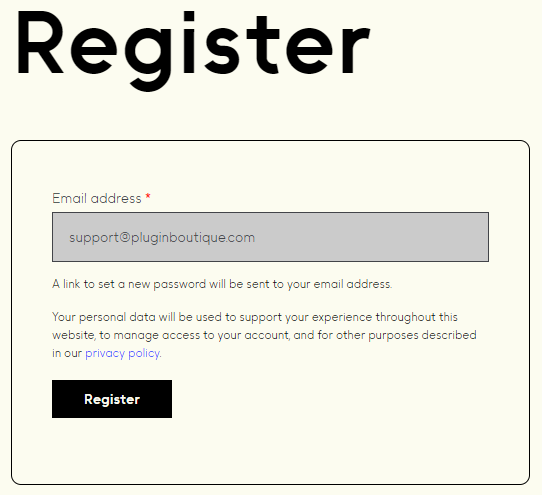
10. Enter your email address and click 'Register'.
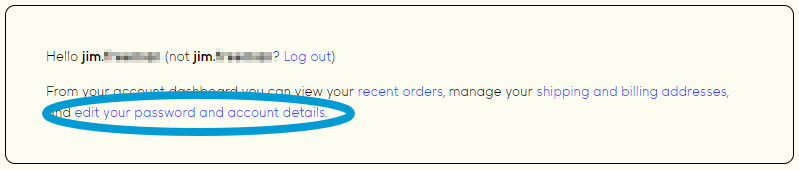
11. A MNTRA account has now been created > Click 'edit your password and account details' to create a password for your MNTRA account.
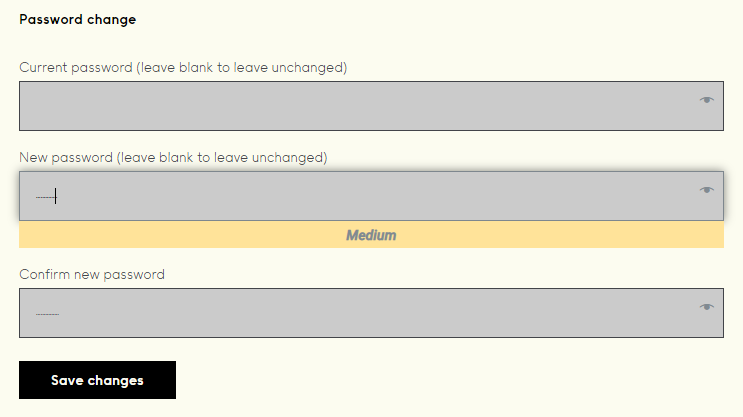
12. Enter your chosen password into the 'New password' box > Enter your password again into the 'Confirm new password' box > Click 'Save changes'.
13. Enter your MNTRA account details > Click 'Login'.
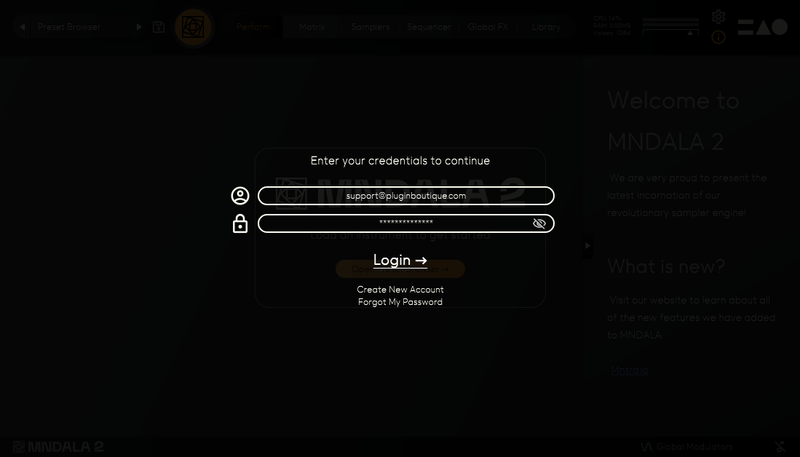
14. You are now logged into the MNDALA 2 Engine > Click 'Library' to continue to activate Huracan.
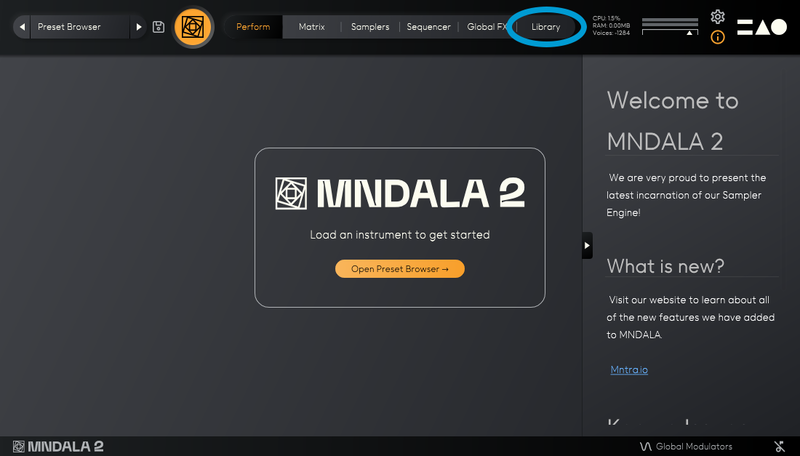
15. Click 'Add From Serial'.
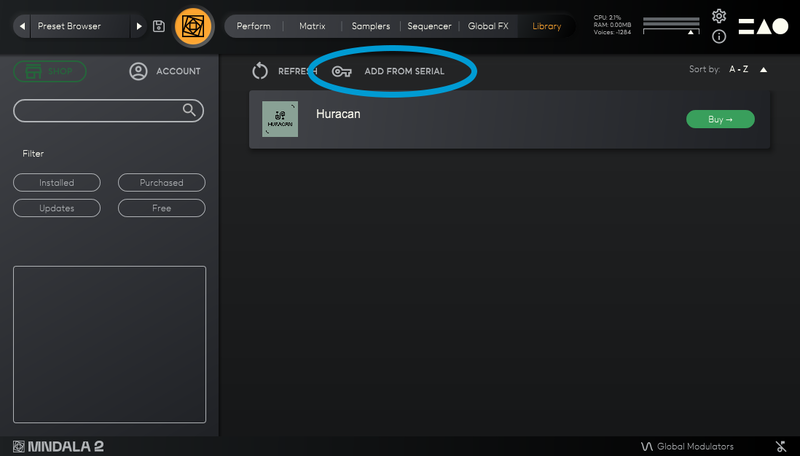
16. Enter your serial number found within your Plugin Boutique User Account > Click 'Enter'.
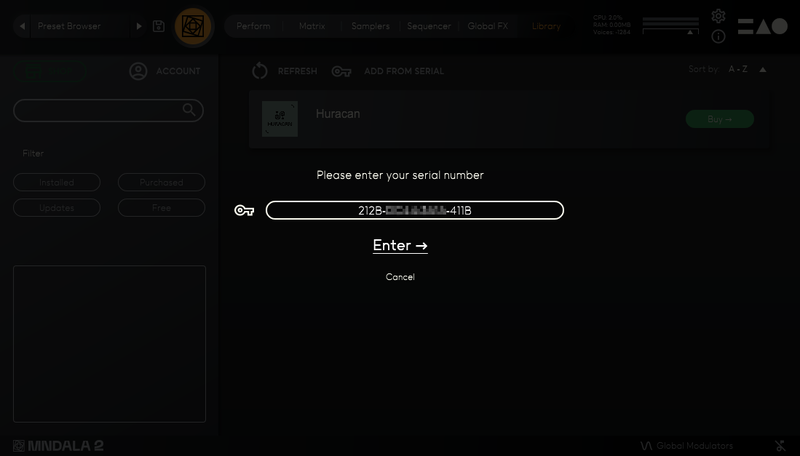
17. Click 'OK'.
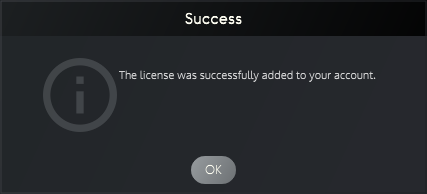
18. Click 'Install'.
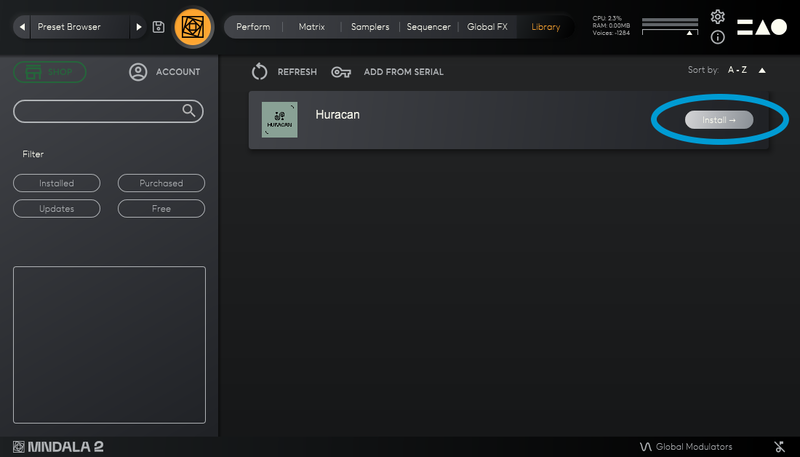
19. Click 'OK' > Choose a location to store the instruments samples.
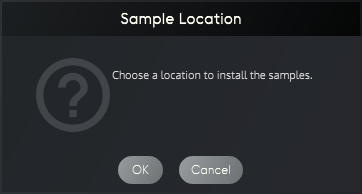
20. Huracan is now downloading (this may take a few minutes).
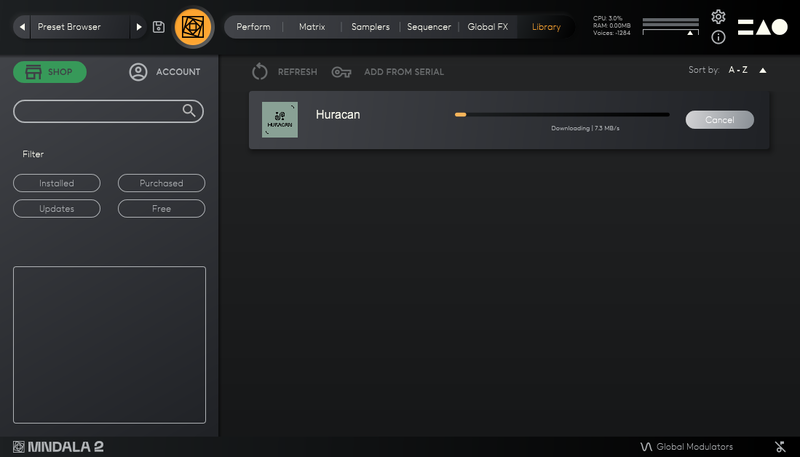
21. Click 'OK'.
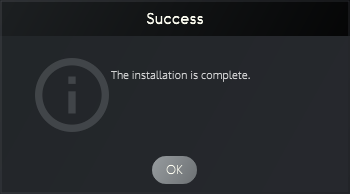
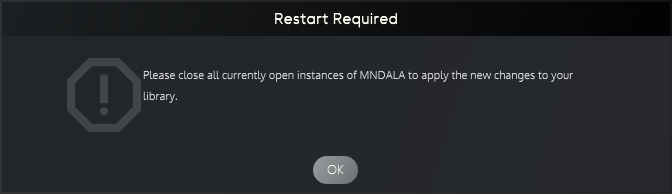
22. Click 'OK' > Close and relaunch your DAW.
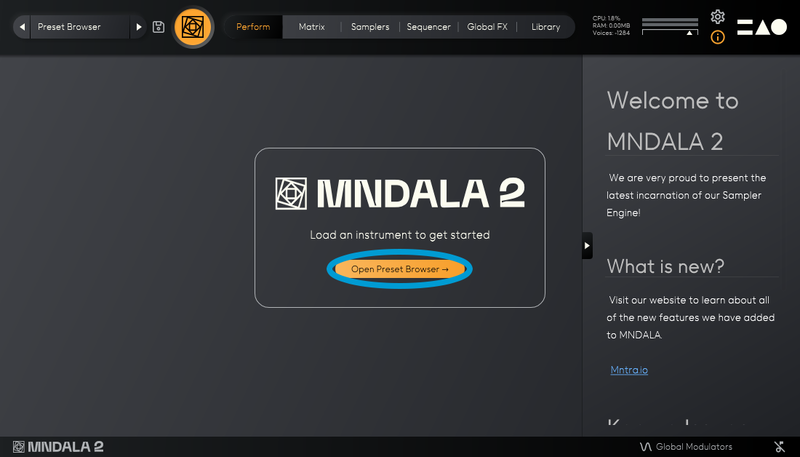
23. Insert MNDALA 2 on a new instrument track > Click 'Open Preset Browser'.
24. Select 'Huracan' then choose a preset.
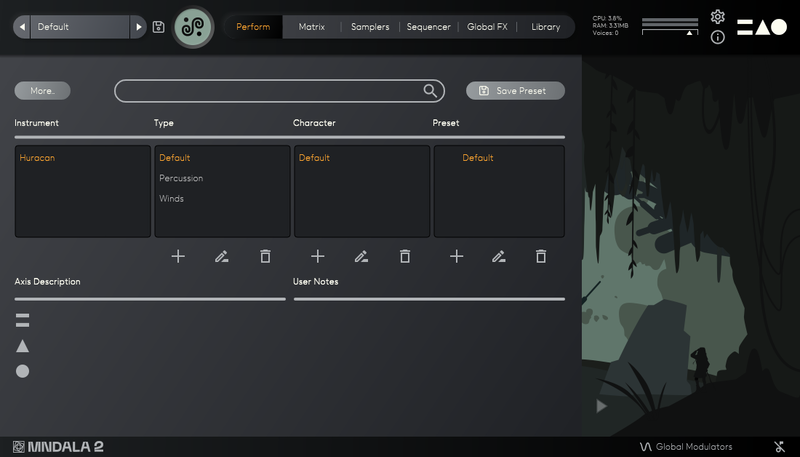
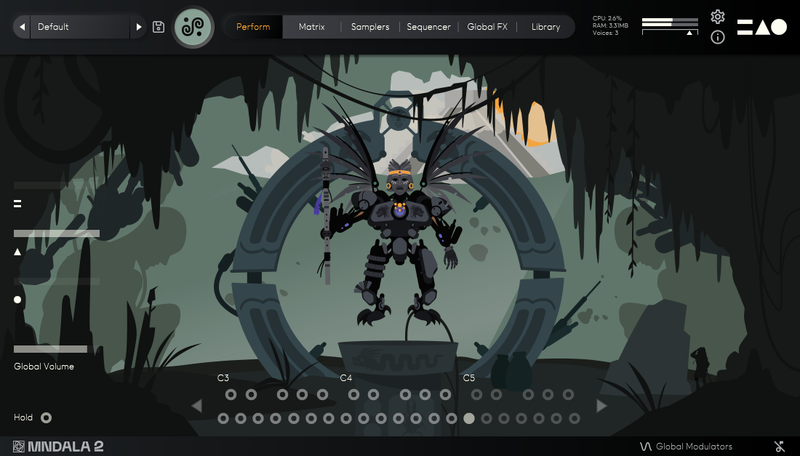
Huracan is now installed, activated, and ready to use.
Windows
1. Download the MNDALA 2 Engine installer from your Plugin Boutique User Account > Extract the .zip archive > Launch the .exe installer.

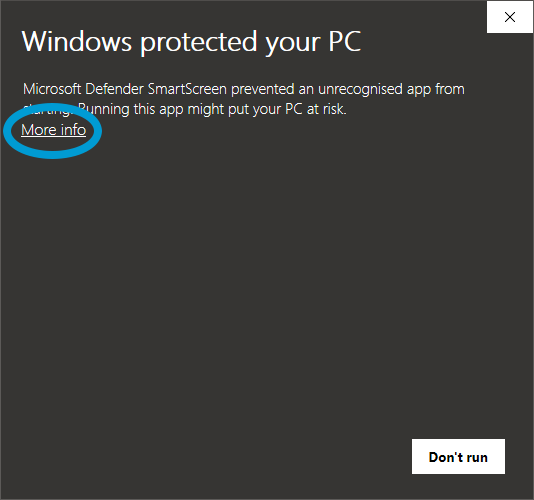
2. Click 'More info'.
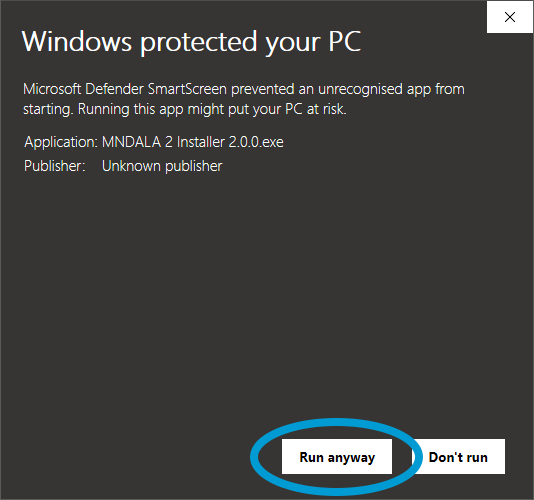
3. Click 'Run anyway'.
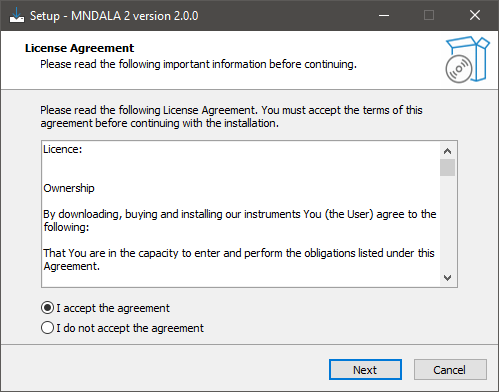
4. Accept the license agreement > Click 'Next'.
5. Click 'Next'.
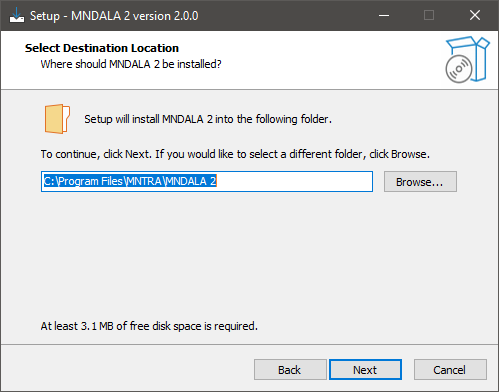
6. Click 'Next'.
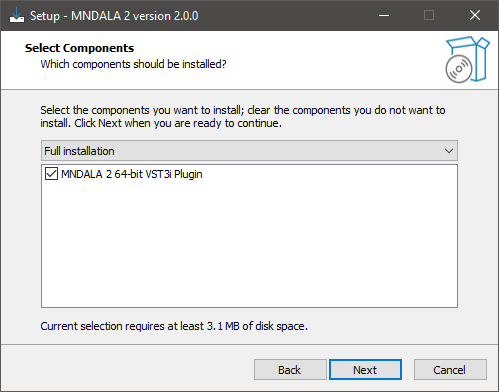
7. Click 'Next'.
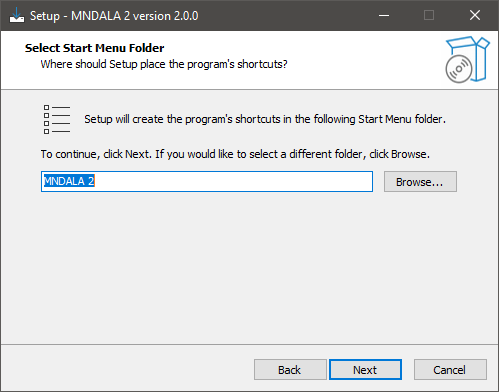
8. Click 'Install'.
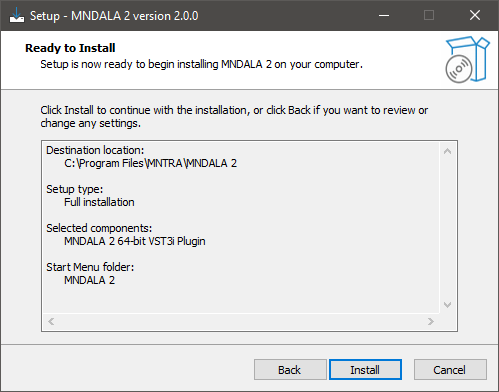
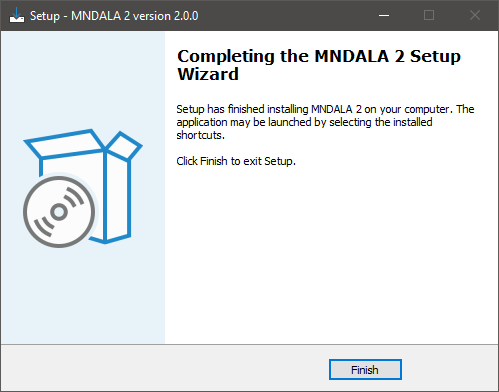
9. Click 'Finish'.
10. Launch your DAW > Insert MNDALA 2 on a new instrument track > Click 'Create New Account' (If you have an existing MNTRA Instruments log in and skip to step 15).
11. Enter your email address and click 'Register'.
12. A MNTRA account has now been created > Click 'edit your password and account details' to create a password for your MNTRA account.
13. Enter your chosen password into the 'New password' box > Enter your password again into the 'Confirm new password' box > Click 'Save changes'.
14. Enter your MNTRA account details > Click 'Login'.
15. You are now logged into the MNDALA 2 Engine > Click 'Library' to continue to activate Huracan.
16. Click 'Add From Serial'.
17. Enter your serial number found within your Plugin Boutique User Account > Click 'Enter'.
18. Click 'OK'.
19. Click 'Install'.
20. Click 'OK' > Choose a location to store the instruments samples.
21. Huracan is now downloading (this may take a few minutes).
22. Click 'OK'.
23. Click 'OK' > Close and relaunch your DAW.
24. Insert MNDALA 2 on a new instrument track > Click 'Open Preset Browser'.
25. Select 'Huracan' then choose a preset.
Your software is now ready to use!


 Log In