


Buy Digital Sins Chromaphone 3 Sound Bank, get a free gift with purchase:
Daniel Stawczyk dropped Digital Sins and everything stopped. We found ourselves enthralled in an altered universe where Chromaphone 3 acted as a classic digital synthesizer. The 144 presets definitely gave us a retro-futuristic vibe. We discovered focused, bright, metallic, and percussive sounds that AAS considered truly distinctive. It felt a bit unusual considering the intrinsic acoustic grain of Chromaphone 3. And we didn’t suspect we could indulge so much of the digital aesthetics with it. The excursion was a real treat.
Features:
- 18 Basses
- 11 Bells
- 15 Keys
- 11 Chords
- 45 Synths
- 10 Soundscapes
- 35 Effects
System Requirements
This preset collection can be used with the free AAS Player plug-in as well as the Chromaphone 3 analogue synthesizer.
After you have installed the sound bank, there are two options to use it:
- Chromaphone 3 - Reverence will automatically be added to Chromaphone 3 if it is installed on your computer.
- AAS Player - If you don't own Chromaphone 3, you will be able to play Reverence from the AAS Player plug-in or standalone application.
Please note: Objeq Delay is used as an example as the installation process is the same for all Applied Acoustics Systems products.
Registration
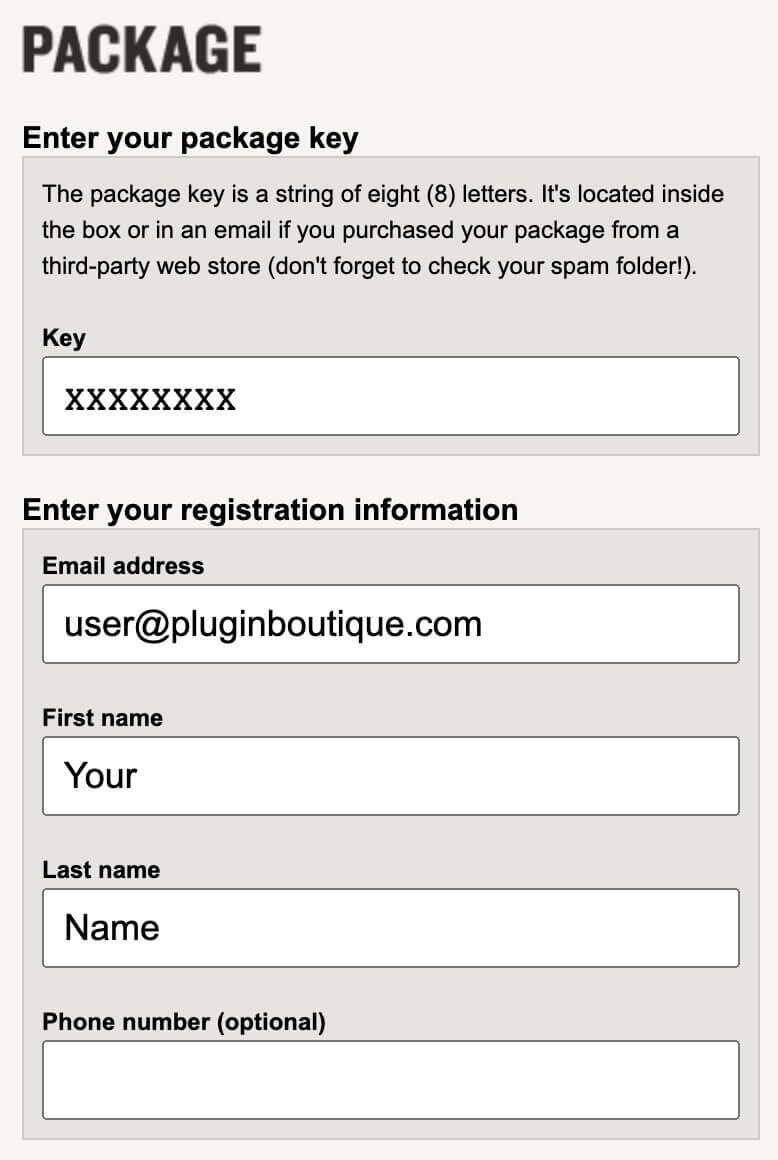
1. Copy and paste the URL which is listed as the ‘Serial Number’ in your account into your browser search bar and click enter.

2. Enter your email address and name (the key will have been automatically entered).
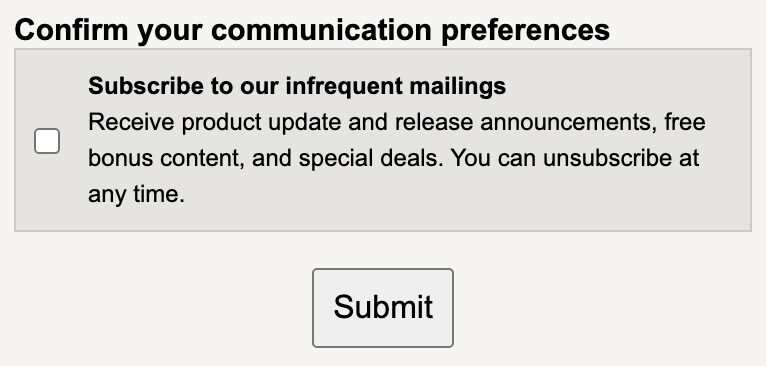
3. Choose your communication preferences > Click 'Submit'.
Mac Installation
1. Download the Mac Installer.

2. Open the ZIP folder you’ve just downloaded > Double click the PKG installer file.
3. You may see this message - if so, please click 'Open'.

4. Click 'Continue'.

5. Read the Software License Agreement > Click 'Continue'.

6. Click 'Agree'.

7. Click 'Install'.

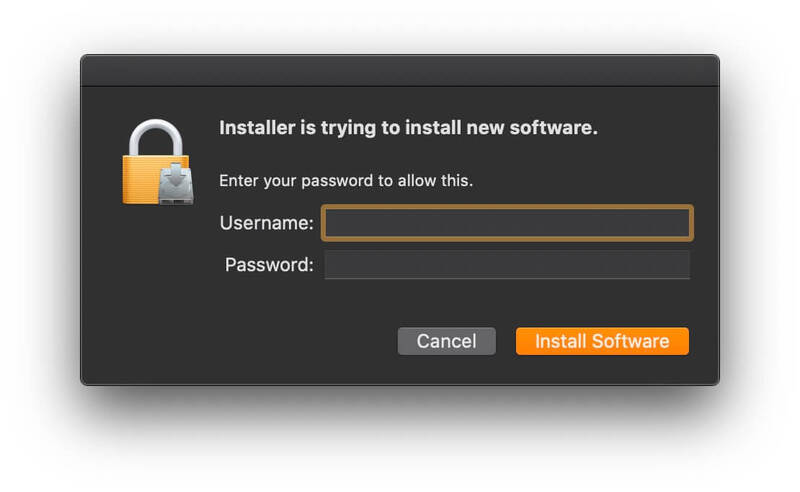
8. Tap your fingerprint or enter your password.
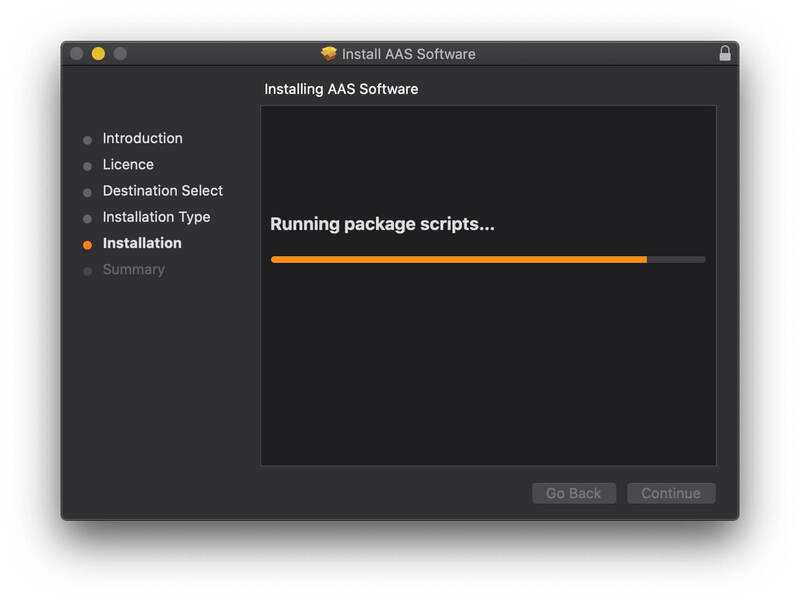
9. Your software will now install.
10. Open your new software in your DAW (you may need to restart your Mac and/or rescan your plugins).

Your software is now ready to use within your DAW!
Windows Installation
1. Download the Windows Installer.
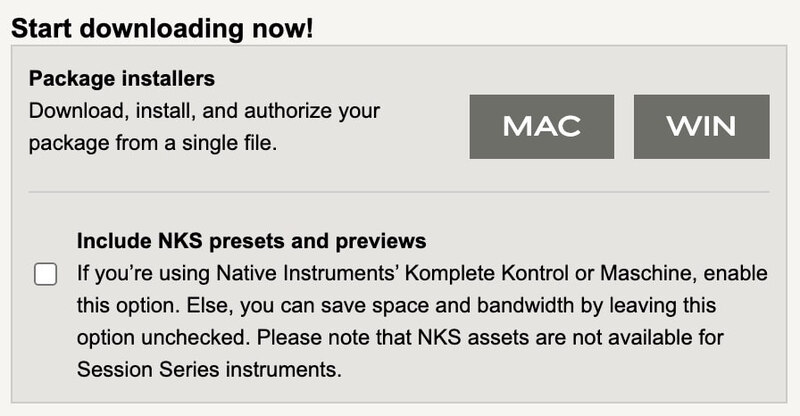
2. Open the ZIP file you’ve just downloaded > Double click the Setup file.
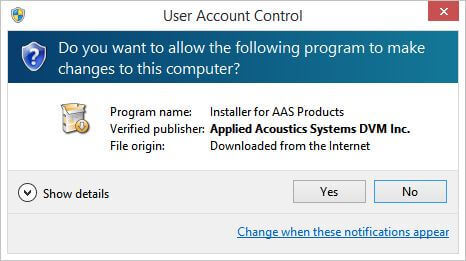
3. Click 'Yes' to allow the installation to run.
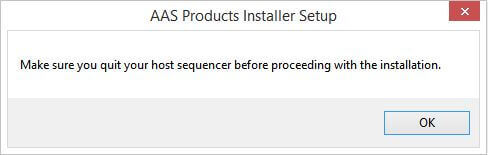
4. Close your DAW if it’s open > Click 'OK'.
5. Read the License Agreement > Click ‘I Agree’.

6. Choose the install location (we recommend leaving it as the default).

7. Your software will now install.
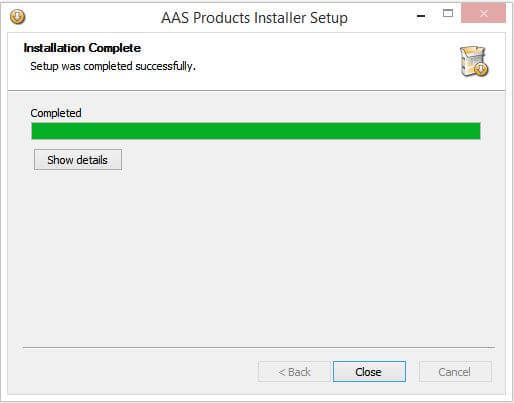
8. The installation is now complete > Click 'Close'.
9. Open your new software in your DAW (you may need to restart your Mac and/or rescan your plugins).
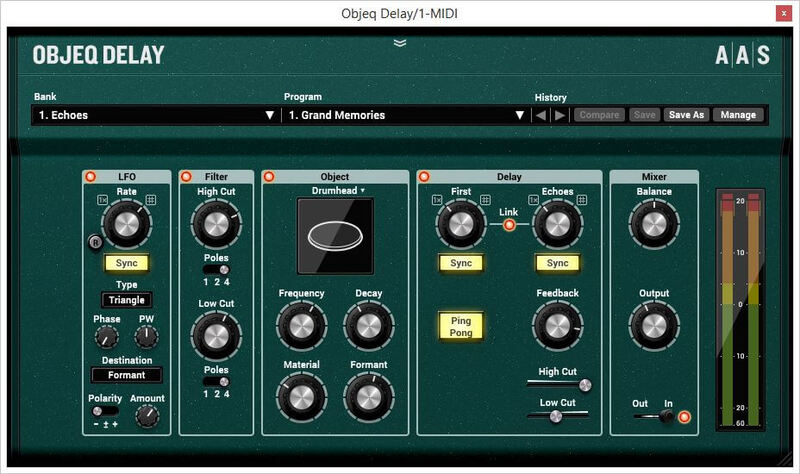
Your software is now ready to use within your DAW!


