Log In

Free gifts available with your purchase
AAS sound designer newcomer Niall McCallum presents Hover, a brand new collection of presets showcasing and celebrating the wide-ranging sonic capabilities of Chromaphone 3. Playing to Chomaphone's strengths with an intricate choice of tuned percussion and sturdy drums, deep mallets, rich keys, driving basses, the pack's 100 presets also wander into creative territory with sets of shimmering reverb and delay-drenched guitar-like synths, sweeping sound effects, and dusty analogue synthesizer tones. At its core, Hover highlights the vibe and character of the chillwave and downtempo sub-genres.
Who's Niall McCallum?
Niall McCallum is the co-founder of ModeAudio, a small but passionately dedicated team of sound designers and music lovers based in the UK, specializing in music loops, samples, and bespoke preset design for some of the world's best-loved music technology. Niall and his team's credits include a wide selection of drum and percussion samples that comes pre-packaged with FL Studio, and custom sound design for Native Instruments, Bitwig, Intua, and many others.
What's included with my purchase?
- Preset bank for Chromaphone 3
- AAS Player plug-in (VST, AU, AAX, RTAS)
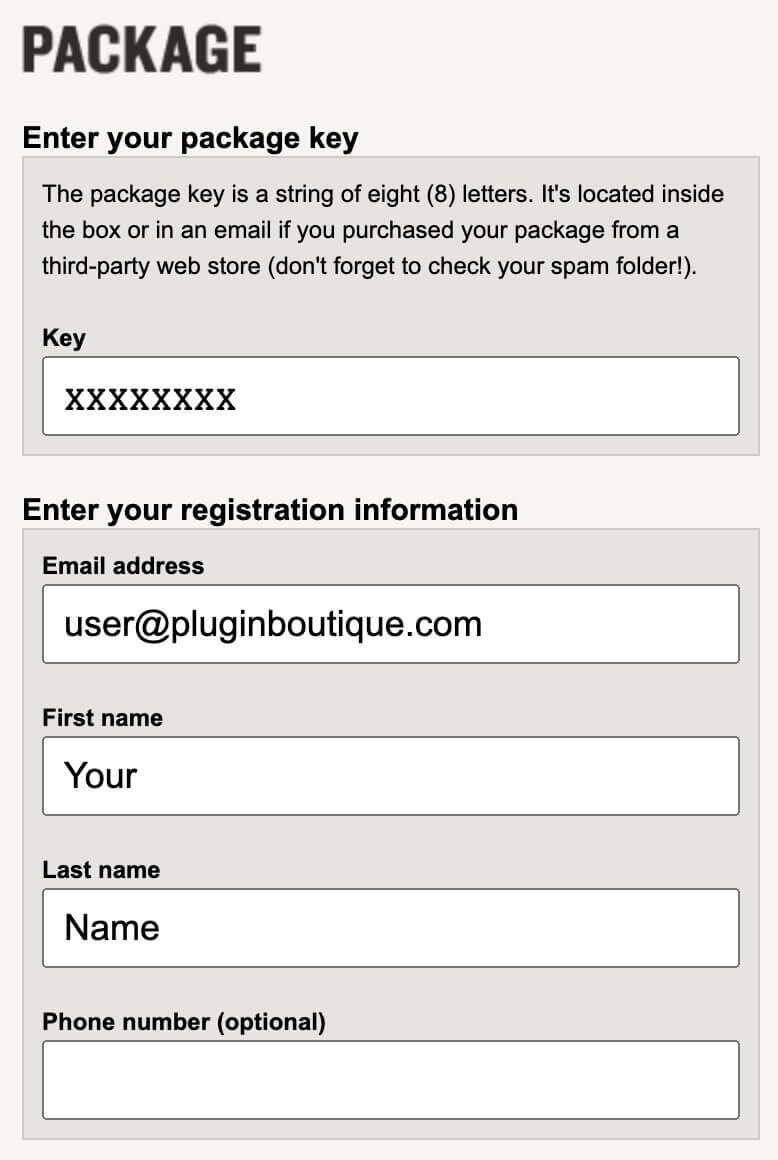
- Serial number
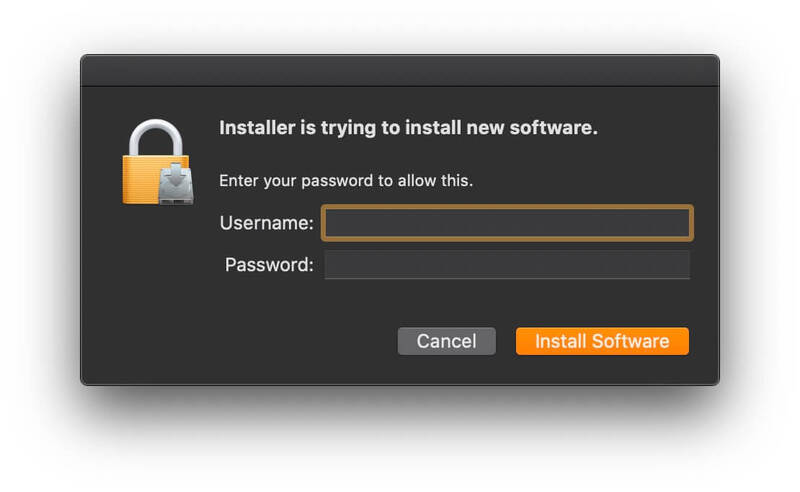
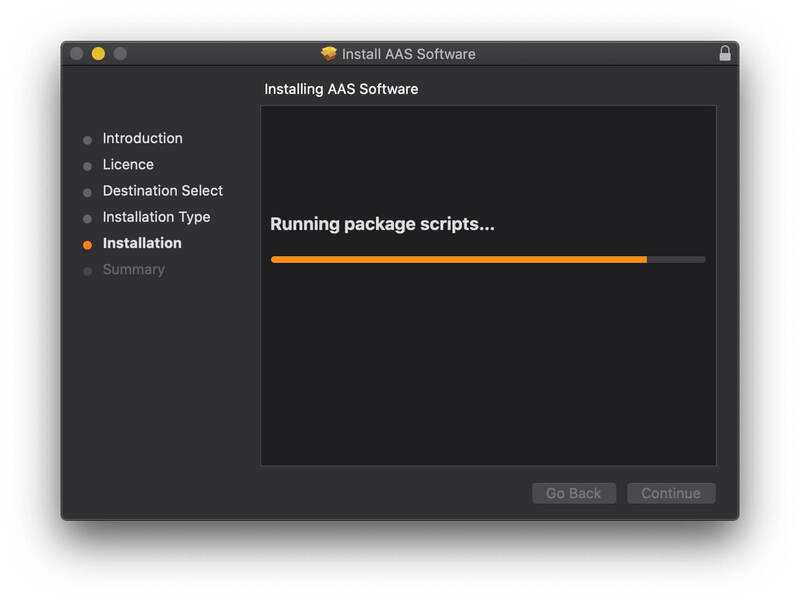
- Installation instructions
System Requirements
This preset collection can be used with the free AAS Player plug-in as well as the Chromaphone 3 analogue synthesizer.
After you have installed the sound bank, there are two options to use it:
- A. Chromaphone 3 - Octagon will automatically be added to Chromaphone 3 if it is installed on your computer.
- B. AAS Player - If you don't own Chromaphone 3, you will be able to play Octagon from the AAS Player plug-in or standalone application.